
Requirements
| Minimum | Tested up to | |
|---|---|---|
| WordPress | 6.7 | 7.1 |
| PHP | 7.4 | – |
| WooCommerce | 9.6 | 11.2 |
Install
- Download
foliowick-<version>.zipfrom your WPRuby account. Don’t unzip it. - In WordPress, go to Appearance → Themes → Add New Theme → Upload Theme.
- Choose the ZIP, click Install Now, then Activate.
- Install and activate WooCommerce if it isn’t active yet.
The setup checklist
Appearance → Foliowick is the theme’s own screen. It starts with a checklist of what your bookshop still needs, ticked off as you go:
| Step | Done when |
|---|---|
| Add your books | You have at least one published product |
| Create the Author attribute | A global attribute with the slug book-author exists, with archives enabled. See Authors |
| Write an author biography | An author has a biography, so “Meet the Author” can show them |
| Illustrate your genres | Every genre shown on the homepage has a category image |
| Feature books for the hero | At least one book is featured |
| Choose an Editor’s Pick | A book is tagged editors-pick |
| Build reading lists | You have a product tag with books |
| Turn on a payment method | A payment method is enabled |
| Set up shipping | You have a shipping zone (ebooks and audiobooks need none) |
| Add your logo | The site has a logo, or you keep the typographic wordmark |
| Give the journal its own page | Your homepage is a static page and you’ve set a posts page. See The journal |
| Connect a newsletter | Optional: a newsletter provider is set up. See Newsletter |
| Activate your licence | Optional: your licence is active |
Each step has a button that takes you to the right screen.
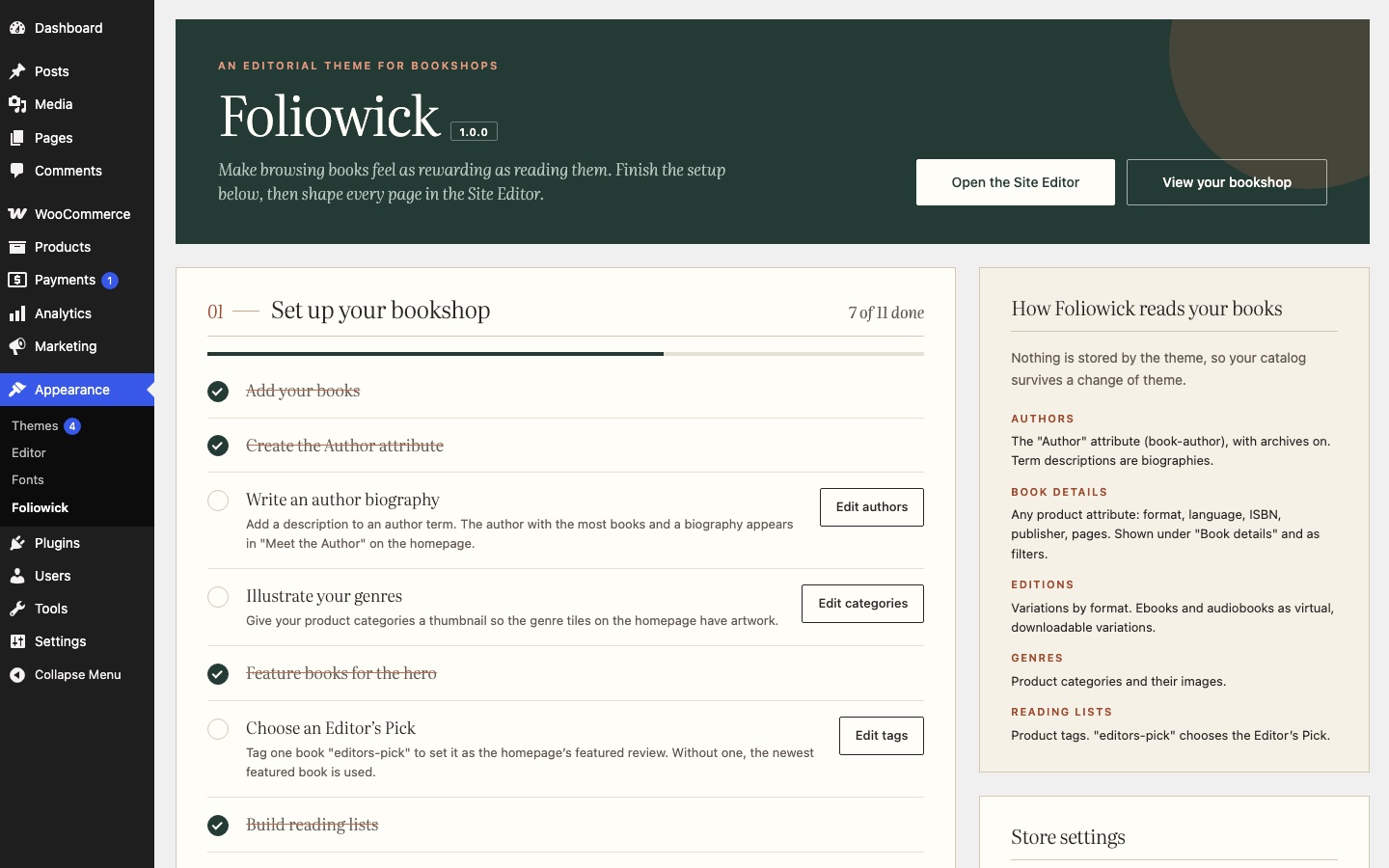
The same screen has shortcuts into the Site Editor, a preview of every style variation, the demo stores, the licence and help links.
Customizations that survive updates
Changes you make in the Site Editor are saved in your site’s database, so theme updates don’t overwrite them.