
Requirements
| Minimum | Tested up to | |
|---|---|---|
| WordPress | 6.7 | 7.1 |
| PHP | 7.4 | – |
| WooCommerce | 9.6 | 11.2 |
Install
- Download
formafern-<version>.zipfrom your WPRuby account. Don’t unzip it. - In WordPress, go to Appearance → Themes → Add New Theme → Upload Theme.
- Choose the ZIP, click Install Now, then Activate.
- Install and activate WooCommerce if it isn’t active yet.
The Formafern screen
Appearance → Formafern is the theme’s own screen. At the top, Open the Site Editor and View your store take you straight to the design and the shop.
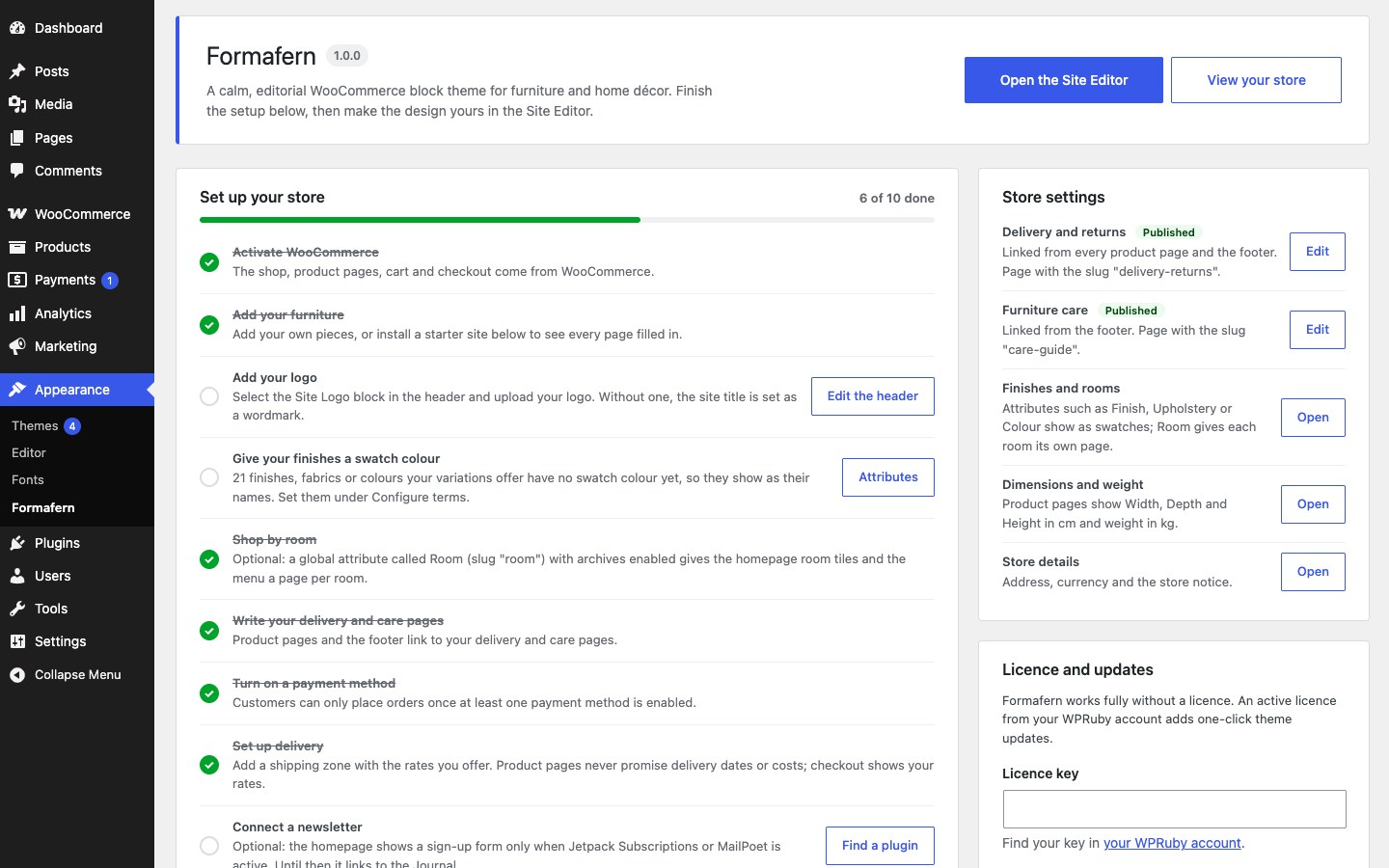
Set up your store
A checklist that reads your store as it is, so steps tick themselves off as you finish them, with a link to the right screen for each one left:
| Step | Done when |
|---|---|
| Activate WooCommerce | WooCommerce is active. |
| Add your furniture | You have at least one published product. Until then you can install a starter site instead. |
| Add your logo | The site has a logo. |
| Give your finishes a swatch colour | Every finish, fabric and colour your variations offer has a swatch colour. Attributes that only describe a piece, such as Material, aren’t counted. Shown once you have product attributes. |
| Shop by room | Optional. A Room attribute exists. See Rooms. |
| Write your delivery and care pages | Pages with the slugs delivery-returns and care-guide are published. Product pages and the footer link to them. |
| Turn on a payment method | At least one payment method is enabled. |
| Set up delivery | You have a shipping zone, or shipping is turned off. Formafern never promises delivery dates or costs; checkout shows your rates. |
| Connect a newsletter | Optional. Jetpack Subscriptions or MailPoet is active, so the homepage newsletter section shows a sign-up form. Until then it links to the Journal. |
| Activate your licence | Optional. Your licence is active. See Activate your licence. |
Each person sees only the steps they’re allowed to act on.
Customize the design
Shortcuts into the Site Editor: Colours and fonts, Header, Footer, Homepage, Product page, Shop and categories, Menus, and Templates and patterns. See Styles, colors and fonts, Headers, footers and menus and The homepage.
Style variations
Japandi, Nordic Light and Modern Loft with their colours. Browse styles opens them in the Site Editor.
Starter sites
Install, switch or remove the demo store. See Import the demo store.
Store settings
The WooCommerce pages and settings Formafern reads, each with a link to change it:
- Delivery and returns and Furniture care: marked Published once the page exists.
- Finishes and rooms: your product attributes.
- Dimensions and weight: the units product pages use, from WooCommerce → Settings → Products.
- Store details: address, currency and the store notice.
Licence and Help
Licence and updates is covered in Activate your licence. Help links to these docs, support and your WPRuby account.
Starter sites and Licence and updates are shown to administrators only, and Store settings to shop managers and administrators.
Furniture features to set up
Where to set up each of Formafern’s furniture features for your products:
| Step | Where | Read more |
|---|---|---|
| Give your finishes a swatch colour | Products → Attributes → Configure terms | Finishes and swatches |
| Add dimensions, and attributes such as Seat height, Care, Assembly, Warranty or Lead time | The product’s Product data box | Dimensions, materials and care |
| Add the pieces that go with a product as Cross-sells | Product data → Linked products | Complete the look |
| Create a Room attribute with archives enabled | Products → Attributes | Rooms |
| Choose the photograph and products for Shop the Room | The homepage, in the Site Editor | Shop the Room |
Customizations that survive updates
Changes you make in the Site Editor are saved in your site’s database, so theme updates don’t overwrite them. For custom CSS, templates, patterns or PHP in files, use the child theme.