
Cartavera styles WooCommerce’s Cart, Checkout and Order Confirmation blocks. It doesn’t replace them or change how they work. Prices, taxes, coupons, shipping rates and payment methods are all WooCommerce’s, so payment gateways and other extensions that support the blocks work as they normally would.
Check your pages use the blocks
WooCommerce has used the Cart and Checkout blocks for new stores since version 8.3. Older stores may still use shortcodes.
- Go to Pages and open your Cart page.
- If it contains a Classic Shortcode block or
[woocommerce_cart], select it and choose Transform into Blocks (WooCommerce offers this on the block’s toolbar), then save. - Do the same for the Checkout page.
Shortcode pages still work, but they get less of Cartavera’s styling.
Cart
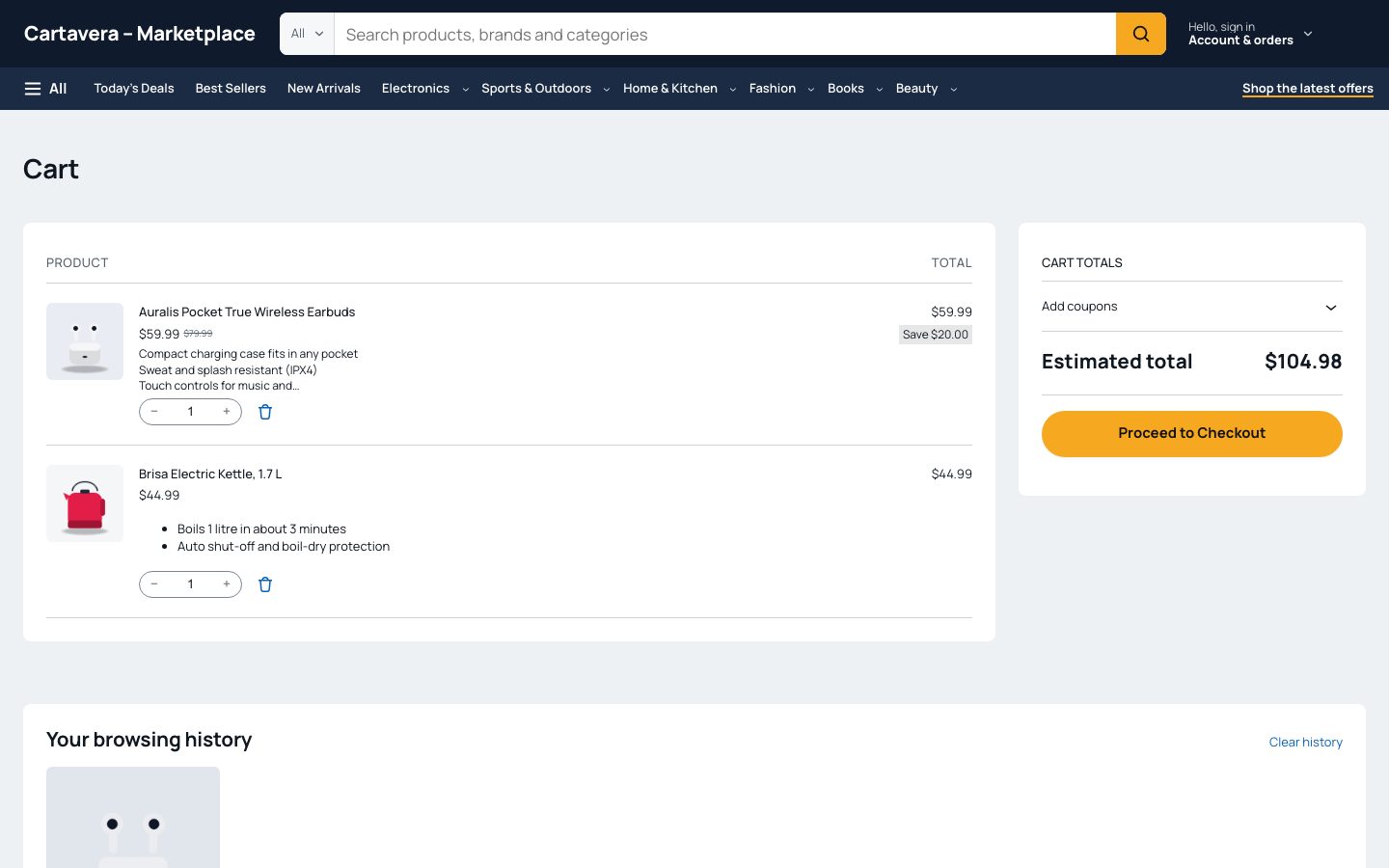
The cart page uses your normal header and footer, with the Cart block in the middle. Shoppers can change quantities, remove items and apply coupons.
Free-shipping progress
The cart and the mini-cart drawer can show Spend $X more for free shipping. or Your order qualifies for free shipping. It needs the Cartavera Blocks plugin, and it only appears when it’s true:
- Go to WooCommerce → Settings → Shipping and open a shipping zone.
- Add a Free shipping method and set Free shipping requires… to A minimum order amount (or A minimum order amount OR a coupon), with the amount.
The amount is worked out the same way WooCommerce’s Free Shipping method works it out, from the shopper’s zone and cart. It’s hidden when:
- the cart is empty, or nothing in it needs shipping
- the shopper’s zone has no free shipping with a minimum amount
- free shipping also needs a coupon
If several Free Shipping methods apply, the lowest minimum is used.
To turn it off, go to WooCommerce → Settings → Shipping → Shipping options and untick Free shipping progress.
Checkout
The checkout page uses a simpler header and footer, without the menu and search, so shoppers aren’t pulled away while paying. You can edit them; see Headers and footers.
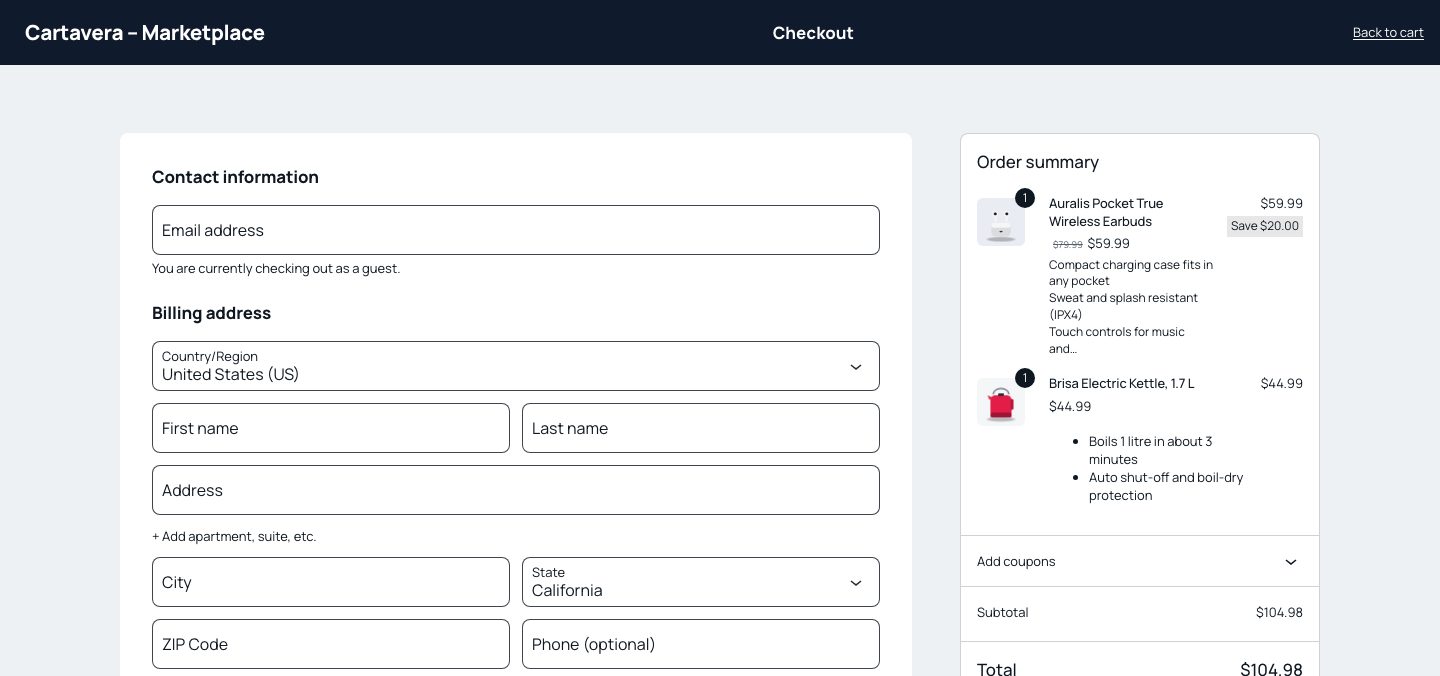
To change the checkout fields, express payment buttons and so on, edit the Checkout page and select the Checkout block or its inner blocks, as described in WooCommerce’s documentation.
Order confirmation
After payment, shoppers see WooCommerce’s order confirmation page, styled to match. Edit it under Appearance → Editor → Templates → Order Confirmation.
Mini-cart
The cart icon in the header is WooCommerce’s Mini-Cart block, with a live item count. It opens a drawer with the cart contents. The drawer works with the keyboard: focus moves into it when it opens and returns to the cart button when it closes.
My Account
The account pages (sign in, register, dashboard, orders, downloads, addresses, account details) use WooCommerce’s account page, styled to match. Turn registration on or off under WooCommerce → Settings → Accounts & Privacy.
Tested with
Cartavera 1.3.0 was run with these extensions active, one at a time, through the product page, cart, checkout and order confirmation (WooCommerce 11.2.1):
| Extension | Result |
|---|---|
| WooCommerce shipping and tax (prices with and without tax) | Pass |
| Polylang 3.9.1 | Pass |
| WooCommerce Multilingual & Multicurrency 5.6.3 | Pass |
| WooPayments 11.2.0 | Partial: active without a connected account, so no card form was shown |
| WooCommerce Stripe Gateway 11.1.1 | Partial: active without test keys, so no card form was shown |
| WooCommerce PayPal Payments 4.2.0 | Partial: active without sandbox credentials, so no buttons were shown |
“Partial” means the extension was active and nothing broke, but the part that needs a payment account couldn’t be tested. Test orders were placed with Cash on Delivery.
WooCommerce Subscriptions, Product Bundles, Product Add-Ons and Bookings have not been tested yet.