
The demo store fills your store with a fictional furniture catalog so you can see Formafern working before you add your own products. You choose one of three starter sites when you import it: all three use the same catalog, and each sets its own style, header, footer and homepage.
The demo store is optional and needs WooCommerce.
What it adds
- 8 product attributes (Material, Finish, Upholstery, Glaze, Colour, Size, Room and Style), with swatch colours on the finishes.
- 12 product categories, from sofas and dining tables to lighting, rugs, home décor and outdoor, with category images.
- 25 products, many with variations, plus dimensions, materials, care, assembly, lead time and warranty notes, and cross-sells.
- 6 journal stories.
- Pages: Our Story, Materials and Craft, The Autumn Edit (a collection page), A Living Room in Morning Light (a room inspiration page), Contact, Delivery and Returns, Furniture Care and The Journal.
It also crops catalog images to Formafern’s 4:5 portrait shape and, when your Shop page has no featured image, gives it a banner photograph.
Sample content is fictional. The products, prices, dimensions, lead times and policies are invented, and the photographs are rendered illustrations. Replace the delivery, returns and care pages with your own before you open the store.
The starter sites
| Starter | Style | Header | Footer | Homepage |
|---|---|---|---|---|
| Japandi Living | Japandi | Standard | Dark | Opens with rooms and the curated collection |
| Nordic Light | Nordic Light | Centred logo | Light | Opens with lighting and small details |
| Modern Loft | Modern Loft (dark) | Two rows with a search field | Minimal | Opens with categories and new arrivals, for larger catalogs |
| Japandi Living | Nordic Light | Modern Loft |
|---|---|---|
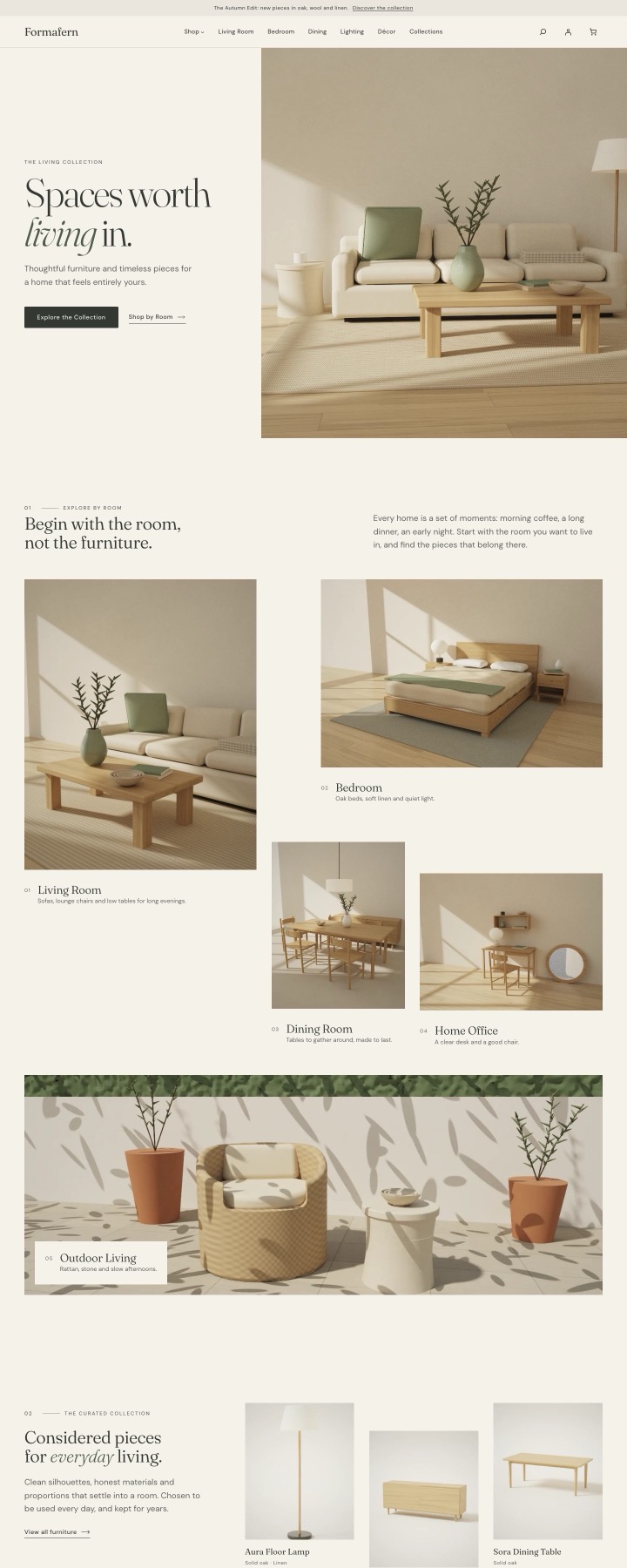 |
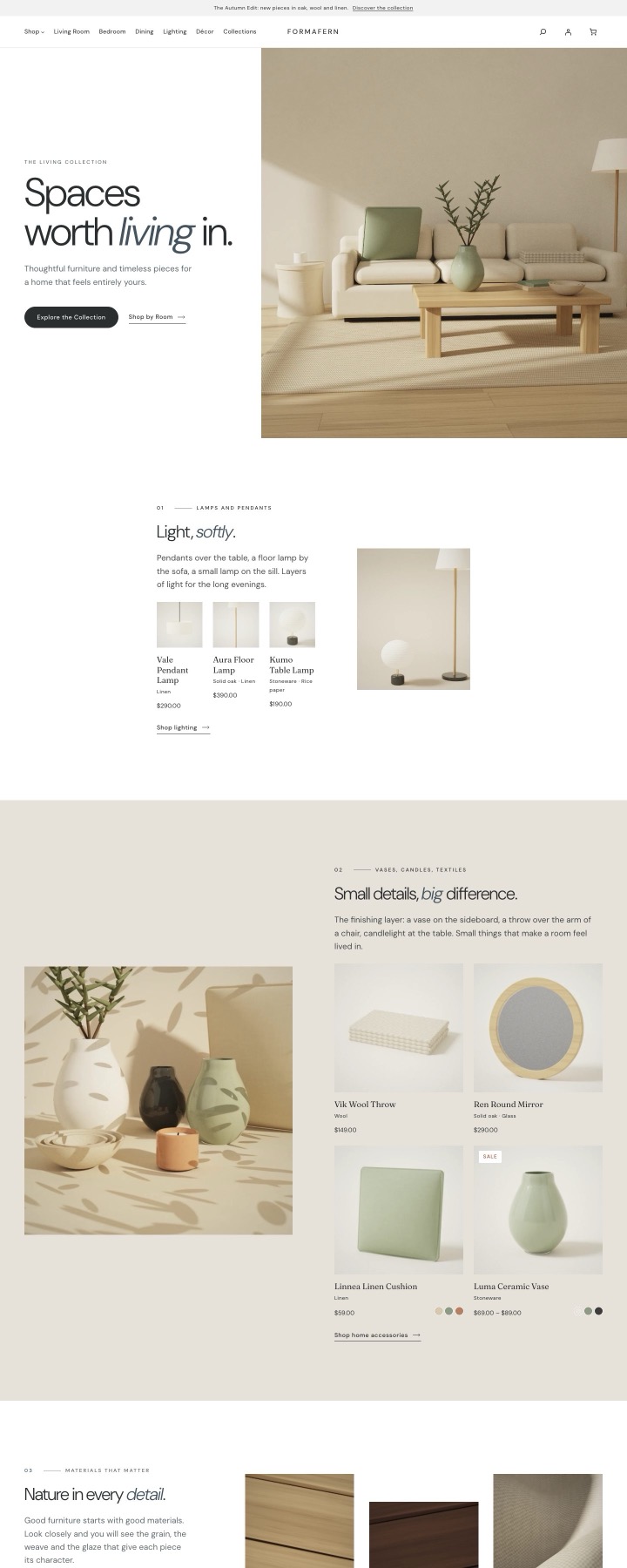 |
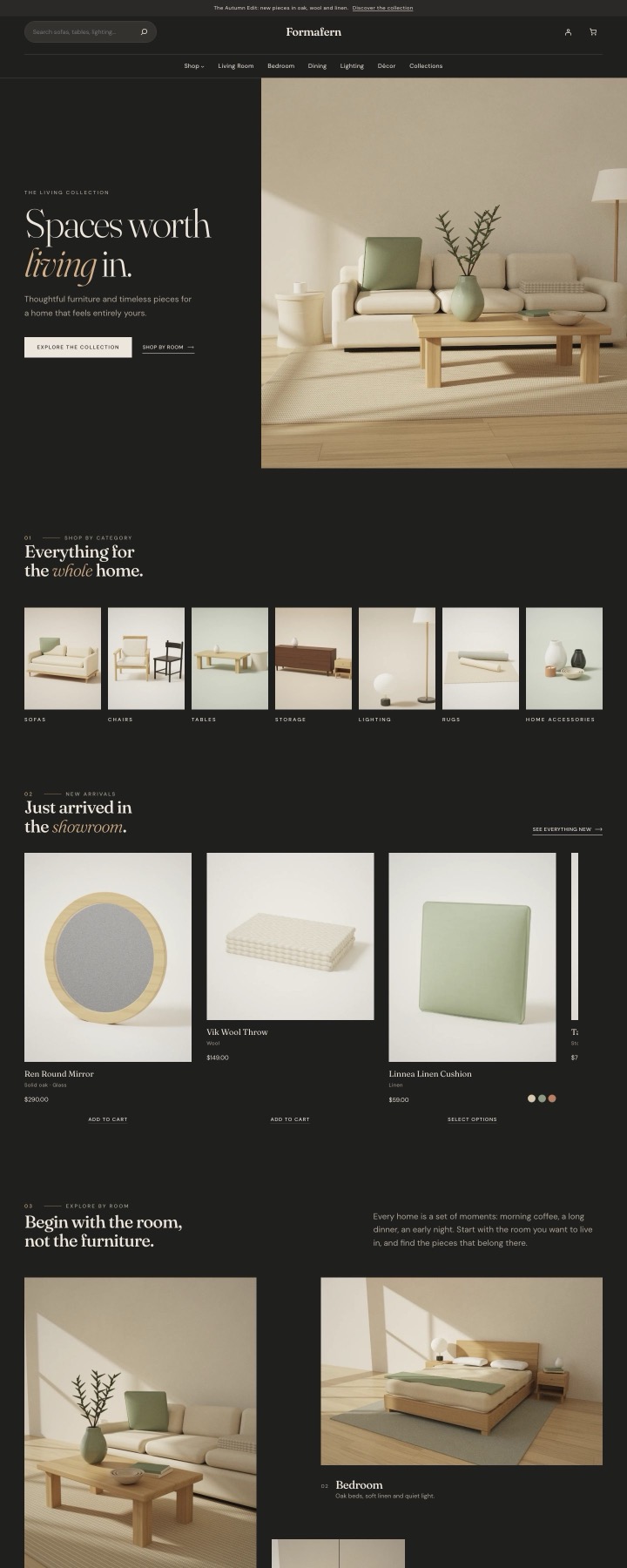 |
You can see each one live on the Formafern page.
Import
- Go to Appearance → Formafern.
- Under Starter sites, choose a starter.
- Tick Show posts on the demo’s Journal page if you’d like the Journal page to list the stories. This changes Settings → Reading, and is put back when you remove the demo.
- Click Install starter site.
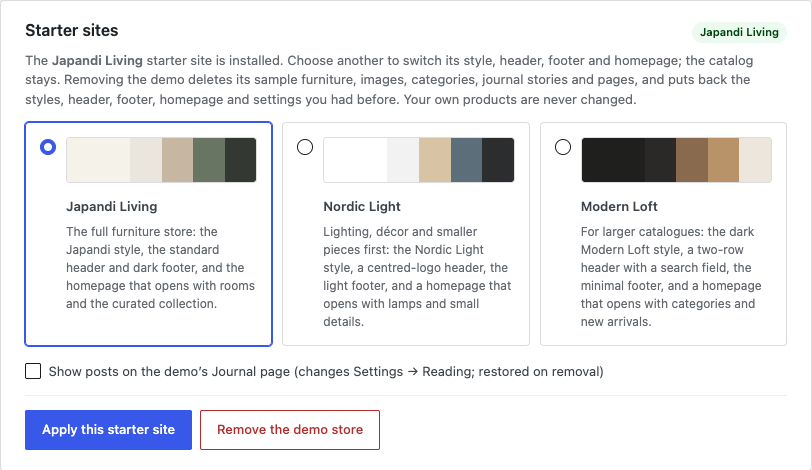
Every item the import creates is labelled Formafern demo in your admin lists. Importing again updates the same items instead of adding copies.
Switch to another starter
Choose another starter site and click Apply this starter site. The catalog stays; the style, header, footer and homepage change to the new starter’s.
A starter site saves its style, header, footer and homepage the way the Site Editor would. If you had customized any of these before importing, your version is kept and put back when you remove the demo, or when you import Japandi Living again (which uses the theme’s own design).
Remove the demo store
On Appearance → Formafern, click Remove the demo store. It deletes every item labelled Formafern demo, and puts back the settings, styles, header, footer and homepage it changed.
- Your own products and pages are never changed.
- Demo items you edited are still deleted, because they’re still demo items. Copy anything you want to keep into a new product or page first.
From the command line
With WP-CLI:
wp formafern demo import --site=nordic-light --reading-settings
wp formafern demo status
wp formafern demo remove
--site takes japandi (the default), nordic-light or modern-loft. --reading-settings is the Show posts on the demo’s Journal page option.