
Each product can carry its ingredients, allergen statement, nutrition and storage instructions. Candy Shop shows them in an Ingredients & allergens tab on the product page, and the allergen statement next to the Add to cart button.
You enter all of it. The theme never adds food, allergen, dietary or health information of its own. Copy it exactly as printed on your packaging. Empty fields are hidden.
Add food information
- Go to Products and edit a product.
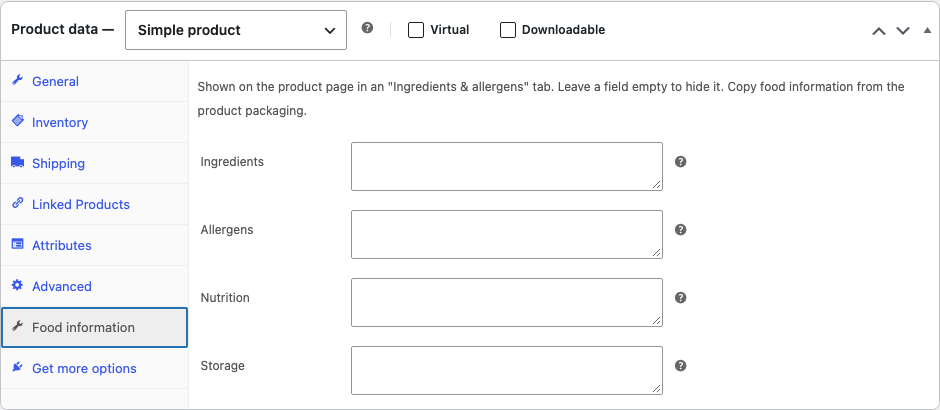
- In Product data, open Food information.
- Fill in the fields you have:
| Field | What to enter |
|---|---|
| Ingredients | The full ingredient list as printed on the packaging |
| Allergens | The allergen statement, for example Contains milk. May contain nuts. |
| Nutrition | One value per line as Label: value, for example Energy: 1450 kJ / 345 kcal. The first line can be a heading such as Per 100 g |
| Storage | Storage instructions, for example Keep cool and dry. |
- Click Update.
How it shows on the product page
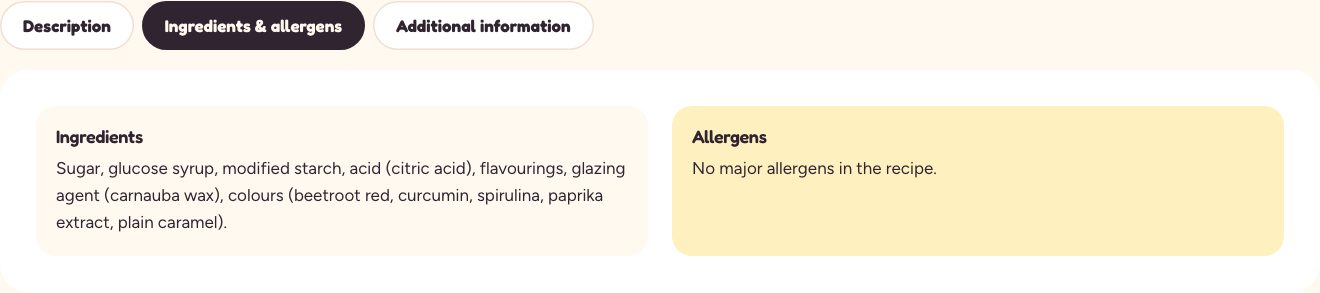
- The Ingredients & allergens tab appears when at least one field is filled in. It shows each filled field under its own heading.
- Nutrition becomes a table: each
Label: valueline is a row, and lines without a value (such asPer 100 g) become the table’s caption. - The allergen statement also appears with the product highlights, beside Add to cart, so shoppers see it before they buy.
Starter site samples
The starter sites come with sample food information so you can see how it looks. It’s made up: replace it with your own before you sell, or remove the starter.
Checking your products
The Add food information step on Appearance → Candy Shop is done once at least one published product has ingredients or an allergen statement. It doesn’t check every product, so go through your catalog yourself.