
Gemelune uses ordinary WooCommerce variable products. Set up your metals, sizes and lengths as global attributes, and the theme turns them into swatches and buttons that select the real variation.
Create the attributes
- Go to Products → Attributes.
- Add the attributes you sell by, for example:
- Metal (slug
metal): Yellow Gold, White Gold, Rose Gold, Platinum - Ring size (slug
ring-size): J, K, L … or 5, 6, 7 … - Length (slug
lengthornecklace-length): 40 cm, 45 cm - Gemstone, Style and so on, for filtering
- Metal (slug
- Click Configure terms to add the values.
Make a variable product
- Edit a piece and set Product data to Variable product.
- Under Attributes, add Metal (and Ring size or Length), with Used for variations ticked.
- Under Variations, create the combinations you sell, each with its price and stock.
On the product page
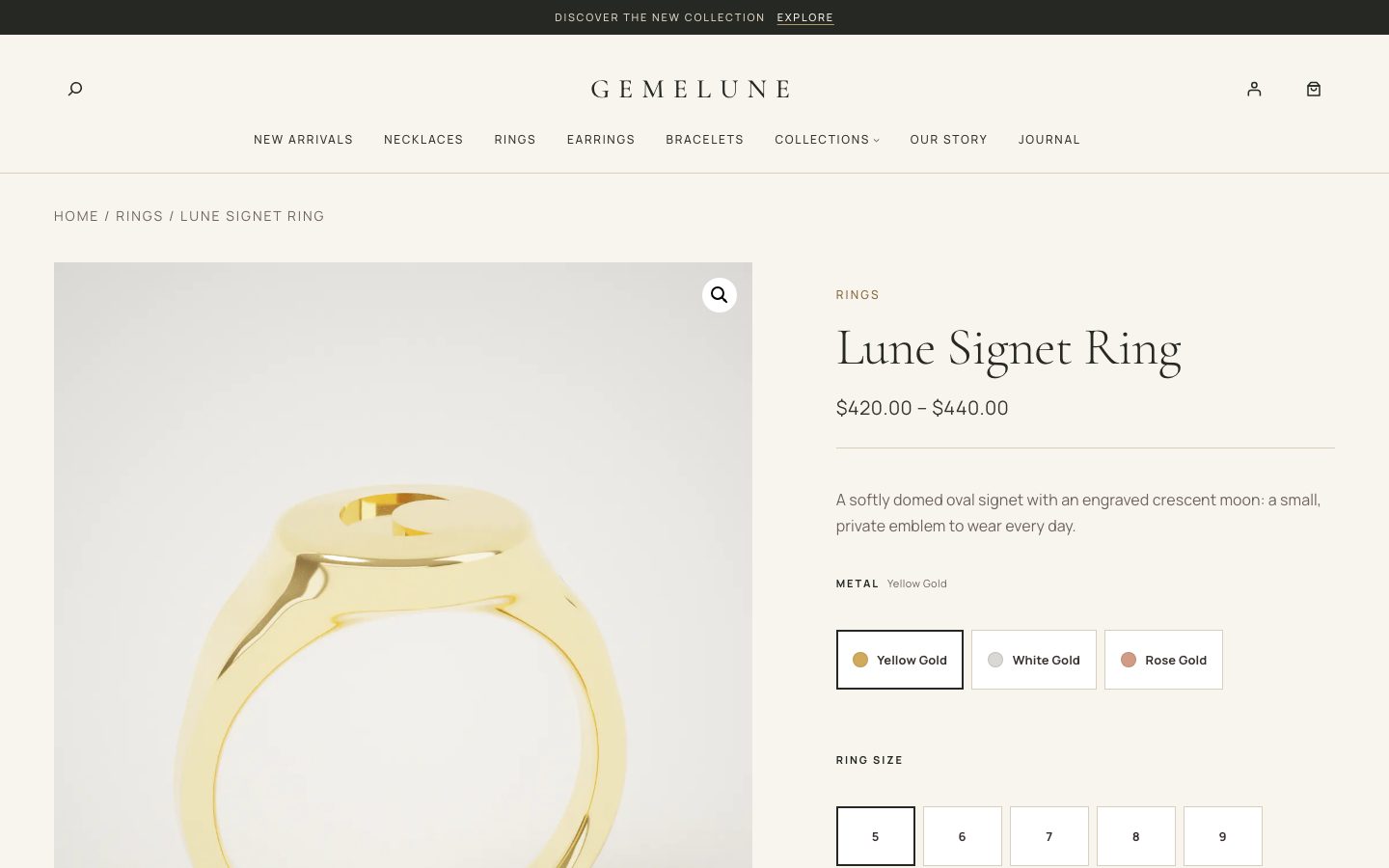
- Metals and colours become swatches. Attributes named Metal or Color (slugs
metal,metal-color,metal-colour,colororcolour) show as buttons with a colour dot (the swatch). - Every other option becomes buttons, such as ring sizes and lengths.
- Ring size (slug
ring-sizeorsize) gets a Size guide link that opens your size guide page.
Both select the real WooCommerce variation, so prices, stock and images change as usual. Without JavaScript, shoppers see WooCommerce’s normal dropdowns.
On product cards
A variable piece with more than one metal shows up to five round swatches under its price. Each swatch opens the product with that metal already chosen.
Swatch colours
Set each metal’s colour under Products → Attributes → Metal → Configure terms, then edit a term and choose its Swatch colour. Tick Use the automatic colour for this name to let Gemelune choose.
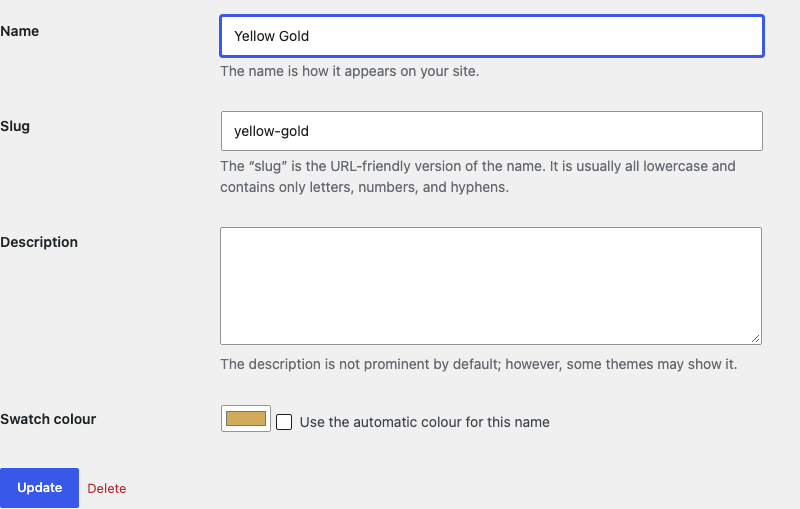
Without one, Gemelune picks a colour from the term’s name when it contains gold, yellow, vermeil, rose, white, platinum, silver or black. The Check your metal swatches step on Appearance → Gemelune counts the metals and colours that still need one.
Badges
Product cards can show:
| Badge | Where it comes from |
|---|---|
| Sold out | The piece is out of stock |
| Sale | WooCommerce’s sale price |
| New | Pieces published in the last 30 days that are in stock |
Second image on hover
On devices with a mouse, a card shows the first image of the product’s Product gallery when the shopper hovers over it. Add a second photograph, such as the piece worn, to the gallery.
Product images
Catalog images are portrait (4:5), because jewelry reads better tall than square. Photograph or crop your pieces in portrait for the best fit.