
Rooms
The homepage’s Explore by room tiles and the header’s Living Room, Bedroom and Dining links take shoppers to each room’s products. Set rooms up as a product attribute:
- Go to Products → Attributes and add an attribute called Room, with the slug
room, and tick Enable archives?. - Under Configure terms, add the rooms with these slugs:
living-room,bedroom,dining-room,home-officeandoutdoor. - On each product, add the Room attribute with the rooms it belongs in. A dining chair can be in the dining room and the home office.
Each room then has its own page of products, for example /room/living-room/.
Without a Room attribute, the room links go to product categories with the same slugs, and otherwise to the shop. If the attribute exists without archives, they go to the shop filtered by that room.
If you’ve already edited and saved your header or homepage in the Site Editor, their room links stay as they were saved: update them after you set up rooms (see Headers, footers and menus).
Shop the Room
Shop the Room is a room photograph with numbered hotspots on the pieces in it. Selecting a number shows that product’s name, price and a link to it; beside the photograph (below it on phones), In this room lists the same products. It’s on the homepage and on room inspiration pages, and you can add it anywhere as the Shop the Room block.
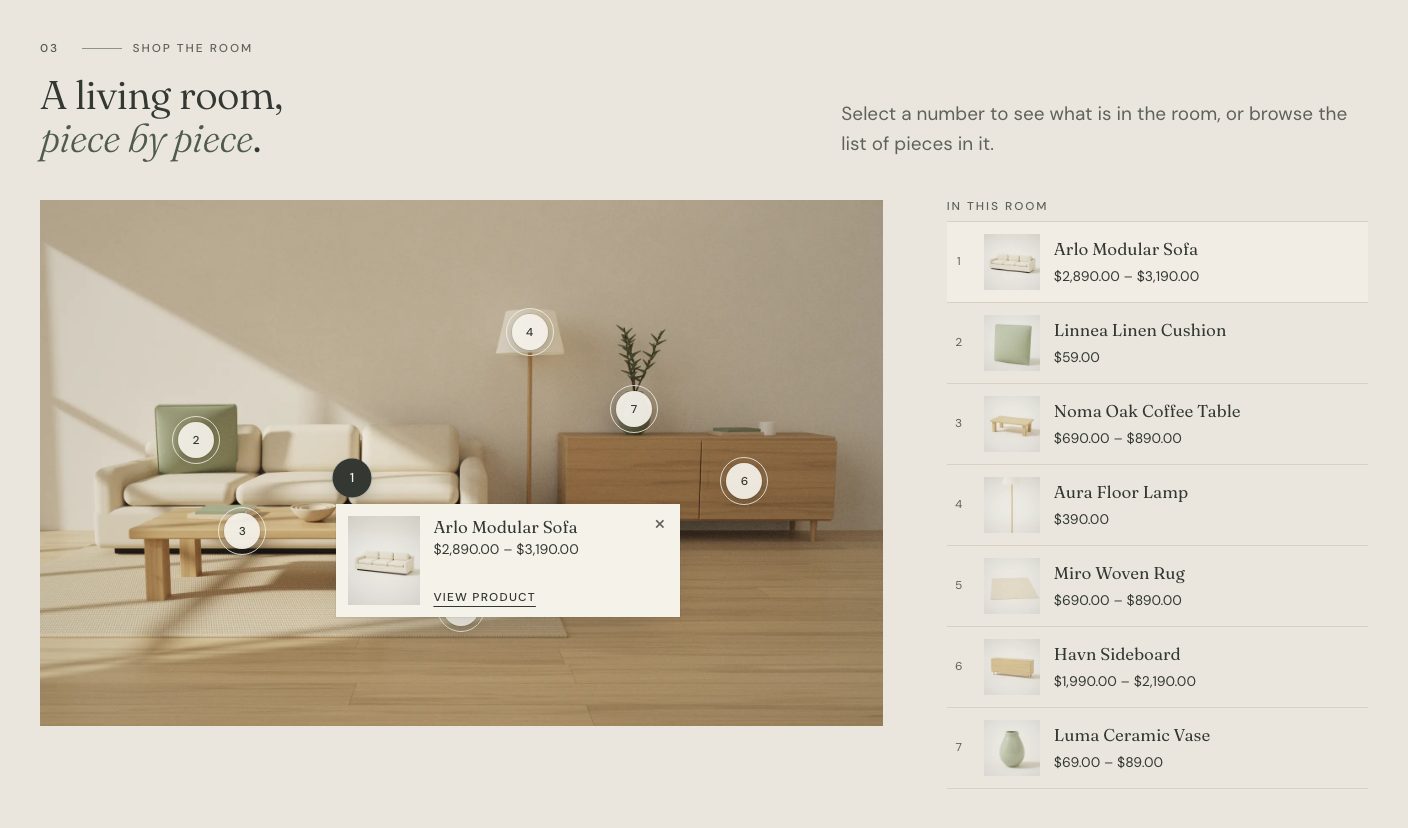
Names, prices and availability always come from your catalog. A hotspot whose product is unpublished or hidden from the catalog isn’t shown.
Set up the photograph and hotspots
- Open the page in Appearance → Editor (the homepage is the Front Page template) and select the Shop the Room section. On the homepage it’s a pattern: click Edit pattern in the block settings, then select the Shop the Room block.
- Click Replace photograph (or Choose photograph) and choose your room photograph. It’s never cropped.
- Click the photograph where a piece is to add a hotspot, then choose its Product under Hotspots in the block settings.
- To move a hotspot, select it, then click the photograph where it should go. You can also set its position with the Across (%) and Down (%) sliders.
- Fill in Alternative text to describe the room for people who can’t see the photograph.
- Save.
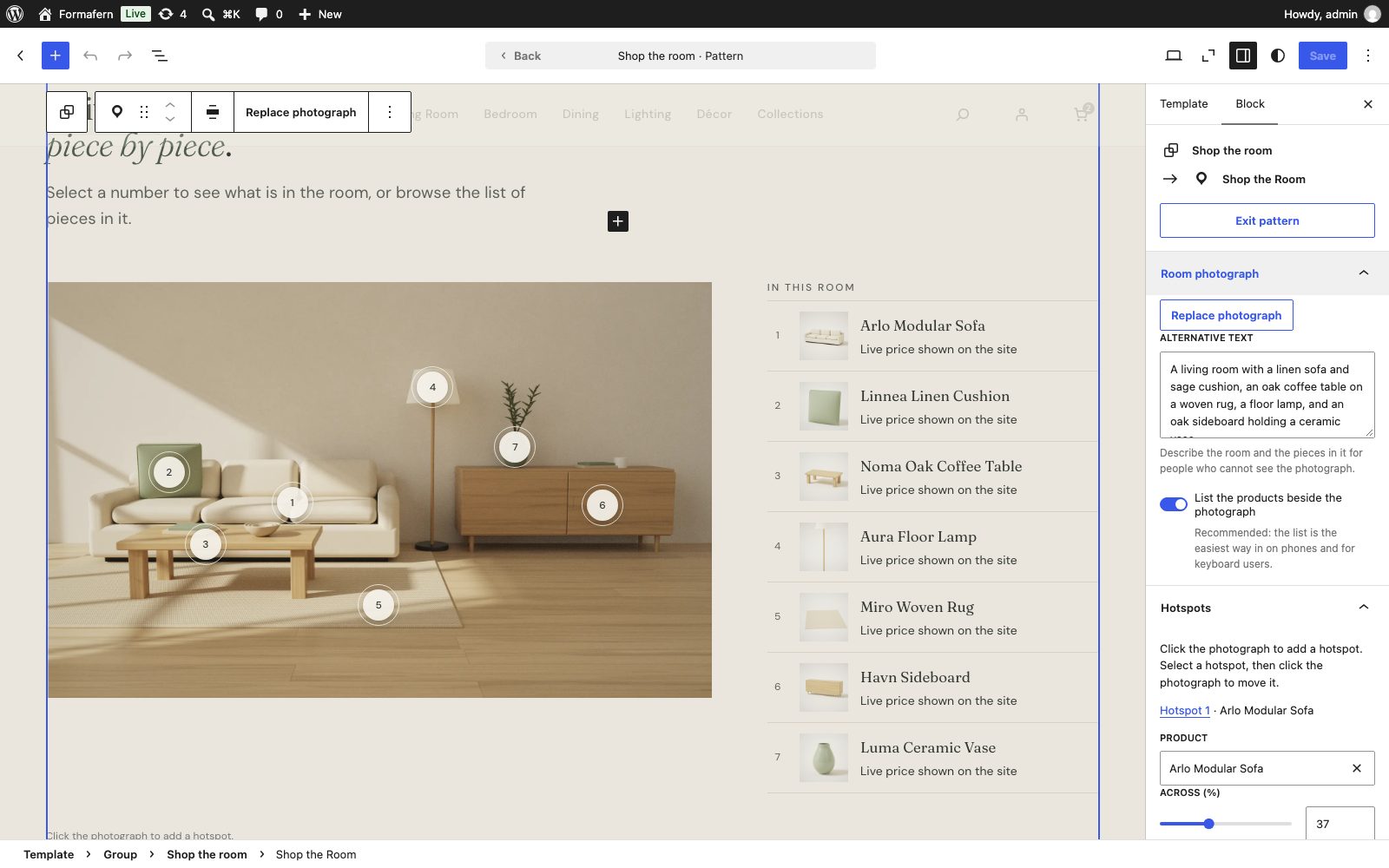
The heading and introduction above the photograph are ordinary blocks inside Shop the Room: edit them like any text.
List the products beside the photograph is on by default. Leave it on: the list is the easiest way in on phones and for keyboard and screen reader users.