
Cartavera is GPL software and every feature works without a licence key. An active licence lets WordPress download theme updates for you, from Dashboard → Updates, like any other theme.
Find your key
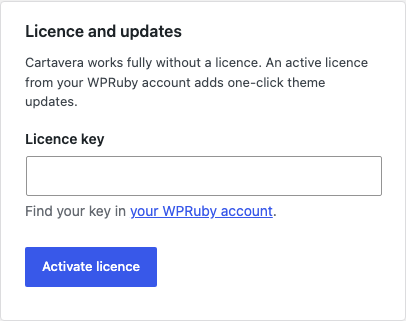
Your licence key is in your wpruby.com account, next to your Cartavera purchase. The licence form links there too (Find your key in your WPRuby account).
Activate
- Go to Appearance → Cartavera.
- Under Licence and updates, paste your key into Licence key.
- Click Activate licence.
You’ll see Licence activated. Theme updates will now appear under Dashboard → Updates. The Status row then shows:
- Active, with the expiry date or Lifetime licence
- Sites: X of Y: how many sites use this key, and how many your licence allows
Only users who can manage options (administrators) can see and change the licence.
Until a licence is active, administrators see a short reminder on Appearance → Themes and Dashboard → Updates, with an Enter licence key link.
Install an update
When a new version is out, it appears under Dashboard → Updates and on Appearance → Themes. Update it as you would any theme.
WordPress checks for theme updates on its own schedule (about twice a day). To check right away, click Check again on Dashboard → Updates.
Before you update a live store, read the changelog and keep a backup. If the release bundles a newer Cartavera Blocks plugin, update that too; see Updating the companion plugin.
Refresh the status
Cartavera asks wpruby.com for your licence status once a day. If you’ve just renewed or upgraded, click Refresh status to update it now.
Move your licence to another site
- On the old site, go to Appearance → Cartavera and click Deactivate licence. This frees the site’s seat.
- On the new site, activate the key as above.
If the old site is already gone and you can’t deactivate it there, contact WPRuby support to free the seat.
Whether a staging or local copy of your site uses a seat is decided by the store’s licensing settings, not by the theme. After activating on a copy, check the Sites: X of Y count, and deactivate the key on copies you no longer use.
When a licence expires
The theme keeps working, and so does everything you built with it. What changes:
- Status shows Expired with the date, and a Renew licence link.
- WordPress still tells you an update exists, but it can’t download it. If you try, WordPress says Update package not available.
Renew from the Renew licence link (it opens wpruby.com’s checkout with your key filled in), then click Refresh status. The update downloads as normal after that.
Status messages
| You see | What it means | What to do |
|---|---|---|
| This licence key was not recognised. | The key doesn’t match a wpruby.com licence | Copy the key again from your account. Check for spaces at either end |
| This licence key is for a different product. | The key belongs to another wpruby.com product | Use the key for Cartavera |
| This licence has reached its site limit. | Every seat is in use | Deactivate the key on a site you no longer use, or upgrade your licence |
| This licence has expired. | Updates have stopped | Renew, then click Refresh status |
| This licence key has been disabled. | The store has disabled this licence | Contact WPRuby support |
| Not active on this site | The key is saved but this site isn’t one of its activations | Click Activate licence again |
| The licence server returned an unexpected response | Your server couldn’t reach wpruby.com, or got an error page back | See Troubleshooting → Licence and updates |
For developers
The updater uses WordPress’s own Update URI mechanism, so WordPress.org never offers an unrelated theme with the same folder name. Developers can point it at another store with the CARTAVERA_STORE_URL constant or the cartavera_license_store_url filter. See Hooks and filters.