
Deep Insights keeps its own analytics tables, built from your WooCommerce orders. The first time you activate the plugin, it imports your existing order history into those tables.
How the import works
- The import starts automatically on activation.
- It runs in the background with WooCommerce’s Action Scheduler, in small batches, so it does not slow down your store.
- You can close the dashboard; the import keeps going.
- If it is interrupted, it resumes where it left off. A watchdog checks every 10 minutes and restarts a stalled import.
While the import runs, the dashboard shows a progress bar, for example “1,200 of 5,000 orders processed (24%)”. Reports are marked as incomplete until it finishes.
How long it takes depends on your hosting and the number of orders. Most stores finish within minutes; stores with hundreds of thousands of orders can take an hour or more on modest hosting.
Check the import status
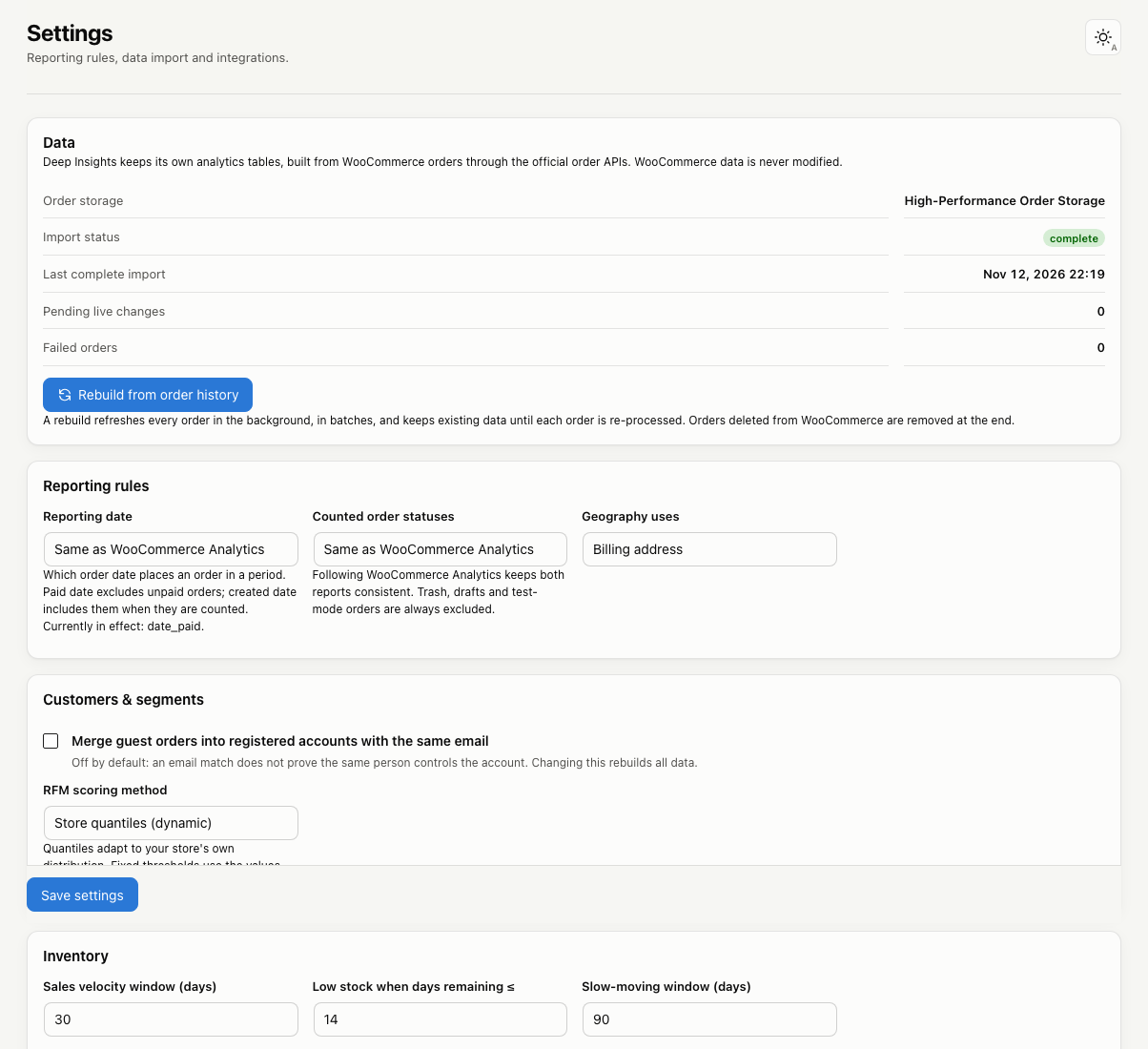
Go to WooCommerce → Deep Insights → Settings. The Data card shows:
- Order storage: HPOS or legacy posts storage.
- Import status: running, complete or idle.
- Last complete import: when the last full import finished.
- Pending live changes: new or edited orders waiting to be synced.
- Failed orders: orders that could not be read.
New orders after the import
You don’t need to import again. New orders, edits, status changes, refunds and deletions are picked up automatically and synced in the background within moments.
Cached reports refresh at most every 5 minutes after order changes, so the dashboard stays fast on busy stores. You can change this interval in Settings.
Rebuild from order history
Use Settings → Data → Rebuild from order history when you want to re-read every order, for example after:
- changing the site timezone
- adding a cost-of-goods integration and wanting costs for past orders
- restoring a database backup
A rebuild keeps your existing figures visible while it runs and updates each order in place. Orders that were deleted from WooCommerce are removed at the end.
Failed orders
If an order cannot be read (for example, because another plugin throws an error while loading it), Deep Insights retries it once. Orders that still fail are listed in Settings → Data → Orders that failed to import, with the error message, and a notice appears on the dashboard.
Failed orders keep their previous analytics data. Fix the cause and run a rebuild to bring them in.
If the import seems stuck
The import relies on WordPress background jobs. If background jobs don’t run on your site, see Troubleshooting.
You can also click Resume if stalled in Settings while an import is running.