
Edit the homepage
The homepage is the Front Page template. Open it in Appearance → Editor to change any text, photograph or link, and to move, remove or add sections.
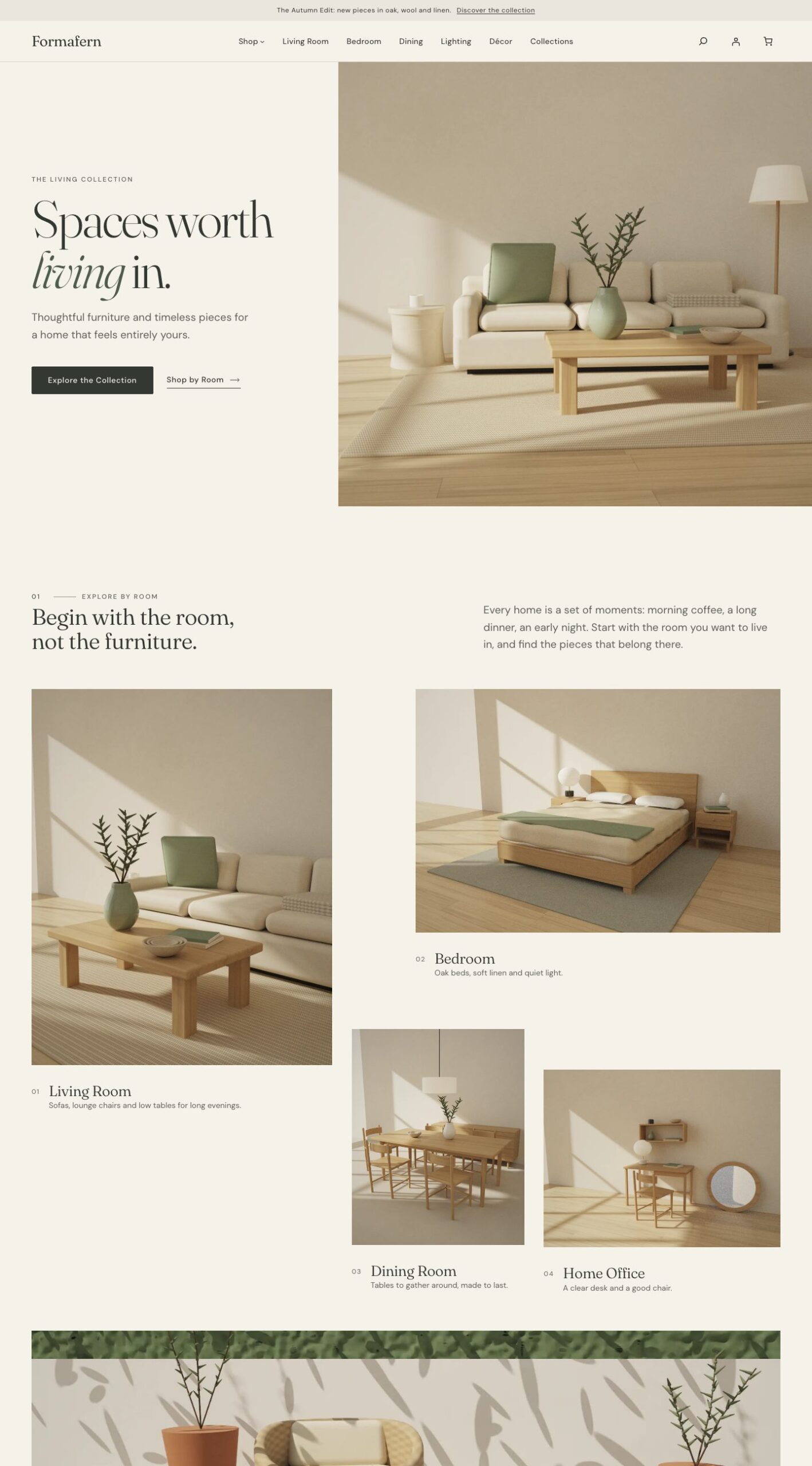
Every section is also its own pattern under Formafern: Homepage sections in the block inserter, so you can add it back or use it on another page:
| Section | What it shows |
|---|---|
| Hero: Spaces worth living in | A headline and two links beside a full-height living-room photograph |
| Explore by room | Five rooms in an editorial grid, each linking to that room’s products |
| The curated collection | Your featured products (in Products, click the star to feature one). Hidden when no product is featured |
| Shop the room | A room photograph with hotspots. See Shop the Room |
| Materials that matter | Six close-up material photographs with short notes, linking to your materials page |
| New arrivals | Your newest products in a row that scrolls sideways |
| The Living Edit | A large interior photograph with a text panel, linking to your collections page |
| Shop by category | Seven categories as studio vignettes: sofas, lounge-chairs, coffee-tables, storage, lighting, rugs and home-decor |
| Small details, big difference | A still-life photograph beside four products from the home-decor category |
| Light, softly | Products from the lighting category beside a lamp photograph. Shown only when the category exists |
| The Journal | Your three latest posts, one large and two smaller |
| Newsletter | An invitation to your newsletter. See Newsletter |
The sections are numbered 01, 02, 03 and so on in page order, so the numbers stay right when you move, add or remove sections.
The material notes describe the materials themselves. Add sourcing or certification details only where they’re true for your products.
The starter homepages
The Nordic Light and Modern Loft starter sites use their own section order, also available as patterns: Homepage, Nordic Light opens with lighting and small details and leaves out the newsletter; Homepage, Modern Loft opens with categories and new arrivals. To use one, open the Front Page template, remove its content and insert the pattern.
Where the links go
Sections link to your categories and pages by slug, and fall back to the shop (or the homepage, for pages) when nothing matches. Use the same slugs, or select a link and change it.
| Link | Goes to |
|---|---|
| Explore the Collection, View all furniture | The shop |
| See everything new | The shop, newest first |
| Room tiles | The Room attribute’s term, a category with the room’s slug, or the shop. See Rooms |
| Category tiles | The category with that slug |
| About our materials | The materials page |
| Shop the Edit | The collections page, or the shop |
| The Journal | Your posts page, or a page with the slug journal |
Newsletter
With Jetpack (Subscriptions) or MailPoet active, the newsletter section shows their sign-up form. Otherwise it links to the Journal, with a marked area where you can add your newsletter service’s form block. Formafern never shows a form that doesn’t work, and never stores subscriber data.
Editorial pages
Formafern has two page templates for editorial pages. Choose one in the page’s Template setting:
| Template | Use it for |
|---|---|
| Editorial page (full width, no title) | Pages whose content brings its own heading and full-width photographs, such as about, materials, collection and contact pages |
| Room inspiration page | A room story. Set the page’s featured image for its cover |
When you create a page, WordPress offers Formafern’s page patterns to start from, under Formafern: Editorial pages:
| Pattern | What it gives you |
|---|---|
| About the brand | An opening statement beside a studio photograph, the story in a reading column, a pull quote and three principles |
| Materials and craftsmanship | An introduction, then rows of close-up photographs and notes on oak, walnut, linen, wool, stone and ceramic |
| Collection landing page | A full-width photograph with the collection’s name, an introduction, then its products: the product tag autumn-edit when it exists, otherwise your featured products. Change the collection in the product block’s settings |
| Room inspiration page | An introduction, a Shop the Room photograph, styling notes and the room’s products |
| Contact | An introduction beside a photograph, ways to reach you, and an area for your contact form plugin’s block. Replace the example details with your own |
The Journal’s posts use Formafern’s article layout, with More from the Journal under each story.