
Gemelune works fully without a licence. An active licence adds one-click theme updates from your dashboard.
Find your key
Your licence key is in your WPRuby account, next to your Gemelune purchase.
Activate
- Go to Appearance → Gemelune.
- Under Licence and updates, paste your key into Licence key.
- Click Activate licence.
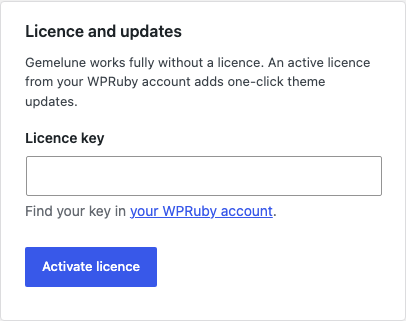
You’ll see Licence activated. Theme updates will now appear under Dashboard → Updates. The Status row then shows whether the licence is active, its expiry date (or Lifetime licence), and Sites: X of Y: how many sites use the key and how many your licence allows.
Only administrators can see and change the licence. Until it’s active, administrators see a short reminder on Appearance → Themes and Dashboard → Updates, with an Enter licence key link.
Install an update
New versions appear under Dashboard → Updates and Appearance → Themes, like any other theme update. Your Site Editor changes are kept.
Refresh, deactivate or move your licence
- Refresh status checks your licence with wpruby.com again, for example after you renew or upgrade it.
- Deactivate licence frees this site’s activation. Do this before you move the theme to another site, then activate the key there.
When a licence expires
The theme keeps working, and everything you built stays as it is. You stop receiving updates until you renew. The status shows Expired on the date, with a Renew licence link.
Status messages
| Message | What to do |
|---|---|
| This licence key was not recognised. | Check the key in your WPRuby account and paste it again. |
| This licence key is for a different product. | Use the key from your Gemelune purchase. |
| This licence has reached its site limit. | Deactivate it on another site, or upgrade it in your WPRuby account. |
| This licence has expired. | Renew it in your WPRuby account, then click Refresh status. |
| This licence key has been disabled. | Contact WPRuby support. |
| The licence could not be activated. | Try again, or contact WPRuby support. |