
The catalog
The shop, category, room, tag and search pages share one layout: the title and description, a banner image when there is one, filters beside the products, the product count and sorting above them, and the products in three columns (two on tablets and phones).
Banner image
A category page shows the category’s own image as a wide banner: set it under Products → Categories → Edit → Thumbnail. The shop page shows the Shop page’s featured image. Without one, there’s no banner.
Filters
The filters are WooCommerce’s own Product Filters block. Formafern sets them up with:
- Active filters, with a Clear button.
- Category.
- One filter for each product attribute your products use, Material, Colour, Finish, Upholstery, Room and Style first. Attributes no product uses are left out, so no filter is ever empty. Size and width options show as chips, the rest as a checklist.
- Price.
- Availability.
- Rating, once at least one product has a review.
On large screens they sit in a sidebar; on phones, a Filter products button opens them in a drawer.
| Desktop | Phone |
|---|---|
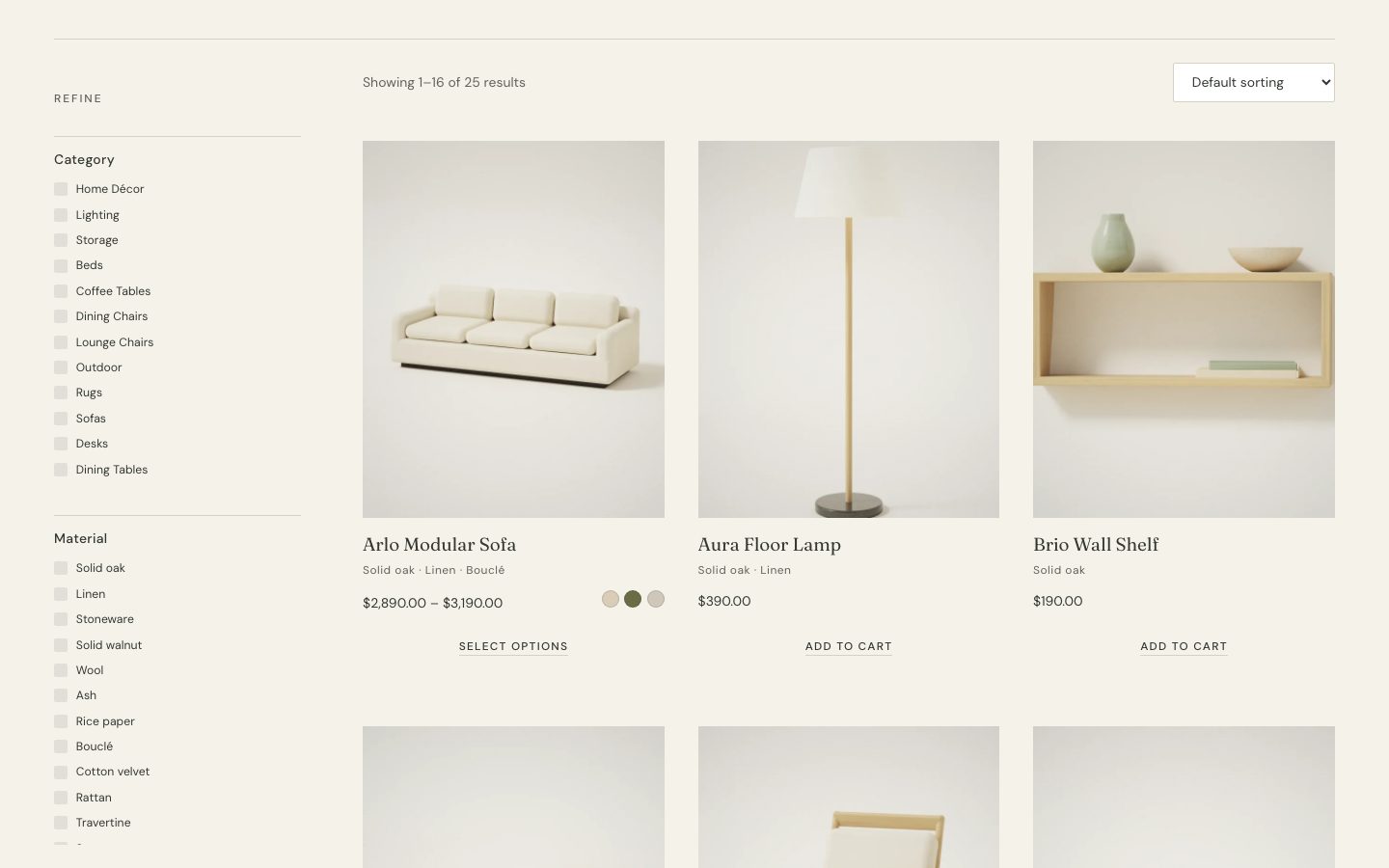 |
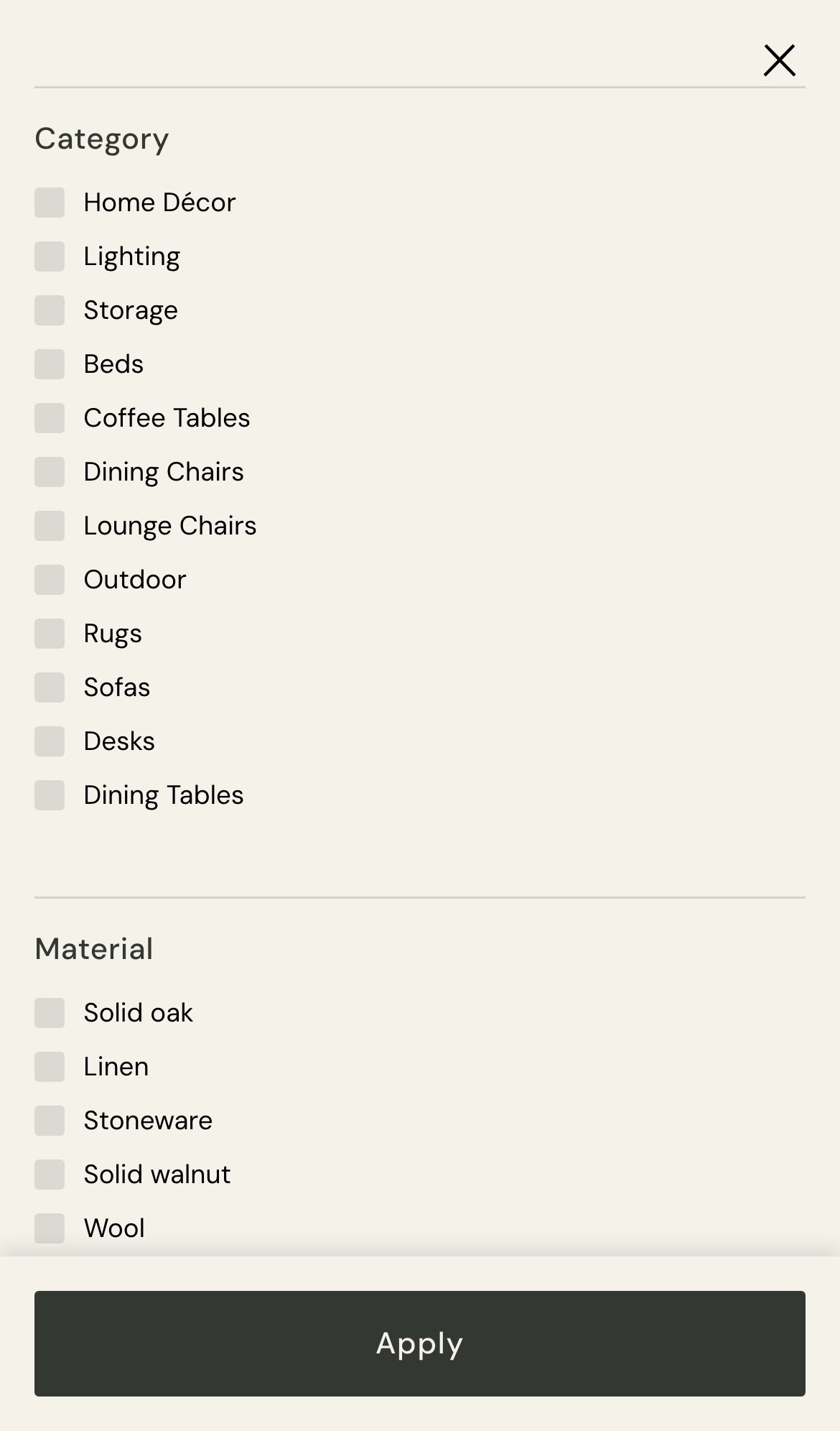 |
The list follows your products by itself: a new attribute gets a filter as soon as a product uses it. To change the order or which filters show, select the Product Filters block in Appearance → Editor → Templates → Product Catalog and edit it. Once you’ve saved that template, its filters stay as you set them.
Product cards
Every product grid, in the catalog and on the homepage, uses the same card:
- The product photograph, cropped to a 4:5 portrait, with WooCommerce’s sale badge.
- The name, and the material line.
- The price, and the finish swatches.
- Availability, when the product is out of stock, on backorder or low in stock.
- The add-to-cart button, or Select options for variable products.
Catalog images are cropped to the 4:5 shape when you import the demo store. For your own store, set Appearance → Customize → WooCommerce → Product Images → Thumbnail cropping to Custom with 4 : 5, or the ratio your photographs use.
The product page
- Gallery: every product image at once, uncropped: the first large, the rest two to a row below it, with zoom and a lightbox. On phones the images form a row you swipe through. On touch screens, tapping opens the lightbox instead of zooming.
- Beside it: the category, name, material line, price, rating, short description, WooCommerce’s add-to-cart form with finish buttons, and short delivery notes.
- Below: the full description beside the furniture details.
- Complete the look, then reviews and related products.
Complete the look
Complete the look shows the pieces that go with the product, such as the table, lamp and rug for a sofa. They are the product’s cross-sells:
- Edit the product.
- Under Product data → Linked products → Cross-sells, search for and add the pieces.
- Update the product.
Products without cross-sells don’t show the section.
Cart, checkout and account
The cart, checkout, mini cart and My Account pages use WooCommerce’s own blocks, styled to match. Checkout has a quiet header and footer: see Headers, footers and menus. Nothing in Formafern changes how payment, shipping or orders work.