WPRuby Logo WPRuby
Log in Get started
  • Plugins
  • Themes
  • Docs
  • Blog
    • eCommerce
    • Plugins
    • How to
    • Coding
  • Affiliate Area
  • Contact Us
  • About Us
  • Plugins
  • Themes
  • Docs
  • Blog
    • eCommerce
    • Plugins
    • How to
    • Coding
  • Affiliate Area
  • Contact Us
  • About Us

WPRuby Account

4
  • How to upgrade your license
  • How to renew your license
  • How to change your plugin’s license domain
  • How to cancel your subscription.

WooCommerce Australia Post Shipping Method Pro

14
  • Installation
  • How to activate your Australia Post Pro license
  • How to Upgrade from Free to Pro
  • Australia Post Zone Settings
  • Australia Post Global Settings
  • Australia Post Tracking
  • Pre-Paid Satchels
  • How to Mark a Product to be Shipped Individually?
  • TroubleShooting and Common issues
  • Available WordPress Actions and Filters
  • [Labels Pro] How to connect the plugin with your MyPost Business account
  • [Labels Pro] How to connect Labels Pro with your eParcel account
  • [Labels Pro] How to print labels and create shipping orders.
  • [Labels Pro] How to Mark a Product as Containing Hazardous Materials?

WooCommerce Custom Payment Gateway Pro

11
  • Getting Started
  • Custom Payment Gateway Settings
  • Custom Checkout Field Builder
  • Conditional Display Rules
  • Sending Payment Data to an External API
  • How to Create a Pay by Invoice Payment Method
  • How to Create a Manual Payment Link or Review-Based Payment Method
  • Troubleshooting
  • Frequently Asked Questions
  • Security and Sensitive Payment Data
  • How to Upgrade from Free to Pro

WooCommerce Royal Mail Shipping Calculator Pro

4
  • Installation
  • Settings
  • TroubleShooting and Common issues
  • How to activate your plugin license

Controlled Admin Access Pro

3
  • Available Actions for a Restricted Admin
  • Installation
  • Settings

WooCommerce Address Guard Pro

7
  • Get Started
  • Configuring Address Providers
  • Configuring Checkout Validation
  • Creating Address Rules
  • Customizing Customer Messages
  • Using the Address Tester
  • Reviewing Address Quality Inside WooCommerce Orders

WooCommerce Simple Table Rates Pro

8
  • Installation
  • Settings
  • Rules and Actions
  • How to Setup Weight Based Shipping
  • How To Setup Shipping By Shipping Class
  • How to Setup Shipping by Cart Total
  • How to Setup Shipping by Product
  • How to Setup Shipping by Product Category

WooCommerce Pack IQ

5
  • Installation
  • How to activate your plugin license
  • How to add a new box
  • How to change the boxes weight and dimensions units
  • How to view the packing results

WooCommerce Restricted Shipping and Payment Pro

4
  • Installation
  • Setting Up Shipping Methods Conditions
  • Available Shipping & Payment Rules
  • Setting Up Payment Gateways Conditions

Affiliate Butler PRO

9
  • Installation and Upgrade
  • Quick Start Guide
  • Settings
  • Keywords Management
  • Installation
  • Frequently Asked Questions
  • Files Structure
  • Links Types
  • Statistics

WooCommerce Adyen Payment Gateway

2
  • Setup the Adyen payment gateway
  • How to configure Adyen Webhook notifications? 

WooCommerce Free Shipping Per Product

2
  • Installation
  • How to setup free shipping for a certain product

WooCommerce UPS Shipping Method Pro

4
  • Installation
  • UPS Zone Settings
  • UPS Global Settings
  • How to get the UPS Access Key?

Delivery Promise for WooCommerce

9
  • Getting Started
  • Understanding Processing Time vs Transit Time
  • Setting the Cutoff Countdown
  • Configuring Default Delivery Estimates
  • Creating Delivery Rules
  • Setting Working Days and Holidays
  • Using Rule Presets
  • Product-Level Lead Times
  • Why the “Order Within” Countdown Is Not Showing

Cartavera

16
  • Cartavera documentation
  • Install Cartavera
  • Activate your licence
  • Import a starter site
  • Styles, colours and fonts
  • Headers and footers
  • The homepage
  • Catalog and filters
  • The product page
  • Cart and checkout
  • Translation and right-to-left languages
  • Child themes
  • Hooks and filters reference
  • Troubleshooting
  • FAQ
  • Changelog

Candy Shop

14
  • Candy Shop documentation
  • Install Candy Shop
  • Activate your licence
  • Import a starter site
  • Set up your products
  • Food information and allergens
  • Shop pages and filters
  • Styles, colors and fonts
  • Headers, footers and menus
  • The homepage
  • Child theme
  • Hooks and filters
  • FAQ
  • Changelog

Foliowick

16
  • Foliowick documentation
  • Install Foliowick
  • Activate your licence
  • Import a demo store
  • Authors and author pages
  • Book details and editions
  • Genres, reading lists and the Editor’s Pick
  • Secondhand copies and forthcoming books
  • Shop pages, search and book pages
  • Styles, colors and fonts
  • Headers, footers and menus
  • The homepage
  • The journal and editorial pages
  • Hooks and filters
  • FAQ
  • Changelog

Gemelune

14
  • Gemelune documentation
  • Install Gemelune
  • Activate your licence
  • Import a starter site
  • Metals, sizes and swatches
  • Size guide, delivery and care pages
  • Shop pages, product cards and product pages
  • Styles, colors and fonts
  • Headers, footers and menus
  • The homepage
  • Child theme
  • Hooks and filters
  • FAQ
  • Changelog

Formafern

15
  • Formafern documentation
  • Install Formafern
  • Activate your licence
  • Import the demo store
  • Finishes and swatches
  • Dimensions, materials and care
  • Rooms and Shop the Room
  • Shop pages, product cards and product pages
  • Styles, colors and fonts
  • Headers, footers and menus
  • The homepage and editorial pages
  • Child theme
  • Hooks and filters
  • FAQ
  • Changelog

Pawtani

15
  • Pawtani documentation
  • Install Pawtani
  • Activate your licence
  • Install a starter site
  • Pets, sizes, flavours and product facts
  • Size & fit guides
  • Shop pages, filters and product pages
  • Repeat purchases, subscriptions and wishlists
  • Styles, colors and fonts
  • Headers, footers and menus
  • The homepage
  • Child theme
  • Hooks and filters
  • FAQ
  • Changelog

Deep Insights for WooCommerce

19
  • Getting Started with Deep Insights for WooCommerce
  • Upgrading from Woo Insights
  • Importing Your Order History
  • Dates, Comparisons and Filters
  • Revenue Report
  • Products Reports
  • Customer Reports
  • RFM Customer Segments
  • Retention and Cohorts
  • Profitability and Cost of Goods
  • Subscriptions Analytics
  • Inventory Intelligence
  • Shipping, Discounts and Refunds
  • Automated Insights
  • Settings Reference
  • Why Numbers Can Differ from WooCommerce Analytics
  • Troubleshooting
  • Privacy, Security and Updates
  • Developer Hooks
View Categories
  • Home
  • Knowledge Base
  • Deep Insights for WooCommerce
  • Getting Started with Deep Insights for WooCommerce

Getting Started with Deep Insights for WooCommerce

Waseem
Updated on November 13, 2026

1 min read

0:00 / 2:24
  • View as Markdown Open this page as plain Markdown (opens in a new tab)
  • Open in ChatGPT Ask questions about this page (opens in a new tab)
  • Open in Claude Ask questions about this page (opens in a new tab)
  • Open in Google AI Studio Ask questions about this page (Google account required) (opens in a new tab)

Deep Insights for WooCommerce (formerly Woo Insights) adds an analytics dashboard to WooCommerce. It shows revenue, products, customers, retention, profitability, subscriptions, inventory, shipping, discounts and refunds, plus automatic insights about what changed.

Everything runs on your own site. There are no accounts, API keys or external services, and no store or customer data leaves your server.

Table of Contents

Toggle
  • What you need
  • Install the plugin
  • The first import
  • Open the dashboard
  • Who can see it
  • Your WooCommerce data is never changed
  • Next steps

What you need

  • WordPress 6.4 or newer
  • WooCommerce 8.2 or newer
  • PHP 7.4 or newer
  • MySQL 5.7+ or MariaDB 10.3+

Deep Insights works with both WooCommerce order storage modes: High-Performance Order Storage (HPOS) and the legacy posts storage.

Optional:

  • WooCommerce Subscriptions unlocks the Subscriptions report.
  • WooCommerce Cost of Goods Sold (WooCommerce 9.5+) unlocks the Profitability report.

Install the plugin

  1. Download the Deep Insights for WooCommerce zip file from wpruby.com.
  2. In WordPress, go to Plugins → Add New Plugin → Upload Plugin.
  3. Choose the zip file and click Install Now.
  4. Click Activate.

Upgrading from Woo Insights? See Upgrading from Woo Insights.

Deep Insights is free. It does not need a license key, and updates arrive through the normal WordPress update screen.

After activation, the plugin row has links to the dashboard, settings, documentation and support.

The Deep Insights for WooCommerce row on the Plugins screen with Dashboard and Settings links

The first import

When you activate the plugin, it creates its own analytics tables and starts importing your order history in the background. You don’t need to keep the page open.

While the import runs, the dashboard shows a progress bar and reports are marked as incomplete. Large stores can take a while; see Importing your order history for details.

Open the dashboard

Go to WooCommerce → Deep Insights.
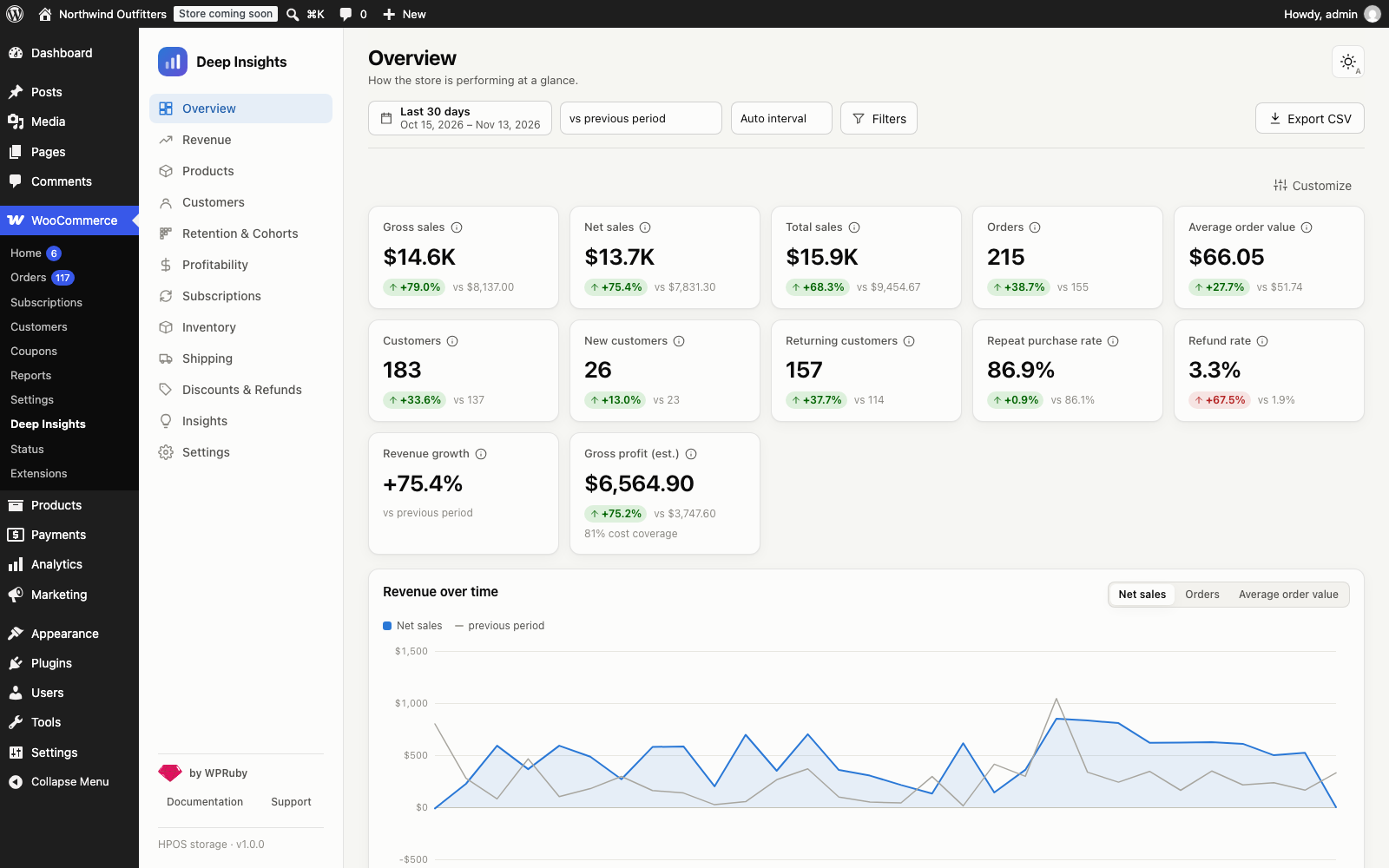
The Deep Insights Overview page

The sidebar lists every report:

  • Overview: key figures and the revenue trend at a glance.
  • Revenue: gross to net, taxes, shipping and where revenue comes from.
  • Products: product, variation and category performance, products bought together, and lifecycle.
  • Customers: new vs returning, RFM segments, lifetime revenue, geography and acquisition.
  • Retention & Cohorts: do customers come back after their first order?
  • Profitability: gross profit from recorded product costs.
  • Subscriptions: recurring revenue, churn and renewals.
  • Inventory: stock levels, sales velocity and estimated sell-out dates.
  • Shipping: shipping revenue, methods and destinations.
  • Discounts & Refunds: coupon performance and refund analysis.
  • Insights: notable changes, explained.
  • Settings: reporting rules, data import and integrations.

Who can see it

Anyone with the View WooCommerce reports capability can open the dashboard. By default that is Administrators and Shop Managers.

Settings, imports and customer-level exports need the Manage WooCommerce capability.

Your WooCommerce data is never changed

Deep Insights only reads orders. It never modifies orders, payments, products, customers, refunds, subscriptions or stock.

Next steps

  • Dates, comparisons and filters
  • Settings reference
  • Why numbers can differ from WooCommerce Analytics
Developer HooksUpgrading from Woo Insights
WPRuby Logo WPRuby

In 2015, WPRuby was established as an independent agency where we focus on producing and supporting many WordPress plugins. Each product we develop is simple to use and easy to customize and backed by awesome support and regular updates.

Resources

  • Knowledge Base
  • Affiliate Area
  • About Us
  • Nomad Jar
  • GarnerDocs
  • UnavailableToday

Legal

  • Privacy Policy
  • Terms of Use

Follow us

  • Github
  • X.com
  • LinkedIn
  • Facebook

© 2026 - WPRuby