
You can create a GLS shipment for any order, whatever shipping the customer chose at checkout. In Sandbox mode the shipment and label come from the GLS Canada test system and cannot be shipped.
1. Open the order in the Label Printer
Open the order in WooCommerce → Orders. The GLS Canada box shows the shipment status. Click Open in Label Printer.
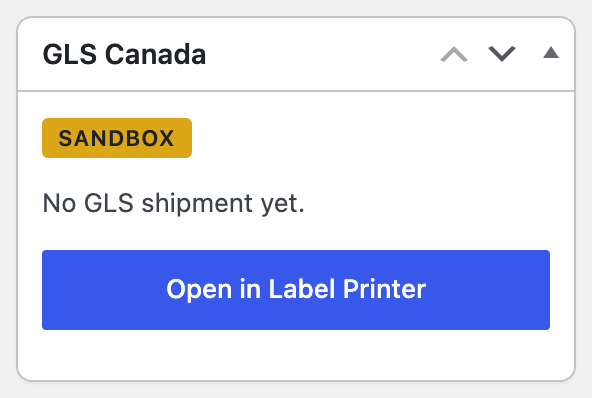
You can also go to WooCommerce → GLS Canada Centre → Label Printer and type the order number.

2. Check the addresses
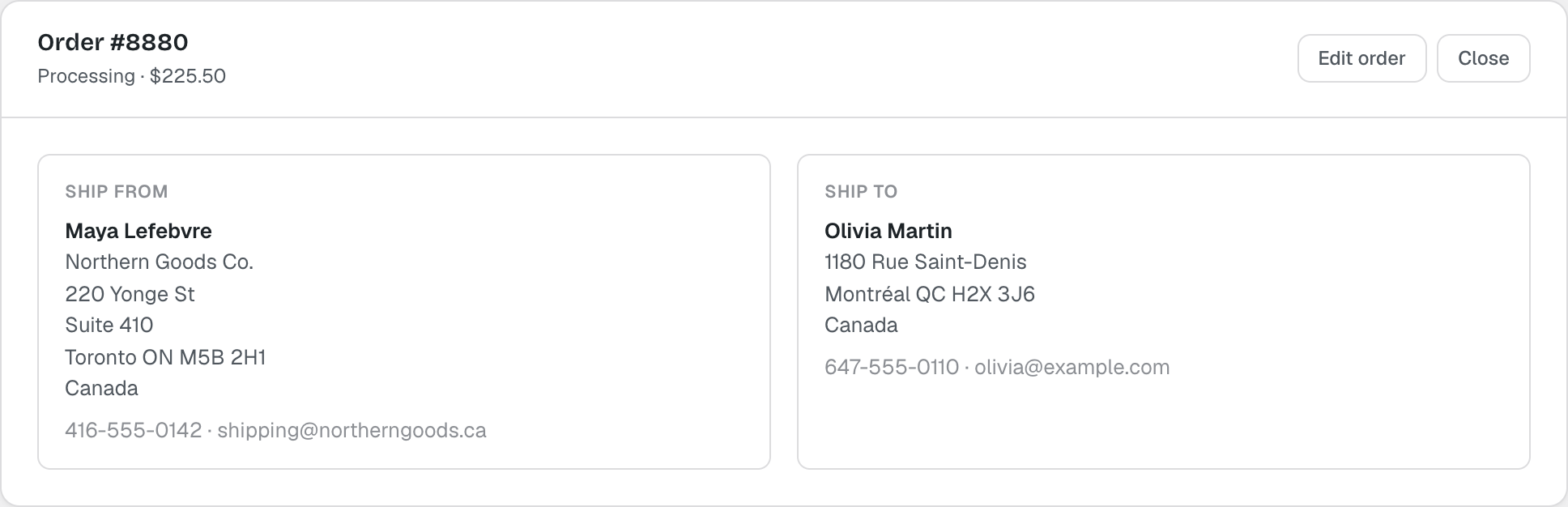
Ship from is your sender address from the settings; Ship to is the order’s shipping address.
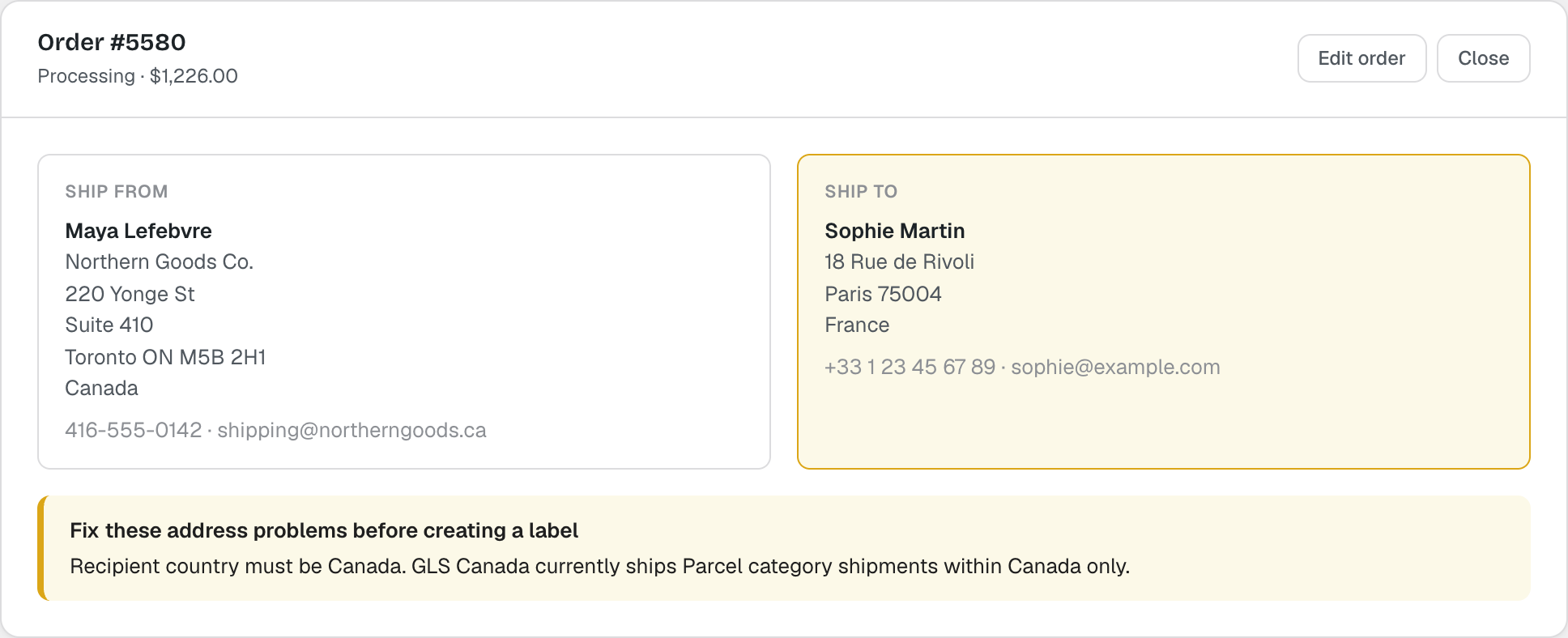
Problems are shown before you create the shipment and the address card is highlighted. Fix the address on the order (Edit order) or in the settings, then open the order again.
3. Choose the service, parcels and options
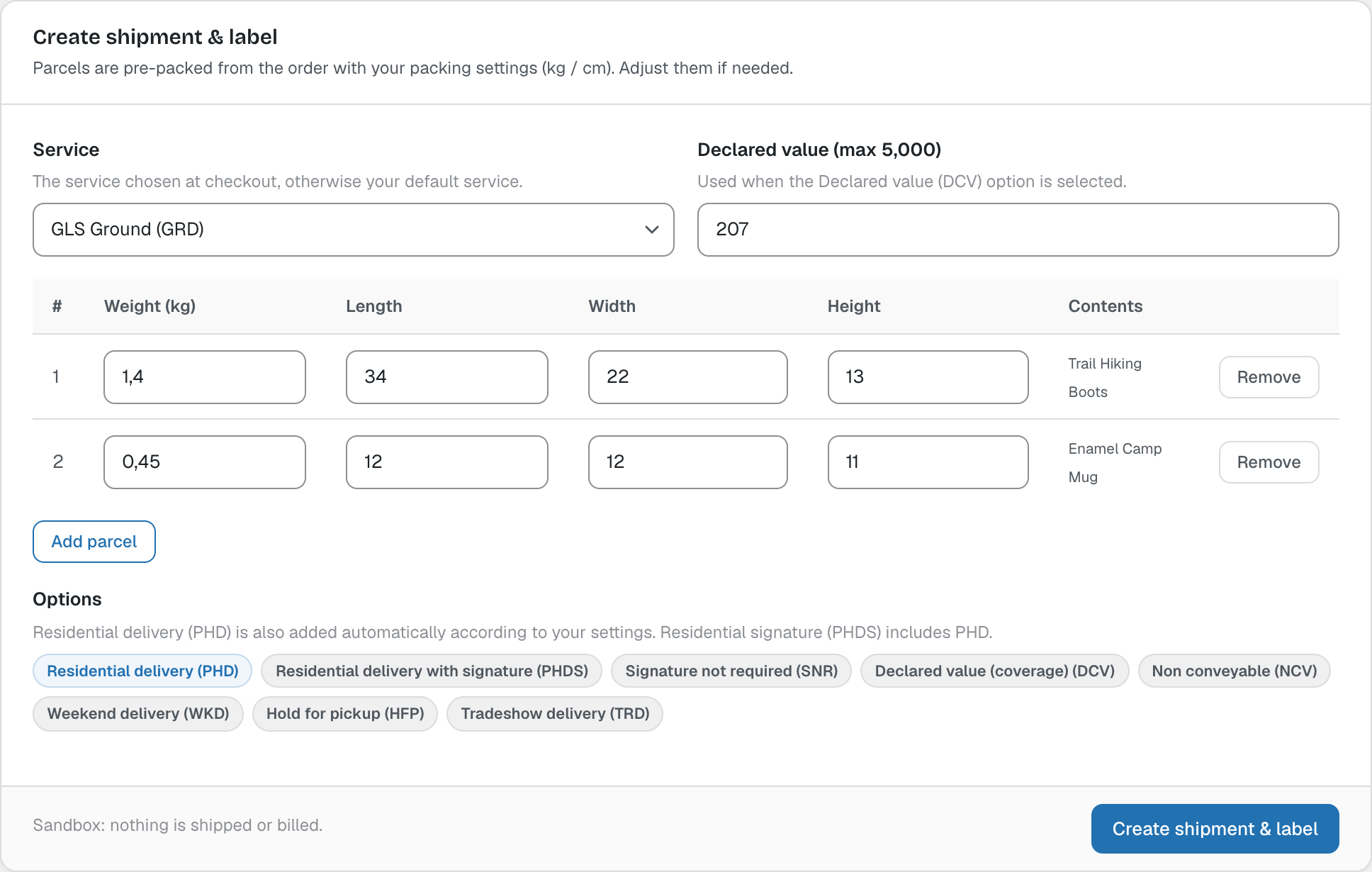
- Service: the GLS service chosen at checkout, otherwise your default service.
- Parcels are pre-packed from the order with your packing settings. Change the weight and dimensions, Add parcel or Remove one.
- Options: residential delivery (PHD), residential delivery with signature (PHDS), signature not required, declared value, non conveyable, weekend delivery, hold for pickup and tradeshow delivery. Your default options are pre-selected.
- Declared value (up to 5,000) is used when the Declared value (DCV) option is selected.
4. Create the shipment and print the label
Click Create shipment & label. The plugin creates the GLS shipment, saves the tracking number on the order and downloads the PDF label. The shipment appears under Shipments:
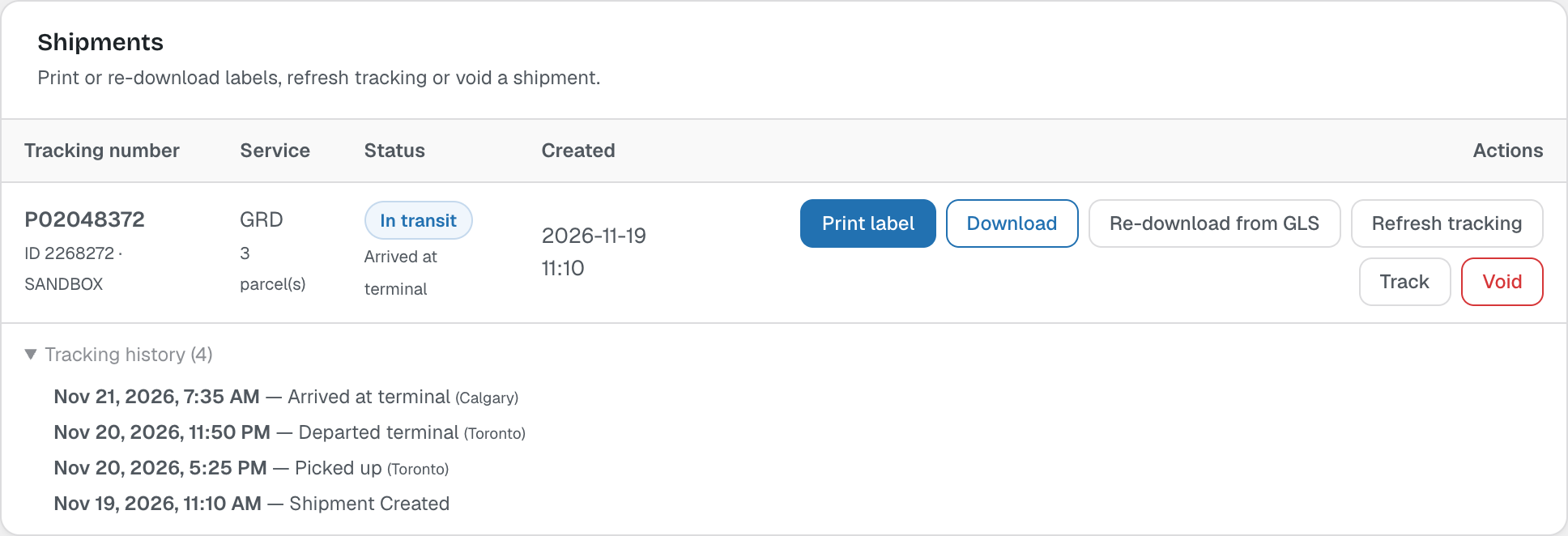
- Print label opens the PDF; Download saves it.
- Re-download from GLS fetches the label again. It never creates a new shipment.
- Refresh tracking gets the latest GLS status; Track opens the GLS tracking page.
- Void cancels the shipment with GLS. Shipments that are part of a pickup must be removed from the pickup first.
Note: To protect you from paying twice, an order with an active shipment cannot get a second one by accident. To ship more parcels later, tick Yes, create another billable shipment for this order.