
Create labels for many orders in one go. Labels are created in the background, so you can keep working.
From Bulk Shipping
Go to Canada Post → Bulk Shipping. Filter the orders by order status, shipping method or shipment status, tick the orders, optionally choose a Service and Label format for all of them, and click Create labels.
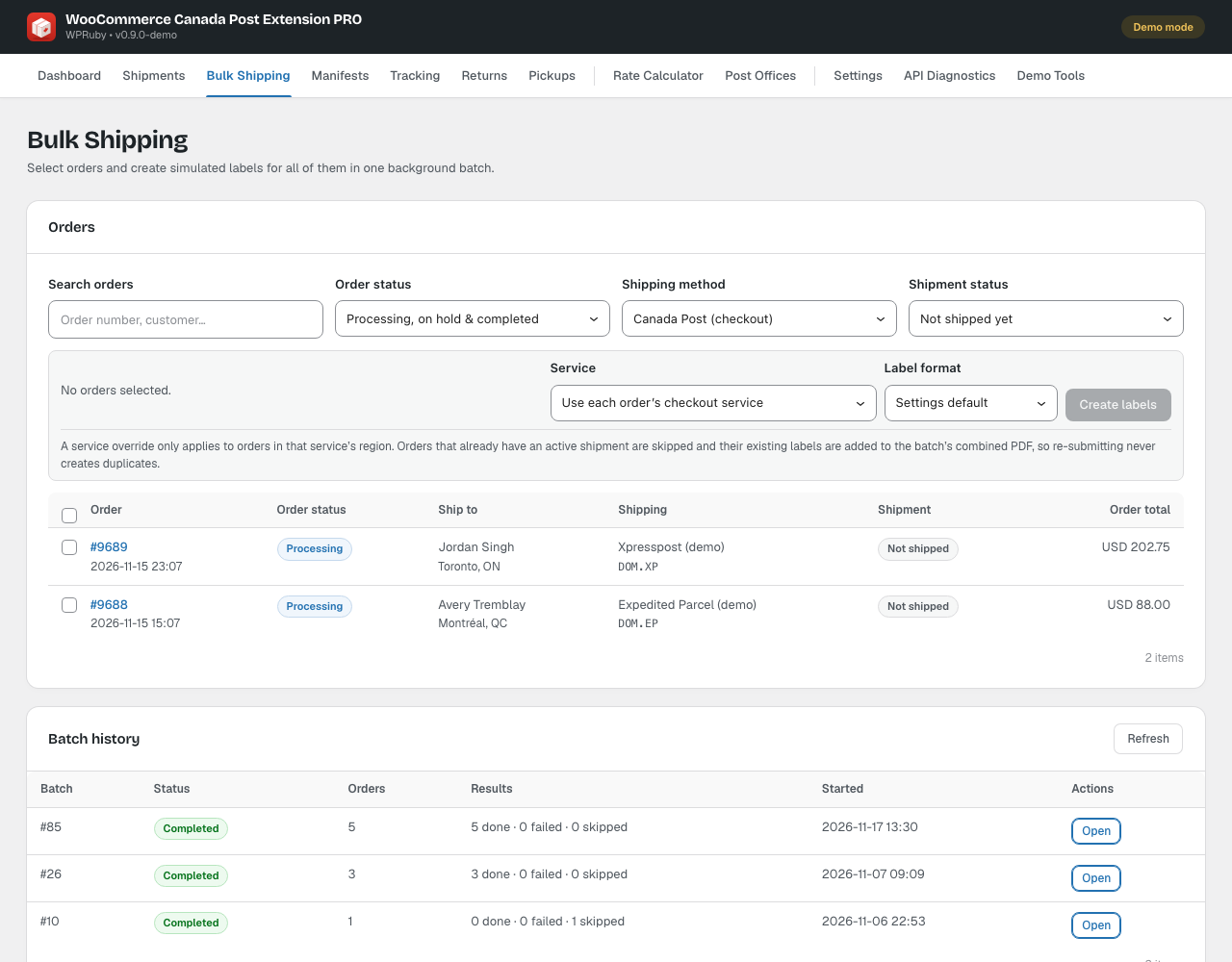
- A progress bar shows the batch as it runs. An order that fails shows its error and never stops the others.
- Retry failed (the button shows how many failed) tries those orders again. Orders that already have a shipment are skipped, so a shipment is never duplicated.
- When the batch finishes, click Download combined PDF to print all its labels at once. Earlier batches are listed under Batch history.
From the WooCommerce orders list
In WooCommerce → Orders, the Canada Post column shows each order’s shipment status. Tick orders and choose a bulk action:
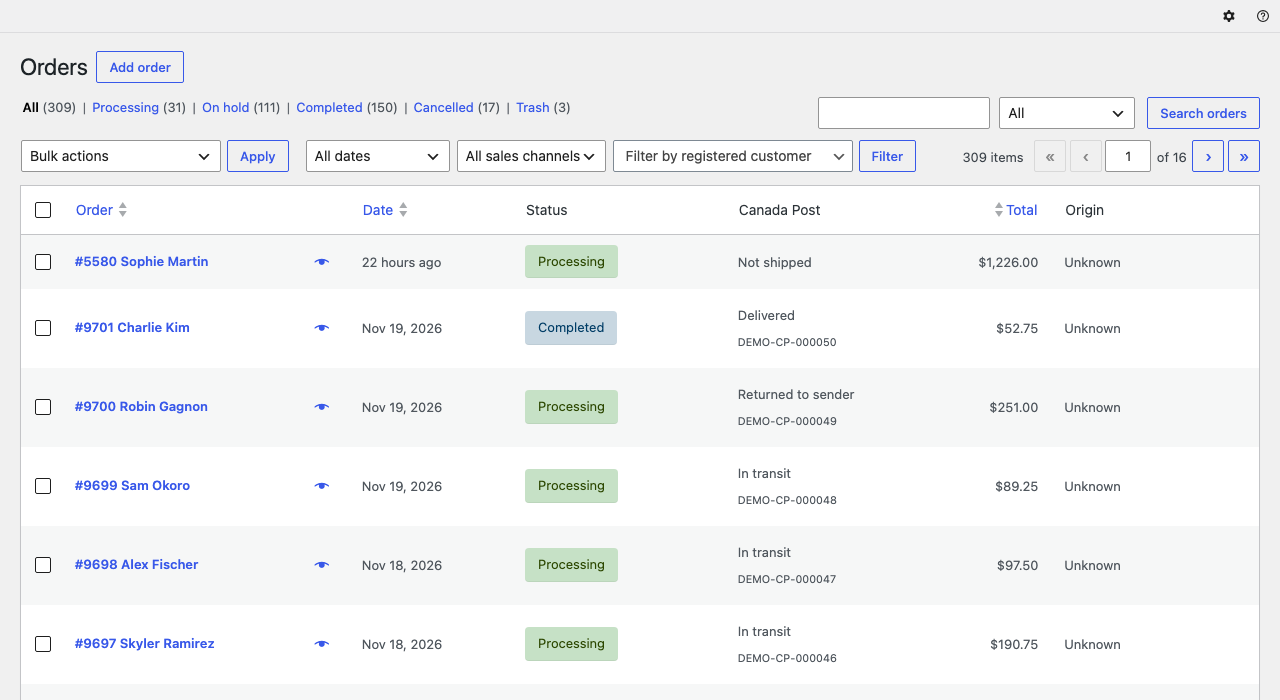
- Canada Post: create labels starts a Bulk Shipping batch.
- Canada Post: print labels downloads the existing labels as one PDF.
- Canada Post: view shipments, Canada Post: void eligible shipments and Canada Post: refresh tracking.
Note: To create labels automatically, set Auto-create labels when an order becomes in Settings → Shipping defaults.