
Choose a header or footer
- Go to Appearance → Editor and select the header or footer on any template.
- In the toolbar, choose Replace.
- Pick a design and save.
The designs are also in the inserter under Pawtani: Headers and footers.
Headers
All three stay at the top of the page as you scroll, and use a menu drawer on phones and tablets.
| Header | Layout |
|---|---|
| Header (default) | An announcement strip, then the logo, a product search bar, account, wishlist (when a wishlist plugin is active) and bag, with the menu beneath. While scrolling, the announcement and menu fold away |
| Header with centred logo | The announcement strip, then search on the left, the centred logo, and account and bag on the right, with the menu beneath |
| One-row header | No announcement: the logo, the menu, a search button that opens a search field, account and bag in one row |
Header:

Header with centred logo:

One-row header:

Footers
| Footer | Layout |
|---|---|
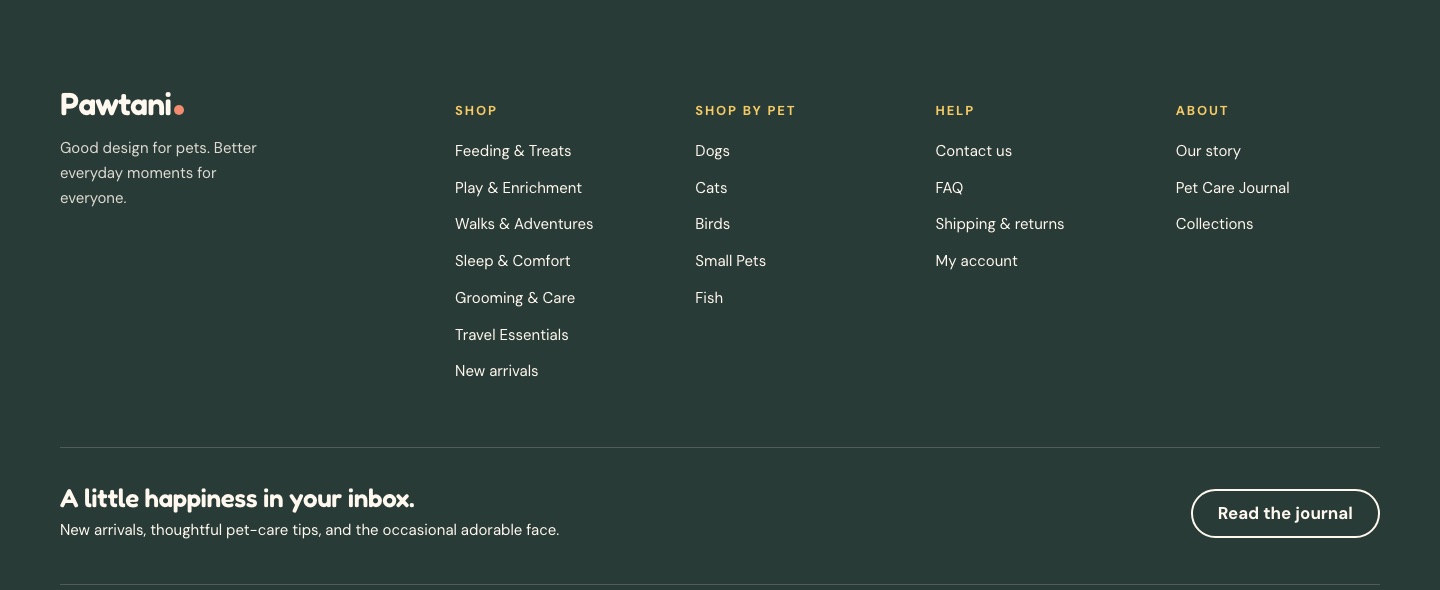
| Footer (default) | Dark, with a scalloped top edge: logo, tagline and social links, then Shop, Shop by pet, Help and About columns, the newsletter row and legal links |
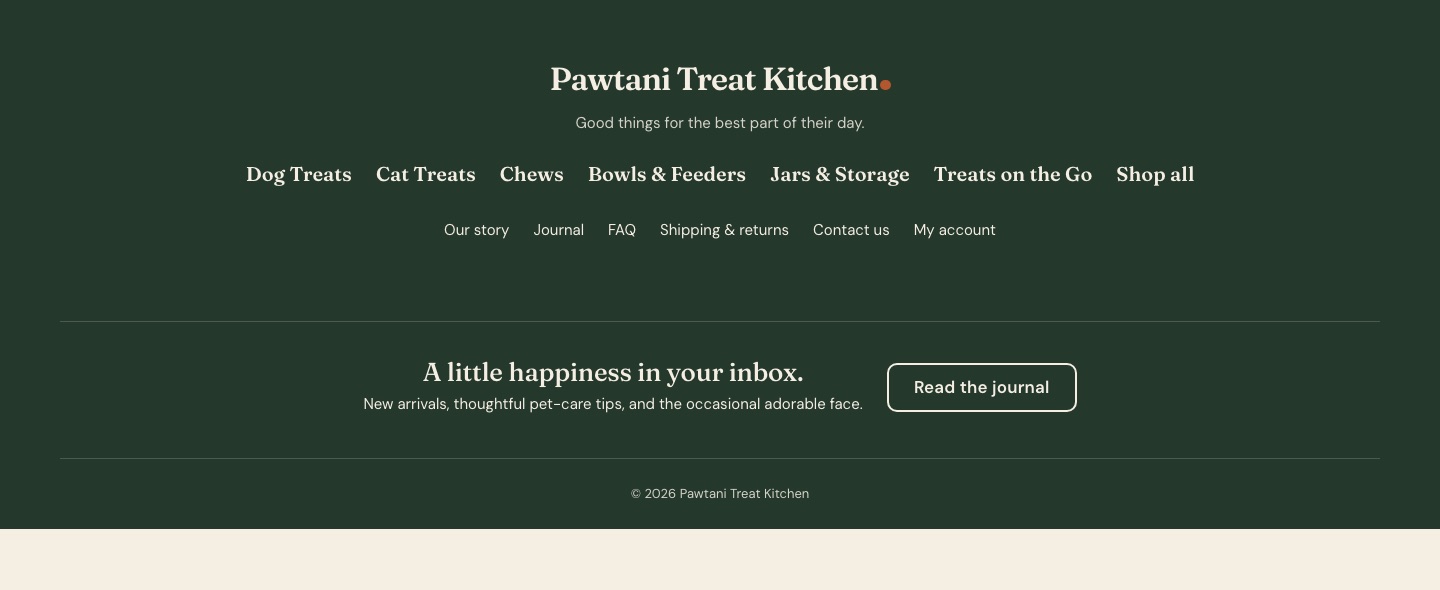
| Centred footer | Dark and centred: logo and tagline, a row of your top product categories, a row of help links, social links, the newsletter row and legal links |
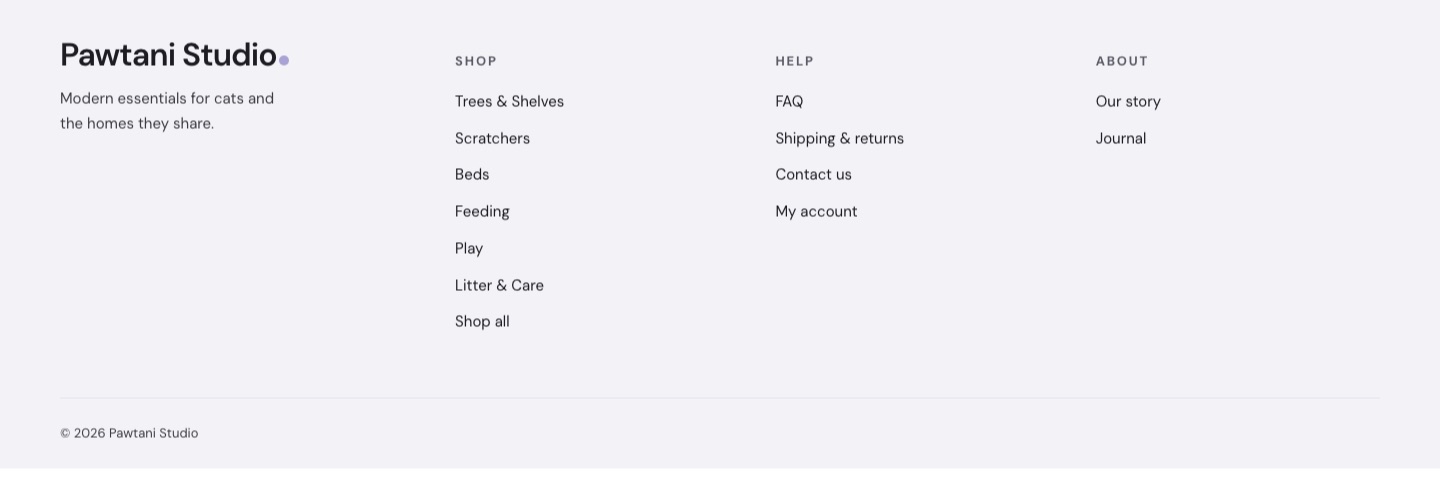
| Minimal footer | Light, no scallop: logo, tagline and social links, then Shop (your top product categories), Help and About columns, and legal links |
Footer:
Centred footer:
Minimal footer:
Where the footer links go
- Shop by pet and the default footer’s Shop column link to the same categories as the homepage’s Shop by pet and Shop by need.
- The centred and minimal footers list your top-level product categories with products, in the order you set under Products → Categories.
- Help and About link to your pages with the slugs
contact,faq,shipping-returnsandour-story, your posts page and My account. Links to pages you don’t have are left out. - Legal links go to your privacy policy and WooCommerce terms page.
Edit the logo, menu and announcement
- Logo: select the Site Logo block in the header and upload your logo. Without one, the site title is shown as a wordmark.
- Menu: the header menu links to your pet and need categories and Our Story. Select the Navigation block to edit it or choose another menu. If you have a menu called Pawtani menu (starter sites create one), every Pawtani header uses it: edit it under Appearance → Editor → Navigation, or delete it to go back to the default links.
- Announcement: edit the announcement strip’s text in the header, or delete the strip.
- Social links: add your profile URLs on Appearance → Pawtani → Store settings.
Checkout header and footer
Checkout has its own quiet header (the logo and a Back to bag link) and footer (the copyright and your policy links). Edit them under Appearance → Editor → Patterns.