
Cartavera’s homepage is made of sections, and each section is a pattern you can move, remove or insert again. Product sections show your real products: on-sale items, best sellers, new arrivals and so on. They update as your store changes.
Where to edit it
- Your homepage shows your latest posts or the default front page: go to Appearance → Editor → Templates → Front Page.
- Your homepage is a page (Settings → Reading → A static page): edit that page’s template in the Site Editor, or the page itself if you’ve built it with blocks.
The default sections
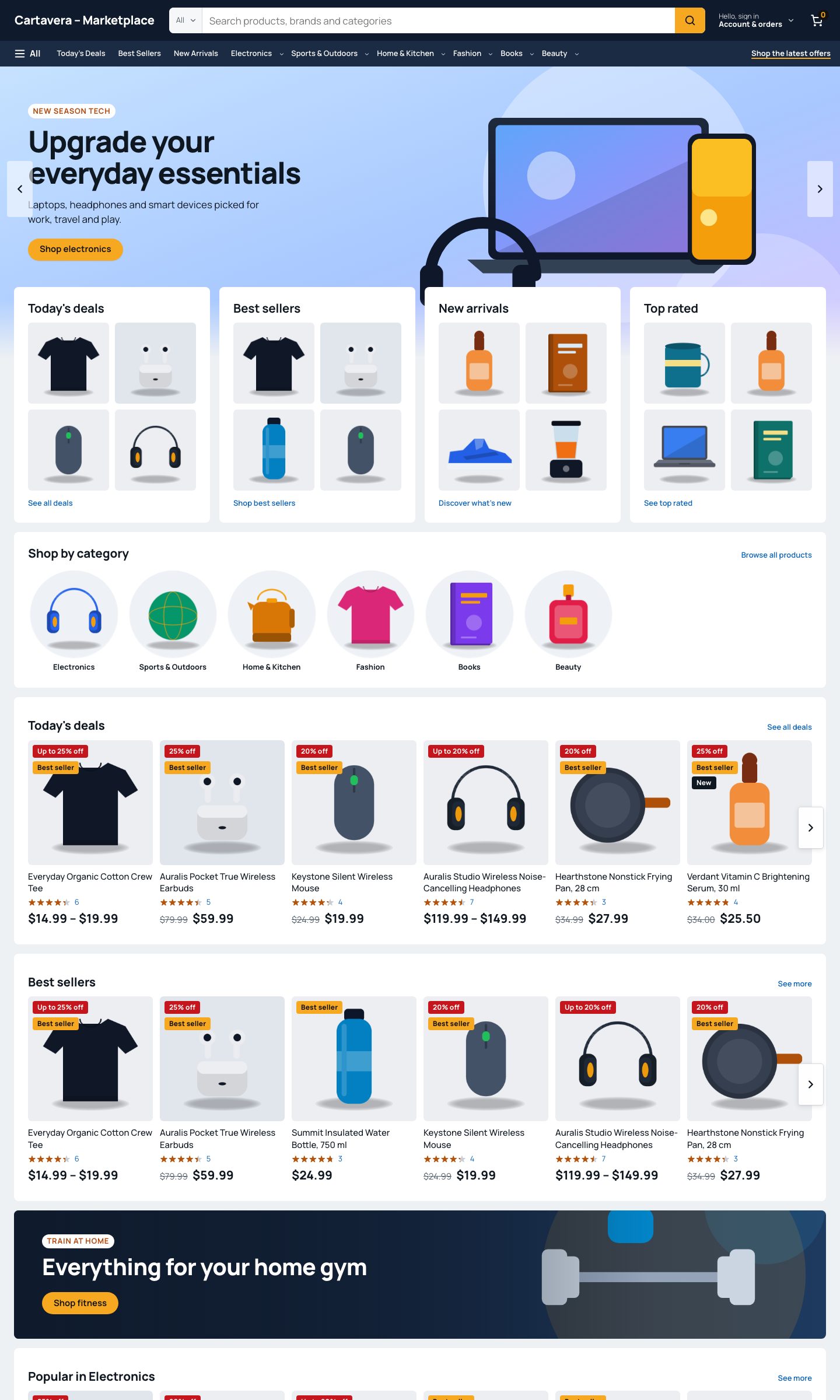
From top to bottom:
| Section | Shows |
|---|---|
| Hero slider | Three promotional slides. No autoplay: shoppers move between slides with the arrows or dots |
| Showcase cards | Four cards of 2×2 product tiles: deals, best sellers, new arrivals, top rated |
| Shop by category | Your categories as picture cards (needs Cartavera Blocks) |
| Today’s deals carousel | Products on sale |
| Best sellers carousel | Your best-selling products |
| Wide promotional banner | One banner with text and a button |
| Category collections | Best sellers from your two largest categories, a carousel each |
| Two promotional image cards | Two banners side by side |
| New arrivals carousel | Your newest products |
| Featured products grid | Products you’ve marked as featured (the ☆ in Products → All Products) |
| Top rated carousel | Products with the highest average rating |
| Recently viewed products | Products this shopper looked at on this device (needs Cartavera Blocks) |
| Store benefits strip | Four short statements about shopping with you |
Change a section
Click any block to edit it.
- Product carousels and grids are WooCommerce’s Product Collection block. In the block settings you can change which products it shows (by category, tag, on sale, featured, price and more), how many, the order and the number of columns.
- Banners are WordPress Cover blocks. Click the image to replace it, then edit the text and the button link.
- Hero slides: each slide is a Cover block inside the slider. Duplicate a slide to add one, or delete it to remove one.
Check every banner’s wording. The banners come with sample text like “Upgrade your everyday essentials” and “Shop electronics”, and link to sample category names. Rewrite them for your store and point the buttons at your own pages.
Edit the store benefits strip. Its four statements (“Find it fast”, “Track your orders”, “Checkout your way”, “Here to help”) are plain text. Change or remove any that aren’t true for your store, for example “Check out as a guest” if guest checkout is turned off.
Reorder, remove and add sections
- Reorder: select a section and use the up and down arrows in its toolbar, or drag it in List View.
- Remove: select the section’s outer group and press Delete (or ⋮ → Delete).
- Add: click +, open Patterns, and pick a Cartavera category.
Pattern library
Cartavera has 58 patterns in the inserter, in these categories:
| Category | Patterns |
|---|---|
| Cartavera: Hero | Hero slider, Split hero (text and image), Centered hero banner, Hero mosaic, Electronics hero, Fashion hero, Grocery hero |
| Cartavera: Collections | Showcase cards, Shop by category, Department cards, Category quick links, Today’s deals carousel, Best sellers carousel, New arrivals carousel, New arrivals grid, Featured products grid, Top rated carousel, On sale products grid, Products under a price, Category collections, Category spotlight, Recently viewed products, Catalog filters, Product page recommendations |
| Cartavera: Promotions | Wide promotional banner, Two promotional image cards, Three promotional cards, Image and text promotion, Promotion ribbon, Hero mosaic, Category quick links, and the Electronics, Fashion and Grocery promotions |
| Cartavera: Trust and store info | How shopping here works, Accepted payment methods, Store rating summary, Latest customer reviews, Store information, Store benefits strip |
| Cartavera: Content | About the store, Latest from the blog, Three columns of text, Store information, FAQ with help links |
| Cartavera: Newsletter | Newsletter banner, Newsletter with image, Newsletter strip, Footer with newsletter sign-up |
| Cartavera: FAQ | Shopping FAQ, FAQ with introduction, FAQ with help links |
| Cartavera: Headers and footers | Every header and footer (see Headers and footers) |
Some patterns are in more than one category.
Patterns that read your store settings
These patterns only say what your store settings say. A line whose setting is missing is left out, so they never claim something your store doesn’t offer:
- How shopping here works: secure checkout (only when your site uses HTTPS), the payment methods you’ve enabled, a free-shipping minimum (only when a Free Shipping method has one) and your returns page.
- Accepted payment methods: the names of your enabled payment methods.
- Store rating summary: the count and average of your approved product reviews.
- Latest customer reviews: your three most recent approved 4 and 5-star reviews, quoted as written. Hidden until you have one.
- Shopping FAQ: answers built from your payment, shipping, guest checkout and returns settings.
In a template they stay up to date. In a page they don’t. In the homepage template, header or footer they’re read every time the page loads. If you insert one into a page or post and save it, it becomes fixed text. Update it if your payment methods, shipping or returns page change.
Newsletter patterns
The newsletter patterns have a Sign up button, not a form, because WordPress has no built-in form block. Link the button to your email provider’s sign-up page.
Starter homepages
Cartavera has three more homepage designs: Homepage: Electronics megastore, Homepage: Fashion boutique and Homepage: Grocery and fresh food. To use one:
- Create a page (for example “Home”), and in Template choose one of the three.
- Publish it.
- Go to Settings → Reading, choose A static page and pick that page as your homepage.
The starter sites set this up for you; see Import a starter site.
Deals page
Create a page, choose the Deals page (sale products) template and publish. It lists every product on sale. The header’s “Today’s Deals” link goes to it.
Keep the page light
Each product in a carousel adds a little data to the page, even when it’s off screen. If you don’t need a section, remove it rather than leaving it in, and keep carousels to the 8 products they show by default.
Undo your changes
To go back to Cartavera’s original homepage, open the template in Appearance → Editor → Templates, click ⋮ and choose Reset (or Clear customizations). This also brings back the automatic text and translations; see Translation.