
Address Guard Pro saves address validation results on WooCommerce orders so store owners and fulfillment teams can review address quality before shipping.
This helps you understand whether an address was verified, corrected, unverified, blocked, warned, or matched one of your address rules.
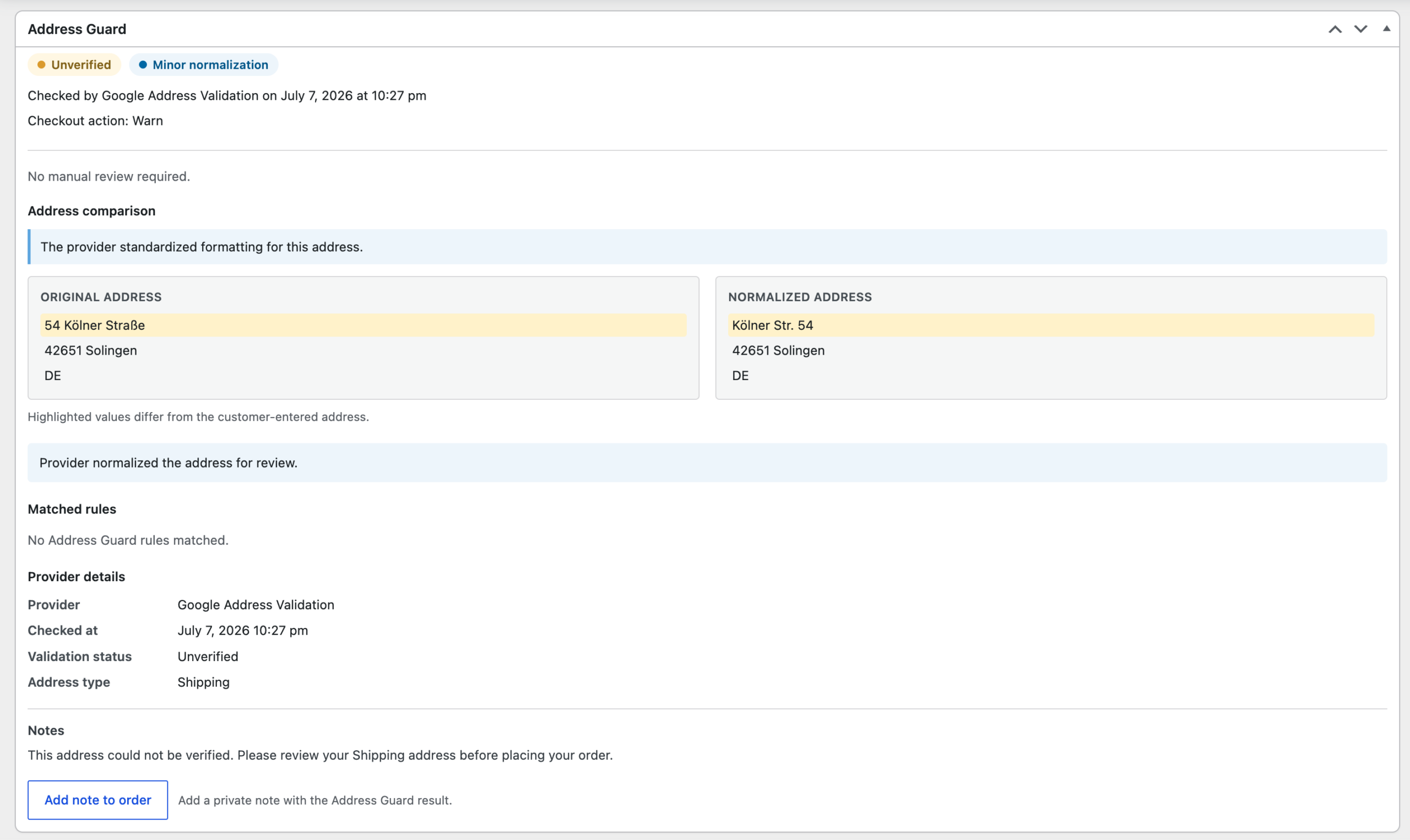
Where to Find Address Guard Order Data
Open a WooCommerce order:
WooCommerce → Orders → Edit Order
Look for the Address Guard panel inside the order screen.
The panel shows the validation result for the order address, including:
- Validation status
- Normalization status
- Provider used
- Checkout action
- Original address
- Normalized address
- Matched rules
- Provider details
- Customer-facing note/message
- Option to add a private order note
Validation Status
The status badges at the top of the panel summarize the result.
Common statuses include:
Valid
The address was accepted as valid by the selected validation provider.
Corrected
The provider returned a corrected or standardized version of the address.
Unverified
The provider could not fully verify the address.
This does not always mean the address is wrong. It means the provider was not confident enough to confirm it.
Invalid
The address appears invalid or incomplete.
Provider Error
The validation provider could not complete the request.
This may happen because of an API error, invalid credentials, quota issues, unsupported countries, or malformed address data.
Normalization Status
Address Guard Pro may also show a normalization badge such as:
Minor normalization
This means the provider changed formatting but did not necessarily identify a major address problem.
Example:
Original address:
54 Kölner Straße
42651 Solingen
DE
Normalized address:
Kölner Str. 54
42651 Solingen
DE
In this case, the provider standardized the street format and house-number order.
Checkout Action
The Checkout action line shows what happened during checkout.
Examples:
- Allow — the customer was allowed to place the order.
- Warn — the customer saw a warning but could continue.
- Block — checkout was blocked until the address was corrected.
- Review — the order was allowed but should be reviewed before fulfillment.
The action depends on your Checkout settings and matched address rules.
Address Comparison
The Address comparison section shows the difference between:
- Original Address — the address entered by the customer.
- Normalized Address — the address returned by the validation provider.
Highlighted values show the parts that differ from the customer-entered address.
Use this section to quickly check whether the provider made only a formatting change or whether the address may need manual review.
Original Address
The original address is the address submitted during checkout.
This is useful when you need to compare exactly what the customer entered against the provider’s standardized version.
Normalized Address
The normalized address is the provider’s standardized version.
Depending on the provider and country, normalization may include:
- Street abbreviation changes
- House number ordering
- Postcode formatting
- City formatting
- State or region normalization
- Country formatting
Example:
Kölner Straße 54
may become:
Kölner Str. 54
Matched Rules
The Matched rules section shows which Address Guard rules matched the order.
If no rules matched, the panel shows:
No Address Guard rules matched.
If rules matched, this section helps explain why the order was warned, blocked, or marked for review.
Examples of matched rules:
- Missing house number
- PO box address
- Parcel locker address
- Invalid postcode/country combination
- Unverified address
- Provider error
Provider Details
The Provider details section shows technical summary information about the validation check.
It may include:
- Provider name
- Checked at date/time
- Validation status
- Address type
Example:
Provider: Google Address Validation
Checked at: July 7, 2026 10:27 pm
Validation status: Unverified
Address type: Shipping
This is useful when troubleshooting provider behavior or checking which provider handled the address.
Notes
The Notes section shows the customer-facing message or internal summary related to the result.
Example:
This address could not be verified. Please review your Shipping address before placing your order.
This helps your fulfillment team understand what the customer may have seen during checkout.
Adding a Private Order Note
Click Add note to order to save the Address Guard result as a private WooCommerce order note.
This is useful when:
- Your fulfillment team reviews orders inside WooCommerce.
- You want a record of why an address was warned or reviewed.
- You need to document that the provider normalized the address.
- A support team member needs to follow up with the customer.
The note is private and is not sent to the customer.
When Should You Manually Review an Order?
You should review the address before shipping when:
- The status is Unverified.
- The status is Invalid.
- A provider error occurred.
- A blocking or review rule matched.
- The normalized address differs significantly from the original address.
- The address contains a PO box, parcel locker, or unusual delivery location.
- The country, postcode, city, or state looks inconsistent.
Minor formatting changes usually do not require manual review unless your fulfillment process requires exact address formatting.
Recommended Workflow
For stores that manually review risky addresses:
- Open the WooCommerce order.
- Check the Address Guard status badges.
- Compare the original and normalized address.
- Review any matched rules.
- Check the provider details.
- Add a private order note if needed.
- Contact the customer if the address is unclear.
- Update the order address before purchasing a shipping label.
Important Notes
Address Guard Pro helps identify address issues, but the final shipping decision remains with the store owner.
Provider results can vary by country, carrier, and address format. For high-risk or expensive shipments, review unverified addresses manually before fulfillment.