
The plugin connects with your own Canada Post account: your customer number, your Developer Portal app and your billing. WPRuby never uses its own credentials for your store.
1. Create an app in the Canada Post Developer Portal
- Sign in to the Canada Post Developer Portal with your Canada Post business profile and choose the organization (customer number) you ship for.
- Go to Apps → Create new app and choose Test. The type cannot be changed later. When you are ready to go live, create a second app of type Production the same way.
- Copy the API Key and API Secret. The secret is only shown once.
- Click Add API product and add each of these products: Rating, Shipping, Tracking, Returns, Pickup, Post Office Services, Customer Information Services and Service Information.
2. Enter the credentials
Go to Canada Post → Settings → Account. Under Credentials for choose Test app (or Production app), paste that app’s API Key and API Secret and click Save credentials. Each app has its own credentials; the Test app’s are never used in Production mode. The secret is encrypted and never shown again; the screen only shows the last four characters of the key.
If you prefer to keep the credentials out of the database, add them to wp-config.php instead. The fields then become read-only:
define( 'WCPE_CP_TEST_API_KEY', 'your-api-key' );
define( 'WCPE_CP_TEST_API_SECRET', 'your-api-secret' );
3. Enter your account details
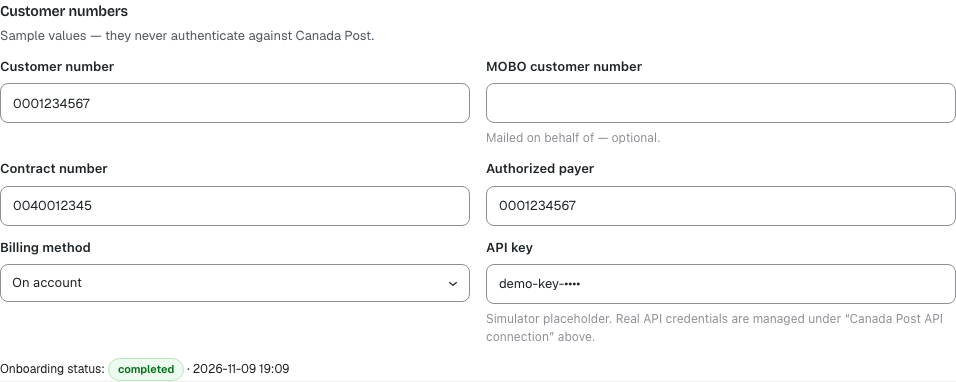
On the same tab, choose your Account type and enter your numbers:

- Solutions for Small Business: no contract. Shipments are paid by the card on your Canada Post profile when they are created and never need a manifest.
- Commercial (contract): enter your Contract number. Shipments are paid on account and, by default, grouped on a daily manifest.
- Customer number: your Canada Post customer number. MOBO customer number is only needed if you mail on behalf of another customer.
4. Switch to Test API mode and test the connection
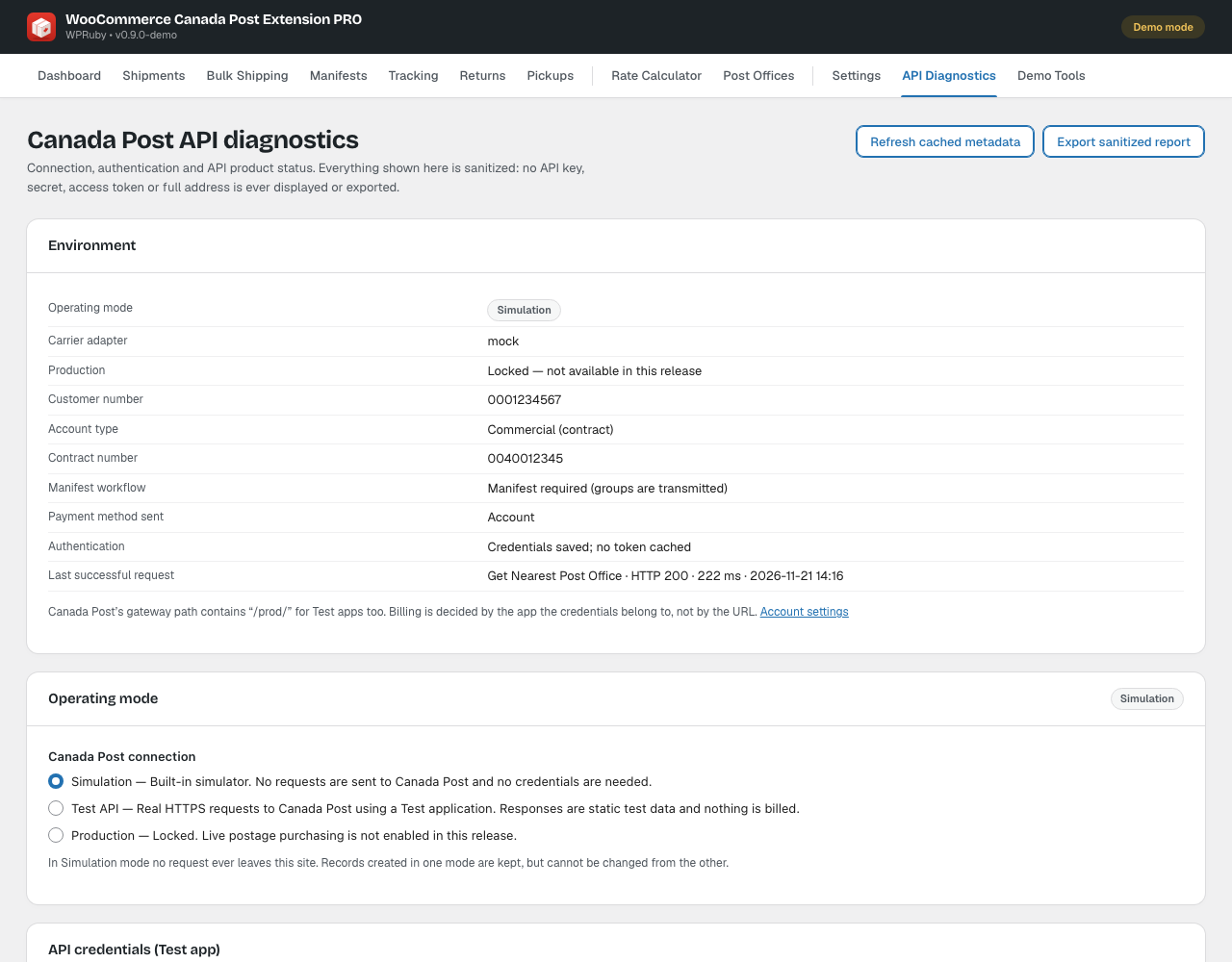
Under Operating mode choose Test API, confirm, then click Test connection. The plugin requests an access token and calls Canada Post’s Service Information and Customer Information APIs. Each step shows a green tick when it works.
Then open Canada Post → API Diagnostics (in the Simple interface, switch to Advanced in the top bar first) and click Check API products. Any product marked No access still needs to be added to your app in the Developer Portal.
5. Go live with Production mode
Save your Production app credentials (or define WCPE_CP_API_KEY and WCPE_CP_API_SECRET in wp-config.php), then under Operating mode choose Production, type PRODUCTION to confirm and click Test connection. From then on shoppers see your real rates and every label is real postage. See Demo mode, Test API mode and going live.
AddressComplete (optional)
Address lookup at checkout uses Canada Post AddressComplete, which is a separate product with its own account and key. Create a key in your AddressComplete account and enter it under AddressComplete key on the Account tab, or define WCPE_ADDRESSCOMPLETE_KEY in wp-config.php.
Note: For the strongest protection of saved credentials, also define WCPE_ENCRYPTION_KEY in wp-config.php. A copy of the database alone then cannot decrypt them.