WooCommerce will take payment for an address that is only complete on the form. A missing house number, a postcode from another country, or a street the carrier cannot find will still pass if the required fields are filled in. The customer leaves. Fulfilment finds the problem later.
A WooCommerce invalid address warning changes that moment. Before the order is placed, the customer sees that something is wrong, what to change, and (when you have one) a corrected address they can accept. They can still pay. You have given them a chance to fix the shipping details while they are still on the page.
This is the right first policy for most stores that ship physical products. Blocking comes later, after you know which failures are real.
For the full validation setup, see How to Validate Addresses Before WooCommerce Checkout. This article focuses on the warning itself: when to use it, what the customer should see, and how to set it up with Address Guard Pro.
Why a warning beats silence (and why it beats a hard block on day one)
If you do nothing, every bad address becomes a paid order. Labels fail, support emails the customer, delivery dates slip, and express orders miss the cutoff.
If you block checkout on every failed check from day one, you will also stop legitimate orders. Rural properties, new buildings, and some apartment formats are often unmarked or unverified in postal data even when a carrier can deliver there. A customer who cannot place the order does not wait around to argue with your validator. They leave.
A warning sits between those two failures:
- The customer is told the address looks wrong.
- They can correct it, accept a suggestion, or continue if they are sure.
- You still get a record on the order that fulfilment can read.
Start here. Tighten later.
What a WooCommerce invalid address warning should do
A useful warning is not a red banner that says “invalid address.” It is a short checkout conversation with four jobs.
- Stop the customer from assuming the address is fine. If the form submitted, they think they are done.
- Name the problem. House number missing, postcode does not match the country, address could not be verified, did they mean this corrected version.
- Tell them what to enter instead. Specific beats generic.
- Leave a path forward. Warn means they can still place the order after they have seen the message. Block means they cannot.
If you skip step 2 or 3, customers click through the warning without changing anything. You have added friction without reducing failed deliveries.
Warn, block, allow, or mark for review
Treat these as different tools, not as four names for the same setting.
| Action | What the customer sees | Use it when |
|---|---|---|
| Warn | A checkout message. They can continue. | The address might still be deliverable, or you have not tested the rule yet |
| Block | A checkout error. They must change the address. | The address cannot be fulfilled as entered |
| Allow | Nothing extra, or a quiet pass | The address is verified, or you have chosen not to interrupt this case |
| Mark for review | The order can be placed. Fulfilment gets a flag. | Provider errors, heavy normalization, or cases a human should check before buying a label |
A practical split for shipping addresses:
- Warn on unverified addresses, provider uncertainty, and first-week validation.
- Block on missing house numbers, invalid postcode/country combinations, and PO boxes your courier cannot serve.
- Review when the validation API failed, so a provider outage does not freeze checkout.
Do not put every rule on warn. A missing house number is not a maybe. It is almost always a dispatch delay. Warn where the data is uncertain. Block where your warehouse already knows the answer.
The comparison of validation vs autocomplete is worth reading if you are still deciding which layer to turn on first. Warnings sit on the validation side. Autocomplete reduces how often those warnings appear.
What the customer should see at checkout
The warning has to appear on the checkout they actually use: Checkout Blocks or classic [woocommerce_checkout]. A message that only works in the admin tester does not help.
Typical warning moments:
- They click Place order and the address cannot be verified.
- The provider returns a standardized address that differs from what they typed.
- A local rule matches (for example a postcode that does not belong to the selected country) but you have set that rule to warn rather than block.
Give them a corrected address when you have one. “Did you mean 10 Downing Street, London, SW1A 2AA?” is easier to act on than “Please review your shipping address.” If they accept the suggestion, the form updates and they continue. If they decline, they stay on what they typed, and you still have the original on the order.
Keep the warning on the shipping address. That is the address on the label. Billing can stay quieter unless invoices or tax IDs depend on a precise street.
Which invalid addresses deserve a warning
Not every bad-looking address should stop the customer. Group the failures.
Warn first
- Provider status is unverified (rural, new-build, unusual unit formats)
- The provider suggests a formatting change the customer may not have noticed
- Validation is temporarily unavailable
- You have just enabled validation and have not reviewed a week of real orders
Block once tested
- No house or building number on the street line
- Postcode format does not match the selected country
- PO boxes or parcel lockers your carriers cannot deliver to
- Addresses the provider marks invalid, not merely unverified, after you have confirmed that match rate in your markets
Review instead of interrupting
- Provider API errors
- Addresses that were heavily rewritten
- Edge destinations you ship to rarely
If you warn on everything, customers learn to ignore the message. If you block on everything, you will trap good orders. The warning is for the grey area.
Set up a WooCommerce invalid address warning with Address Guard Pro
Address Guard Pro can warn, suggest a corrected address, or block checkout. It works with Checkout Blocks and classic checkout, and it stores the result on the order.
You connect your own Google, Mapbox, Loqate, or Smarty credentials. The plugin does not bundle provider usage.
Step 1: Connect a validation provider
Go to WooCommerce → Address Guard → Providers.
- Choose a Validation provider (Google Address Validation, Loqate Address Verify, or Smarty).
- Enter the API credentials.
- Click Test validation provider.
Do not enable checkout warnings until the test succeeds. A failed test usually means a missing key, a restricted key, or a product that is not enabled on the billing account.
Optionally connect an Autocomplete provider on the same screen. Autocomplete will not replace the warning, but it will cut the number of typos that reach it. Setup for that layer is in the address autocomplete guide.
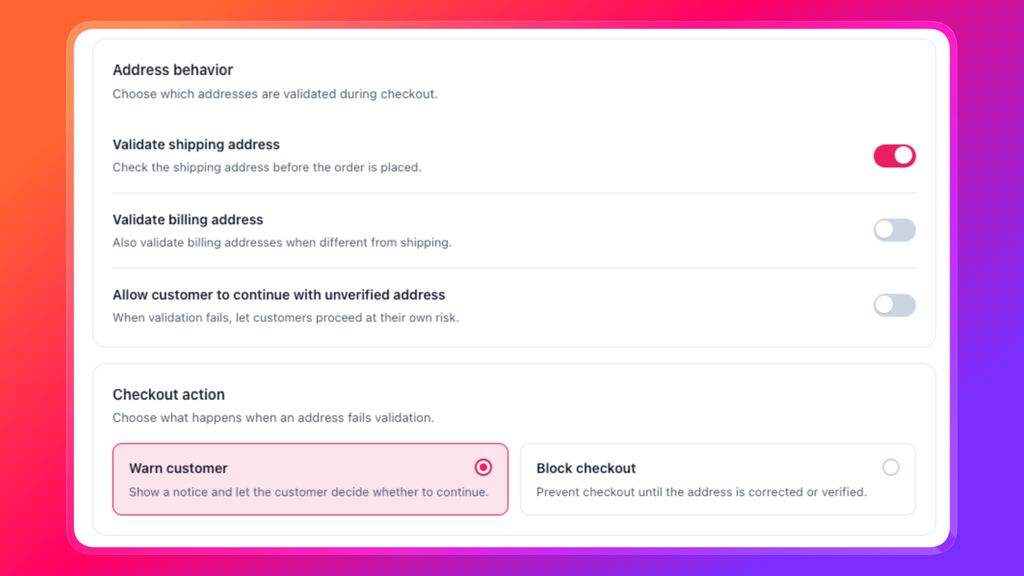
Step 2: Set the checkout action to Warn customer
Go to WooCommerce → Address Guard → Checkout.
Recommended starting settings:
- Enable checkout validation: On
- Validate shipping address: On
- Validate billing address: Off
- Checkout action: Warn customer
- Allow customer to continue with an unverified address: On
Warn customer is the store-wide default. It shows the message and lets the order through. Turn billing off unless you have a reason. Card networks tolerate a messy billing street better than carriers tolerate a messy shipping street.
Leave Allow unverified on until you have looked at real orders. Unverified is not the same as undeliverable.
Step 3: Put warnings on the uncertain rules, blocks on the certain ones
Go to WooCommerce → Address Guard → Rules.
Start from presets, then adjust the action:
| Rule | Recommended action |
|---|---|
| Warn on unverified address | Warn customer |
| Block missing house number | Block checkout (after you have tested it) |
| Block invalid postcode/country combination | Block checkout (after you have tested it) |
| Review provider errors manually | Mark for review |
Add PO box and locker rules only if your couriers cannot serve those destinations. Keep them on shipping. A customer may bill to a PO box and ship to a street. That workflow is covered in How to Block PO Boxes and Parcel Lockers in WooCommerce.
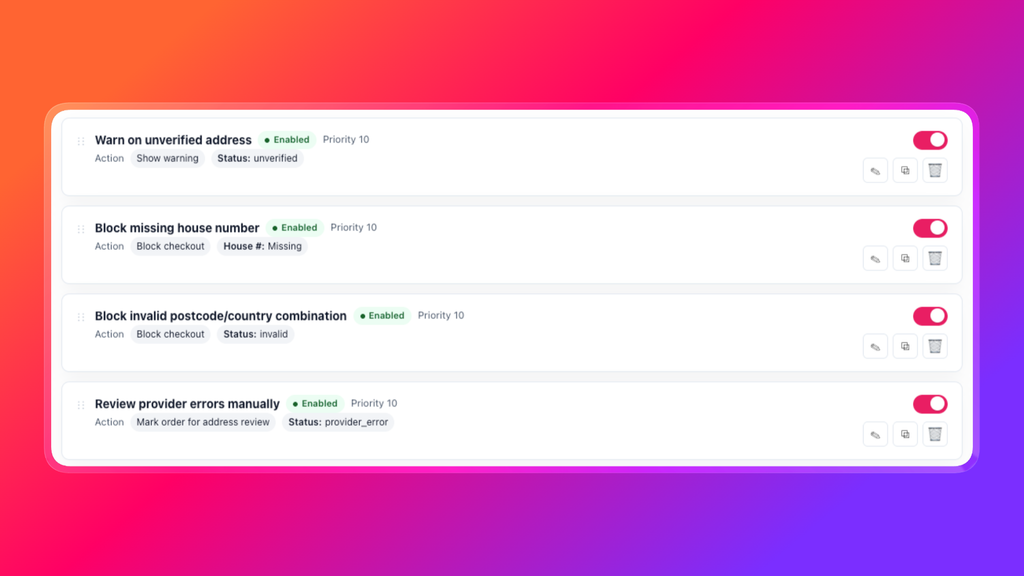
Rules run by priority. Lower numbers run first. Put blocking rules ahead of warnings so a missing house number is not hidden under a softer “please review” message.
Step 4: Write a warning the customer can act on
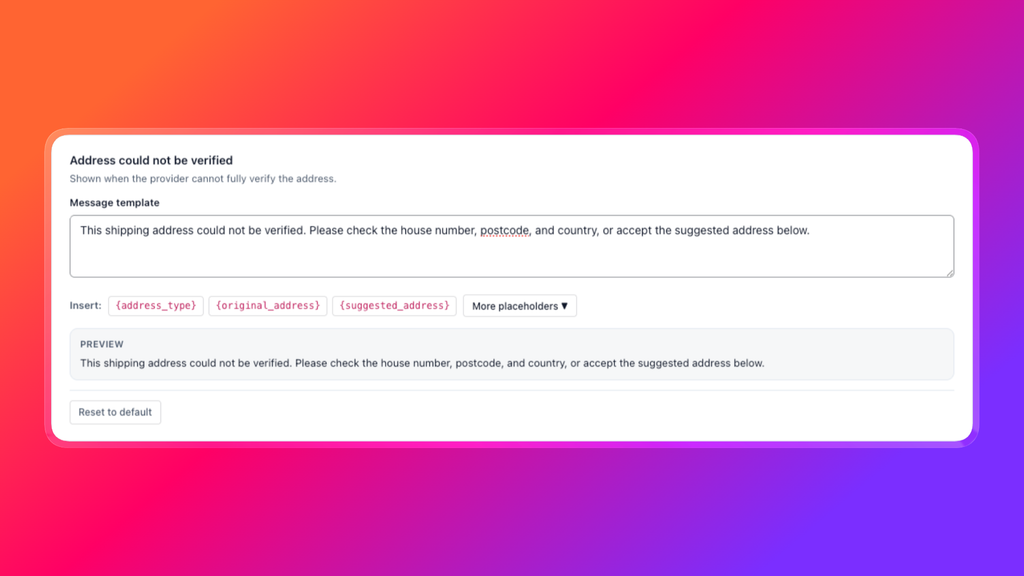
Go to WooCommerce → Address Guard → Messages.
The copy decides whether they fix the address or click through it. Explain the problem and what to enter.
Good:
This shipping address could not be verified. Please check the house number, postcode, and country, or accept the suggested address below.
Good:
Please include a house or building number in your shipping address.
Less helpful:
Address validation failed.
Less helpful:
Invalid address.
Use placeholders so one template works for shipping and billing: {address_type}, {suggested_address}, {postcode}, {country}.
If the provider returns a standardized address, keep a suggestion prompt such as:
Did you mean: {suggested_address}?
That is the highest-converting warning you can show. The customer does not have to diagnose the form. They confirm or decline.
Step 5: Test the warning on checkout, not only in admin
Go to WooCommerce → Address Guard → Tester, then place a test order on the live checkout type your store uses.
At minimum, confirm:
- A known-good address places with no warning
- The same address with the house number removed shows the house-number message
- A postcode from another country shows a mismatch warning or block, depending on the rule
- An unverified rural or new-build example warns and still allows Place order
- A corrected address appears when the provider has one, and accepting it updates the form
- Billing is left alone if you disabled billing validation
- The same flow works on a phone-width screen
- The WooCommerce order stores the original address, the normalized address, the status, and the warning
If the tester passes and checkout does not show the message, you are usually on the other checkout type (Blocks vs classic) or a theme is hiding notices. Fix that before you send paid traffic.
How to write warnings customers will actually read
Checkout is already a long form. Extra text is easy to skip. Keep each message to one problem and one action.
Rules of thumb:
- Say shipping or billing, not only “address.”
- Name the field: house number, postcode, country, apartment.
- Offer the suggested address when you have it.
- Do not threaten (“we cannot ship”) unless you are actually blocking.
- Do not stack three warnings for one typo. One clear message is enough.
- Match the tone of the rest of checkout. A sudden legal-sounding error feels like a failed payment, not a helpful check.
A warning that sounds like a payment failure will raise abandonment even when the customer could have continued. You are asking them to look again, not telling them the card was declined.
Reduce how often the warning appears
A warning is useful. A warning on half of orders is a broken checkout.
Cut avoidable warnings before you make the remaining ones stricter:
- Turn on address autocomplete on the shipping address so city, postcode, and country fill together.
- Limit autocomplete countries to the destinations you ship to.
- Block the mistakes that never ship (missing house number, foreign postcode) so they never become a soft warning the customer clicks through.
- Keep unverified on warn until you know how your carriers treat those addresses.
- Review a week of orders. If the same warning never predicts a failed label, soften or remove it.
The goal is fewer, more accurate interruptions, not more red text.
After the customer continues with a warning
The warning only helps fulfilment if someone can see it on the order.
Address Guard Pro stores the original address, the normalized address, the validation status, matched rules, and the checkout action. Open the order and check the Address Guard panel before you buy a label when:
- The status is unverified or invalid
- The customer was warned and continued
- A suggested address was shown and declined
- A provider error occurred
That is faster than reconstructing the checkout from a customer email. If the same warning keeps leading to return-to-sender parcels, change that rule from warn to block.
A policy that works for most WooCommerce stores
If you want a default that protects checkout without surprising customers:
- Connect a validation provider and test it.
- Enable validation on the shipping address only.
- Set the checkout action to Warn customer.
- Allow unverified addresses.
- Write specific messages, including a suggested-address prompt.
- After testing, block missing house numbers and invalid postcode/country pairs.
- Add autocomplete so fewer warnings are caused by typos.
- After a week of orders, promote the warnings that consistently predict failed deliveries to blocks.
Do not launch on Block checkout as the default. Use warn as the net, then close the holes you have measured.
Common questions
Will a warning stop the customer from placing the order?
No. A warning is visible and the order can still be placed. A block is the setting that stops checkout. Keep those actions separate.
Is an unverified address the same as an invalid address?
No. Invalid usually means the street, city, postcode, and country do not hold together. Unverified means the provider could not confirm the building. Rural and new-build addresses land in unverified often enough that a warning is safer than a block until you know your carriers.
Should I warn on billing as well as shipping?
Usually no. Warn (and later block) on shipping, because that is the label. Billing is for the invoice and the payment method. A customer may bill to a PO box or a registered office that should not be rewritten into a street.
What if the customer ignores the warning?
That is expected some of the time. You still have the validation result on the order. If ignored warnings turn into failed deliveries, change those rules to block. If they do not, leave them as warnings or drop them.
Does this work with Checkout Blocks?
Yes. Address Guard Pro supports Checkout Blocks and classic shortcode checkout. Test the type your store actually runs, including a phone-width viewport so the notice is not clipped or hidden.
Can I warn without a validation provider?
You can warn (or block) on local rules such as missing house numbers, PO boxes, and postcode/country mismatches without an API. You need a provider to warn on unverified or corrected addresses against postal data.
Will warnings hurt conversion?
A vague, payment-like error will. A short, specific shipping-address warning usually costs less than a failed delivery and a support ticket. Pair warnings with autocomplete so most customers never see them.
Warn first, then make the warning worth reading
WooCommerce will accept any address that fills the required fields. A WooCommerce invalid address warning is how you tell the customer the address is not ready to ship, without trapping them on day one.
Show the problem. Offer a correction when you have one. Let them continue when the data is uncertain. Block only the cases you have tested. Keep the result on the order so fulfilment is not guessing.
Learn more about Address Guard Pro, or start with the setup guide: Get Started.