A missing house number, a postcode that belongs to a different country, or a street name with a typo will usually sail through WooCommerce checkout. The customer can pay. The order looks complete. The problem only appears when you try to buy a shipping label, or when the parcel comes back as undeliverable.
WooCommerce does not validate that an address is real. It only checks that required fields are not empty. You can close that gap by validating the shipping address before the order is placed, while the customer is still on the checkout page and can correct it.
This guide covers why native checkout checks are not enough, what a proper validation flow looks like, and how to set it up with Address Guard Pro.
Why bad checkout addresses cost more than they look
A failed delivery is rarely a single extra carrier fee. It usually starts a chain of work:
- The label cannot be created, or the carrier rejects the address.
- Fulfilment pauses the order and emails the customer.
- The customer replies with a corrected address, or does not reply at all.
- Delivery estimates on the original order become wrong.
- Express or same-day orders miss the dispatch cutoff.
- The parcel is returned, re-labelled, and shipped a second time.
One bad address might take ten minutes to fix. Across a busy week, those exceptions become a regular drain on support time and shipping margin.
The most common checkout mistakes are not exotic. They are ordinary typing errors that WooCommerce cannot see:
- Street address with no house or building number
- Postcode that does not match the selected country
- City or state that does not belong with the postcode
- PO box or parcel locker used with a courier that cannot deliver there
- Incomplete second address line, apartment, or unit number
- A billing address copied into shipping that was never meant for delivery
If you wait until the order screen to notice these, the customer has already left.
What WooCommerce actually checks at checkout
WooCommerce checkout validation is field validation, not address validation.
By default, the store can require:
- Country
- Street address
- City
- State or region, depending on the country
- Postcode, depending on the country
That is useful. It is not the same as asking: can a carrier deliver to this place?
A customer can enter 123 Fake Street, a postcode from another country, or Main Street with no number, and still place the order. Required fields were filled in. The address was never verified.
Custom checkout fields, shipping zones, and “required” toggles do not change this. They control which fields appear and which shipping methods are offered. They do not confirm that the combination of street, city, postcode, and country is a real, deliverable address.
What address validation before checkout should do
A useful checkout validation flow does four things, in this order:
- Help the customer enter the address correctly. Autocomplete suggestions reduce typos before they happen.
- Check the address against postal data. A validation provider can confirm, correct, or flag the address.
- Apply your store’s delivery rules. Block PO boxes, missing house numbers, or destinations your carriers cannot serve.
- Tell the customer what to change. A specific message is more useful than a generic “invalid address” error.
You can run the last two steps locally, without an API. You need a provider for autocomplete and for true deliverability checks.
| Approach | What it catches | What it misses |
|---|---|---|
| Required WooCommerce fields | Empty fields | Fake streets, wrong postcodes, missing house numbers |
| Local checkout rules | PO boxes, lockers, missing house numbers, postcode format | Whether the building actually exists |
| Address autocomplete | Typos and incomplete entry | Customers who skip suggestions and type freely |
| Provider validation | Unverified, invalid, or standardized addresses | Store-specific restrictions (for example “no PO boxes on express”) |
Most stores need a combination: autocomplete to reduce mistakes, provider validation to verify the address, and local rules to encode fulfilment policy.
If you only need to reject PO boxes or parcel lockers, local rules are often enough. That workflow is covered separately in How to Block PO Boxes and Parcel Lockers in WooCommerce. This article focuses on validating the address itself before checkout completes.
Option 1: Custom checkout validation code
You can hook into classic checkout with woocommerce_after_checkout_validation, or into Checkout Blocks through the Store API.
That approach can work for a single, hard-coded rule. It becomes expensive quickly:
- You must support both classic shortcode checkout and Checkout Blocks.
- You must handle billing and shipping separately.
- You must own provider API errors, rate limits, and fallbacks.
- Every WooCommerce checkout change becomes a regression risk.
Custom code is a reasonable choice for agencies with a dedicated maintenance budget. It is a poor fit if you want to change messages, add a PO box rule, or switch from “warn” to “block” without deploying PHP.
Option 2: Validate addresses with Address Guard Pro
Address Guard Pro adds an address protection layer to WooCommerce checkout. It works with Checkout Blocks and classic [woocommerce_checkout], and it keeps validation results on the order so fulfilment can see what happened.
The plugin can:
- Suggest addresses while the customer types
- Validate shipping and billing addresses before the order is placed
- Show a corrected, standardized address and let the customer accept it
- Warn, allow, or block checkout depending on the result
- Run local rules for missing house numbers, PO boxes, postcode mismatches, and similar issues
- Save original versus normalized addresses on the order
You use your own Google, Mapbox, Loqate, or Smarty credentials. The plugin does not bundle provider usage, so you keep control of API billing.
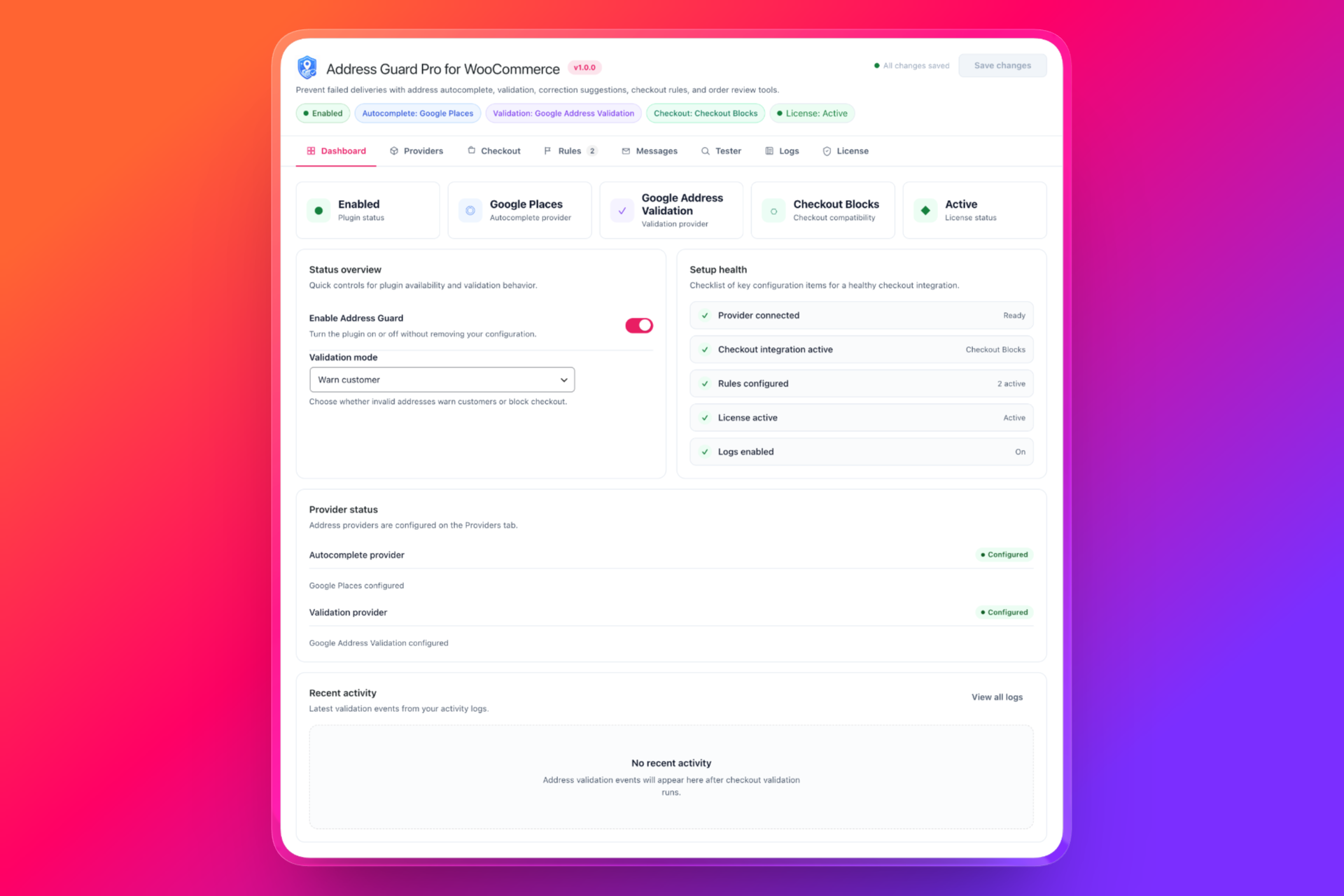
Step 1: Connect an autocomplete and validation provider
Go to WooCommerce → Address Guard → Providers.
Choose providers separately. A common setup is:
- Autocomplete: Google Places or Mapbox Address Autofill
- Validation: Google Address Validation, Loqate Address Verify, or Smarty
Enter the API credentials for each selected provider, then use Test autocomplete provider and Test validation provider. Do not enable checkout validation until both tests succeed.
Limit autocomplete countries to the destinations you actually ship to. If the customer has already chosen a checkout country, Address Guard Pro uses that country as the main suggestion context.
Step 2: Enable validation on checkout
Go to WooCommerce → Address Guard → Checkout.
Recommended starting settings for a store that ships physical products:
- Enable checkout validation: On
- Enable address autocomplete: On, applied to the shipping address
- Validate shipping address: On
- Validate billing address: Off, unless you have a specific billing-accuracy requirement
- Allow customer to continue with an unverified address: On at first
- Checkout action: Warn customer
Start with warnings. Blocking checkout on day one will catch real problems, but it will also catch edge cases you have not tested yet: rural addresses, new buildings, or provider uncertainty.
Once you have reviewed real orders and tested your rules, switch strict cases to Block checkout.
Step 3: Add rules for the mistakes that actually delay dispatch
Go to WooCommerce → Address Guard → Rules.
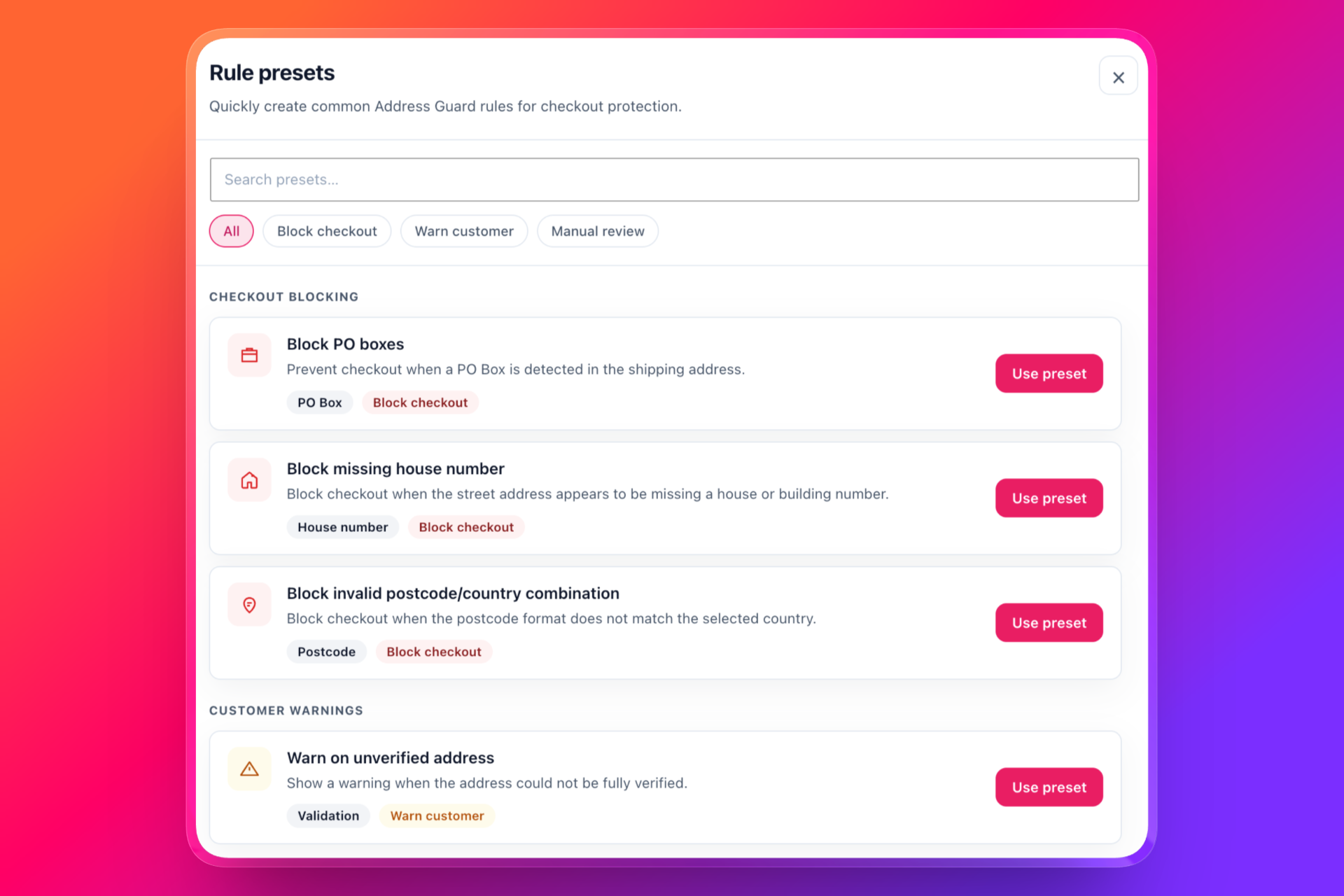
You can create a rule from scratch or start from a preset. For most stores, these four are the right first set:
| Rule | When it matches | Recommended action |
|---|---|---|
| Block missing house number | Street line has no building number | Block checkout |
| Block invalid postcode/country combination | Postcode format does not match the country | Block checkout |
| Warn on unverified address | Provider cannot fully verify the address | Warn customer |
| Review provider errors manually | The validation API failed | Mark for review |
Add PO box and parcel locker rules if your carriers cannot deliver to those address types. Keep those restrictions on the shipping address. A customer may bill to a PO box and still ship to a street address.
Rules run by priority. Lower numbers run first. Put blocking rules ahead of warnings so a missing house number is not buried under a softer “please review” message.
Step 4: Write messages the customer can act on
Go to WooCommerce → Address Guard → Messages.
The message decides whether the customer fixes the address or abandons checkout. Explain the problem and what to enter instead.
Good:
Please include a house or building number in your shipping address.
Less helpful:
Address validation failed.
You can use placeholders such as {address_type}, {suggested_address}, {postcode}, and {country} so the same template works for shipping and billing.
Step 5: Test addresses before you block live checkout
Go to WooCommerce → Address Guard → Tester.
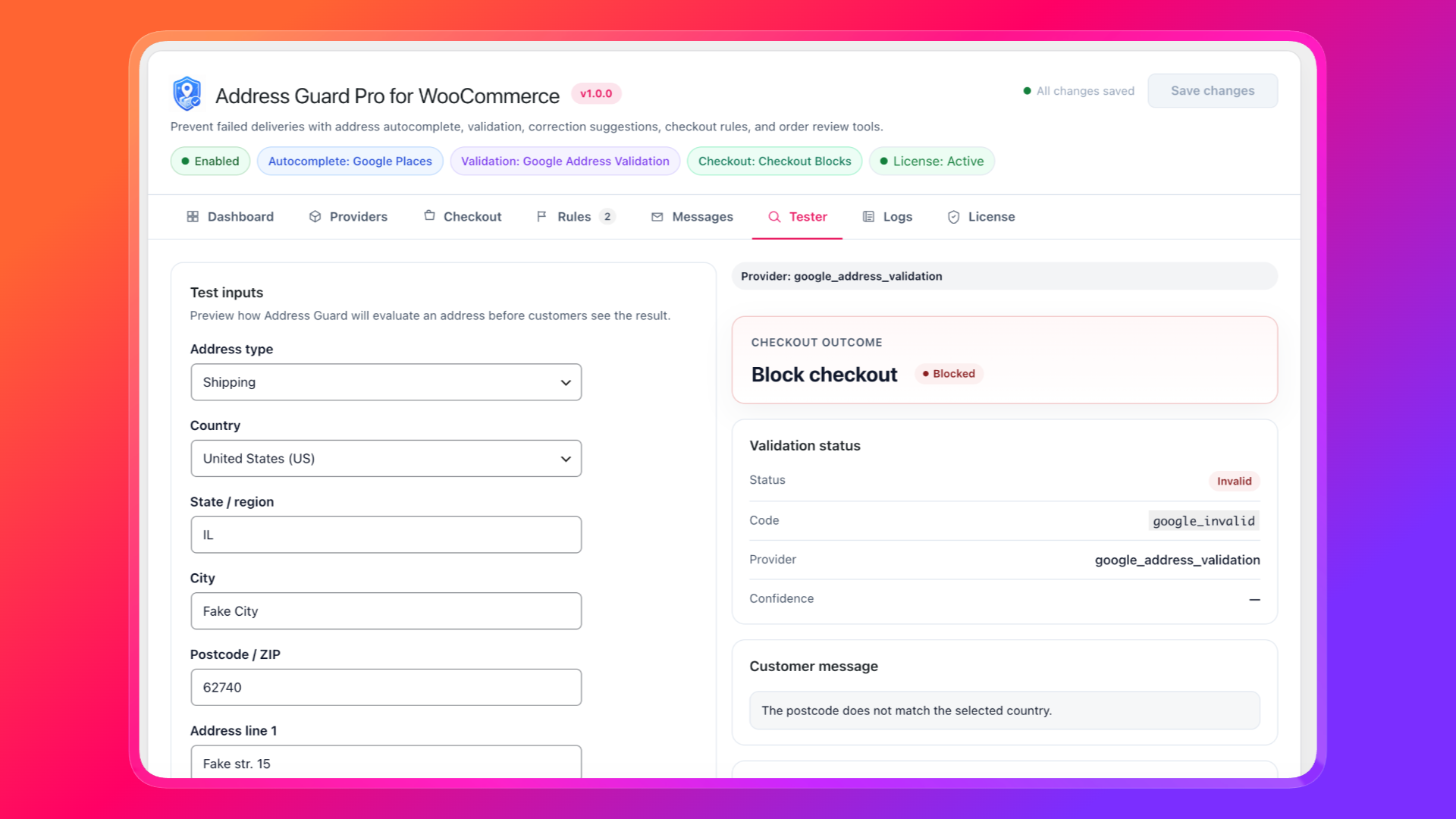
Enter both valid and invalid examples and confirm the status, matched rules, and customer message. At minimum, test:
- A complete residential address you know is deliverable
- The same address with the house number removed
- A postcode from a different country
- A PO box, if you restrict them
- A rural or new-build address that providers sometimes mark unverified
- Billing and shipping independently, if both are enabled
Then place a test order on the live checkout type your store uses (Checkout Blocks or classic checkout). Confirm that suggestions appear, warnings display, and the order still contains the Address Guard result.
Warn, block, or mark for review
Not every failed check should stop the customer.
Warn when the address might still be valid. Rural properties, new buildings, and some apartment formats are often unverified even when they are deliverable. A warning asks the customer to look again without trapping a legitimate order.
Block when the address cannot be fulfilled as entered. Missing house numbers and country/postcode mismatches almost always delay dispatch. Blocking here is cheaper than a support ticket.
Mark for review when the order can be placed but someone should look before buying a label. Use this for provider outages, parcel lockers, or addresses that were heavily normalized.
A practical policy looks like this:
- Launch with Warn customer as the default checkout action.
- Block only the rules you have tested (missing house number, PO boxes, postcode mismatch).
- Allow unverified addresses until you have reviewed a week of real results.
- Tighten later, once you know which unverified addresses are genuinely undeliverable for your carriers.
Review the result on the order
Validation is only useful if fulfilment can see it.
Address Guard Pro stores the original address, the normalized address, the validation status, matched rules, and any review flag on the WooCommerce order. Open the order and check the Address Guard panel before you purchase a label when:
- The status is unverified or invalid
- A provider error occurred
- A blocking or review rule matched
- The normalized address differs significantly from what the customer typed
That is faster than reconstructing the checkout conversation from a customer email.
A setup that works for most WooCommerce stores
If you want a default configuration that protects checkout without surprising customers:
- Connect Google Places for autocomplete and Google Address Validation for verification, or mix Mapbox autocomplete with Loqate or Smarty validation.
- Enable autocomplete and validation on the shipping address only.
- Set the checkout action to Warn customer.
- Enable rules for missing house numbers and postcode/country mismatches.
- Test with the Address Tester, then with a real checkout order.
- After a week of order reviews, block the rules that consistently predict failed deliveries.
The goal is not to reject every unusual address. It is to catch the mistakes that would otherwise reach fulfilment, while the customer can still fix them.
Validate the address before you accept the payment
WooCommerce will accept any address that fills in the required fields. Carriers will not.
If you validate before checkout, the customer corrects the street, postcode, or house number while they are still present. You get fewer held orders, fewer return-to-sender parcels, and a fulfilment queue that spends less time chasing addresses.
Learn more about Address Guard Pro, or start with the setup guide: Get Started.