“How do I show a payment method only for local pickup?” is one of the most common WooCommerce questions on forums and Stack Exchange. The usual answer is a PHP snippet that reads the chosen shipping method from the session and removes gateways from the woocommerce_available_payment_gateways filter.
Snippets like that work until they do not: they break when a shipping method ID changes, they rarely handle more than one rule, and many of them were written before the block-based checkout existed.
This guide shows how to set up WooCommerce payment methods based on the shipping method without code, and how to do the reverse: hide shipping methods based on the payment method the customer chooses. We use Restricted Shipping and Payment Pro, and every example works in both the classic and the block checkout.
What WooCommerce can do on its own
WooCommerce has one built-in option for this. In WooCommerce → Settings → Payments → Cash on delivery, the Enable for shipping methods setting limits cash on delivery to the shipping methods you choose.
That covers a single case. It only works for cash on delivery, it cannot combine the shipping method with anything else, such as the order total, and it only works in one direction. For any other gateway, or for hiding shipping methods based on the payment method, you need custom code or a plugin.
How to show cash on delivery only for local pickup
Many stores let customers pay in cash when they collect an order, but not when it is posted. Here is how to set that up, with an extra limit the built-in setting cannot do: pickup orders up to $500 only.
- Go to WooCommerce → Payment Conditions and click Add New Payment Condition.
- Set the action to Show them only when the cart matches the rules, and select Cash on delivery under Payment gateways.
- Add the Shipping Method rule with is, and select your pickup method.
- Optionally, add Cart Total less than 500 to the same group, so both rules must match.
- Click Publish.
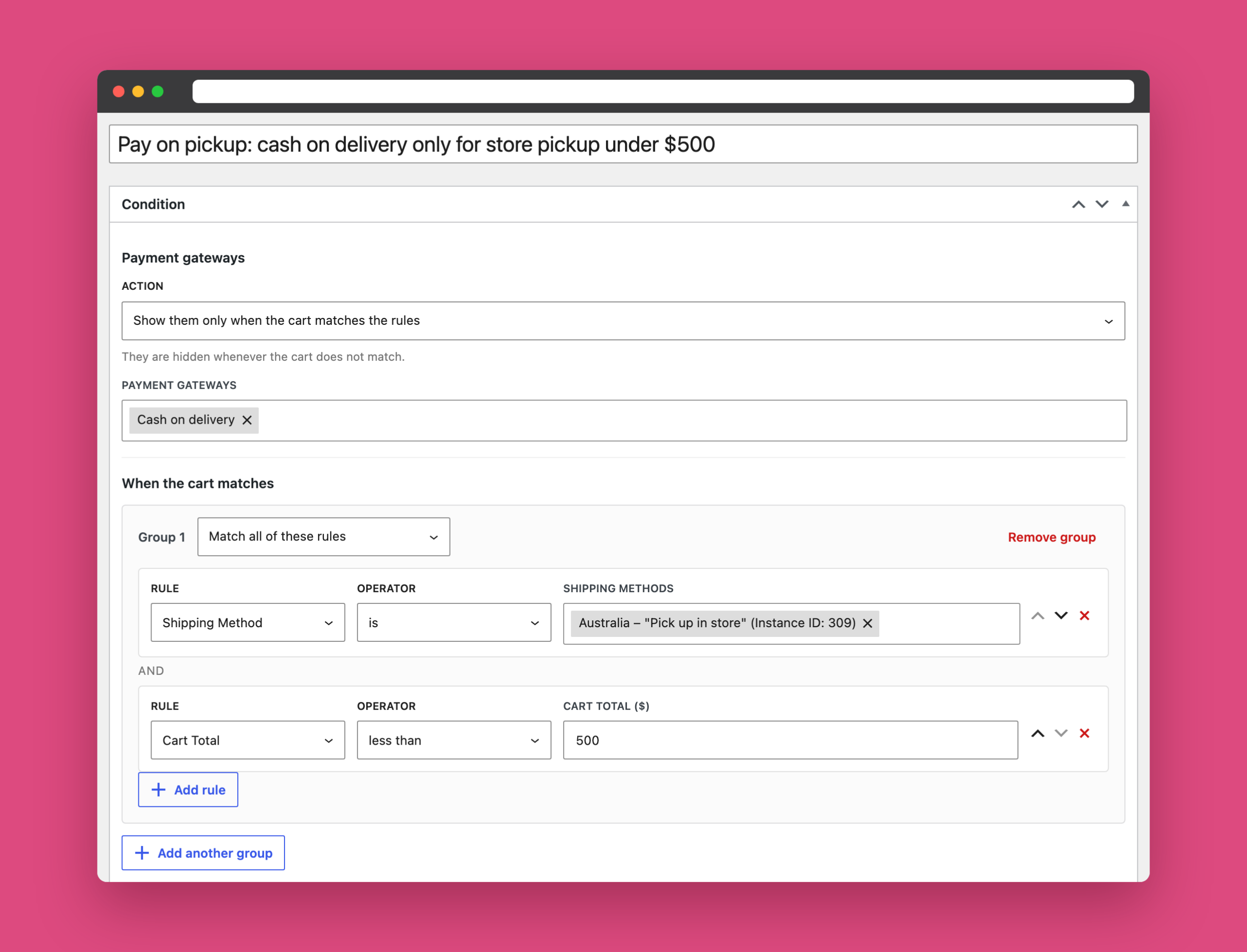
Cash on delivery now appears only when the customer chooses store pickup, and only for orders under $500. For every other cart, it is hidden.
The Shipping Method rule matches specific methods in specific shipping zones, shown as Zone – “Method” (Instance ID). If you offer pickup in more than one zone, select each one. This guide uses the Local pickup shipping method added to a shipping zone.
How to hide a payment gateway for a specific shipping method
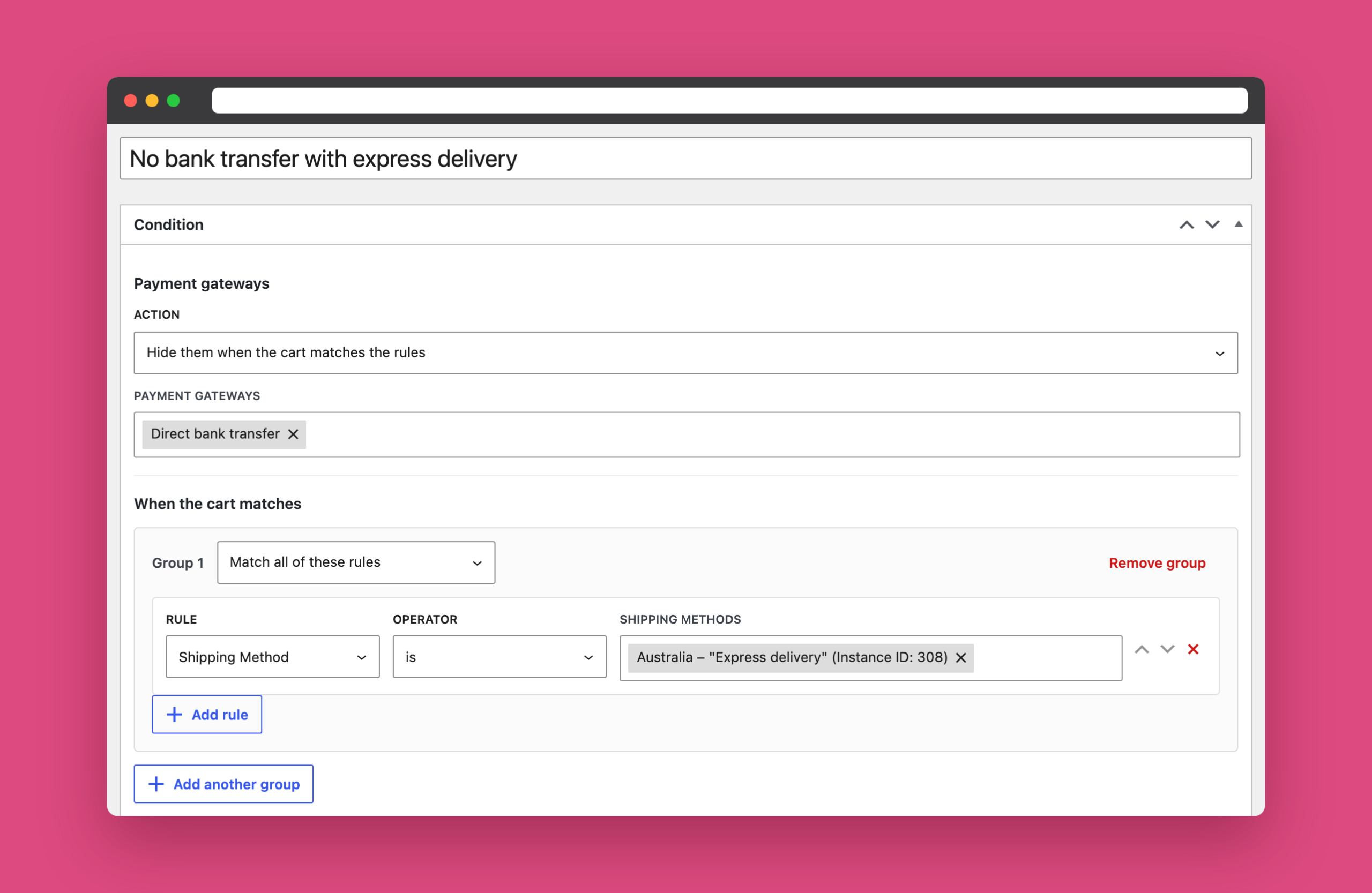
Some payment methods do not fit some delivery options. A common example: bank transfer orders only ship once the payment clears, which can take a day or two, so offering it with express delivery sets the wrong expectation.
Create a payment condition that hides Direct bank transfer when the Shipping Method is Express delivery. Add a message so customers know why:
Bank transfer is not available with express delivery, because orders ship only after the payment clears.
How to hide a shipping method based on the payment method
This is where most snippets and plugins stop. Restricted Shipping and Payment Pro also works the other way round: a shipping condition can use the Payment Gateway rule.
Go to WooCommerce → Shipping Conditions, create a condition that hides Express delivery, and add Payment Gateway is Direct bank transfer.
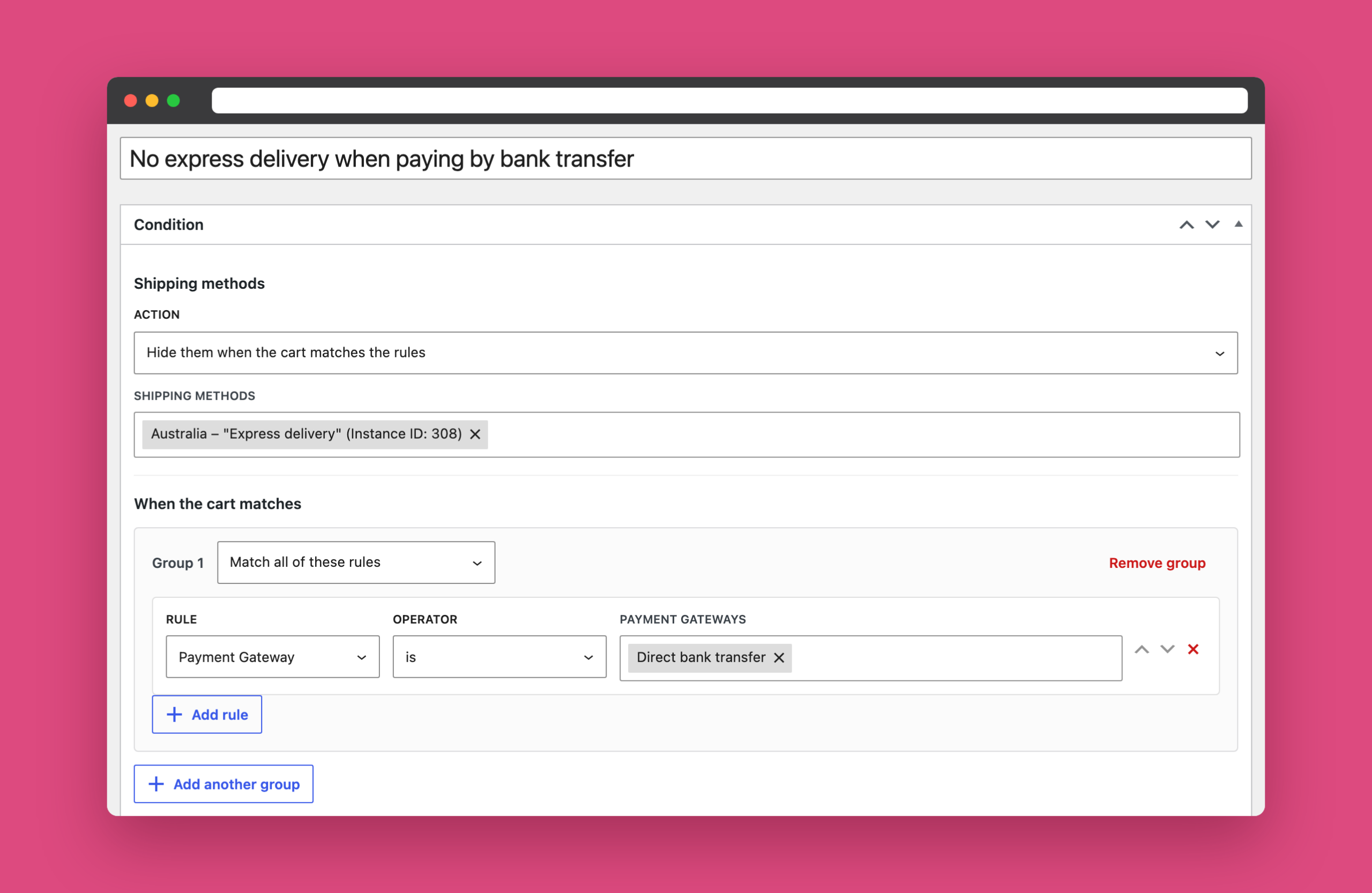
You can use both directions together. Whichever the customer picks first narrows the other list: choose express delivery and bank transfer disappears; choose bank transfer and express delivery disappears. Other popular uses of the Payment Gateway rule:
- Hide free shipping when cash on delivery is selected, so the delivery fee covers the extra handling.
- Hide international shipping methods for payment methods that only work locally.
- Hide local pickup for a “pay on account” gateway used by wholesale customers who always get deliveries.
How it works in the block checkout
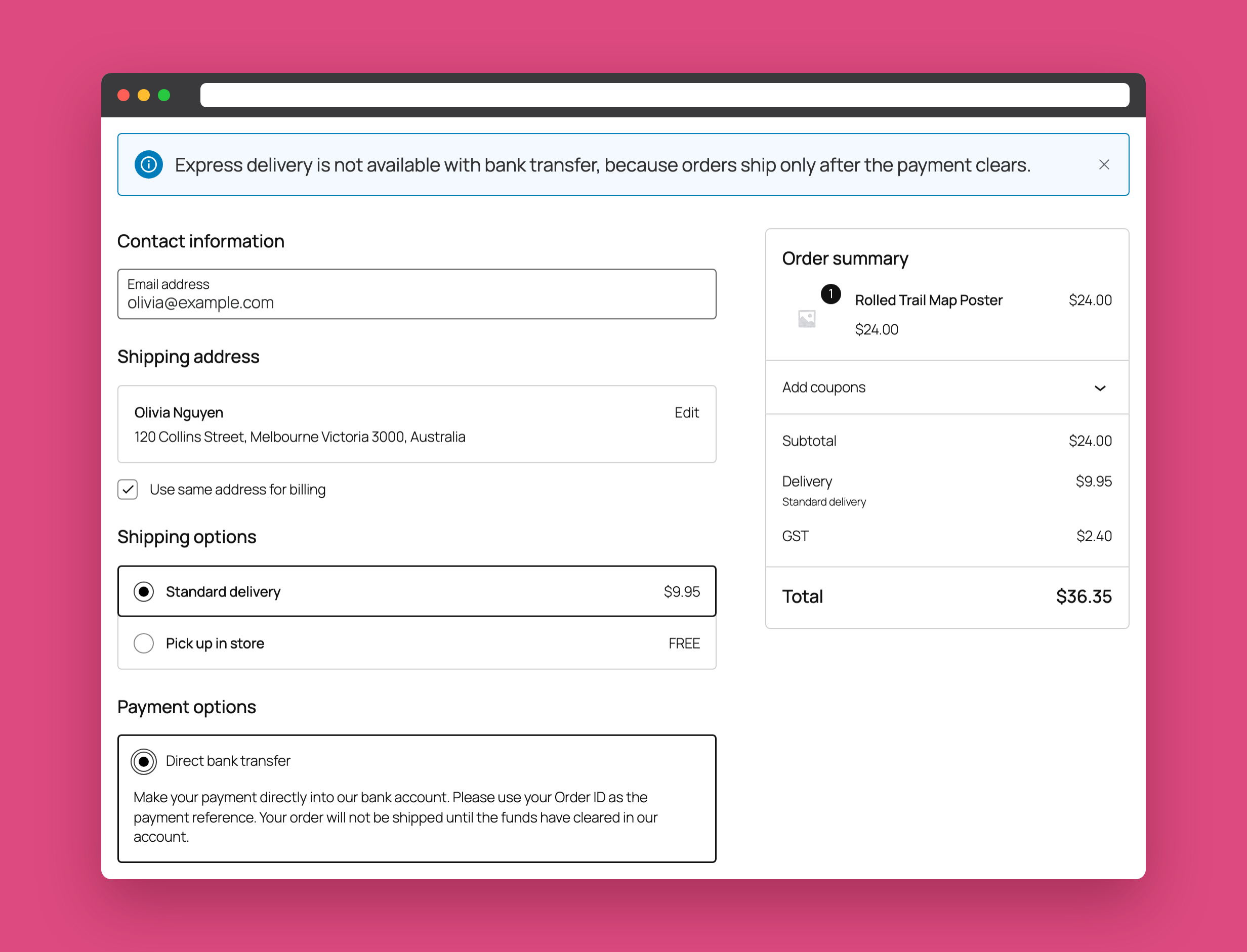
In the block-based checkout, both lists update as the customer changes their choices, without reloading the page. When the customer selects bank transfer, express delivery disappears from the shipping options and your message explains why:
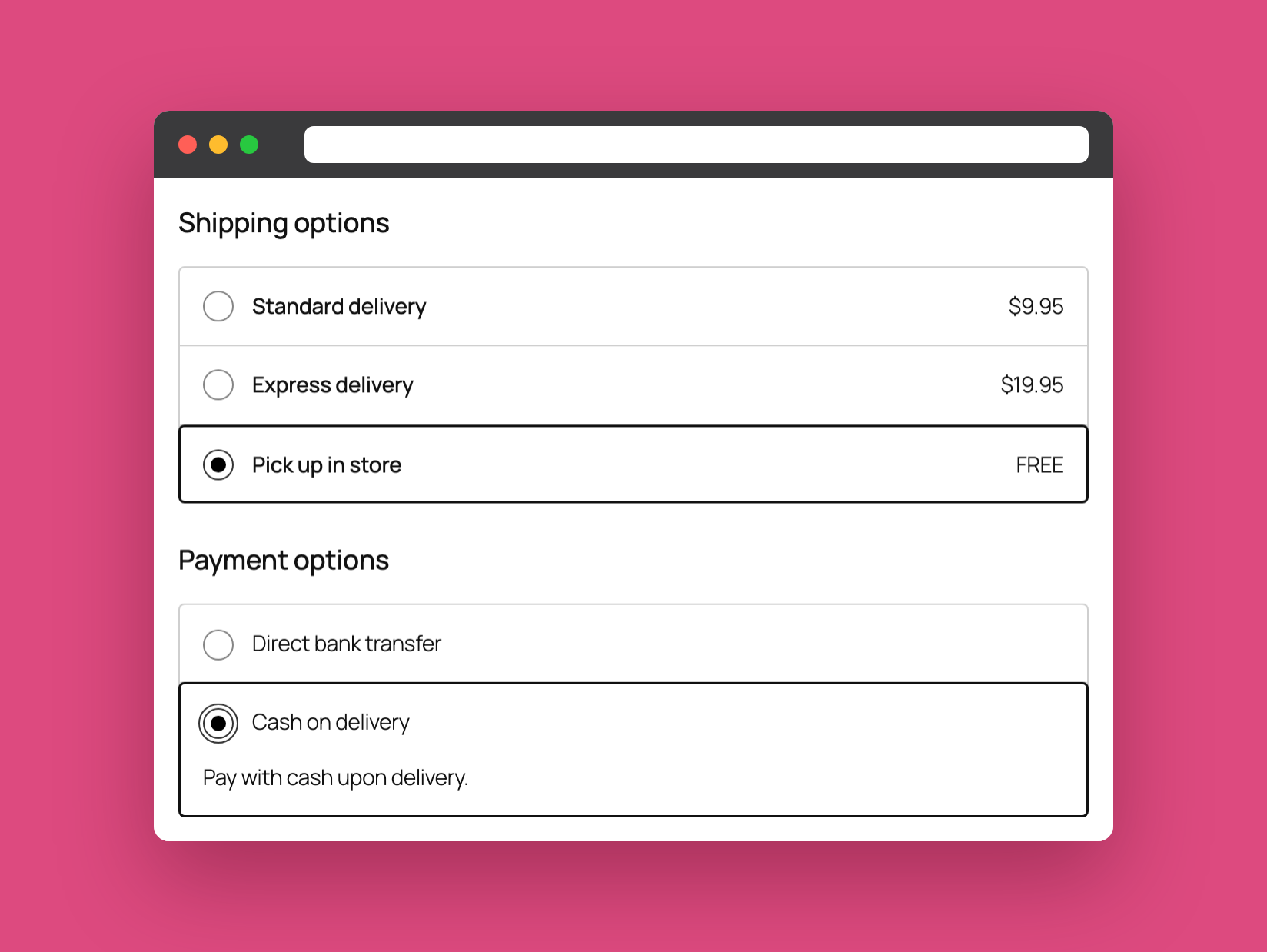
When they switch to store pickup and cash on delivery, cash on delivery appears in the payment options, and express delivery comes back because bank transfer is no longer selected:
The classic checkout works the same way, refreshing the payment and shipping options whenever the customer changes them.
Troubleshoot with the debugger
When shipping and payment rules depend on each other, it can be hard to tell why something is missing. Turn on Debug mode under WooCommerce → Settings → Shipping and open the checkout as an administrator or shop manager. The report shows every shipping and payment condition, which rules matched for the current choices, and what each condition hid or kept. Customers never see it.
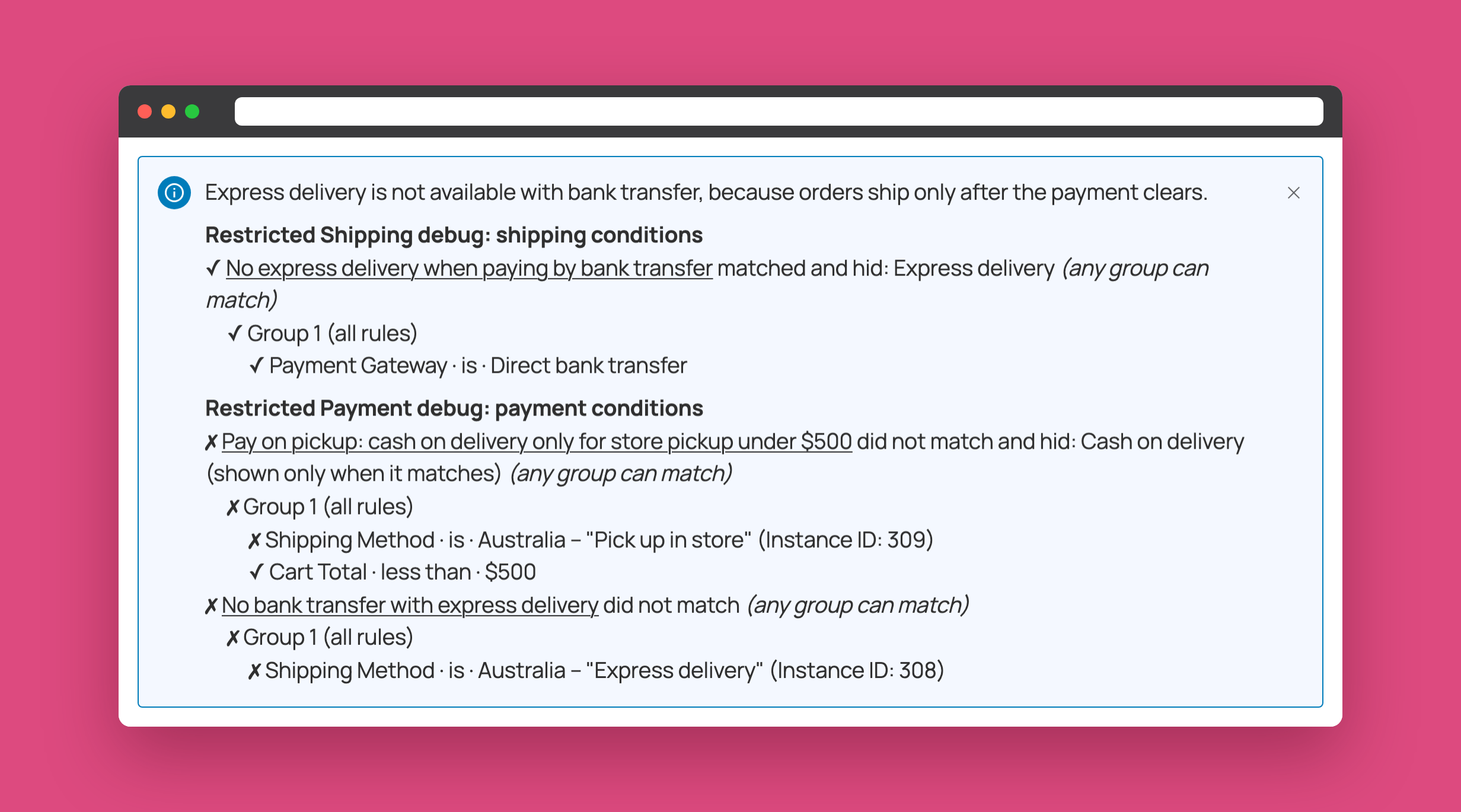
Turn debug mode off again when you are done, because it also turns off WooCommerce’s shipping rate cache. Our holiday shipping cut-off guide shows another way to test rules before they go live.
Frequently asked questions
How do I hide a payment method for local pickup in WooCommerce?
Create a payment condition that hides the gateway, and add the Shipping Method rule with your local pickup method. The gateway disappears whenever the customer chooses pickup.
Can I show cash on delivery only for local pickup without a plugin?
Yes. WooCommerce’s Cash on delivery settings have an “Enable for shipping methods” option. You need a plugin or custom code for other gateways, for combining the shipping method with other rules, or for hiding shipping methods based on the payment method.
Can I hide shipping methods based on the payment method in WooCommerce?
Yes. In Restricted Shipping and Payment Pro, shipping conditions can use the Payment Gateway rule, so a shipping method is hidden when the customer selects a particular payment method.
Does it work with the WooCommerce block checkout?
Yes. Payment and shipping options update live in the block checkout as the customer changes their shipping or payment method, and condition messages are shown there too.
Do I need a separate rule for each shipping zone?
The Shipping Method rule matches method instances, so select the method in every zone where it applies. All of them can go in a single rule.
Match every payment method to the right delivery option
Payment and shipping choices are connected, and your checkout should know it. With a couple of conditions, customers only see combinations that make sense for your store, and you never have to maintain a snippet again.
Looking for more ways to tailor your checkout? See how to hide shipping methods by postcode, how to add a bank transfer gateway, or what is new in Restricted Shipping and Payment Pro 5.0.