
Every December, the same thing happens. Carriers slow down, warehouses close for a few days, and the “next business day” promise on your express shipping option quietly stops being true. Customers still pay for it, the parcel arrives late, and you end up refunding the difference or answering angry emails in January.
A shipping cut-off fixes that before it starts. Instead of remembering to switch express delivery off on the right day, and back on again after the break, you set the dates once and WooCommerce handles the rest.
In this guide, you will use Restricted Shipping and Payment Pro to:
- Pause express delivery automatically over the holidays.
- Tell customers why express is not available, right in the cart and checkout.
- Turn express off at weekends and after a daily order cut-off time.
- Test everything before the holidays arrive.
Before you start
You need WooCommerce with at least one express or next-day shipping method set up in your shipping zones, and Restricted Shipping and Payment Pro version 5 or later. Version 5 added the Date and Day of Week rules used below. Both the classic and the block-based checkout are supported.
Step 1: Pause express delivery over the holidays
Start with a condition that hides express delivery for the whole holiday period.
- Go to WooCommerce → Shipping Conditions and click Add New Shipping Condition.
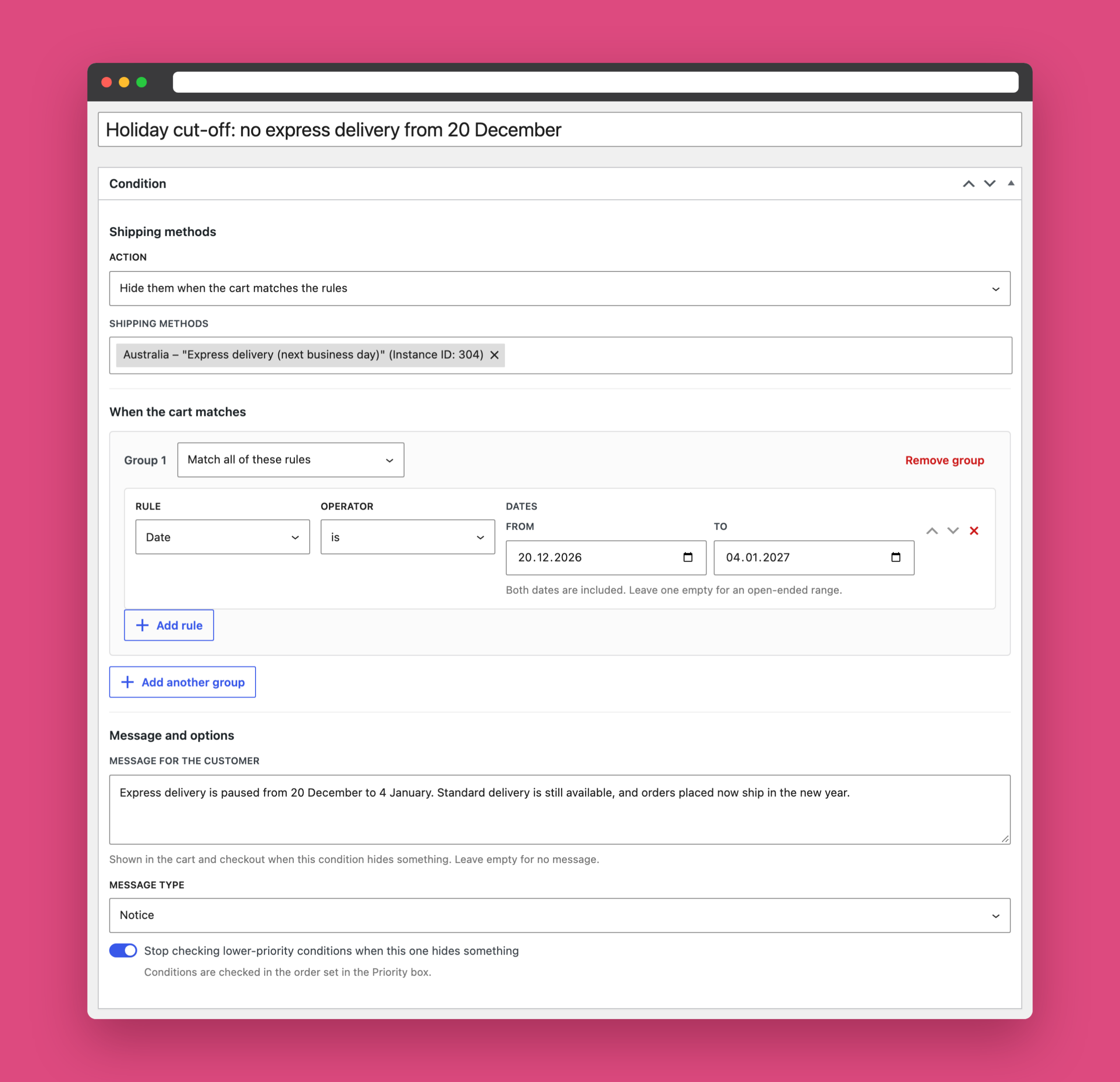
- Give it a name you will recognise later, such as Holiday cut-off: no express delivery from 20 December.
- Leave the action set to Hide them when the cart matches the rules, and select your express method under Shipping methods.
- Under When the cart matches, choose the Date rule with the is operator, and set the range. In this example, express is paused from 20 December to 4 January.
- Click Publish.
Both dates are included in the range. If you do not know yet when you will reopen, leave the To date empty and the pause runs until you change it.
Pick your start date from your carrier’s last express posting date, not the day you close. Orders placed after that date are unlikely to arrive in time, even if you ship them the same day.
Step 2: Tell customers why express is missing
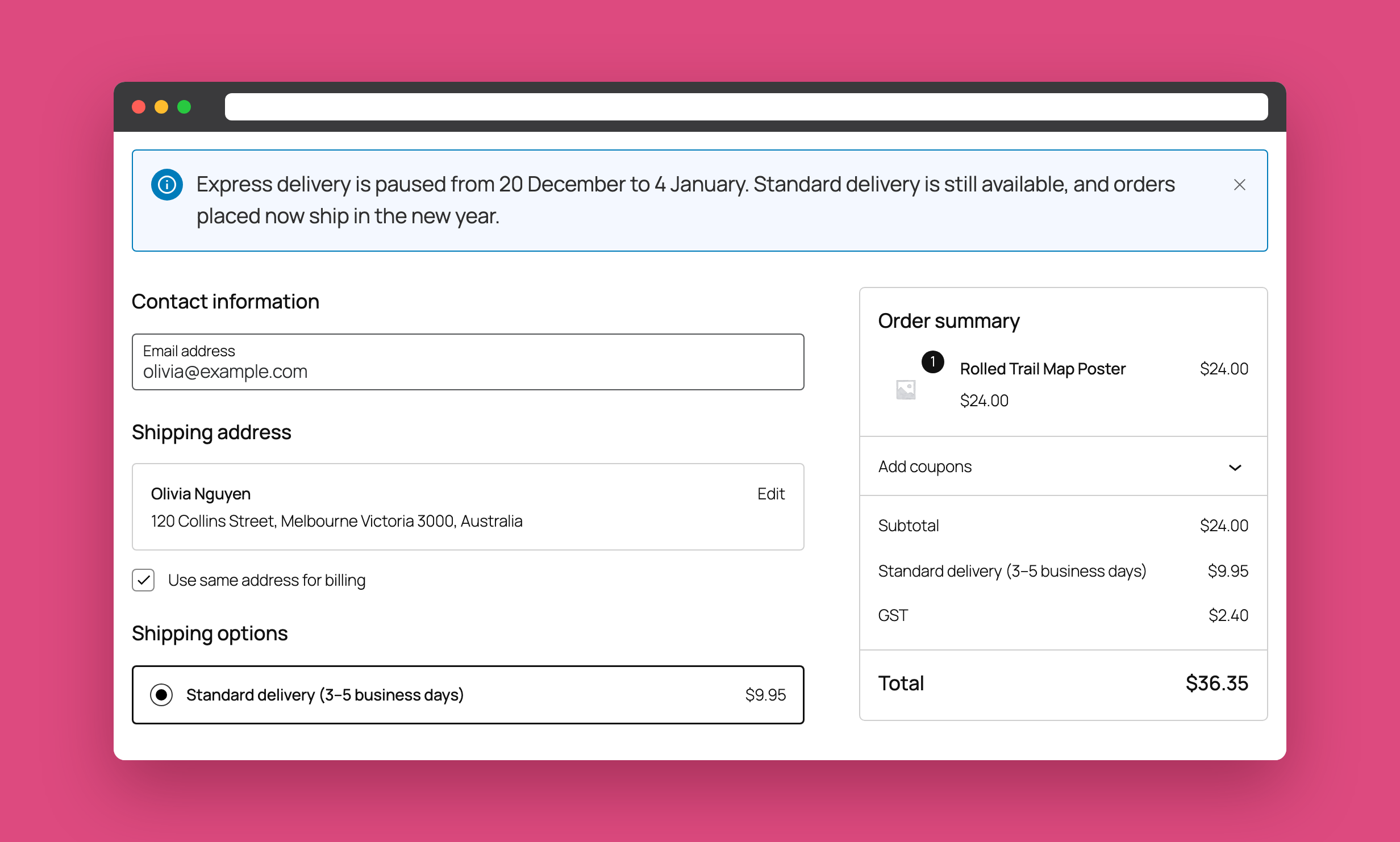
A shipping option that silently disappears looks like a bug. In the same condition, scroll to Message and options and add a short explanation, for example:
Express delivery is paused from 20 December to 4 January. Standard delivery is still available, and orders placed now ship in the new year.
The message appears in the cart and checkout whenever the condition hides something, so customers see it exactly when express is gone. Choose Notice as the message type for a friendly information banner.
Step 3: Turn off express at weekends and after your daily cut-off
The same idea works all year round. If your courier collects at 3 pm on weekdays, an order placed on Friday evening will not ship until Monday, so promising next-day delivery is a stretch.
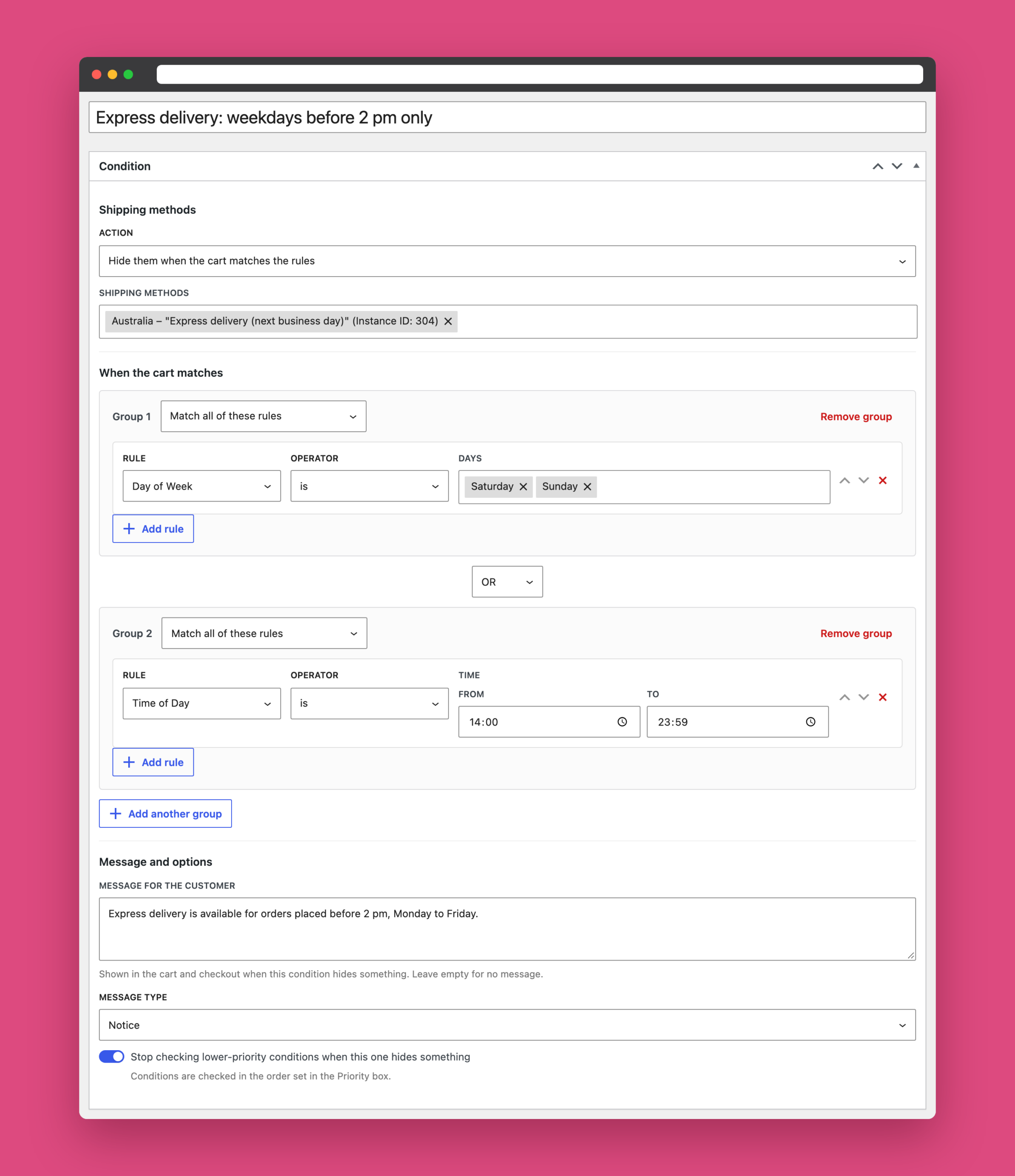
Create a second condition for your express method, and this time use two rule groups joined with OR:
- Group 1: Day of Week is Saturday, Sunday.
- Group 2: Time of Day is 14:00 to 23:59.
Express delivery is now hidden all weekend, and on weekdays after 2 pm. Add a message such as “Express delivery is available for orders placed before 2 pm, Monday to Friday.”
Times use your site’s timezone from Settings → General, so check it matches where you ship from. A time range can also cross midnight. For example, 14:00 to 06:00 hides express from the afternoon until early the next morning.
Step 4: Put the conditions in order
Over the holidays, both conditions match at the same time, and the customer would see two messages. Use priorities so the holiday message wins:
- Set the holiday condition’s Order (in the Priority box) to 1, and the weekend condition’s to 2. Lower numbers are checked first.
- In the holiday condition, turn on Stop checking lower-priority conditions when this one hides something.
During the break, the holiday condition hides express and stops there. The rest of the year, it does not match, and the weekend and cut-off rules take over.
Step 5: Test it before the holidays
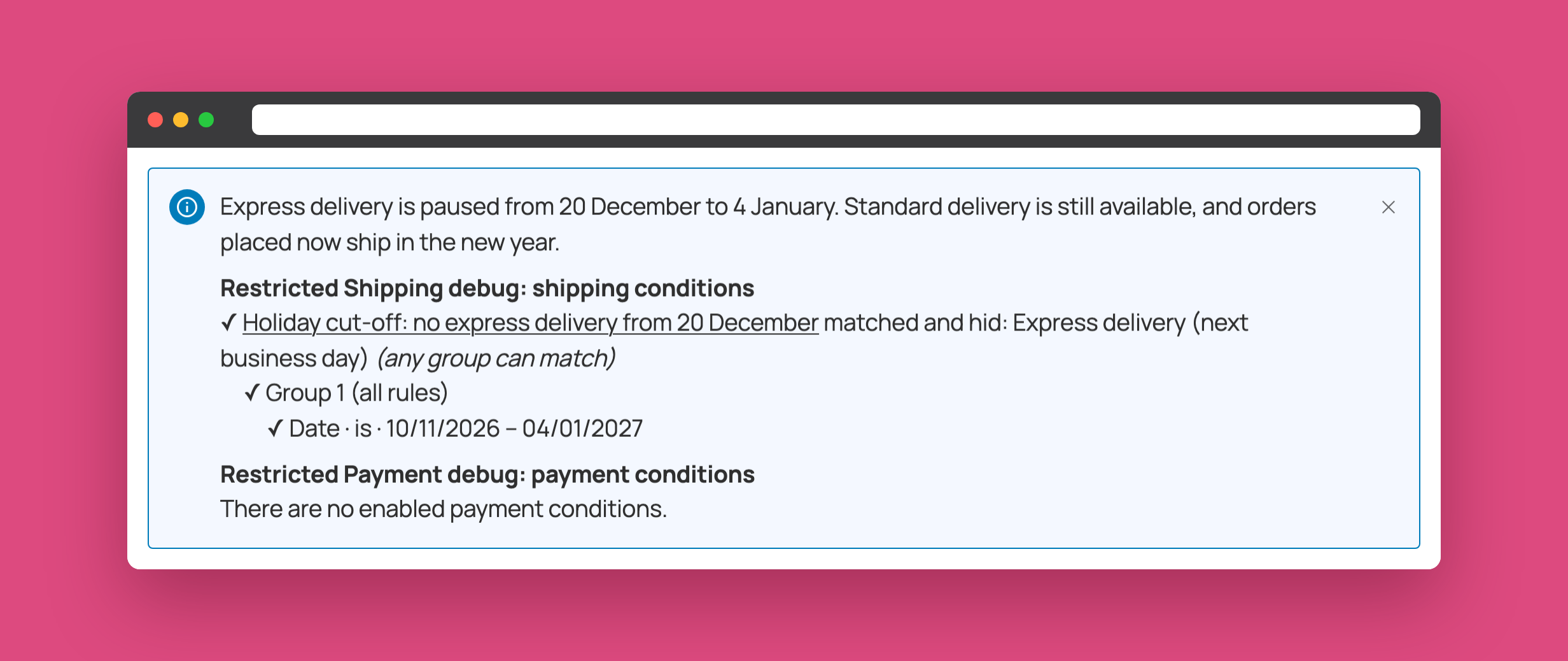
You do not have to wait until 20 December to see if it works. Turn on Debug mode under WooCommerce → Settings → Shipping, then temporarily set the holiday condition’s From date to today.
Open your cart or checkout while logged in as an administrator or shop manager. A debug report lists every shipping condition, whether its rules matched, and which methods it hid. Customers never see this report.
When you are happy, set the From date back to your real start date and turn debug mode off. If a method still goes missing unexpectedly, our guide on free shipping not appearing in WooCommerce covers the other usual suspects.
More holiday rules worth setting up
The same rules can handle the rest of your seasonal shipping and payment changes:
- International cut-offs: combine the Date rule with Shipping Country to hide international methods earlier than domestic ones, since overseas parcels need more time. Remote areas can get their own cut-off too: see how to hide shipping methods by postcode in WooCommerce.
- Last posting date for standard delivery: add a later Date range to standard delivery, with a message that orders will arrive after the holidays.
- Payment methods: payment conditions support the same Date and Day of Week rules, for example to pause cash on delivery while couriers are busiest.
- Big orders: combine the holiday dates with a Cart Total or Package Weight rule to restrict only the orders that are hardest to deliver on time.
Set it once, enjoy the break
A few minutes of setup now means no late express parcels, no refund requests in January, and no reminder to switch shipping options back on when you return. Your conditions keep working every year: just update the dates.
Restricted Shipping and Payment Pro also handles rules by location, weight, cart contents and customer, for both shipping methods and payment gateways. Read what is new in version 5, or explore the plugin.