The order is packed. The label is on the satchel. Then the inbox fills up: Where is my parcel? Staff copy a consignment ID out of MyPost Business, paste it into an email, and hope the customer clicks the right Australia Post Track URL.
Tracking should already be on the WooCommerce order — in the admin list, in the Completed email, and as a Track button in My Account.
This guide covers both WPRuby paths in v7: type a number by hand (Pro, or any label you bought outside WordPress), and let Labels Pro write the consignment back when you generate the label.
Add Australia Post tracking to WooCommerce orders → Get Australia Post Pro / Labels Pro
What “tracking in WooCommerce” actually means
Australia Post holds the scan history. WooCommerce holds the order. A useful integration does three things:
- Stores the tracking number on the order so staff do not hunt in another website
- Shows that number to the customer — on the order, in email, and as a Track link to auspost.com.au
- Keeps staff in WordPress when they need to check a consignment
It does not replace Australia Post Track with a live “Accepted / In transit / Delivered” timeline on the customer account. Shoppers follow the Track link (and Australia Post’s own tracking email when you create a Labels Pro shipment). Scan events do appear for staff on the order’s Labels printer.
| Who | What they see |
|---|---|
| Customer | Tracking number + ship date on the order and in WooCommerce emails; Track in My Account opens Australia Post |
| Staff (Pro) | Australia Post Tracking metabox on the order — type number and date |
| Staff (Labels Pro) | Same metabox if needed, plus consignments in WooCommerce → Orders, on the Labels printer, and a Tracking Information table in emails |
What you need
| Your situation | Edition | How tracking gets onto the order |
|---|---|---|
| You buy labels on auspost.com.au / MyPost / a post office, then fulfil in WooCommerce | Pro or Labels Pro | Type the number in the order metabox |
| You print labels from WooCommerce | Labels Pro | Consignment is saved when the label is generated — no extra typing |
| You only show live rates at checkout | Pro | Tracking is still available; you add numbers manually after you ship |
You will need:
- WooCommerce with the order already placed
- WPRuby Australia Post Pro or Labels Pro installed and licensed
- A real Australia Post tracking / consignment ID — either from a label you already bought, or from Labels Pro when it creates the shipment
Pro (rates-only) quotes live Australia Post prices at checkout and lets you attach tracking by hand. Labels Pro adds the printer, writes consignments back to the order, shows them in the orders list, and emails a tracking table.
Method 1: Add a tracking number by hand (Pro and Labels Pro)
Use this when the label was not created in Labels Pro — a MyPost web label, a counter consignment, a freight booking, or a leftover from before you installed the plugin.
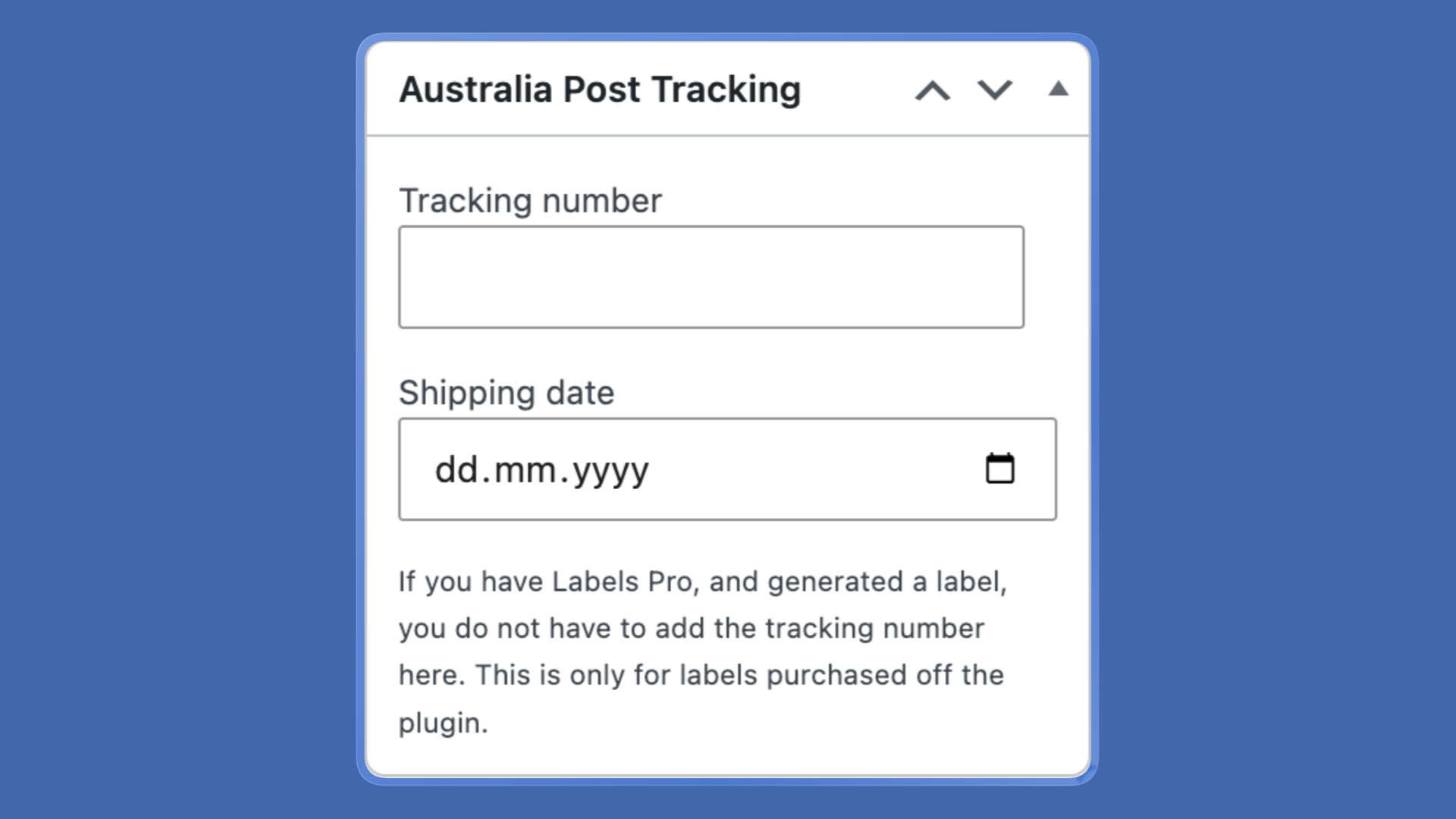
Open the Australia Post Tracking metabox
- Go to WooCommerce → Orders
- Open the order
- Find Australia Post Tracking in the sidebar (HPOS and classic order screens both work)
Fill both fields
| Field | What to enter |
|---|---|
| Tracking number | The Australia Post consignment or article ID from the label / receipt |
| Shipping date | The day it left your premises |
Save the order.
Both fields are required for the customer-facing copy. If you save a number but leave the date empty, the Track button and the “shipped on …” sentence will not appear. The metabox is only for labels purchased off the plugin. If you already generated a Labels Pro label, skip this box — the consignment is already on the shipment.
Tell the customer (resend the email if needed)
Saving the metabox does not send an email by itself. Tracking is injected when WooCommerce renders an order email.
- If you have not sent Completed yet, mark the order Completed (or send Completed from Order actions) after you save tracking.
- If Completed already went out empty, use Resend Completed from Order actions so the number is in the new copy.
The customer then sees something like:
Your order was shipped on Monday 27th of August 2026 via Australia Post. Tracking number is (ABC123). Click here to track your order.
The link opens Australia Post Track with that ID.
Method 2: Tracking from a generated label (Labels Pro)
This is the path that removes copy-paste. You connect MyPost Business or eParcel, print from the order, and the consignment lands on the WooCommerce record automatically.
Print the label as usual
On the order, use Order Labels:
- Review the shipment (addresses, weight, postage product)
- Calculate Prices
- Generate Label (eParcel) or Create Shipment(s) then Buy Label(s) on Australia Post Centre → Labels Orders (MyPost)
- Download the PDF
The printer’s Pricing / Label Result block shows Tracking ID (consignment) and Article ID once Australia Post has created the shipment. You do not type them into the sidebar metabox.
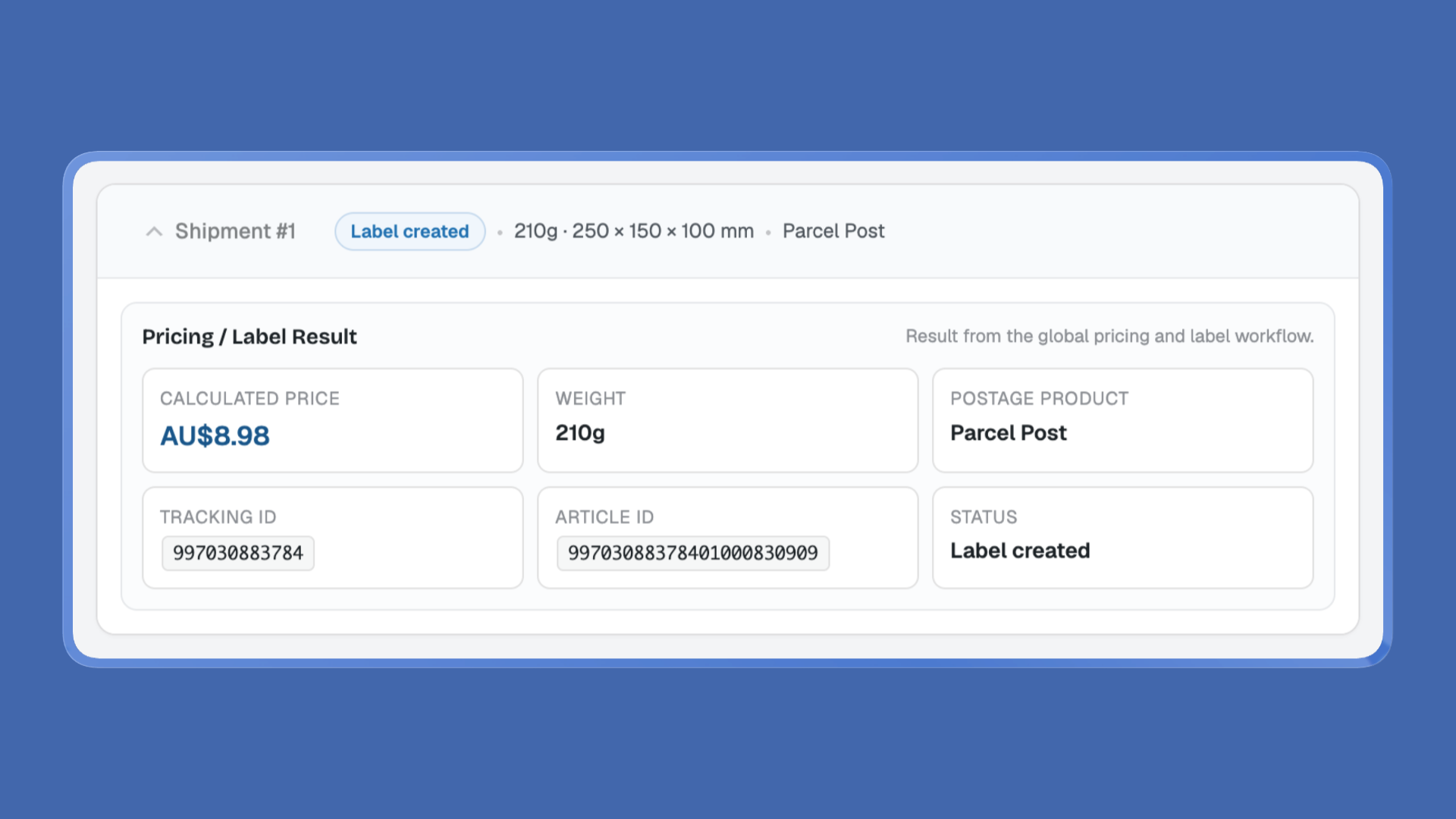
Bulk fulfilment works the same way: each order in the combined PDF keeps its own consignments on the WooCommerce order.
What gets written back
Labels Pro stores the shipment payload on the order. From that it can:
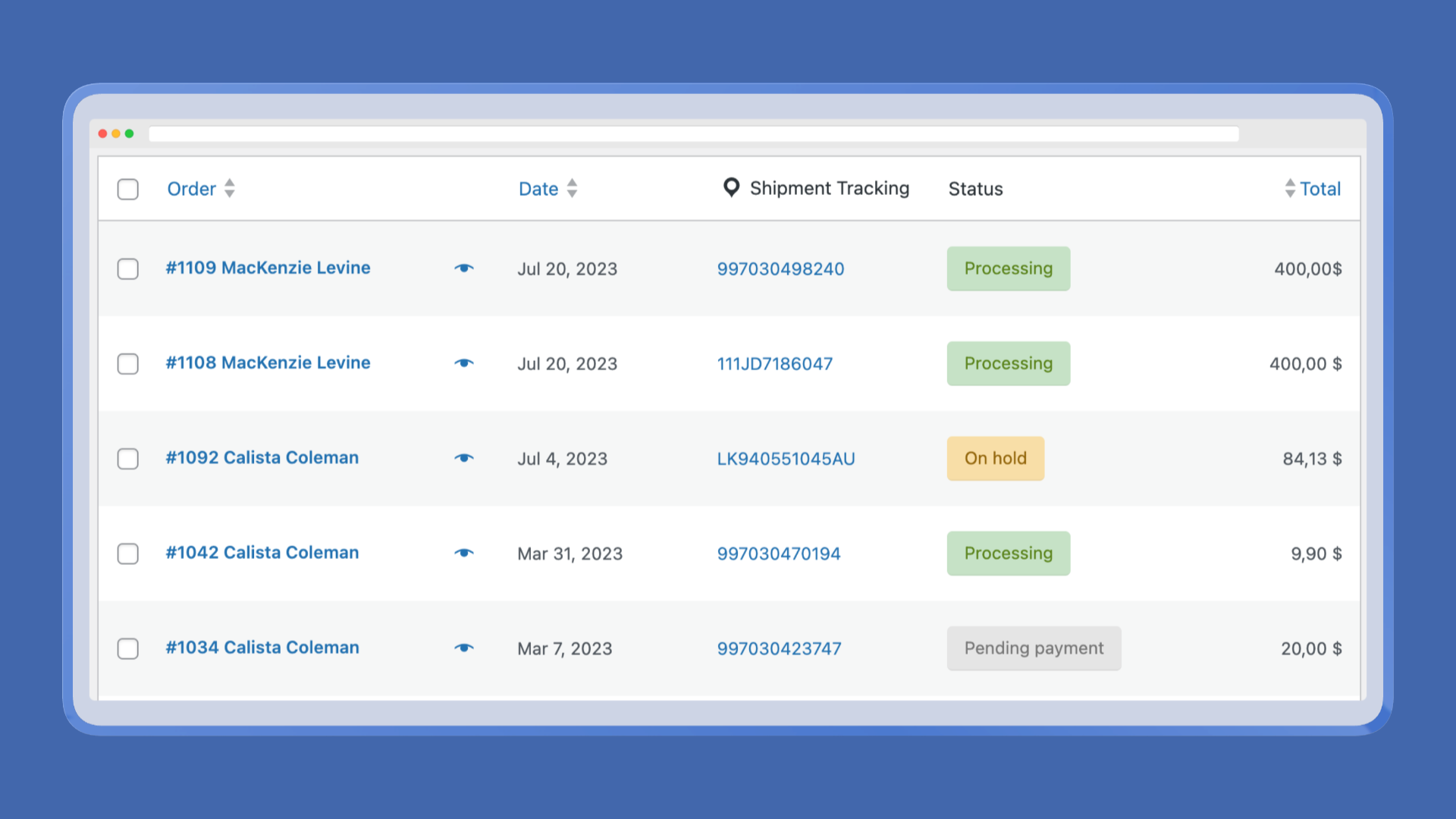
- List consignment IDs as links in WooCommerce → Orders (Shipment Tracking column)
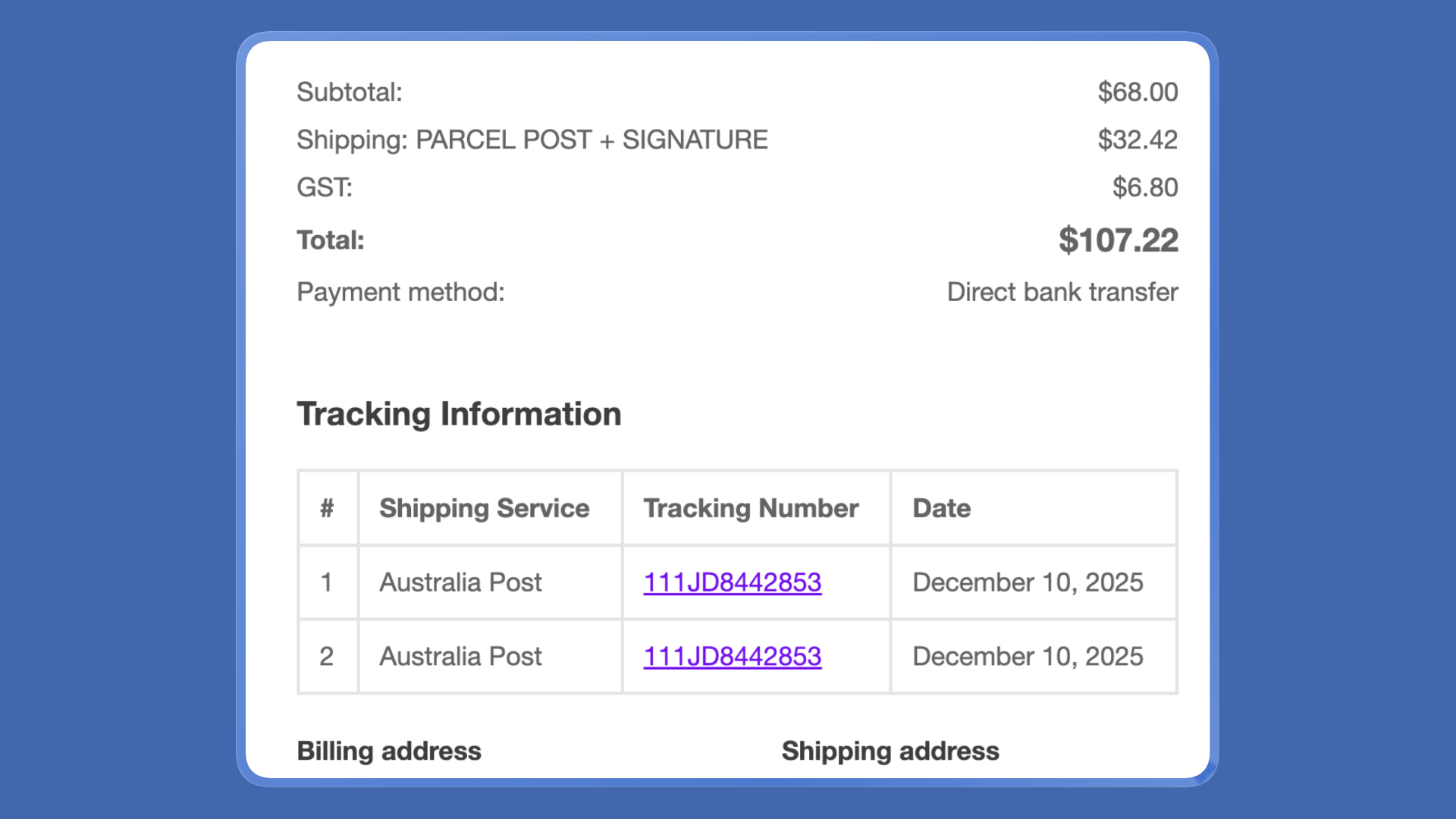
- Put a Tracking Information table into WooCommerce order emails
- Add Track on My Account (first shipment’s tracking ID)
You still need to send (or resend) a customer email after the label exists if you want the table in their inbox. Printing a label does not auto-complete the order and does not fire Completed by itself.
What the customer sees
Same Track URL in every case: https://auspost.com.au/parcels-mail/track.html#/track?id={number}.
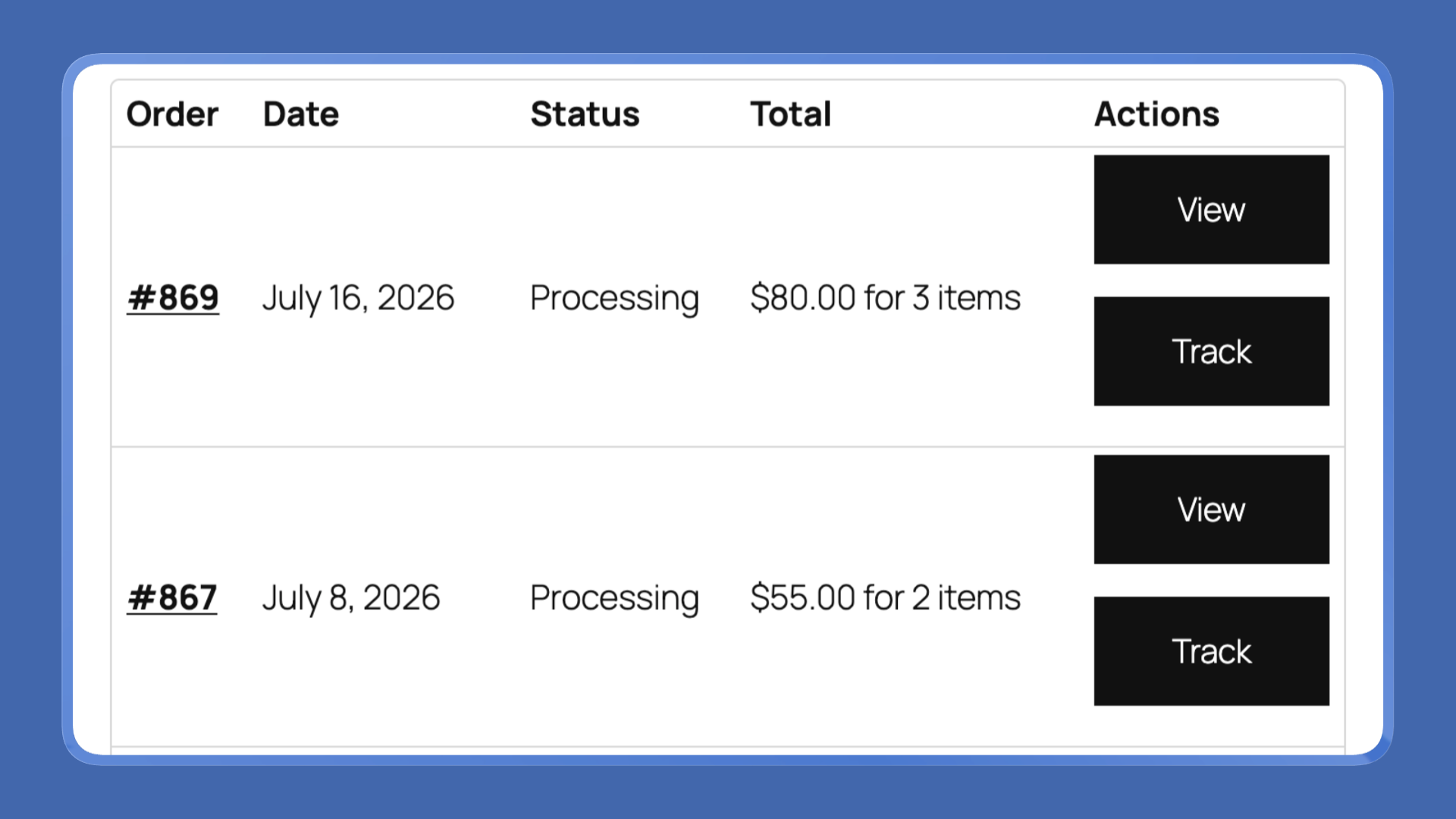
My Account → Orders
A Track action appears on the order row when:
- You saved both a manual tracking number and a shipping date, or
- Labels Pro has at least one consignment on the order
It opens Australia Post Track in a new tab. It does not open a WPRuby “live events” page.
Order received / View order
If you used the manual metabox (number + date), the same shipped-on sentence and track link appear under the order table on the customer order view.
Emails
| Source of the number | What the email contains |
|---|---|
| Manual metabox | Sentence with ship date, tracking number, and a track link (above the order table) |
| Labels Pro shipments | Tracking Information table: row number, “Australia Post”, linked tracking number, shipment date |
If you filled the metabox and generated a label, both can appear. For Labels Pro-only fulfilment, the table is enough.
Australia Post’s own tracking email
When Labels Pro creates the shipment, Australia Post is asked to email the recipient tracking updates. That is AusPost’s message, not WooCommerce’s. Treat it as always on for created shipments — do not rely on a plugin checkbox to turn it off.
Customers can therefore get two messages: WooCommerce’s order email (your branding, order contents, your Track link) and Australia Post’s tracking notification (scan updates from the network).
What staff see (Labels Pro)
Orders list column
WooCommerce → Orders gains a Shipment Tracking column (location icon in the header). Each consignment is a link to Australia Post Track. If there is no label yet, the column falls back to a number you typed in the metabox, or shows a dash.
Useful when a customer calls and you do not want to open the order.
Scan events on the Labels printer
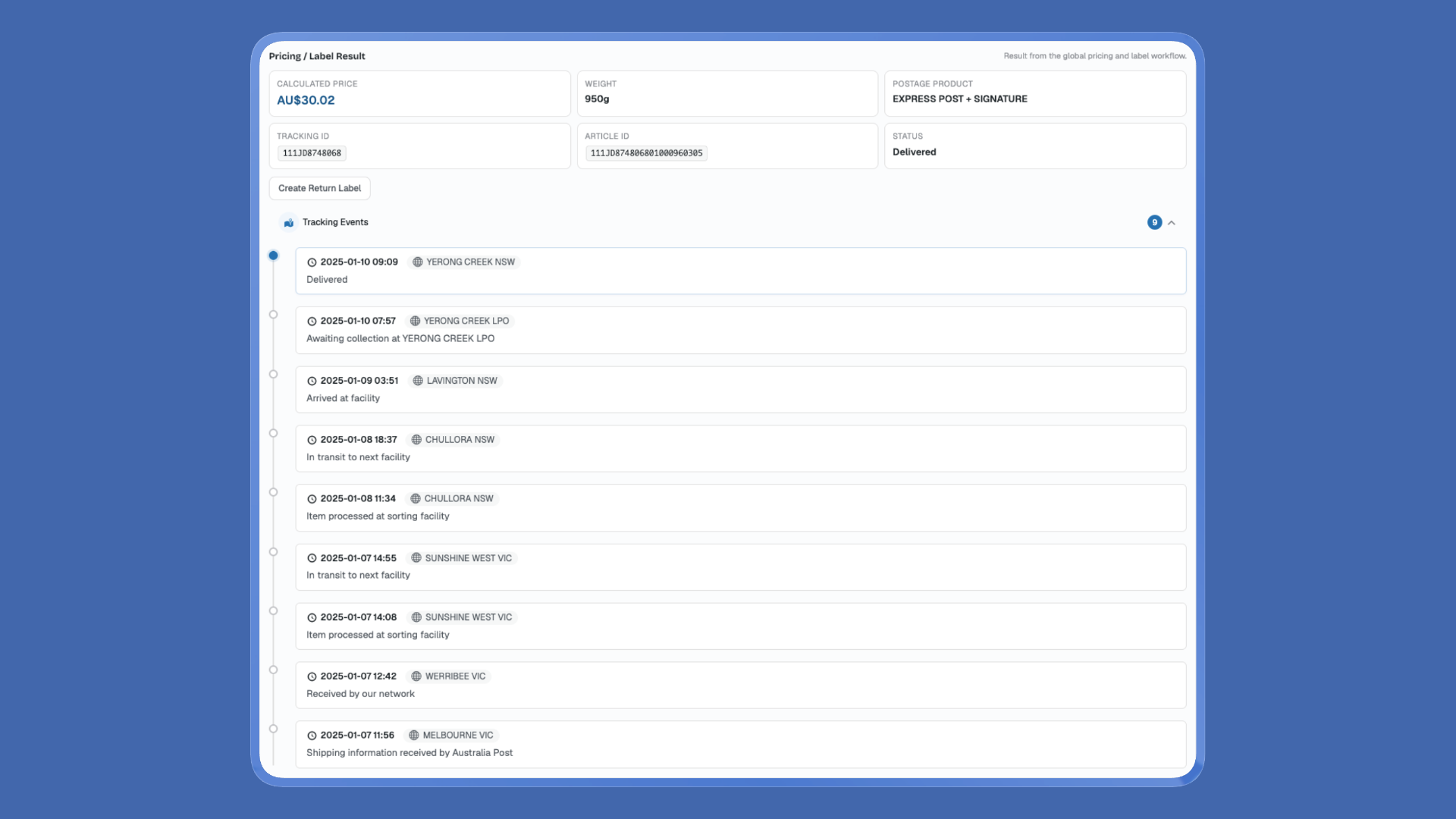
Re-open Order Labels after the parcel is in the network. If Australia Post has events for that consignment, Tracking Events expands under Pricing / Label Result: date, location, description (Accepted, in transit, out for delivery, and so on).
That timeline is for staff on the order screen. It is not shown on My Account.
Quick reference
| Goal | Where | What to do |
|---|---|---|
| Add tracking for a label bought elsewhere | Order → Australia Post Tracking | Enter number and shipping date → Update → send/resend Completed |
| Auto tracking from a WooCommerce label | Order → Order Labels (Labels Pro) | Generate / buy the label; consignment is stored on the order |
| See IDs without opening the order | WooCommerce → Orders | Shipment Tracking column (Labels Pro) |
| Customer self-serve | My Account → Orders | Track → Australia Post |
| Customer email | WooCommerce order emails | Manual sentence and/or Labels Pro table — after the number exists |
| Staff scan history | Order → Order Labels | Expand Tracking Events |
| AusPost emails the shopper | Created Labels Pro shipment | Sent by Australia Post when the shipment is created |
Common gaps (and what to do)
| What you see | Likely cause | Fix |
|---|---|---|
| Metabox saved, but no Track button / no “shipped on” text | Shipping date left blank | Fill both tracking number and shipping date, then Update |
| Customer says they never got tracking | Email went out before you saved the number or printed the label | Resend Completed (or the email you use for despatch) |
| Orders list shows a dash | No Labels Pro shipment and no manual number | Generate a label, or fill the metabox |
| You typed a number even though you printed in Labels Pro | Not required | Leave the metabox empty; consignments come from the label |
| Looking for a live timeline on My Account | Not in the current product | Point the customer at Track / Australia Post Track |
| “I turned off Australia Post email tracking in settings” | Shipment create still requests AusPost’s tracking email | Assume AusPost will email the recipient; WooCommerce emails are separate |
FAQ
Does Pro include tracking, or only Labels Pro?
Both. Pro is the manual metabox, My Account Track button, and the shipped-on sentence in emails/order view. Labels Pro adds automatic consignments from labels, the orders-list column, the email table, and staff tracking events on the printer.
Do I need MyPost Business just to add a tracking number?
No. Manual tracking only needs Pro. You need MyPost or eParcel (and Labels Pro) to print the label from WooCommerce so the number is written back for you.
Will customers see scan-by-scan updates inside WooCommerce?
No. They get the number and a Track link. Scan events are for staff on the Labels printer. Australia Post’s own tracking email covers network updates for the recipient.
Does printing a label email the customer automatically?
No. It stores tracking on the order and asks Australia Post to send its tracking email. WooCommerce still sends Completed (or whatever you trigger) only when you change status or resend.
Can I add more than one tracking number?
Labels Pro stores one consignment per shipment item. Split an order with New Shipment if it leaves in more than one pack — emails and the orders column list each ID. The manual metabox is a single number plus one ship date.
What if I entered the wrong number?
Edit the metabox and Update. For Labels Pro, the source of truth is the generated shipment; fix that in the printer / Labels Orders rather than fighting the sidebar box.
Stop pasting consignments into emails
Australia Post tracking in WooCommerce is either a 20-second metabox (Pro) or a side effect of printing the label (Labels Pro). The customer gets a Track button and a number in email. Staff get the same ID on the orders list and, with Labels Pro, scan events on the order without opening auspost.com.au.
Add Australia Post tracking to WooCommerce orders → Get Australia Post Pro / Labels Pro