Cash on delivery (COD) is one of the easiest ways to win a customer’s first order. They pay when the parcel arrives, so there is nothing to lose by clicking “Place order”.
That is also the problem. When a COD customer is not home, changes their mind or never meant to buy, you pay for shipping both ways and get nothing. A few refused high-value parcels can wipe out a month of COD profit.
The answer is rarely to remove cash on delivery altogether. It is to disable cash on delivery in WooCommerce for the orders that carry the most risk, and keep it for everyone else. This guide shows you how to do that by order total, location, customer and product, without writing code.
Why disable cash on delivery for some orders?
- Refused deliveries: you pay for the outbound and return shipping, and the stock is tied up for days.
- Large orders: the more expensive the parcel, the more a refusal costs you, and couriers often limit how much cash a driver can collect.
- Hard-to-reach areas: remote postcodes take longer and cost more to deliver, and some couriers do not collect cash there at all.
- New or unknown customers: most refused COD orders come from first-time buyers.
- Digital products and gift cards: there is nothing for a courier to collect cash against.
What WooCommerce can do on its own
WooCommerce’s built-in Cash on Delivery gateway (WooCommerce → Settings → Payments → Cash on delivery) has two restrictions:
- Enable for shipping methods: offer COD only with the shipping methods you choose, for example flat rate but not local pickup.
- Accept for virtual orders: allow or block COD when an order contains only virtual products.
Anything beyond that, such as the order total, the customer’s postcode or whether they have ordered before, needs either custom code on the woocommerce_available_payment_gateways filter or a plugin. In the steps below we use Restricted Shipping and Payment Pro, which handles these rules from a visual editor and works with both the classic and the block checkout.
How to disable cash on delivery above an order total
Start with the rule that saves the most money: no COD on large orders.
- Go to WooCommerce → Payment Conditions and click Add New Payment Condition.
- Name it, for example No cash on delivery for orders over $300.
- Keep the action Hide them when the cart matches the rules, and select Cash on delivery under Payment gateways.
- Add the Cart Total rule with more than and your limit, such as 300.
- Under Message and options, add a short explanation for the customer, then click Publish.
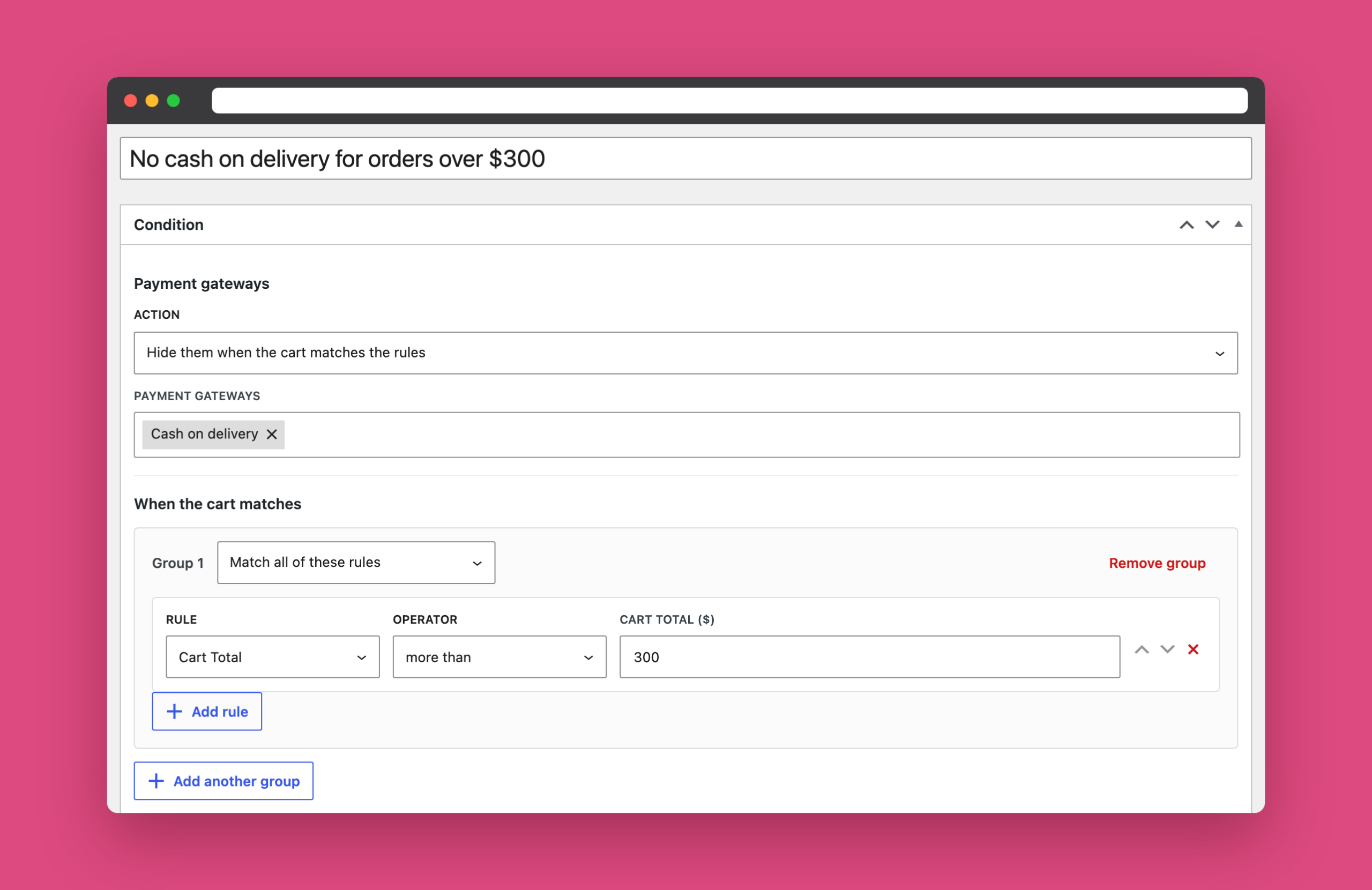
Need a minimum as well? Small COD orders can cost more in courier fees than they earn. Click Add another group, add Cart Total less than 20, and the groups are joined with OR: COD is hidden below $20 or above $300.
How to disable cash on delivery for certain postcodes or cities
If your courier will not collect cash in some areas, or those deliveries cost too much, hide COD there with the location rules:
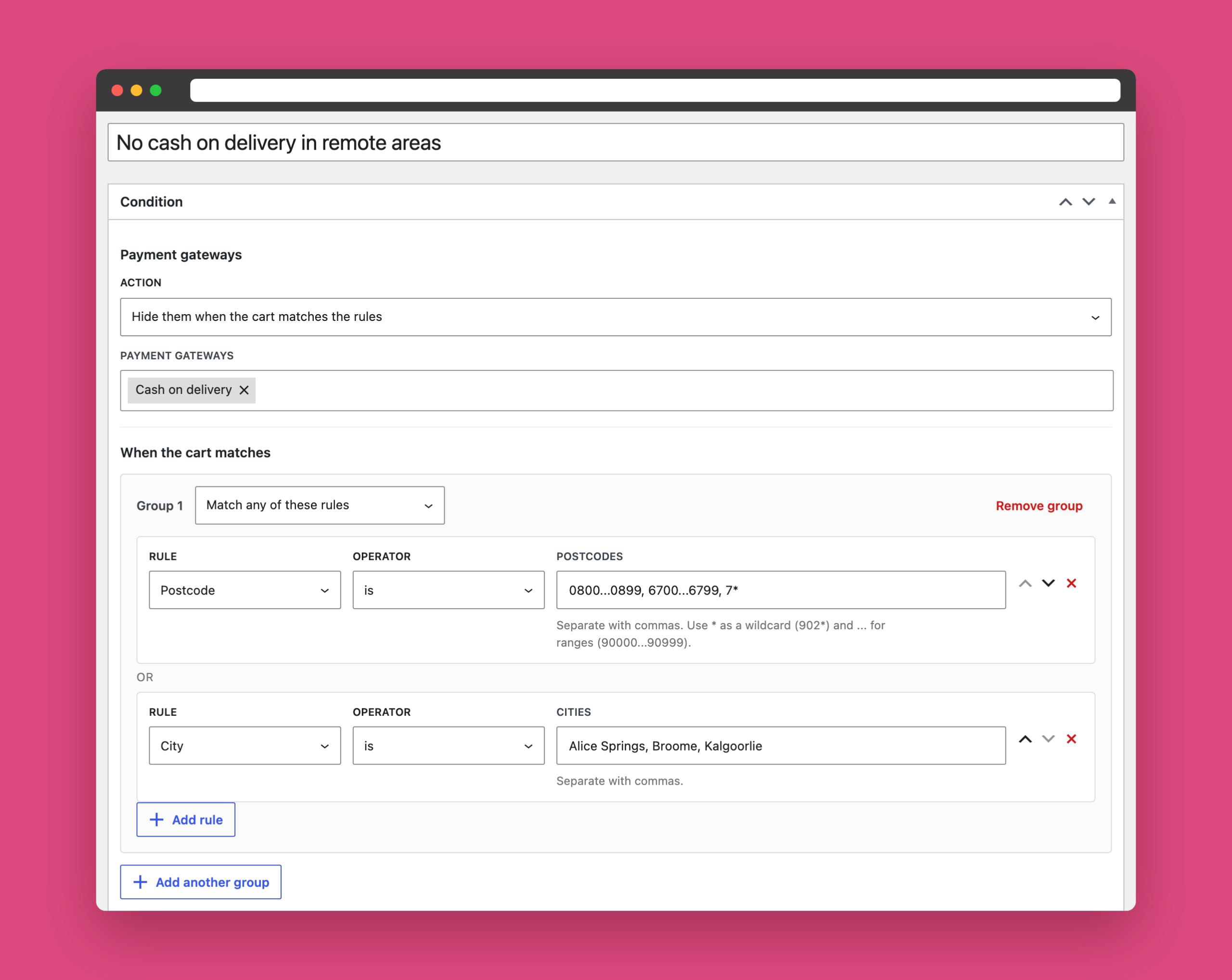
- Postcode accepts lists, wildcards and ranges, just like WooCommerce shipping zones:
7*matches every postcode starting with 7, and0800...0899matches the whole range. - City accepts a comma-separated list of cities.
- State, Shipping Country and Billing Country work at a wider level.
Set the group to Match any of these rules so a customer in any listed postcode or city loses the COD option.
The same rules work for shipping methods too. Our guide on hiding shipping methods by postcode goes deeper into postcode ranges and wildcards.
How to offer cash on delivery only to returning customers
Sometimes it is easier to say who should get COD. Many stores offer it only to customers who have already paid for a few orders.
Create a payment condition for Cash on delivery, and this time set the action to Show them only when the cart matches the rules. Then add two rules in the same group:
- Logged In or Guest is Logged in.
- Previous Orders more than 2.
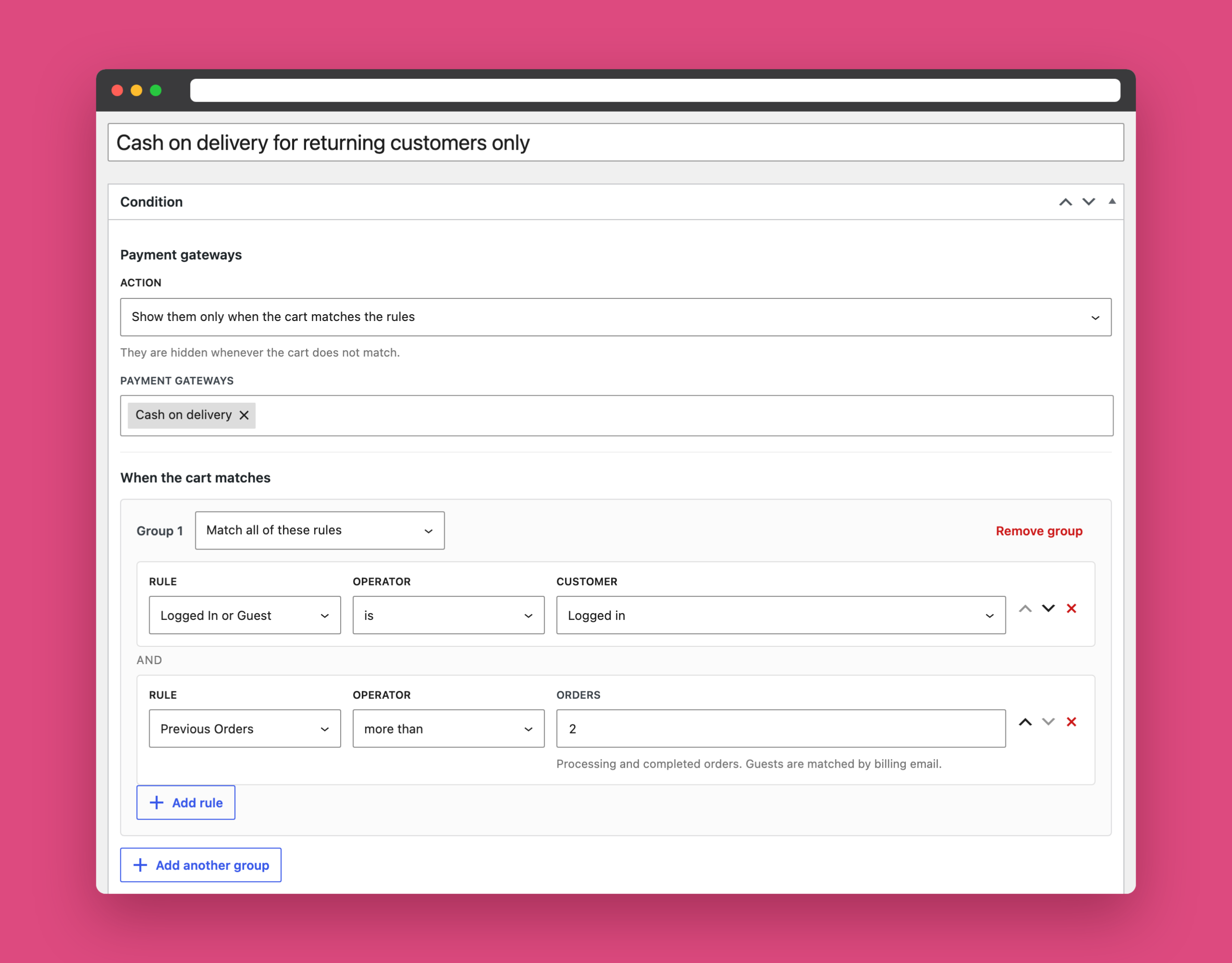
Every other customer sees your remaining payment methods. Previous Orders counts paid orders (processing and completed), and guests are matched by their billing email, so the rule also works if you do not force account creation. If you drop the Logged In rule, returning guests qualify too.
How to disable cash on delivery for virtual products and gift cards
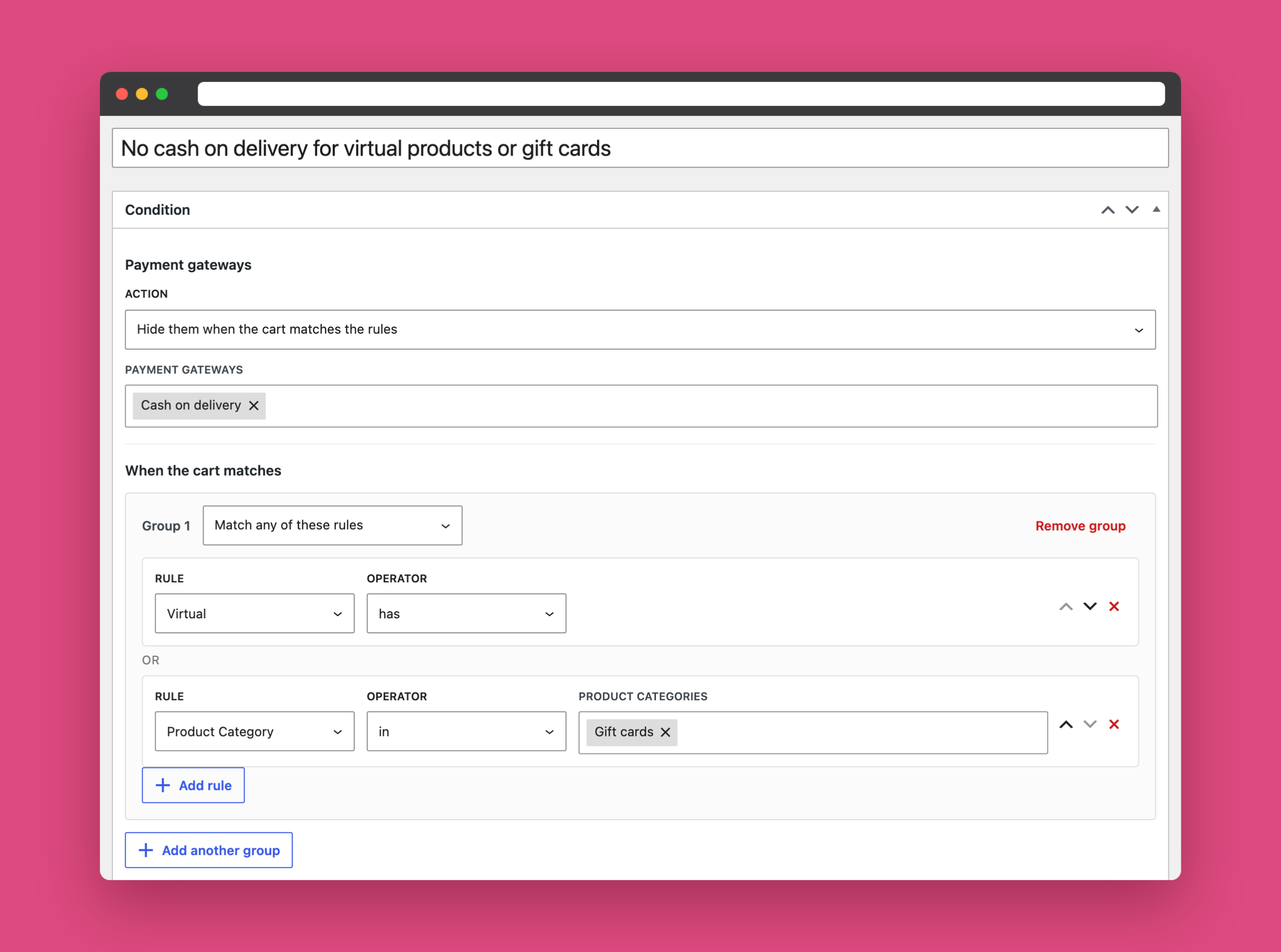
WooCommerce’s Accept for virtual orders setting only applies when every item in the order is virtual. A mixed cart, say a T-shirt plus a gift card, still offers COD.
To close that gap, hide COD with the Virtual rule set to has, which matches any cart containing at least one virtual product. Add a Product Category rule in the same group for products that are not marked as virtual, such as physical gift cards, and set the group to Match any of these rules.
Tell customers why cash on delivery is not available
A missing payment option looks like a broken checkout. Each condition has a Message for the customer that appears in the cart and checkout whenever the condition hides something, for example:
Cash on delivery is available for orders up to $300. Please choose another payment method.
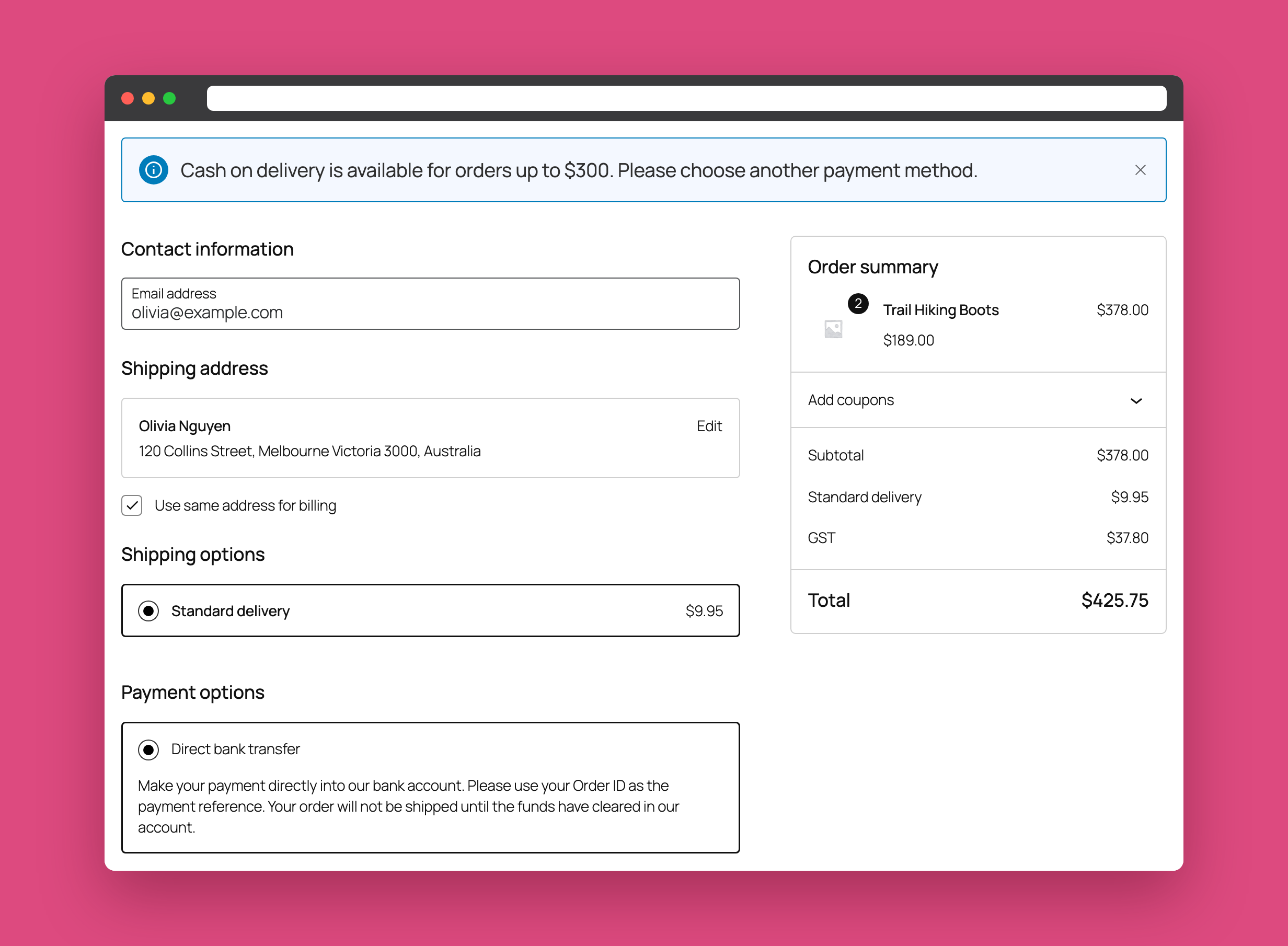
Make sure customers have a good alternative when COD is hidden. Bank transfer is a popular choice for larger orders: see how to add a bank transfer payment gateway to WooCommerce.
Check your rules before customers do
With several conditions, it is easy to lose track of which one is hiding COD. Turn on Debug mode under WooCommerce → Settings → Shipping and open your checkout as an administrator or shop manager. A report lists every payment condition, whether its rules matched, and which gateways it hid or kept. Customers never see it. Our holiday shipping cut-off guide shows the report in action.
Frequently asked questions
Can I disable cash on delivery in WooCommerce without a plugin?
Partly. WooCommerce can limit COD to certain shipping methods and block it for orders made entirely of virtual products. For order totals, locations, customers or specific products, you need custom code or a plugin.
How do I set a minimum or maximum order amount for cash on delivery?
Create a payment condition for Cash on delivery with the Cart Total rule. Use “more than” for a maximum, “less than” for a minimum, or both in separate groups joined with OR.
Can I disable cash on delivery for specific products?
Yes. Use the Product rule for individual products, or the Product Category, Product Tag or Shipping Class rules for groups of products. Choosing a variable product matches all of its variations.
Can I disable cash on delivery for new customers only?
Yes. Set the condition to “Show them only when the cart matches the rules” and add the Previous Orders rule. Customers who have not reached the number of orders you set will not see COD.
Does this work with the WooCommerce block checkout?
Yes. Restricted Shipping and Payment Pro supports both the block-based and the classic checkout, and updates the available payment methods and messages as the customer changes their address or cart.
Keep cash on delivery, lose the risk
Cash on delivery does not have to be all or nothing. With a few rules, you can keep it for the orders that convert well and turn it off for the ones that cost you money.
Restricted Shipping and Payment Pro lets you control every payment gateway and shipping method this way. See what is new in version 5, or explore the plugin.