Royal Mail Click & Drop is the shipping dashboard many UK stores use to print labels, manage parcels, and dispatch orders. Connecting it to WooCommerce means customer details, weights, and parcel data leave your store automatically — instead of being copied by hand.
This guide walks through the full setup using WooCommerce Royal Mail Shipping Calculator Pro, including the API key, plugin settings, automatic order export, and the most common reasons a connection fails.
What you need before you start
- A WooCommerce store with shipping enabled
- A Royal Mail Click & Drop account
- WooCommerce Royal Mail Shipping Calculator Pro version 5.0 or later (automatic order export needs 5.2.0+)
- Product weights set on every shippable item (grams, kilograms, or ounces — WooCommerce converts them)
- Administrator access in WordPress
If another app or the native Royal Mail WooCommerce connector is already creating Click & Drop orders, turn that off first. Two integrations sending the same order will create duplicates in Click & Drop.
Step 1: Create a Click & Drop API integration
The plugin talks to Royal Mail over the Click & Drop API. You generate the key inside your Click & Drop account, not in WordPress.
- Log in to Royal Mail Click & Drop.
- Open Settings, then Integrations.
- Choose Add a new integration (or Add New Integration).
- Select Click & Drop API.
- Set a Default trading name (this is the return address on labels) and an Integration name.
- Save the integration.
- Click the new row to expand it and copy the authorisation (API) key.
Treat that key like a password. Anyone with it can create orders in your Click & Drop account. If you delete the integration and create a new one, Royal Mail issues a new key — you will need to paste it into WooCommerce again.
Royal Mail allows one Click & Drop API integration per account. If you already have one, expand that row and copy the existing key instead of creating another.
Step 2: Open the Click & Drop settings in WooCommerce
In WordPress, go to:
WooCommerce → Settings → Shipping → Click & Drop
That section is labelled Royal Mail Click & Drop. It is separate from the Royal Mail rate calculator you assign to a shipping zone.
Step 3: Enable the integration and paste the API key
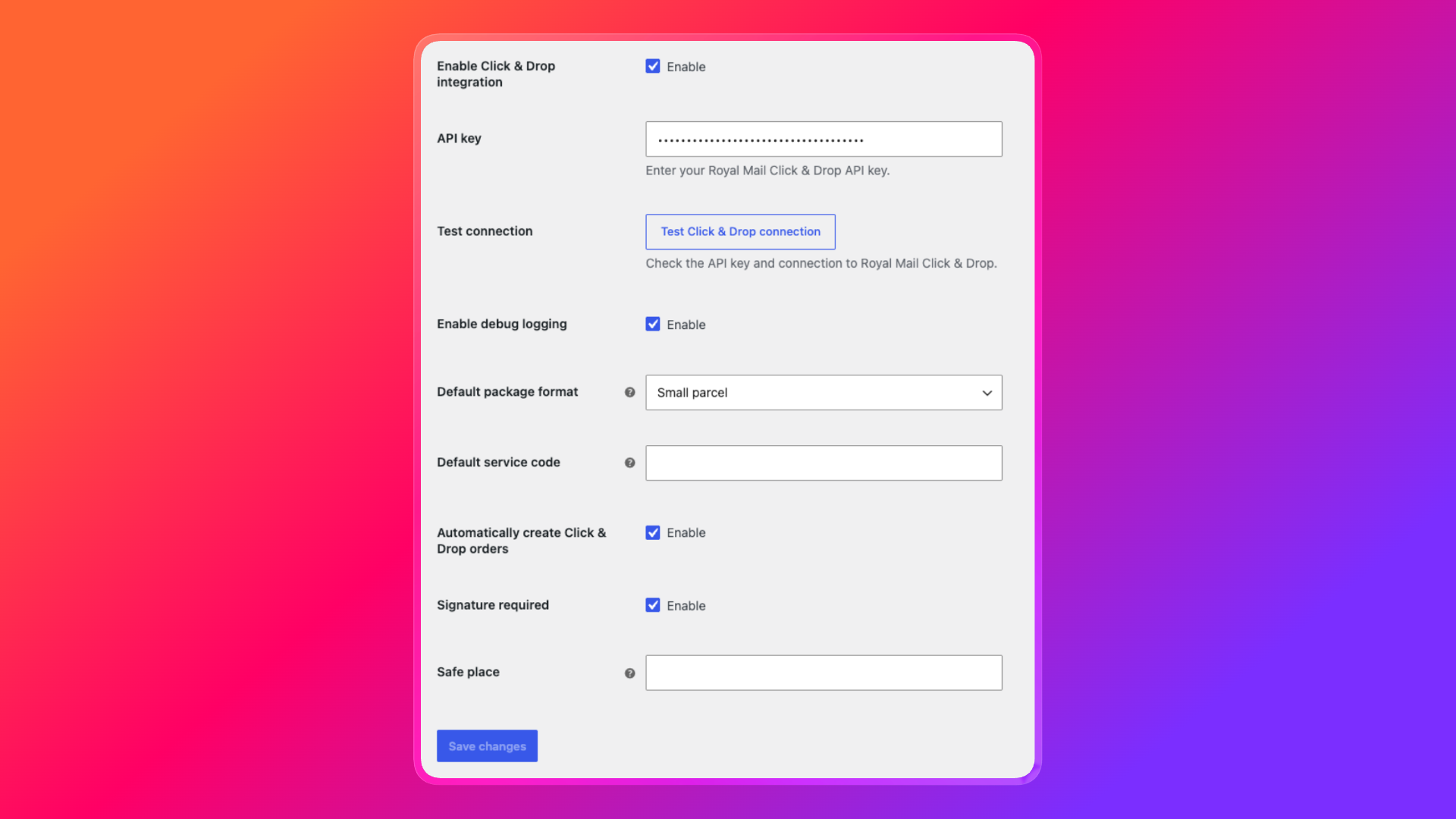
- Tick Enable Click & Drop integration.
- Paste the key into API key.
- Click Save changes.
- Click Test Click & Drop connection.
A success notice means WooCommerce can reach https://api.parcel.royalmail.com with that key. An error usually means the key was copied incorrectly, the integration was deleted in Click & Drop, or the request was blocked (firewall, TLS, or a temporary Royal Mail outage).
Leave Enable debug logging off unless you are diagnosing a problem. When it is on, the plugin writes sanitised API activity to WooCommerce → Status → Logs, with the source wpruby-royal-mail-click-drop.
Step 4: Choose how orders are exported
These options control what each exported order looks like in Click & Drop.
| Setting | What it does |
|---|---|
| Default package format | Sent with every export. Options: Letter, Large letter, Small parcel, Medium parcel, Large parcel, Parcel, Documents. |
| Default service code | Optional Royal Mail service code. If you leave it blank, the plugin uses a service code stored on the order’s shipping line when one exists. |
| Automatically create Click & Drop orders | When enabled (the default), a new checkout order is queued for export a few seconds after it is created. The plugin will not create a second Click & Drop order for the same WooCommerce order. |
| Signature required | Asks Click & Drop to request a signature on delivery. |
| Safe place | Optional delivery instruction (for example, “Leave in porch”). |
Automatic export only runs for orders that need a shipping address and have at least one shippable line item. Virtual or downloadable-only orders are skipped.
If you prefer to send orders yourself, turn Automatically create Click & Drop orders off and use the button on each order screen (next step).
Step 5: Send an order (automatic or manual)
Automatic
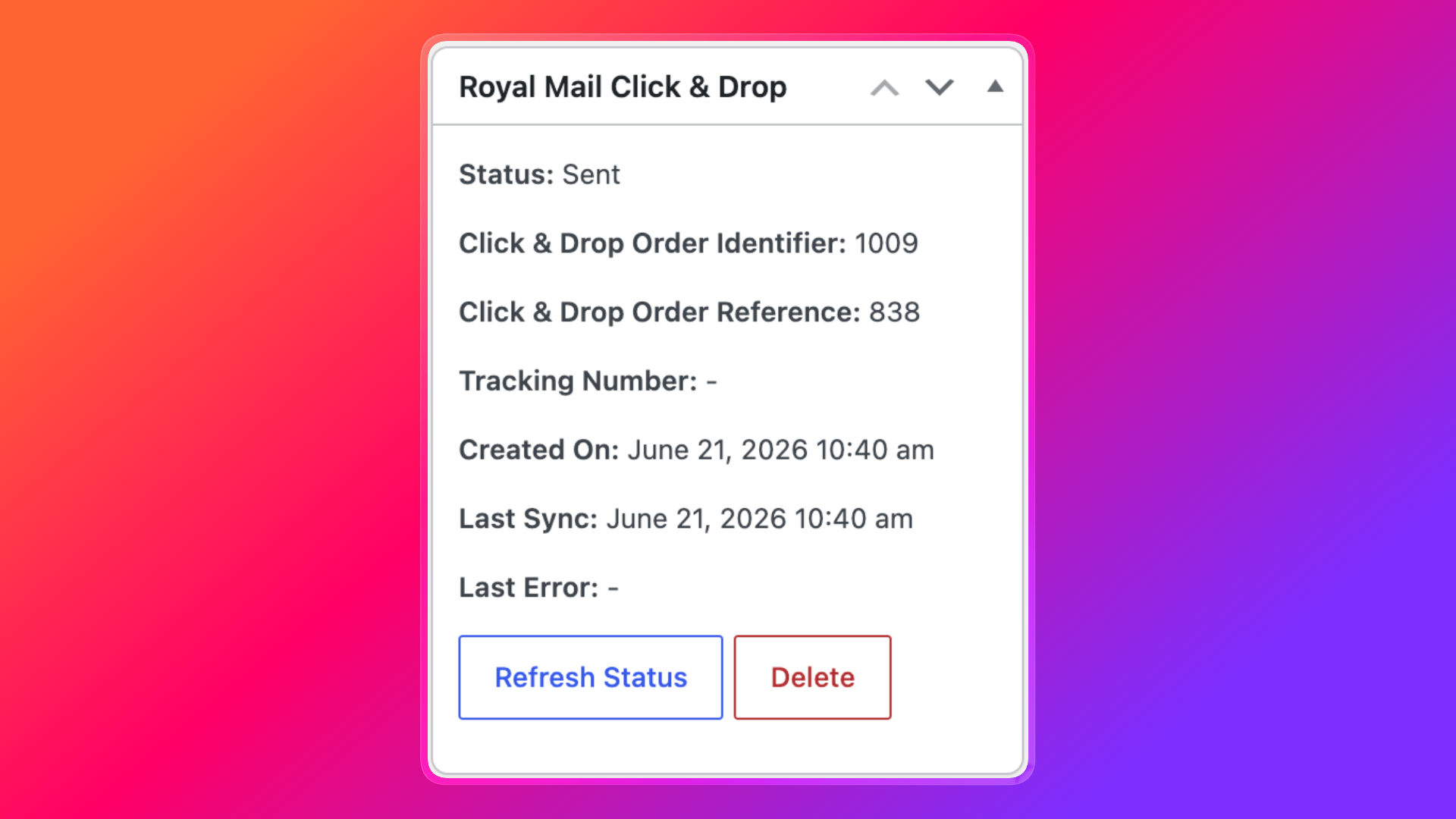
Place a test order with a real UK (or international) shipping address and products that have weights. After checkout, open the order in WooCommerce. The Royal Mail Click & Drop box on the right should move from Queued / Processing to Sent.
You should then see:
- Click & Drop order identifier
- Click & Drop order reference
- Tracking number (once Royal Mail has one)
- Created on / last sync timestamps
A matching order appears in your Click & Drop dashboard, tagged with the WooCommerce order ID, order number, status, and shipping method.
Manual
On any order that has not been sent yet:
- Open the order in WooCommerce.
- Find the Royal Mail Click & Drop meta box (sidebar).
- Click Create Click & Drop Order.
If the order was already sent, use Refresh Status to pull the latest identifier, tracking number, and errors from Royal Mail.
What data WooCommerce sends to Click & Drop
Each export includes:
- Recipient name, company, address, postcode, country, phone, and email
- Billing address
- Package weight (sum of product weights, converted to grams)
- Default package format, plus dimensions when products have them
- Line items: name, quantity, unit value, unit weight
- Order totals, shipping cost, tax, fees, and currency
- Optional postage details: service code, signature, safe place
For international orders, the plugin also sends a customs category (saleOfGoods) and a short customs description. You can add:
- Harmonised System (HS) code via product meta
_wpruby_rm_clickdrop_customs_code,_hs_code,_harmonized_system_code, orhs_code - Country of origin via
_wpruby_rm_clickdrop_origin_country,_origin_country, or_country_of_origin
UK orders require a valid GB postcode. Missing recipient name, address line 1, city, country, order total, shipping cost, currency, package format, or product weight will stop the export, with the reason stored as Last Error on the order.
Troubleshooting
Connection test fails
Re-copy the API key from Click & Drop → Settings → Integrations. Confirm the Click & Drop API integration still exists. A 401 response means the key is wrong or missing.
Order stays “Not sent” or “Failed”
Read Last Error on the order. The usual causes are a missing product weight, an invalid UK postcode, or a disabled integration.
Nothing is created after checkout
Confirm both Enable Click & Drop integration and Automatically create Click & Drop orders are on. Action Scheduler (bundled with WooCommerce) should be running; the export is delayed by a few seconds so the order can finish saving.
Duplicate orders in Click & Drop
Another connector is still creating orders. Disable the native Royal Mail WooCommerce integration (or any other Click & Drop app) and keep only the plugin’s export.
International customs rejected
Add HS codes and origin country on the products, and make sure each item has a weight and a value.
Click & Drop plus Royal Mail rates at checkout
Connecting Click & Drop does not replace checkout rates. The same plugin still calculates Royal Mail (and optionally Evri, DPD, and Parcelforce) prices from weight, dimensions, and destination.
A typical setup is:
- Add Royal Mail Pro to your UK (and international) shipping zones so customers see accurate rates.
- Enable Click & Drop so paid orders become printable shipments without extra typing.
You do not need to disconnect WooCommerce from anything else unless that other connection also creates Click & Drop orders.
FAQ
Does WooCommerce have a built-in Click & Drop connector?
Royal Mail offers its own store connection. The WPRuby plugin is an alternative that creates and manages Click & Drop orders from the WooCommerce admin, next to the rate calculator. Use one order-creation method, not both.
Do I need a developer to use the Click & Drop API?
Not with this plugin. You only copy the API key into WooCommerce. The plugin builds the order payload, including addresses, weights, and customs fields.
Can I send orders automatically?
Yes. Turn on Automatically create Click & Drop orders. New checkout orders are queued and sent without a second click. Manual Create Click & Drop Order remains available for older orders or retries.
Will the plugin create the same Click & Drop order twice?
No. Once a WooCommerce order has a Click & Drop identifier, further create requests are skipped.
If you get stuck on the API key or a failed export, WPRuby support can help you read the Click & Drop log and the order’s last error.