“When will it arrive?” is a polite question in October. In December it decides whether the customer buys from you at all.
Holiday shoppers are not buying a product. They are buying a product before a date. If your product page says “usually ships in 3–5 days” and nothing else, a large share of them will close the tab and buy from a store that prints a date. Some of the ones who stay will email you on 22 December asking where their parcel is.
This guide shows how to set up accurate Christmas delivery dates in WooCommerce: dates that skip the days you are closed, slow down when the carriers slow down, and stay the same in the order email when the customer comes back to check.
Why Christmas breaks “3–5 business days”
A fixed shipping message assumes every week looks the same. The last two weeks of December do not:
- Christmas Day, Boxing Day and New Year’s Day are not delivery days, and in some years the bank holiday moves to the following Monday. In 2026, Boxing Day falls on a Saturday, so the UK bank holiday moves to Monday 28 December.
- Your warehouse may close for a few days between Christmas and New Year.
- Carriers take longer in peak season, so “2–3 days” becomes “3–5 days”.
- Customers order late at night, after your packing cutoff, and expect the same date as someone who ordered at lunchtime.
“3–5 business days” is still technically true after all of that. It is just useless to someone who needs the parcel by the 24th.
What a good Christmas delivery date looks like
A good estimate gives the customer a real calendar date, not a count of days:
Estimated delivery: Tue 22 Dec – Wed 23 Dec
It changes when it should:
- After your cutoff, the window moves back a day.
- For Express, the window is shorter than for Standard.
- On a holiday or closure day, nothing is dispatched or delivered.
And it does not change when it should not. The date the customer saw at checkout is the date in their order email, even if you adjust your settings on 15 December.
That last point matters more than it sounds. If the order email recalculates and shows a later date than checkout did, the customer reads it as you breaking a promise.
Step 1: Set your working days and cutoff
Go to WooCommerce → Delivery Promise → Working Days.
- Tick the days you pack and dispatch orders. For most stores that is Monday to Friday.
- Set the Same-day dispatch cutoff time, for example 14:00. Orders placed after the cutoff count from the next working day.
- Set Processing time before dispatch (for example 0–1 days) and Delivery time after dispatch (for example 2–3 days). These are working days, so weekends are skipped automatically.
Check your WordPress timezone under Settings → General. The cutoff uses store time, not the visitor’s time.
Step 2: Add the holidays and closure days
Go to WooCommerce → Delivery Promise → Holidays.
Use Quick add for Christmas Day and New Year’s Day, then add any other dates you will not dispatch or the carrier will not deliver:
- Boxing Day, or the substitute bank holiday (28 December in the UK this year)
- Christmas Eve or New Year’s Eve, if you close early
- Every day your warehouse is shut between Christmas and New Year
Give each date a label you will recognise, such as “Warehouse closed”. These days are skipped when counting both processing and delivery time, so an estimate never lands on a day nobody is working.
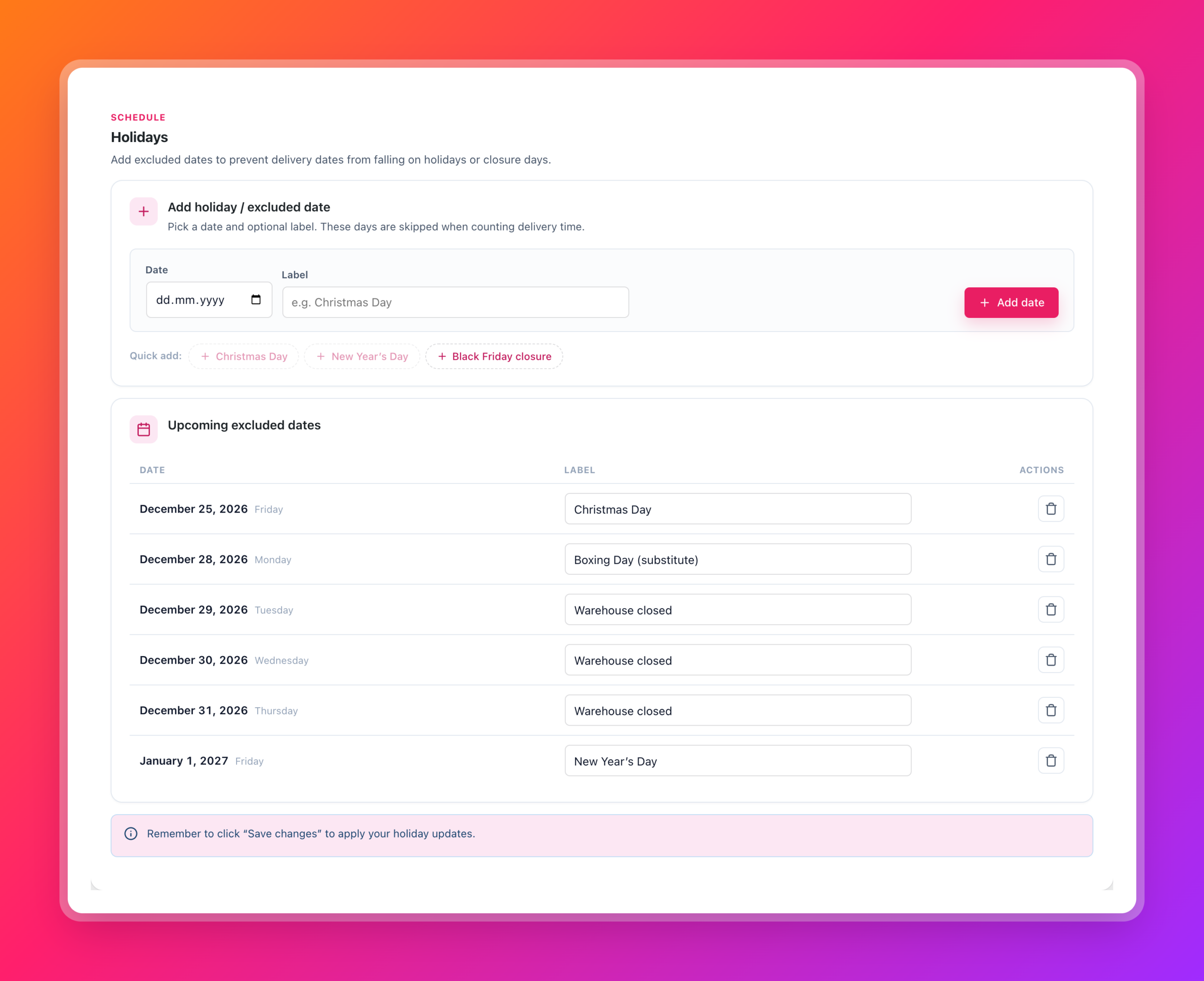
Click Save changes. The holidays are not applied until you save.
Step 3: Allow for slower carriers in December
Carriers publish their own last posting dates and peak season delays. If your Standard service usually takes 2–3 days but your carrier warns of delays in December, tell the plugin rather than hoping for the best.
Go to WooCommerce → Delivery Promise → Rules and add a rule:
- Name it something like December peak – Standard.
- Under Shipping methods, pick your Standard method.
- Under Delivery timing, set Transit min and Transit max to the longer window, for example 3–5.
- Leave the other fields empty so they inherit your defaults.
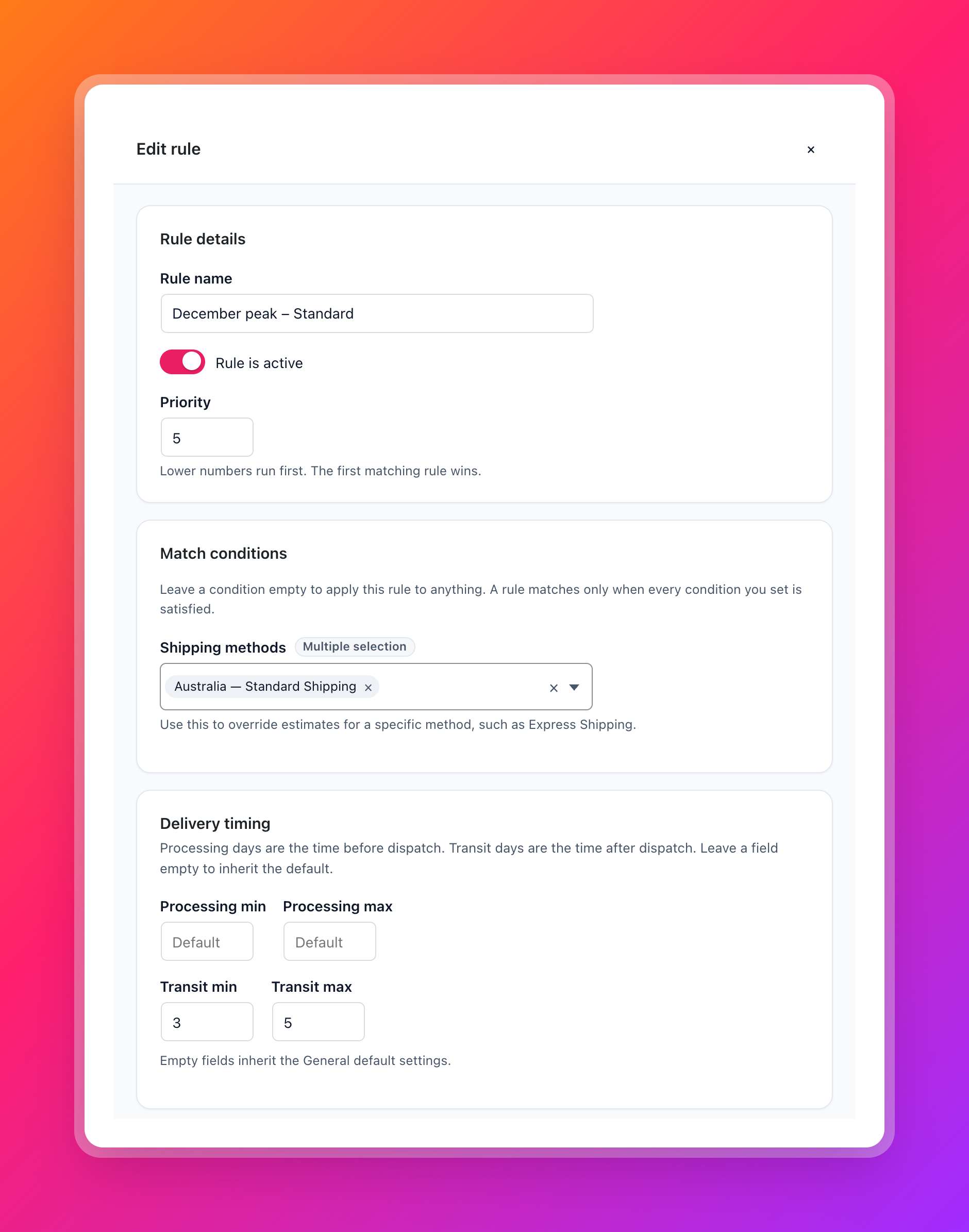
Add a second rule for Express if that service slows down too. Rules are checked in priority order and the first matching rule wins, so give the December rules a lower priority number than your normal method rules.
In January, open each rule and switch off Rule is active. Nothing else needs to change.
Step 4: Work out your last order date for Christmas
Customers want to know the last day they can order and still get the parcel before Christmas. You can work this out with the plugin instead of with a calendar and a pen.
Go to WooCommerce → Delivery Promise → Tester:
- Pick a product and a shipping method.
- In Date/time override, enter a date and time in December, for example
2026-12-18 13:30. - Click Run test and read the delivery estimate.
- Move the date forward until the latest delivery date passes 24 December.
The last date and time before that happens is your last order date for that method.
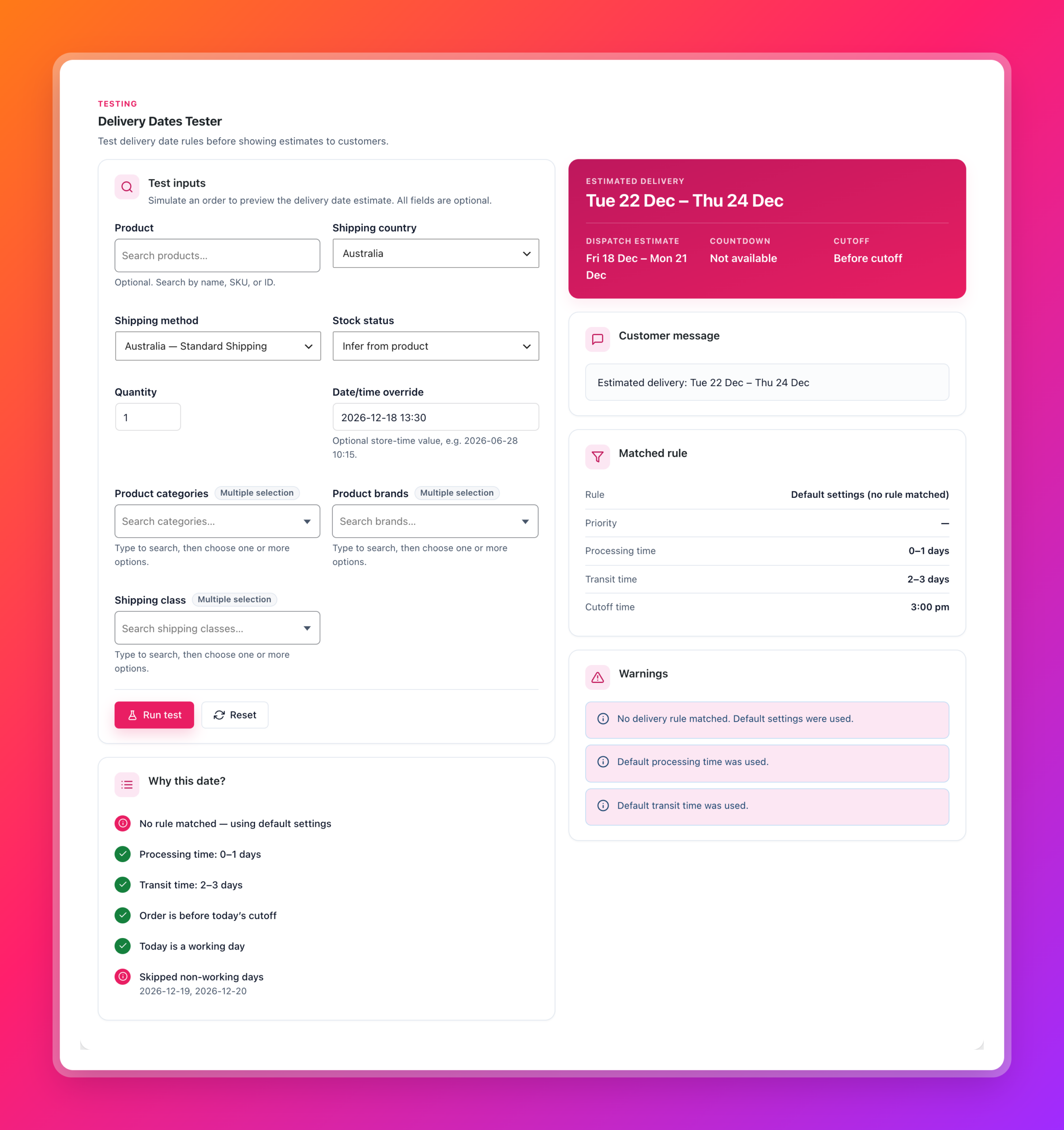
Here is an example with Monday to Friday working days, a 14:00 cutoff, 0–1 processing days and 2–3 transit days, with 25 and 28 December added as holidays:
- Order on Friday 18 December at 13:30: dispatch Fri 18 – Mon 21, delivery Tue 22 – Thu 24. That still arrives in time.
- Order on Friday 18 December at 15:00: the cutoff has passed, so processing starts on Monday. Dispatch is Mon 21 – Tue 22 and delivery is Wed 23 – Tue 29.
That second window is honest. It says the parcel might arrive before Christmas but probably will not. A customer who needs it by the 24th can switch to Express or buy something else, instead of finding out on Boxing Day.
Run the same test for Express. If Express still makes it on Monday 21 December, you now have a reason to sell it.
Step 5: Tell customers the last order date
The plugin calculates the date for each order. The “order by” deadline is a store-wide message, so add it yourself once you know it.
Go to WooCommerce → Delivery Promise → Messages and add a sentence to the product page message, for example:
Estimated delivery: {delivery_range}. Order Standard by 18 Dec, 2pm, for Christmas delivery.If your products qualify for same-day dispatch, turn on the countdown as well:
Order within {countdown} for dispatch today.The countdown only appears when same-day dispatch is actually possible: a working day, before the cutoff, in stock, and with no extra processing days. It does not appear on Christmas Day or at the weekend. You can read more in How to Add an Amazon-Style “Order Within” Countdown to WooCommerce.
Remove the Christmas sentence once the last order date has passed, or replace it with “Orders placed now will be dispatched from 4 January”.
Step 6: Keep the promise after checkout
When the customer places the order, the estimate is saved with it. The thank-you page, the order email and the order screen all show the date the customer saw at checkout, even if you change rules or holidays afterwards.
To see it at a glance while packing, go to WooCommerce → Delivery Promise → Settings and turn on:
- Show column in orders list, to see each order’s delivery window in the WooCommerce orders list.
- Show panel on order edit screen, to see the saved estimate inside each order.
During peak season, this list is how you decide which orders to pack first.
Should you pause Express over Christmas?
Sometimes the honest answer is that Express cannot arrive on time, for example on 23 December or while your warehouse is closed. A later delivery date is honest, but a customer may still pay for Express and be disappointed.
If you would rather hide Express on certain dates altogether, Restricted Shipping and Payment Pro can pause it automatically for a date range, at weekends or after a daily cutoff. The steps are in How to Set a Holiday Shipping Cut-off in WooCommerce. Delivery Promise shows the date, and Restricted Shipping and Payment Pro controls which methods are offered.
Christmas delivery checklist
- Working days and cutoff set, and timezone checked
- Christmas Day, Boxing Day (or the substitute), New Year’s Day and closure days added as holidays
- December transit rules added for each slower method
- Last order dates found with the Tester for Standard and Express
- Last order date added to the product page message
- Countdown enabled if you dispatch the same day
- Orders list column turned on for packing
- A reminder in your calendar to switch off the December rules in January
Show accurate Christmas delivery dates
Delivery Promise for WooCommerce calculates dispatch and delivery dates from your working days, cutoff, holidays, stock and shipping methods. It shows them on the product page, cart, checkout, thank-you page and order emails.
Set it up once in November and every customer sees an honest date for the rest of the season, without anyone having to answer “will it arrive before Christmas?” by hand.