If you ship with Royal Mail, Click & Drop is the system you use to create shipments, print labels, and manage tracking. Doing that by hand for every WooCommerce order is slow and easy to get wrong. You copy names, addresses, weights, and product details into Click & Drop, then hope nothing was missed.
With WooCommerce Royal Mail Shipping Calculator Pro, you can send orders from WooCommerce to Royal Mail Click & Drop automatically, or with one click from the order screen. The plugin builds the shipment payload for you, including the customer address, package weight, product contents, and customs data for international orders.
This guide walks through how to set it up, how automatic exports work, and how to create a Click & Drop order from a WooCommerce order when you want to do it yourself.
What Royal Mail Click & Drop Does for WooCommerce Stores
Royal Mail Click & Drop is Royal Mail’s shipping platform for labels, tracking, and order fulfilment. On its own, it does not know anything about your WooCommerce store. Someone still has to enter each order.
The WPRuby Royal Mail plugin connects the two. After a customer places an order, the plugin can:
- Create a matching Click & Drop order
- Send recipient and billing details
- Include package weight, dimensions, and contents
- Add a Royal Mail service code, signature, and safe place instructions
- Attach customs codes and country of origin for international parcels
- Store the Click & Drop order ID, reference, and tracking number on the WooCommerce order
Once the order exists in Click & Drop, you continue in Royal Mail as usual: choose or confirm the service, print the label, and dispatch.
What You Need Before You Start
You will need:
- A WooCommerce store with the Royal Mail plugin installed and licensed
- A Royal Mail Click & Drop account
- A Click & Drop API key
- Product weights on every shippable product
- Complete shipping addresses on your orders
If a product has no weight, or a UK order has a missing or invalid postcode, the plugin will not send the order. That is intentional. Click & Drop needs complete data before it can create a shipment.
Step 1: Get Your Royal Mail Click & Drop API Key
Log in to your Royal Mail Click & Drop account and create an API key from the account or integrations area. Keep the key private. Treat it like a password.
You will paste this key into WooCommerce in the next step. After it is saved, you can test the connection without sending a real order.
Step 2: Enable Click & Drop in WooCommerce
In WordPress, go to:
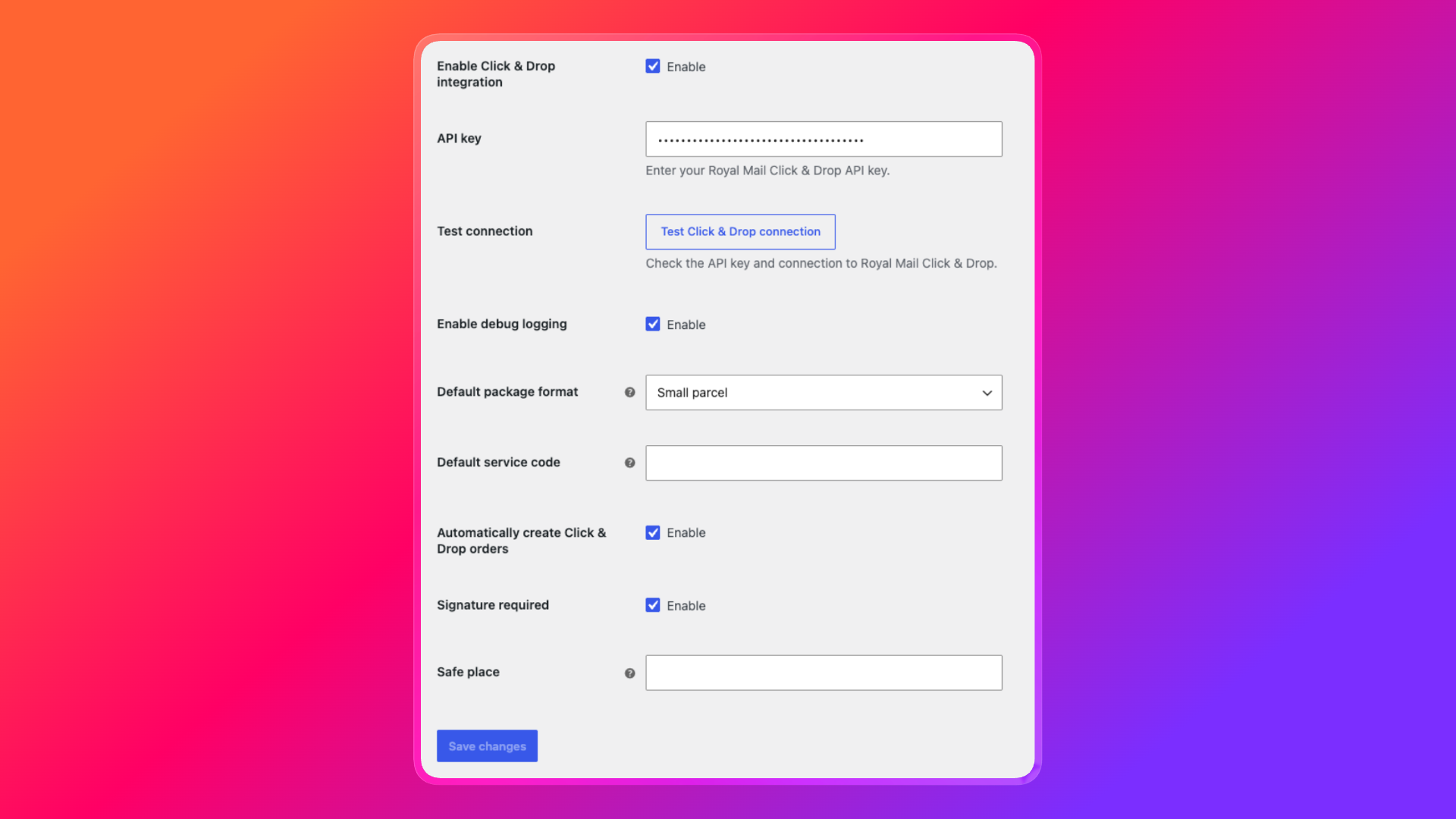
WooCommerce > Settings > Shipping > Click & Drop
Then configure the following:
Enable Click & Drop integration
Turn this on. Nothing is sent to Royal Mail until this is enabled.
API key
Paste your Click & Drop API key.
Test connection
Click Test Click & Drop connection. If the key is valid, you will see a success notice. If it fails, check the key and try again before you send live orders.
Default package format
Choose the format Click & Drop should use when an order is exported. Options include:
- Letter
- Large letter
- Small parcel
- Medium parcel
- Large parcel
- Parcel
- Documents
Most stores should start with Small parcel, then change it if you mostly send letters or larger parcels.
Default service code
Optional. If you always want a specific Royal Mail service in the export, enter that service code here. Leave it blank if you prefer to choose the service later in Click & Drop.
Automatically create Click & Drop orders
Leave this enabled if you want new WooCommerce orders sent to Click & Drop after checkout. The plugin will not create a second Click & Drop order for the same WooCommerce order.
Signature required
Enable this if you want signature on delivery by default.
Safe place
Optional. Use this for a default delivery instruction, such as “Leave in porch” or “Leave with neighbour”.
Enable debug logging
Turn this on only while you are testing. Logs are written to the WooCommerce logger and help you see why an export succeeded or failed.
Save the settings when you are done.
Step 3: Prepare Your Products
Click & Drop needs product data, not just a customer address.
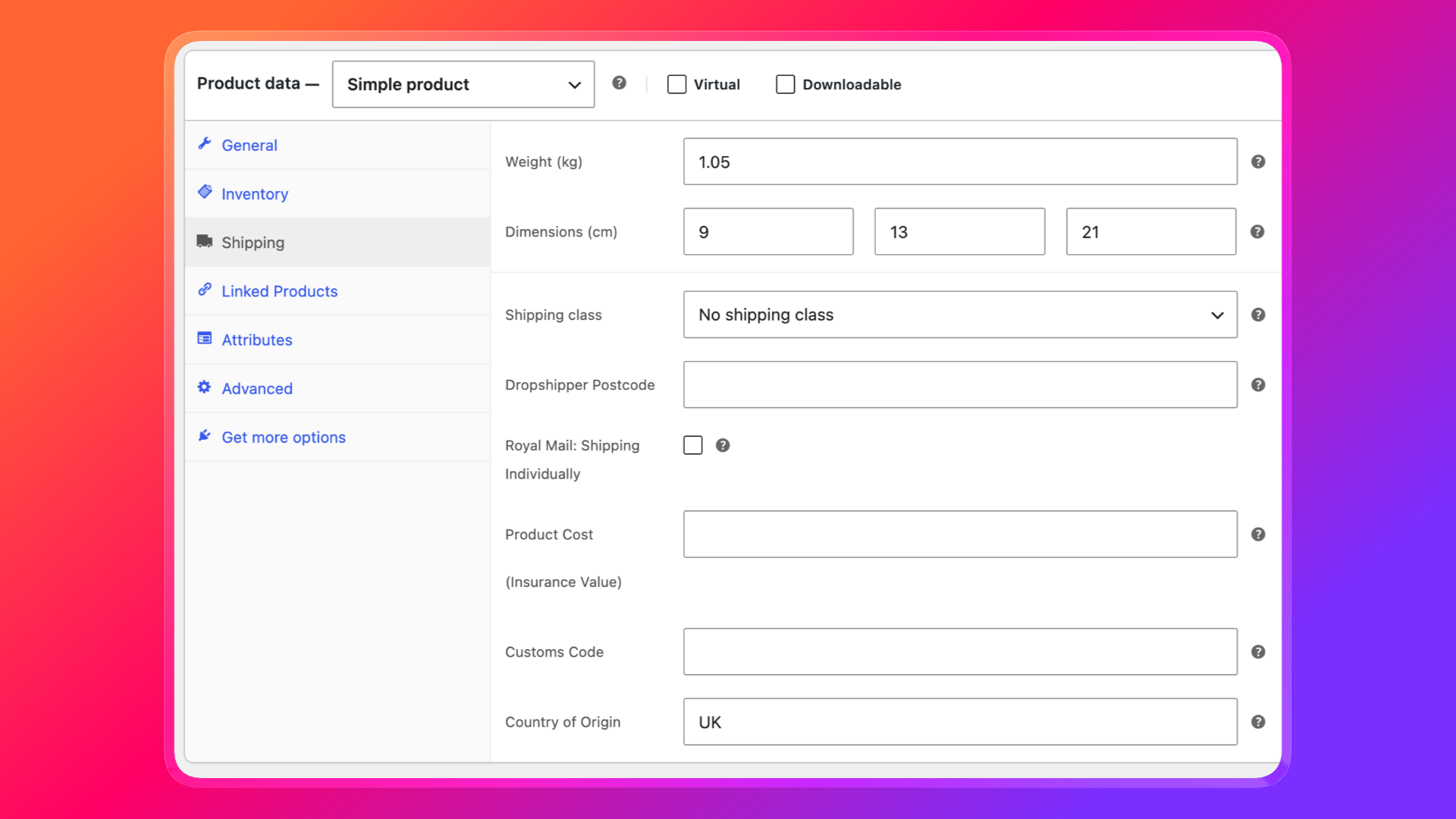
Product weight
Every shippable product should have a weight. The plugin converts that weight into grams and sends it with the package. Missing weights are one of the most common reasons an export fails.
Customs fields for international orders
If you ship outside the UK, add customs details on the product:
- Customs Code: the HS tariff code
- Country of Origin: usually
UK
These fields are on the product shipping tab. Variations can have their own values as well. For international parcels, the plugin also marks the contents as a sale of goods when no other customs category is set.
If you already store HS codes in other product meta, the plugin can read common keys such as _hs_code and _country_of_origin.
Step 4: Create Click & Drop Orders Automatically
This is the option most stores want.
When automatic creation is enabled:
- A customer completes checkout
- WooCommerce creates the order
- The plugin queues a Click & Drop export a few seconds later
- The shipment is created in Royal Mail Click & Drop
- The WooCommerce order is updated with the Click & Drop order ID and reference
Automatic export only runs for orders that need shipping and contain shippable line items. Virtual-only orders are skipped. If the same order is already in Click & Drop, the plugin will not send it again.
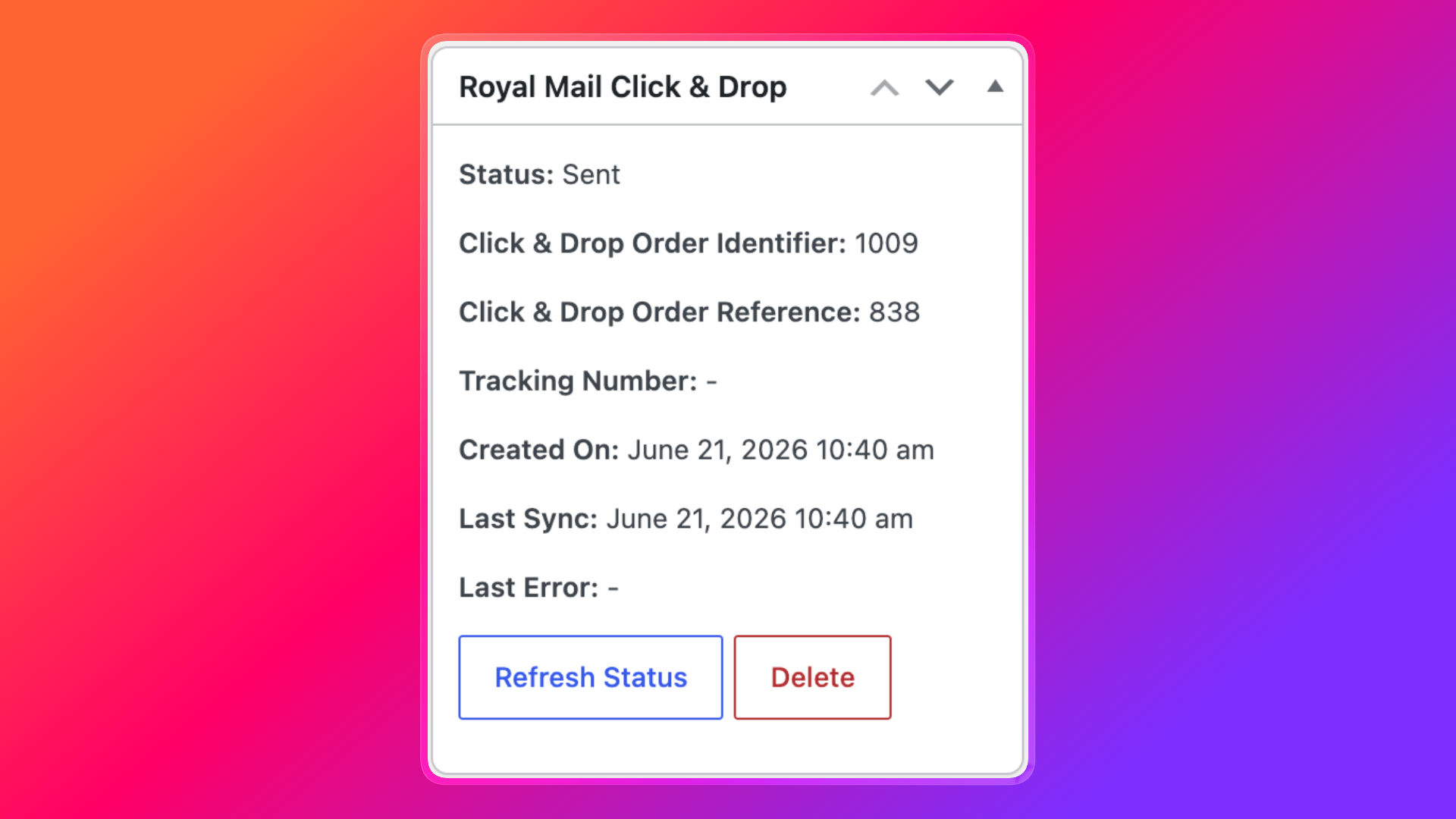
On the order screen, the Royal Mail Click & Drop panel shows the current status:
- Not sent: nothing has been exported yet
- Queued: the export is waiting to run
- Processing: the order is being sent
- Sent: Click & Drop accepted the order
- Failed: the export did not succeed, and the last error is shown
A successful export also adds an order note with the Click & Drop order ID.
Step 5: Create a Click & Drop Order Manually
Use the manual button when automatic export is off, when an earlier attempt failed, or when you created the order in admin and want to send it now.
- Open the WooCommerce order
- Find the Royal Mail Click & Drop box in the sidebar
- Click Create Click & Drop Order
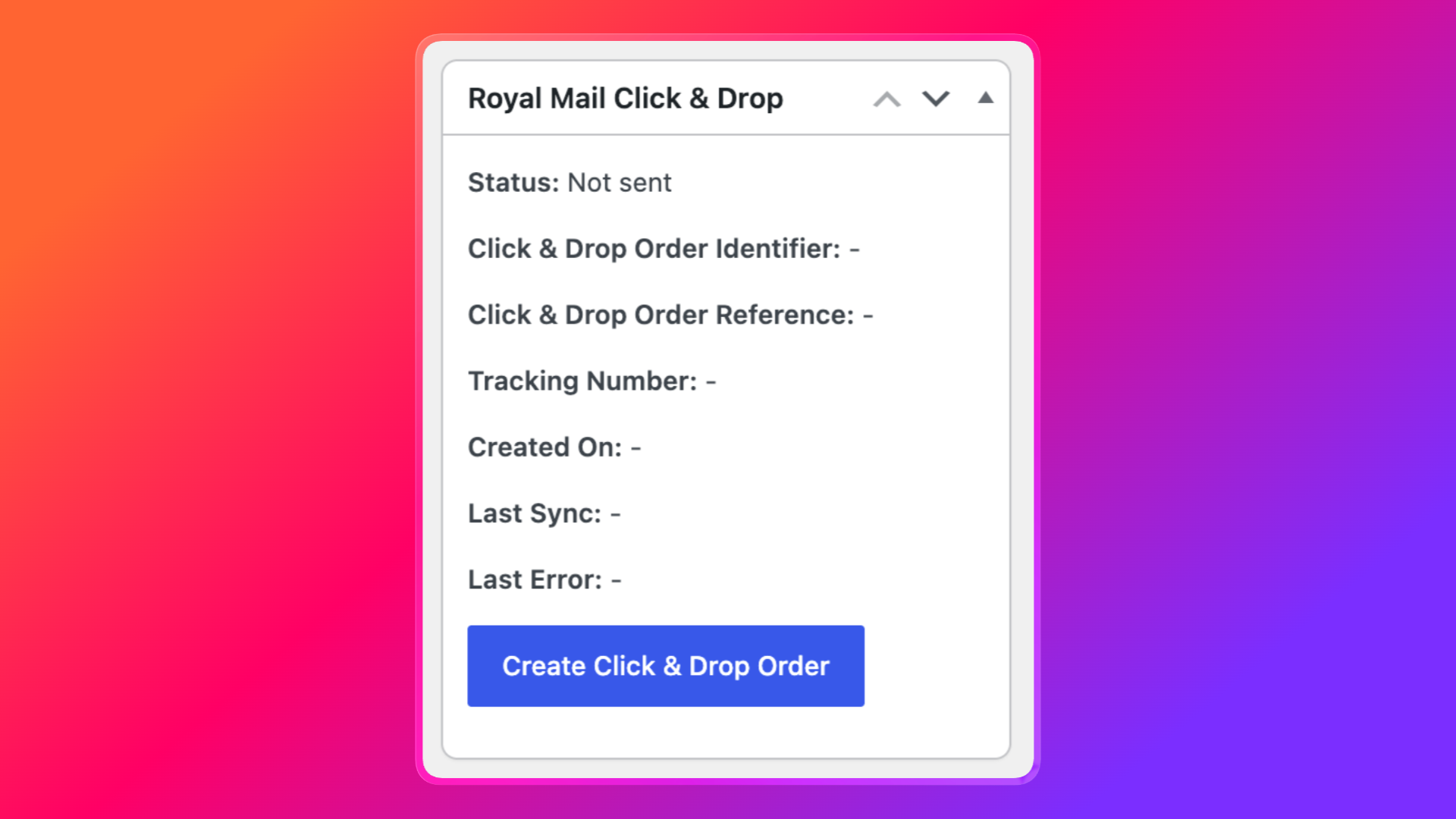
The plugin validates the order, builds the payload, and sends it to Royal Mail. If it works, the panel shows:
- Click & Drop order identifier
- Click & Drop order reference
- Tracking number, once Royal Mail has one
- Created on date
- Last sync time
If the order is already in Click & Drop, you will see Refresh Status instead of the create button. Use that to pull the latest identifier, reference, and tracking details from Royal Mail.
What Gets Sent to Click & Drop
The plugin does more than copy a name and postcode. Each export includes:
- Order reference, usually based on the WooCommerce order number
- Recipient name, company, address, phone, and email
- Billing address
- Package weight in grams
- Your default package format, plus dimensions when they are available
- Line items, including product names, SKUs, quantities, and weights
- Order totals, shipping cost, tax, and currency
- Postage details such as service code, signature, and safe place
- Customs declaration data for non-UK deliveries
If the shipping address is incomplete, the plugin falls back to the billing address where it can. UK postcodes are checked before the order is sent.
How to Check Tracking After an Order Is Sent
Tracking is not always available at the exact moment the Click & Drop order is created. Royal Mail may assign it later, after the label is generated.
To update WooCommerce:
- Open the order
- Click Refresh Status in the Royal Mail Click & Drop panel
The plugin requests the latest details from Click & Drop and updates the tracking number on the order when it is available.
Fixing Common Click & Drop Export Errors
If an order is not sent, read the Last Error field on the order, then check the matching item below.
The API key is missing or the connection failed
Re-enter the key and use Test Click & Drop connection.
The recipient name, address, city, or country is missing
Edit the order shipping address and try again.
The UK postcode is missing or invalid
Correct the postcode. Click & Drop will reject a UK shipment without a valid one.
A product does not have a weight
Add a weight to the product, then create the Click & Drop order again.
The default package format is not configured
Set a package format in WooCommerce > Settings > Shipping > Click & Drop.
The order has already been sent
That is expected. One WooCommerce order maps to one Click & Drop order. Use Refresh Status instead of creating another shipment.
If you need more detail, enable debug logging temporarily and review the WooCommerce logs for the wpruby-royal-mail-click-drop source.
Automatic vs Manual: Which Should You Use?
Use automatic creation if you fulfil most orders the same way and want Click & Drop to stay in sync as soon as checkout completes.
Use manual creation if you:
- Review orders before you book postage
- Mix Royal Mail with other carriers
- Create orders in admin
- Need to fix missing product or address data first
Many stores enable automatic export for checkout orders and still use the order-screen button for retries and admin-created orders.
A Faster Path From Checkout to Royal Mail Label
Creating Royal Mail Click & Drop orders from WooCommerce should not mean retyping every shipment. Once the plugin is connected, new orders can appear in Click & Drop with the right address, weight, contents, and customs data. You still print labels and dispatch in Royal Mail, but the boring data entry is already done.
Set up the Click & Drop section, test the connection, then place a test order. Open that order in WooCommerce, confirm the Click & Drop panel says Sent, and you are ready to use it on live orders.