Delivery Promise for WooCommerce 1.2 is out. This release moves the shipping decision from checkout to the product page.
Until now, the product page showed one estimate. That answers “when will it arrive?”, but not the question shoppers ask next: “and if I pay for Express?” or “can I just pick it up?” They had to add the product to the cart and get to checkout to find out, and that is where many of them leave.
Version 1.2 lists every shipping method in the visitor’s zone on the product page, each with its own dates. It also works on fully cached pages and handles variable products properly.
Delivery and pickup dates for every shipping method
Turn on List each shipping method with its own dates and the single estimate is replaced with one line per method:
Standard Shipping: Mon 16 Nov – Wed 18 Nov
Express Shipping: Thu 12 Nov – Fri 13 Nov
Local pickup: ready for pickup Wed 11 Nov – Thu 12 Nov
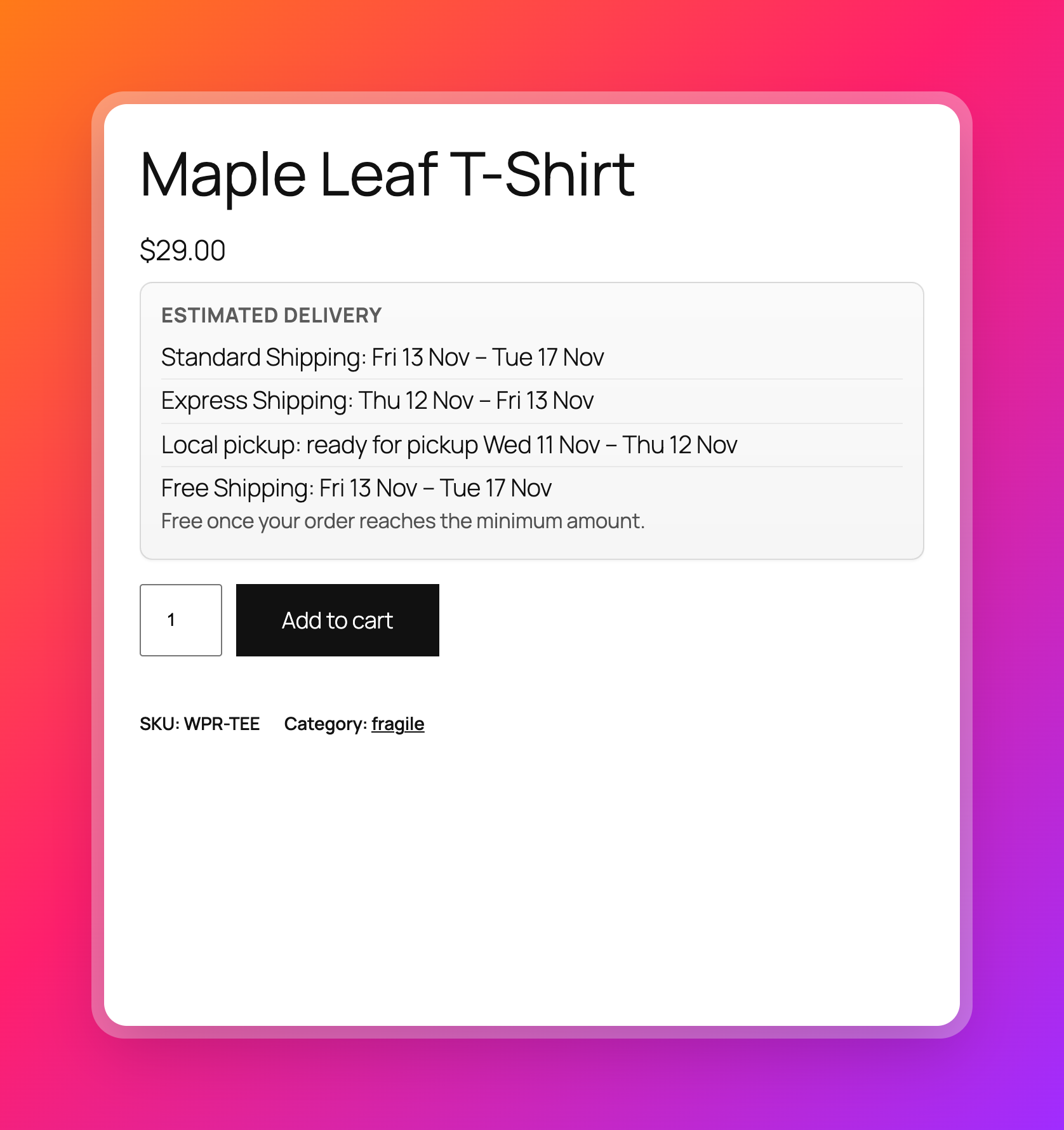
Each line uses that method’s rules, so Express shows a shorter window than Standard, and both skip your weekends, holidays and closure days.
Pickup methods get their own line. A parcel is not delivered to a pickup point, so the pickup line shows when the order is ready, based on the dispatch date. WooCommerce’s Local pickup and the pickup locations in the block checkout are recognised automatically.
Changing the variation or quantity updates the list straight away. If the customer asks for 12 of something that has 5 in stock and allows backorders, the lines switch to your backorder timing.
Both lines are templates you can edit under Delivery line and Pickup line, using placeholders like {shipping_method}, {delivery_range} and {dispatch_range}.
Choose which methods appear, and what they are called
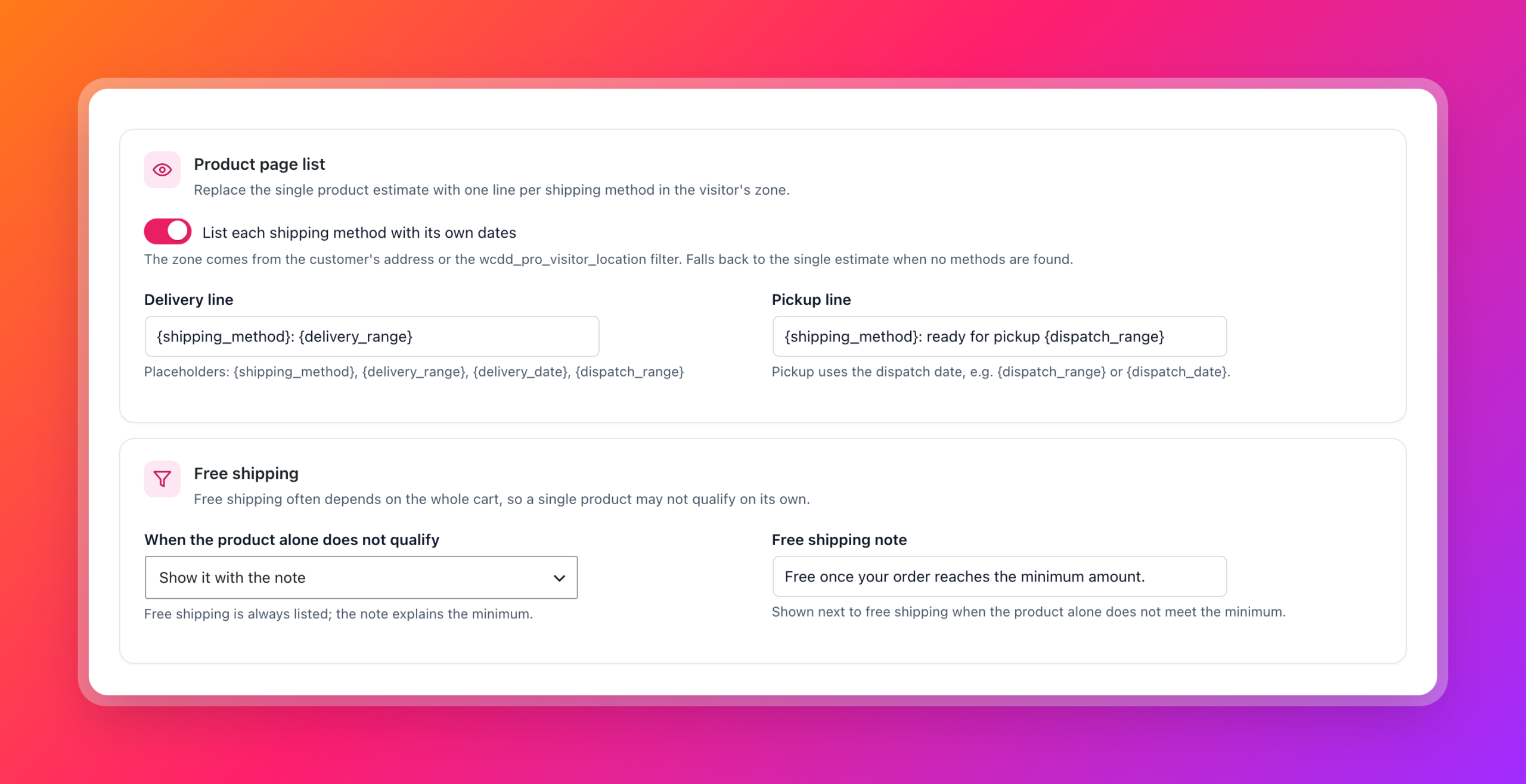
Not every shipping method belongs on a product page. Under WooCommerce → Delivery Promise → Display, each method in each zone has its own row where you can:
- Show it, as it is.
- Hide it, for example an internal “Staff collection” method.
- Relabel it, so “Flat rate” becomes “Standard delivery (2–4 days)” on the product page without renaming it at checkout.
- Hide it if free shipping is available. When the product qualifies for free shipping, a paid Standard rate next to it is noise. This matches how many stores show rates at checkout.
Free shipping without the fine-print surprise
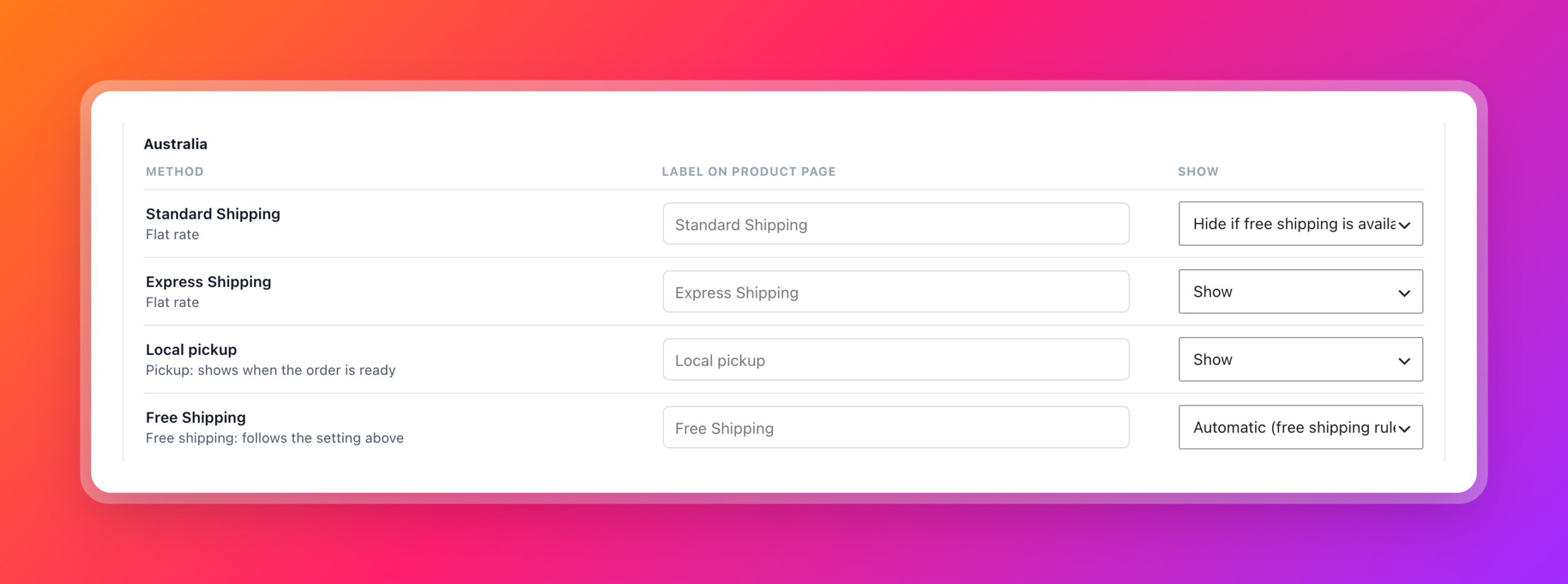
Free shipping usually depends on the whole cart: “free over £50”. On a product page, a £20 product does not qualify on its own, so showing “Free shipping: Thu 12 Nov” is a promise the cart will not keep.
Under When the product alone does not qualify, you can either:
- Hide it, so free shipping only appears on products that qualify by themselves, or
- Show it with the note, for example “Free once your order reaches the minimum amount.” This lets you use free shipping to increase the order value without misleading anyone.
The right zone for each visitor
Dates depend on where the parcel is going. Version 1.2 finds the visitor’s location in this order:
- The address the customer has already entered in your store.
- A location from your CDN or geolocation service, through the
wcdd_pro_visitor_locationfilter. For example, Bunny CDN sends the visitor’s country and state with every request. - Your WooCommerce default customer location.
The product page then shows the methods for the right shipping zone, so a visitor in Germany does not see your UK Next Day service.
Works on cached product pages
Most fast WooCommerce stores cache product pages with WP Rocket, LiteSpeed, Cloudflare or a CDN. That is good for speed, but bad for anything that depends on the time or the visitor: the first visitor’s dates and countdown are cached and shown to everyone for hours.
Turn on Load delivery dates with JavaScript and the product page keeps its cache. Only the delivery estimate is loaded separately for each visitor from an uncached endpoint. The settings screen shows the exact path to exclude from your cache.
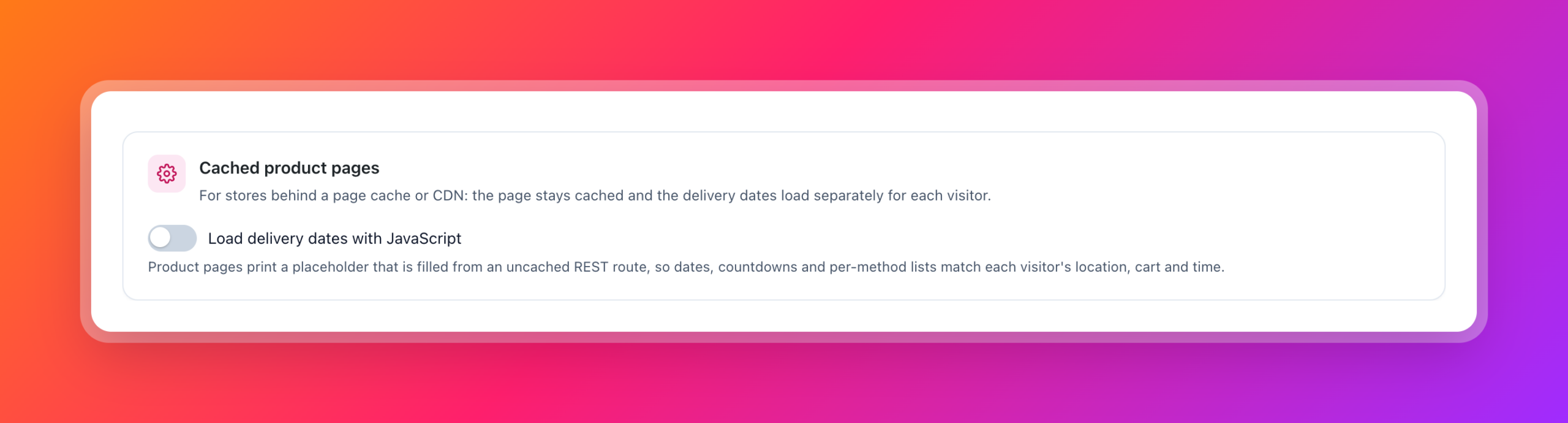
Countdowns, per-method lists, variation changes and quantity changes all keep working, and the dates are correct for the visitor’s location and the current time.
Variable products: wait for a variation
A T-shirt in stock in medium and on backorder in large should not show the medium’s delivery date to someone choosing a large.
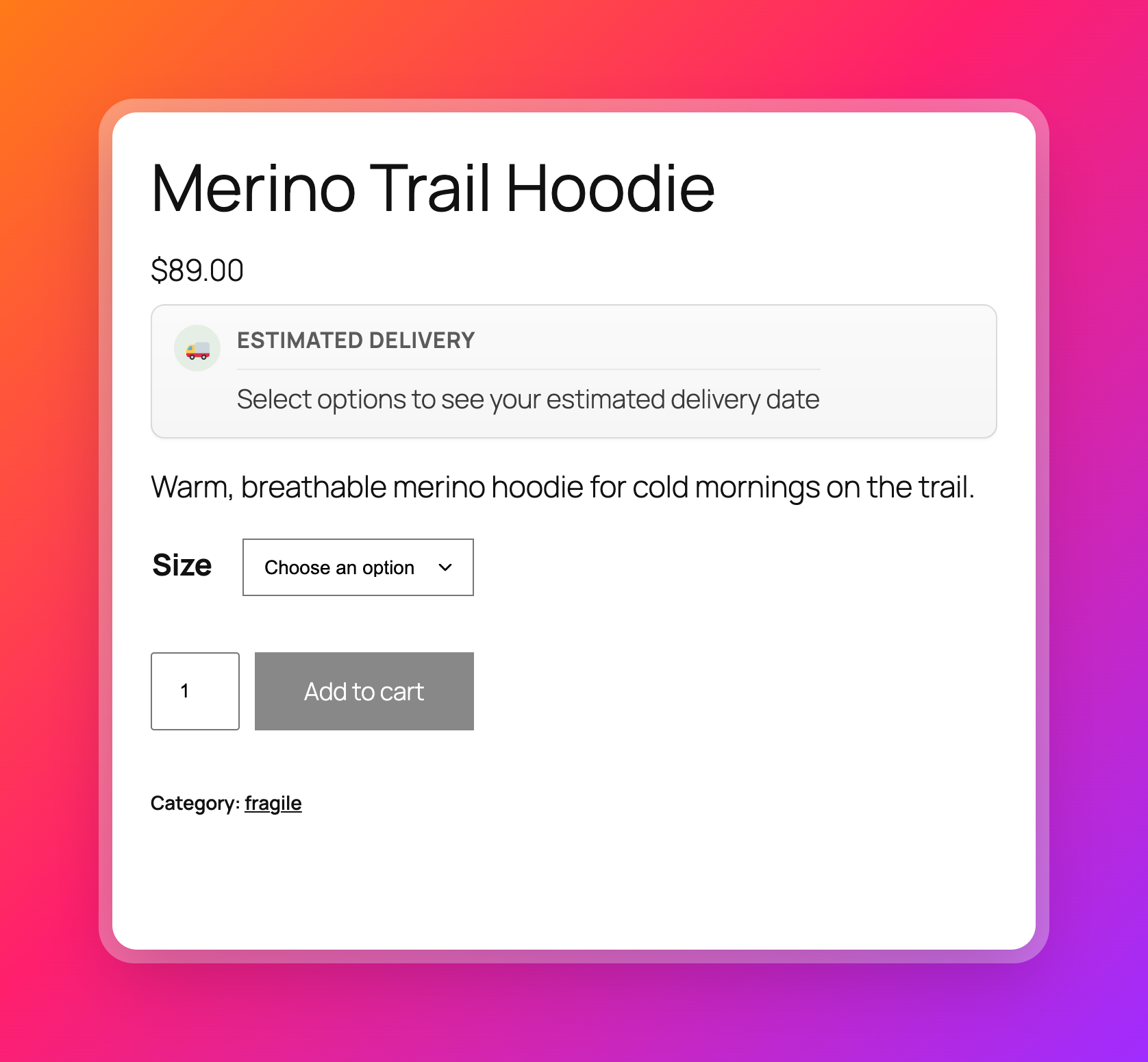
Turn on On variable products, wait for a variation to be selected. The product page shows “Select options to see your estimated delivery date” until the customer picks options, then shows the estimate for that variation and its stock status. You can change the message. Simple products show their estimate straight away.
Put the estimate where your theme needs it
Some themes move the add to cart area into a sticky sidebar, which leaves the delivery estimate far away from the button. A new Show the estimate setting places it:
- In the product summary (the default)
- Above the add to cart form
- Below the add to cart form
For developers
Version 1.2 adds a small public API and a shortcode, so you can show delivery dates anywhere: in a page builder, a custom template or a product comparison table.
[delivery_promise]                        Estimate for the current product
[delivery_promise method="all"]           Every method with its own dates
[delivery_promise method="flat_rate:3"]   One shipping method
[delivery_promise show="range"]           Only the dates, no message
The shortcode also accepts product_id and quantity. In PHP, use wcdd_pro_get_estimate(), wcdd_pro_get_method_estimates() and wcdd_pro_get_visitor_location().
How to update
Existing customers with an active licence will see the update under Dashboard → Updates. All new features are off by default, so updating changes nothing on your store until you turn them on.
After updating:
- Go to WooCommerce → Delivery Promise → Display.
- Turn on List each shipping method with its own dates.
- Review the method list for each zone and hide or relabel anything that should not appear on product pages.
- If your store uses page caching, turn on Load delivery dates with JavaScript and exclude the path shown.
- Open a product in a private window and check the dates.
New to per-method delivery dates? WooCommerce Delivery Date by Shipping Method explains how to set up the rules that give Standard, Express and pickup their own timing.
Get Delivery Promise 1.2
Delivery Promise for WooCommerce shows accurate dispatch and delivery dates on the product page, cart, checkout, thank-you page and order emails, based on your working days, cutoff, holidays, stock and shipping methods.