WooCommerce will charge a different rate for Standard, Express, and Local Pickup. It will not show a different delivery date.
That is the gap. The customer already understands that Express costs more. They are asking a follow-up: if I pay for it, when does it arrive? If checkout still says “usually 3–5 business days” next to both rates, the extra money has no reason to exist.
Amazon prints a date next to each option. Most WooCommerce stores print a method title and a price. The date, if it appears at all, is the same line for every rate.
A WooCommerce delivery date by shipping method is not a slogan on the shipping tab. It is a calculated window that tightens when the customer picks Express, widens for economy, and becomes “ready for pickup” when they choose the shop.
Why a date per shipping method converts
The shipping radio buttons are a decision, not a formality. The date is what makes that decision obvious.
- Standard looks cheap until the arrival window is a week out.
- Express looks expensive until the date is two working days sooner.
- Local pickup looks like a workaround until the date is “tomorrow after 10am.”
Without a date, customers pick the cheapest method and email you later. With a date, they pick the method that matches when they actually need the order.
The date also has to move. Switching from Standard to Express at checkout should change the line immediately. A frozen “July 8 – July 12” under both rates is worse than no date. It tells the customer the extra fee does nothing.
Why WooCommerce cannot do this on its own
WooCommerce shipping methods are rates. They know a title, a zone, and a cost. They do not know:
- Transit days for that method
- Working days vs calendar days
- A packing cutoff
- Holidays the warehouse is closed
- A different window for Express vs economy vs pickup
- A live estimate that updates when the selected rate changes
You can type “2–4 days” into the method description. That is a label, not a date. It does not skip Sunday. It does not skip a public holiday. It does not change after 2pm. It does not appear on the product page, the cart, or the order email.
So stores improvise. The usual options all fail in the same place: they print one promise, or they print a number of days instead of a date.
Option 1: Days in the shipping method description
You add “Standard: 3–5 days” and “Express: 1–2 days” under WooCommerce → Settings → Shipping.
Customers who expand the description might see it. Most do not. Cart still has no date. Checkout still has no calculated window. The email still has no window. And “3–5 days” is not “July 3 – July 5.”
Option 2: One hardcoded estimate for the whole store
A snippet or page-builder block says “Estimated delivery: 3–5 business days” on every product.
Express now lies. Pickup now lies. Friday after cutoff now lies. You saved ten minutes and trained customers to ignore shipping copy.
Option 3: A delivery-date picker
Many plugins let the customer choose a day. That is a slot-booking tool for local delivery vans. It is not an estimate per shipping method.
If Standard takes 3–5 working days and Express takes 1–2, the store should calculate those windows. The customer should not be asked to guess which day the carrier will arrive.
Option 4: A generic delivery plugin that ignores the selected rate
If the estimate does not change when the customer switches methods at checkout, it is not tied to shipping. It is a product-page decoration that happens to still be on the checkout template.
The clean way: a rule per method, a date that follows the rate
Treat each shipping method as a transit rule sitting on top of the warehouse calendar you already use.
The warehouse part is shared:
- Working days
- Cutoff time
- Holidays
- Processing time before dispatch (picking, packing, made-to-order lead time)
The method part is not shared:
- Standard: longer transit after dispatch
- Express: shorter transit, sometimes same-day packing
- Local pickup: transit is zero; the date is when the order is ready
- International: a wide transit range
- Freight: extra handling plus a slow carrier
From those you get a range next to the chosen method:
Estimated delivery with Express Shipping: July 2 – July 3
Not “1–2 business days.” A date. Named after the method the customer just selected.
That is what Delivery Promise for WooCommerce does. Store-wide defaults cover the normal parcel. Delivery rules attach a different processing and transit window to each shipping method. Cart and checkout recalculate when the customer switches rates. The product page can still show a default estimate before a method is chosen.
When the order is placed, that window is saved with the order. The thank-you page, emails, and WooCommerce order admin keep the method and the dates even if you change the rules later.
Product page vs checkout
This split matters. Get it wrong and the dates look inconsistent.
Product page. WooCommerce does not know which method the customer will pick. Show the default estimate — usually your standard shipping window. Do not pretend Express is already selected.
Cart and checkout. A method is selected. The estimate should match that method, include the method name, and update when the radio button changes.
After purchase. The saved window is the one calculated for the method they paid for. Do not recompute it from next week’s rules.
If Express is the story you want on the product page, say so in the message (“from {delivery_range} with Standard Shipping”) or keep the product-page line as the default and let checkout do the method-specific work. Do not show the Express date on the product page and the Standard date at checkout.
Step-by-step setup
1. Turn on estimates where the method is chosen
Go to WooCommerce → Delivery Promise → Settings.
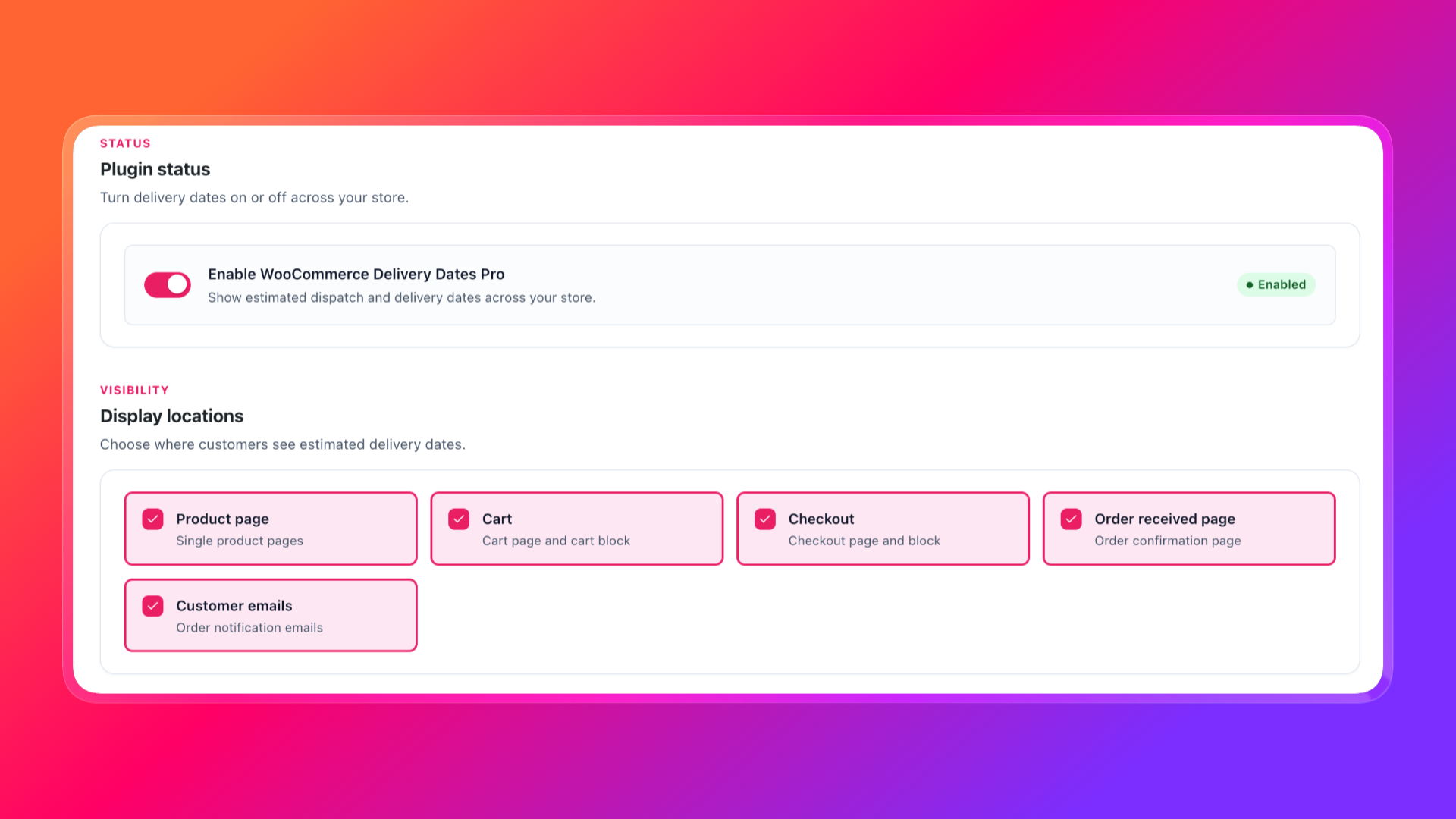
- Enable Delivery Promise
- Turn on Cart and Checkout
- Keep Product page, Order received page, and Customer emails on if you want the date in those places too
Cart and checkout are required for a delivery date by shipping method. That is where WooCommerce knows the selected rate. The product page still earns the click; it just cannot name a method that has not been chosen yet.
2. Set the warehouse calendar and the default (Standard) window
Go to WooCommerce → Delivery Promise → Working Days.
A practical starting setup for in-stock parcels:
Working days: Monday–Friday
Cutoff time: 14:00
Processing time before dispatch: 0–1 working days
Delivery time after dispatch: 3–5 working days
That default is your Standard method, as far as the product page is concerned. Express should not live here. Express is a rule.
Two details still matter:
- Cutoff uses your WordPress timezone. Confirm it under Settings → General.
- Use working days, not calendar days. If you only pack Monday–Friday, leave Saturday and Sunday off.
Add public holidays and warehouse closures under WooCommerce → Delivery Promise → Holidays. Those dates are skipped for every method. Express does not get to arrive on a day the warehouse is closed.
3. Add a delivery rule for each shipping method
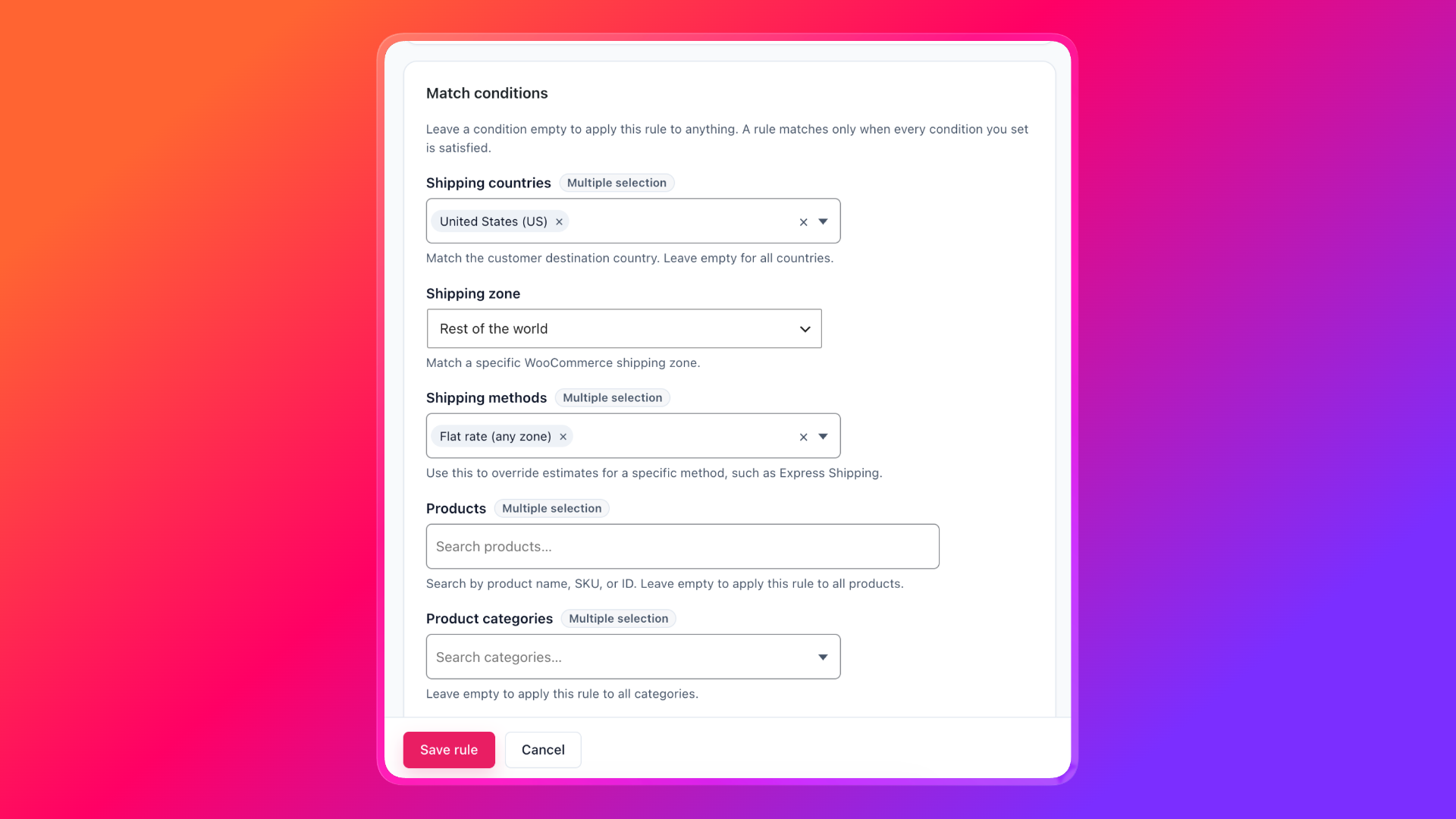
Go to WooCommerce → Delivery Promise → Rules.
Create one rule per method you actually offer. Condition the rule on that shipping method. Set processing and transit to what the warehouse and the carrier can keep.
Standard
Condition: Shipping method = Standard Shipping
Processing: 0–1 working days
Delivery time after dispatch: 3–5 working days
If this window matches your store-wide default, you can skip the Standard rule and only add exceptions. Add it anyway if you want the checkout message to name the method explicitly, or if Standard is slower than the product-page default.
Express
Condition: Shipping method = Express
Processing: 0–1 working days
Delivery time after dispatch: 1–2 working days
When the customer selects Express, the estimate should tighten. If it does not, the rule is not matching that rate. Confirm you selected the live method instance (the one in the zone), not a similarly named method from another zone.
Local pickup
Condition: Shipping method = Local pickup
Processing: 0–1 working days
Delivery time after dispatch: 0–0 working days
Pickup has no transit. The date is ready-for-collection, not a carrier arrival. Keep processing honest: if you never have orders ready the same day, do not use 0 as the minimum.
International
Condition: Shipping method = International tracked
  (or: Shipping country is not your store country)
Processing: 1–2 working days
Delivery time after dispatch: 7–14 working days
Use a range. International is not a single day.
Freight / bulky
Condition: Shipping method = Freight
Processing: 2–4 working days
Delivery time after dispatch: 5–10 working days
You can also target a shipping class instead of, or as well as, the method. For the full condition list, see Creating Delivery Rules.
Rule order matters when two rules could match. Keep method-specific rules above generic ones. A mixed cart still follows the slowest applicable product: Express cannot make a 10-day made-to-order item arrive on Wednesday.
4. Put the method name in the cart and checkout line
Go to WooCommerce → Delivery Promise → Messages.
Product page (no method yet):
Estimated delivery: {delivery_range}
Cart and checkout (method known):
Estimated delivery with {shipping_method}: {delivery_range}
That becomes Estimated delivery with Express Shipping: July 2 – July 3.
Useful placeholders:
{delivery_range}
{delivery_date}
{dispatch_date}
{dispatch_range}
{min_delivery_date}
{max_delivery_date}
{cutoff_time}
{shipping_method}
Use {delivery_range} in the customer-facing line. A range survives cutoff, weekends, and a slow SKU in the cart. A single {delivery_date} looks precise and then fails.
Keep the product-page line free of {shipping_method} unless you have already chosen a default method to talk about. An empty method name in the sentence looks broken.
5. Keep checkout quieter than the product page
Go to WooCommerce → Delivery Promise → Display.
On the product page, Amazon-style or a trust box is fine. At cart and checkout, use Minimal. The job there is to confirm the selected rate, not to restage the product-page widget beside the shipping radios.
Classic checkout and Cart/Checkout blocks both update when the method changes. You should not need a second snippet to “refresh the date.”
6. Preview Standard vs Express before customers do
Go to WooCommerce → Delivery Promise → Tester.
Pick the product, a date and time, a shipping method, and a destination. Run the preview.
The tester shows the dispatch range, delivery range, and which rule matched. If Express still shows the Standard window, the method condition is wrong. Fix the rule, not the template.
Test at least:
- Standard, before cutoff
- Standard, after cutoff
- Express, same two times
- Local pickup
- A Sunday, if weekends are not working days
- A holiday you added
- An international country
- A cart that mixes a fast product with a made-to-order SKU, then switch methods
Then do the real checkout test: add a product, open checkout, switch from Standard to Express and back. The date should change with the rate. If it stays frozen, the Express rule is missing or not matching.
What customers actually see
Product page, Monday 10:00, in-stock item, default 3–5 day transit
Estimated delivery: July 6 – July 10
No method name. This is the default parcel window.
Checkout, same item, Standard selected
Estimated delivery with Standard Shipping: July 6 – July 10
Same window, now named.
Checkout, customer switches to Express
Estimated delivery with Express Shipping: July 2 – July 3
The extra fee now has a date attached to it.
Checkout, Local pickup
Estimated delivery with Local pickup: July 1 – July 2
That is ready-for-collection, not a van arriving. If your message should say “Ready for pickup,” change the pickup rule’s message. Do not leave “delivery” on a pickup rate if it confuses customers.
Monday 16:00, cutoff 14:00, Express selected
Estimated delivery with Express Shipping: July 3 – July 4
Same-day packing is over. Express still arrives sooner than Standard. It does not get to ignore cutoff.
Handmade item, 5–10 day lead time, Express selected
Handmade item. Estimated delivery: July 12 – July 22
Express does not erase making the product. Transit can still be short; processing is not.
After purchase
The thank-you page and order email show the window calculated for the method they chose. Changing Express from 1–2 days to 2–3 days next week does not rewrite that order.
Do not show a faster date than the method can keep
A delivery date by shipping method is a promise attached to a rate. Treat it like one.
- Put real carrier transit on each method. Guessing “1 day” for Express because it sounds good is how you get refund emails.
- Honour cutoff and working days on every method, including Express.
- Keep pickup transit at zero, and do not call it delivery if you can avoid it.
- Hide or widen the date on products you cannot pack on a normal schedule.
- In a mixed cart, show the slow window. Express shipping a backorder is still a backorder.
Also watch page caching. The estimate is calculated on the server. If checkout is cached, switching methods will not update the date. Test logged-out. If the line stays frozen, exclude cart and checkout from full-page cache.
Do not confuse this with a delivery-date picker. Customers are not choosing a slot. They are choosing a shipping method. The store then tells them when that method arrives.
Summary
WooCommerce shipping methods already split the price. They will not split the date until you give each method a transit window and print the result next to the selected rate.
To add a WooCommerce delivery date by shipping method:
- Enable estimates on cart and checkout (and the product page for the default window)
- Set working days, timezone, cutoff, and a Standard-shaped default
- Add a rule per method: Standard, Express, pickup, international, freight
- Use
{shipping_method}and{delivery_range}on cart and checkout - Keep the product-page line as the default; let checkout name the chosen rate
- Test switching methods at checkout, after cutoff, on a Sunday, and with a slow SKU
If the date changes when the rate changes, Express will sell. If it does not, you are charging for a label.
Delivery Promise for WooCommerce calculates that window from your cutoff, calendar, stock, lead times, shipping methods, and delivery rules — then shows “Estimated delivery with Express Shipping: July 2 – July 3” when Express is actually selected.
For the full setting reference, start with Getting Started and Configuring Default Delivery Estimates. For method-specific windows, see Creating Delivery Rules.