WooCommerce lets you sell products you do not have yet. It does not tell the customer when they will get them.
By default, a backordered product shows “Available on backorder” and nothing else. The customer cannot tell whether that means three days or three months. Some buy anyway and email you a week later. Most leave and buy from a store that gives them a date.
A backorder is not a lost sale. A backorder with no date usually is.
This guide shows how to give backordered products, made-to-order products and individual variations their own honest delivery date in WooCommerce, so you can keep selling while stock is on the way.
Why one delivery estimate is not enough
Most delivery date setups have one estimate for the whole store: “dispatched in 1–2 days, delivered in 3–5”. That works for products on the shelf. It is wrong for:
- Backorders. The product has to arrive from your supplier before you can dispatch it.
- Made-to-order products. Custom prints, engraving and furniture need days or weeks before dispatch.
- Variable products with mixed stock. Medium is on the shelf, large is on backorder, and the product page shows one date for both.
- Large quantities. You have 5 in stock and the customer wants 12.
- Mixed carts. One in-stock item and one backordered item usually ship together, when the slower one is ready.
If the estimate does not know the stock status, it shows the in-stock date for all of these. The customer finds out the real date when the parcel is late, and that is how you get refunds and one-star reviews.
How Delivery Promise calculates a backorder date
Delivery Promise for WooCommerce splits every estimate into two parts:
- Processing time: working days before the order is dispatched.
- Transit time: working days from dispatch to delivery.
A backorder changes the first part, not the second. Your supplier delay is extra processing time. Once the stock is in, the parcel travels at the same speed as any other. Keeping the two apart means a backordered product sent by Express still gets Express transit times, plus the wait for stock.
Both parts skip weekends, holidays and closure days. If you want a refresher, see Understanding Processing Time vs Transit Time.
Option 1: One rule for every backordered product
If most of your backorders take about the same time, for example one to two weeks from your main supplier, use a single rule.
Go to WooCommerce → Delivery Promise → Rules, click Create rule from preset and choose Backorder products. The preset starts with:
- Stock status: On backorder
- Processing: 7–14 days
- Transit: 2–5 days
- Custom message: “Estimated delivery for backorder items: {delivery_range}”
Change the processing days to match your supplier and save the rule. Every backordered product now shows a later, realistic window, while in-stock products keep the normal one.
If transit should come from your shipping method rules, clear the transit fields in the backorder rule so they inherit the defaults.
Option 2: A lead time for a specific product
Some products have their own supplier and their own delay. Set those on the product itself.
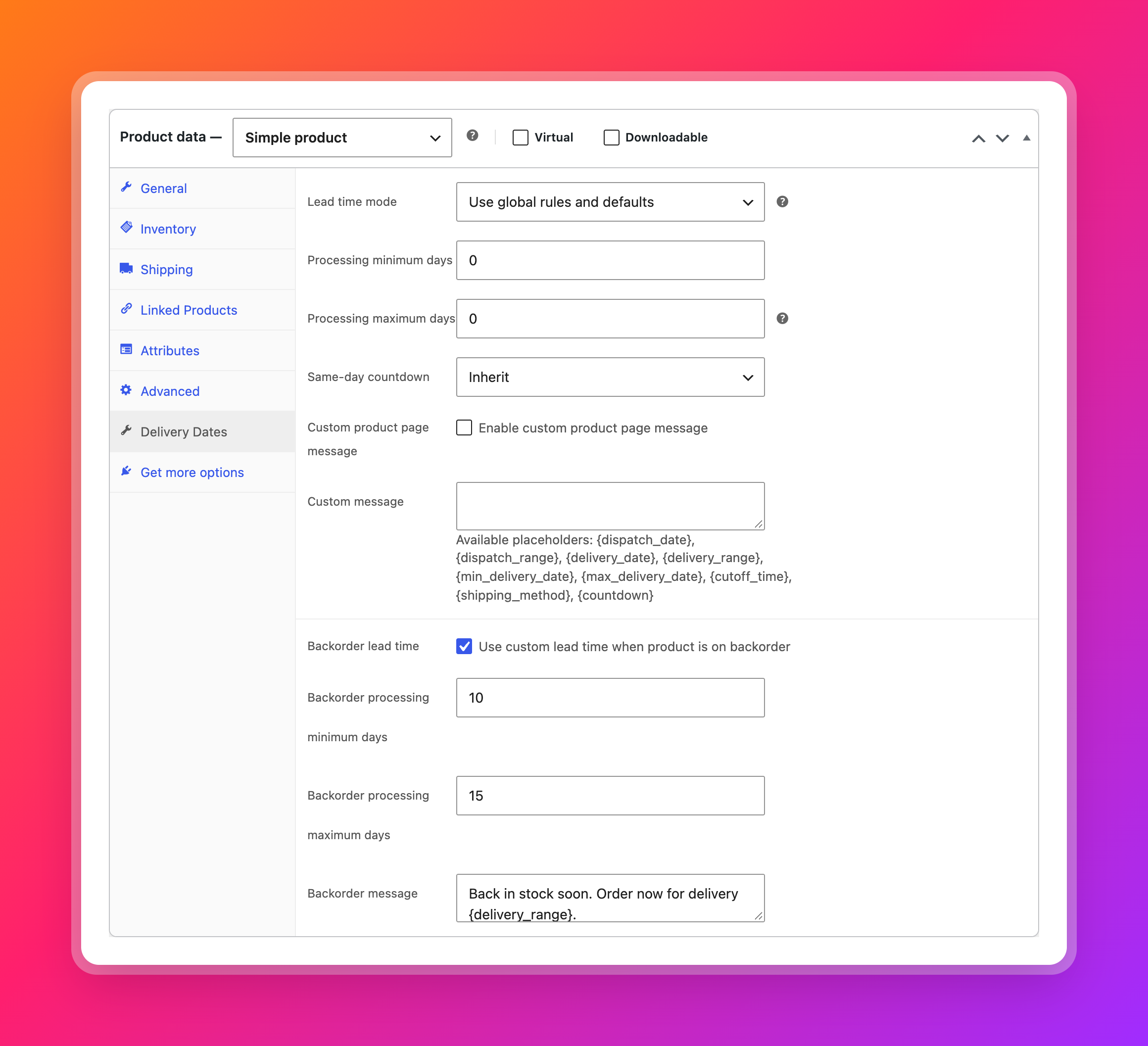
Edit the product and open the Delivery Dates tab in the product data panel:
- Tick Backorder lead time (“Use custom lead time when product is on backorder”).
- Set Backorder processing minimum days and Backorder processing maximum days, for example 10 and 15.
- Optionally, add a Backorder message, for example:
Back in stock soon. Order now for delivery {delivery_range}.
This only applies while the product is on backorder. When stock comes back, the product returns to its normal timing on its own. You do not need to remember to change anything when the delivery from your supplier arrives.
For products that always take longer, such as made-to-order items, set Lead time mode to Custom product lead time and enter the processing days there. There is also a Made-to-order products rule preset if you want to apply it to a whole category. More detail is in Product-Level Lead Times.
Option 3: Different dates for each variation
Variations often have different stock. The blue one is on the shelf and the red one is on backorder.
Each variation has its own delivery settings, under the variation’s fields when you expand it. By default a variation’s Lead time mode is Inherit from parent product, so it uses the parent’s lead times, including the parent’s backorder lead time.
To give one variation its own backorder timing:
- Expand the variation and set Lead time mode to Custom variation lead time.
- Enter its normal processing days, for example 0–1, for when it is in stock.
- Tick Backorder lead time and set the backorder processing days and message.
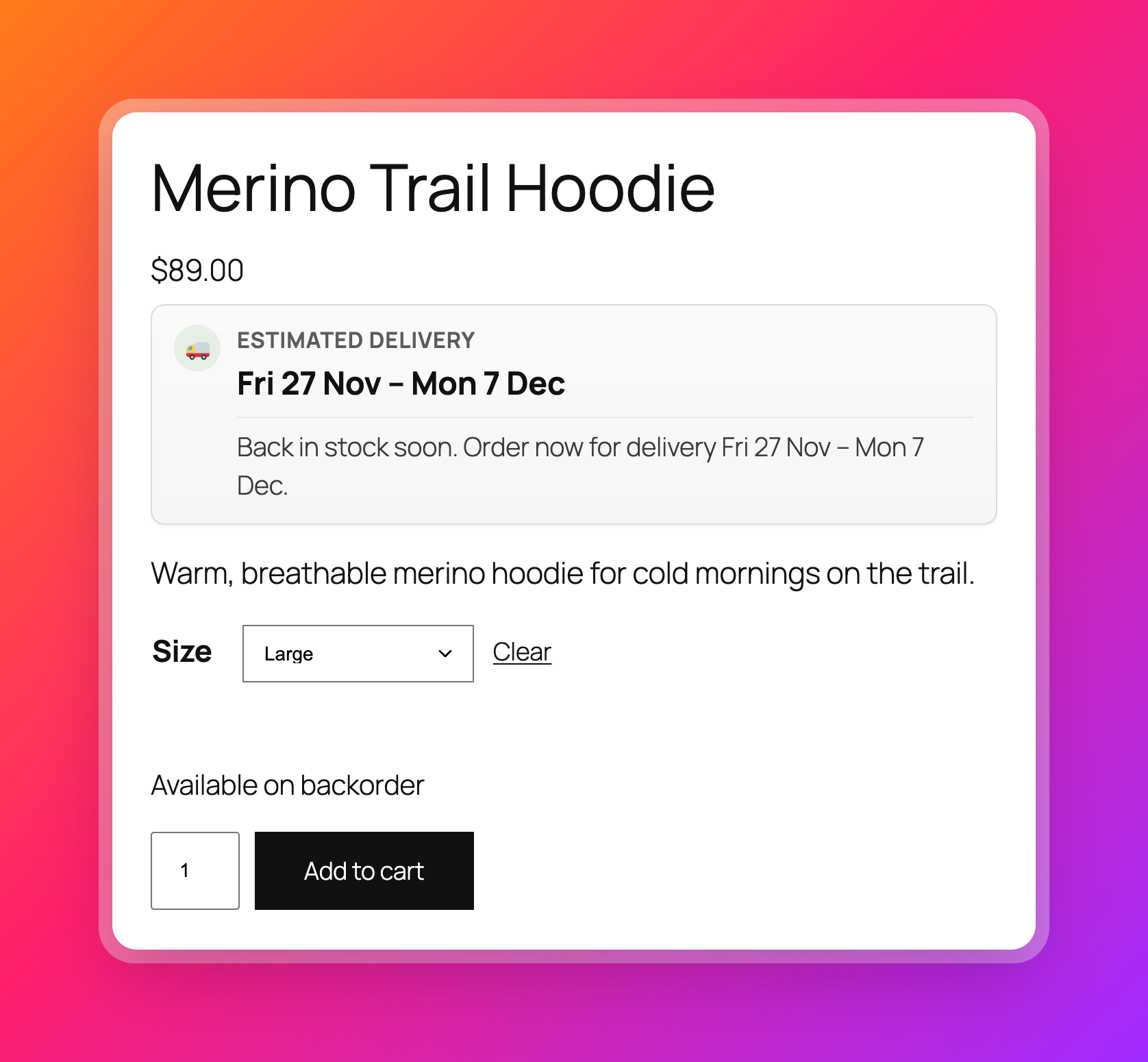
The product page updates when the customer picks a variation, so they see that variation’s date. To avoid showing the wrong date before they choose, go to WooCommerce → Delivery Promise → Display and turn on On variable products, wait for a variation to be selected.
Until the customer picks options, the product page shows:
Select options to see your estimated delivery date
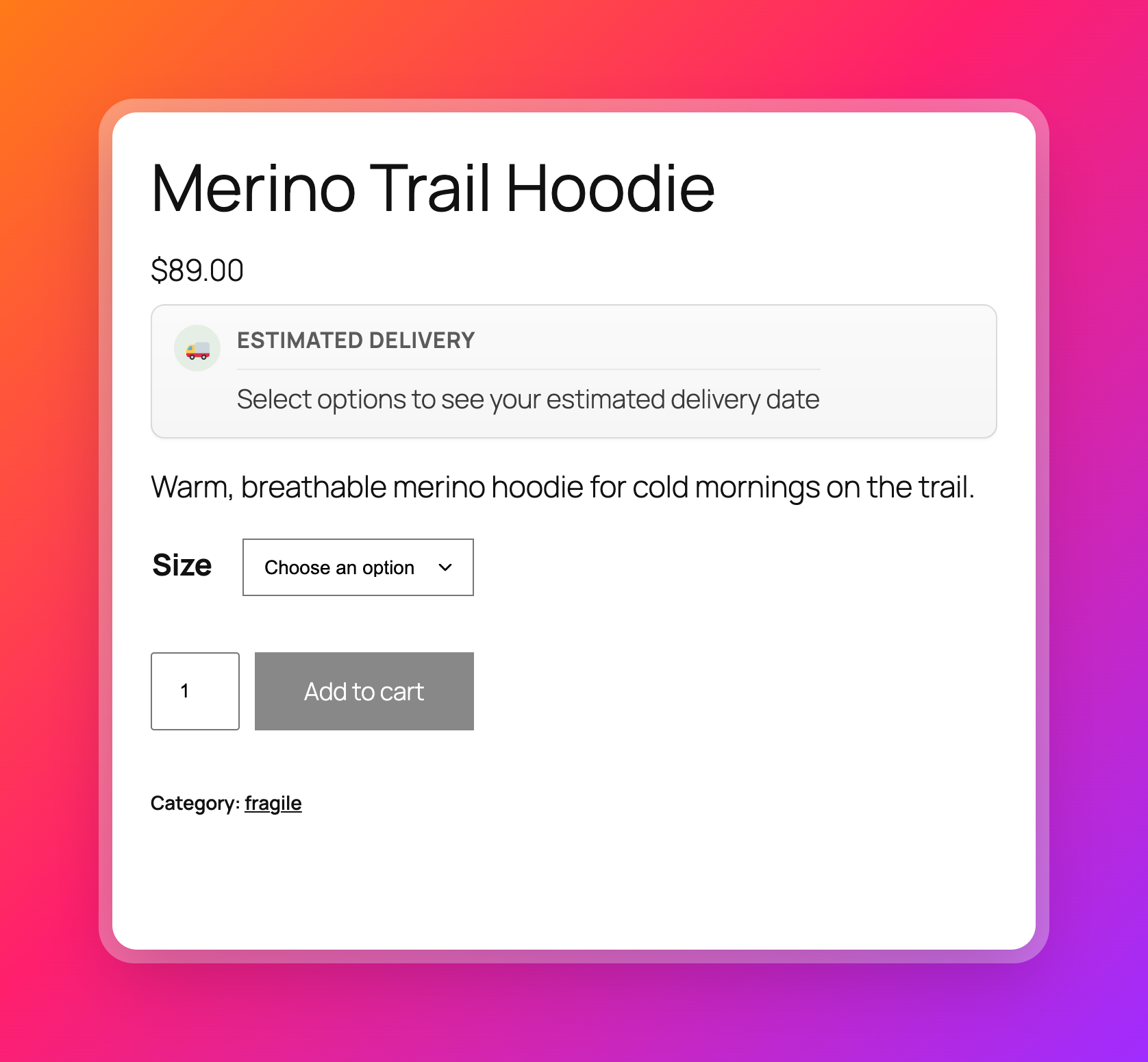
You can change the message. After they choose, they see the estimate for that variation and its stock status. Simple products still show their estimate straight away.
When the customer orders more than you have
Stock status in WooCommerce depends on quantity. If you have 5 in stock, allow backorders and the customer wants 12, the order is partly backordered.
Delivery Promise takes the quantity into account. When the customer raises the quantity above your stock, the product page estimate switches to your backorder timing. The customer sees the later date before adding to cart, not in an email afterwards.
Mixed carts: the slowest item sets the date
When the cart has one in-stock product and one backordered product, the cart and checkout estimate uses the slowest item. That is when the order can actually be dispatched in one parcel.
The estimate is saved on the order at checkout and shown in the thank-you page and order emails. If you change your backorder lead times next week, the customer’s order still shows the date they agreed to.
Test it before customers see it
Go to WooCommerce → Delivery Promise → Tester:
- Choose a backordered product, or a specific variation.
- Set a Quantity above your stock to test partial backorders.
- Pick a shipping method and click Run test.
The result shows the dispatch and delivery estimate, which rule matched (or that the default settings were used), and the message the customer will see.
Write backorder messages that sell
A date is the most important part, but the wording around it matters too. A few patterns that work:
- Lead with the date:
Ships from {dispatch_date}. Estimated delivery {delivery_range}. - Explain the wait briefly:
New stock arrives next week. Order now to reserve yours: delivery {delivery_range}. - Make the choice clear on variable products: let the in-stock variation show its fast date, and the backordered one its later date. Customers in a hurry pick the one on the shelf, and customers who want a specific colour wait.
Avoid “Available on backorder” on its own. It sounds like a warning, not an offer.
Checklist
- Backorders allowed in WooCommerce for the products you want to sell before stock arrives
- A Backorder products rule, or backorder lead times on specific products
- Custom product lead time for made-to-order products
- Variation lead times where variations have different stock
- Wait for a variation to be selected turned on for variable products
- Backorder messages that lead with the date
- Tested with the Tester, including a quantity above your stock
Keep selling while you restock
Delivery Promise for WooCommerce shows accurate dispatch and delivery dates for in-stock, backordered and made-to-order products on the product page, cart, checkout, thank-you page and order emails.
Customers who know when their order will arrive are much more likely to wait for it.