This guide is for stores using WooCommerce Royal Mail, Evri, & DPD Shipping Calculator Pro by WPRuby. That is the plugin that calculates Royal Mail rates at checkout and can export paid orders into Royal Mail Click & Drop.
It is not about Royal Mail’s own Click & Drop website on its own, and it is not about a generic WooCommerce shipping plugin. If WooCommerce orders are not appearing in Click & Drop, you are troubleshooting the Click & Drop feature inside the WPRuby plugin.
You can confirm you have the right plugin in Plugins in WordPress. The name listed there is WooCommerce Royal Mail, Evri, & DPD Shipping Calculator Pro. Click & Drop settings live under WooCommerce > Settings > Shipping > Click & Drop. On each order, look for the Royal Mail Click & Drop panel in the sidebar.
If those screens are missing, this article does not apply. Install and licence the WPRuby plugin first, then come back to the checks below.
How WooCommerce syncs with Click & Drop
The plugin can send a WooCommerce order to Royal Mail Click & Drop in two ways:
- Automatically, a few seconds after checkout, if Click & Drop is enabled and automatic order creation is turned on.
- Manually, from the order screen, using Create Click & Drop Order.
A successful export stores a Click & Drop order identifier on the WooCommerce order. After that, the plugin will not create a second Click & Drop order for the same WooCommerce order. Tracking can be pulled back later with Refresh Status.
If nothing appears in Click & Drop, first decide whether the order was never sent, failed validation, is still queued, or was already sent under a different reference.
1. Confirm the Click & Drop integration is enabled
Go to WooCommerce > Settings > Shipping > Click & Drop.
Check all of the following:
- Enable Click & Drop integration is ticked.
- An API key is saved.
- Save changes was clicked after the last edit.
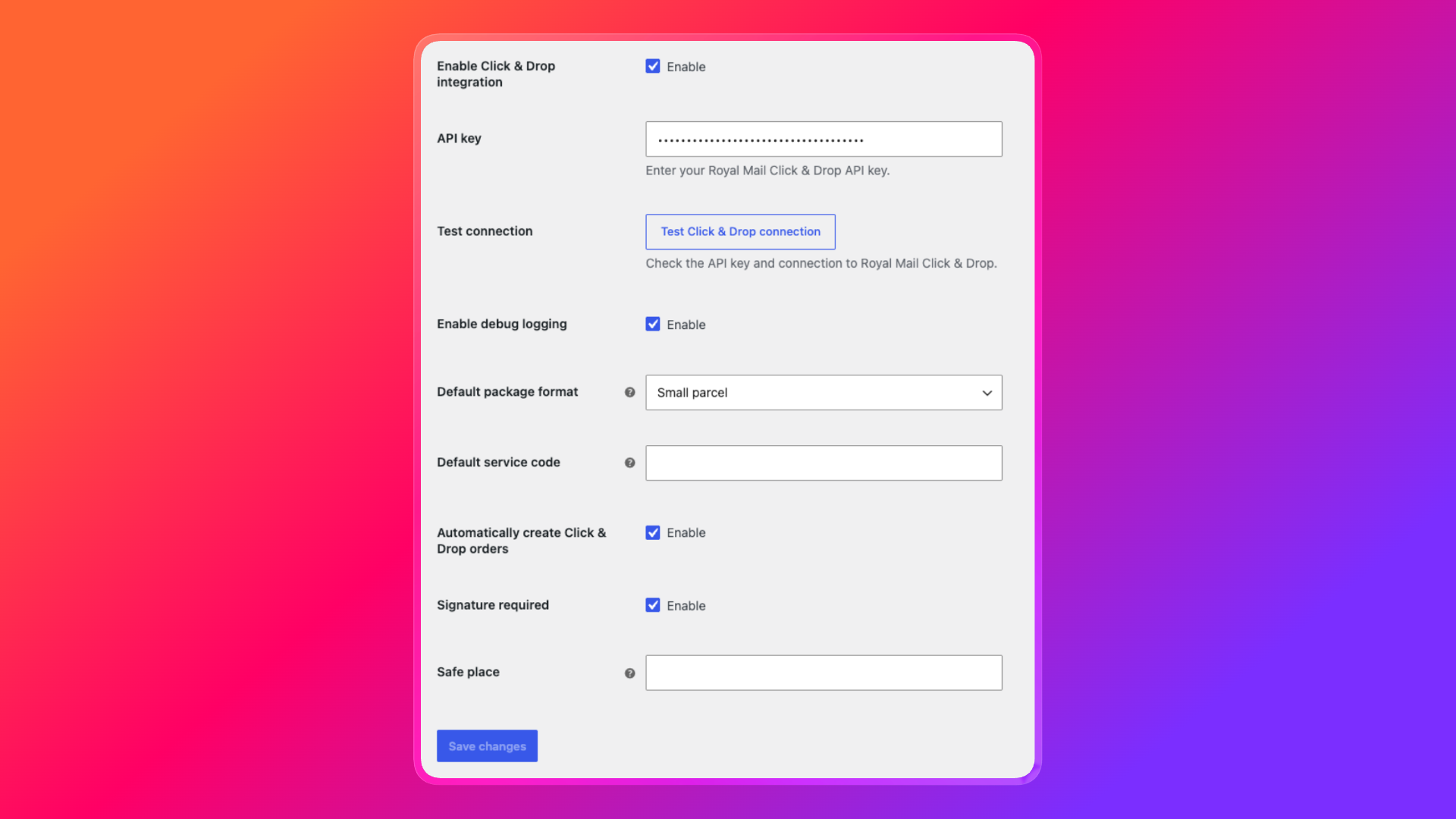
If the integration is disabled, new orders will not be sent. On the order screen, the Click & Drop panel will also tell you that the integration is disabled in the shipping settings.
2. Test the API connection
On the same Click & Drop settings page, click Test Click & Drop connection.
- A success message means the API key can reach Royal Mail.
- A failure means the key is missing, expired, copied with extra spaces, or blocked by the server.
Regenerate the key in your Royal Mail Click & Drop account if needed, paste it again, save, and retest. Do not leave a staging key on a live store, or a live key on a staging site you no longer use.
3. Check automatic order creation
Automatic export is a separate setting from the main enable checkbox.
On WooCommerce > Settings > Shipping > Click & Drop, confirm Automatically create Click & Drop orders is enabled.
If this is off, checkout orders stay in WooCommerce until someone opens the order and clicks Create Click & Drop Order. That is expected behaviour, not a broken API.
Also note that automatic export runs when a customer completes checkout. Orders created by a shop manager in the WordPress admin may not be queued automatically. Send those orders from the Click & Drop panel on the order screen.
4. Confirm the order actually needs shipping
The plugin only queues automatic exports for shippable orders.
It will skip an order if:
- The order does not need a shipping address (virtual or downloadable only).
- There are no line items with a quantity greater than zero.
Open the order and confirm it has a shipping address and physical products. If the cart was digital-only, Click & Drop will not receive it.
5. Read the Click & Drop status on the order
Open the WooCommerce order and look at the Royal Mail Click & Drop panel. This is the fastest way to see why sync failed.
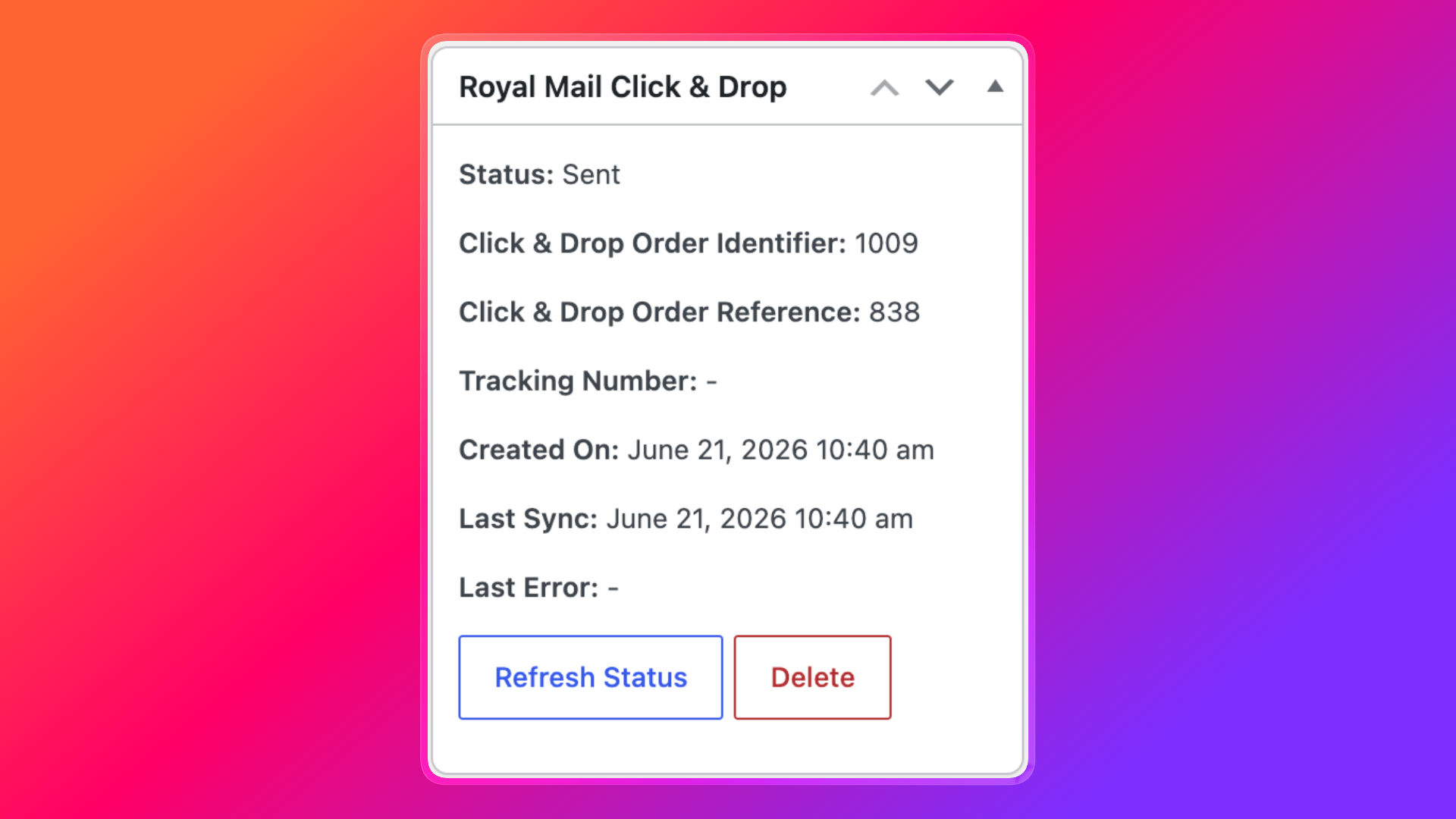
Status values mean:
- Not sent: The order has not been exported yet.
- Queued: The export is waiting for WordPress to run the background job.
- Processing: The plugin is sending the order to Royal Mail.
- Sent: Click & Drop accepted the order. An identifier should be present.
- Failed: The export was attempted and rejected. Read Last Error.
Also check:
- Last Sync: when the plugin last updated this order.
- Last Error: the exact reason the export stopped.
- Click & Drop Order Identifier: if this is filled, the order already exists in Click & Drop.
- Order notes: the plugin writes a note when an export is queued, succeeds, or fails.
If the status is Failed, fix the error shown, then click Create Click & Drop Order again.
6. Fix missing or invalid order data
Royal Mail will not accept an incomplete payload. The plugin validates the order before it is sent.
Typical blockers include:
- Missing recipient first and last name
- Missing shipping address line 1
- Missing city
- Missing country
- Missing or invalid UK postcode on GB orders
- Missing order total, shipping cost, or currency
- No default package format in Click & Drop settings
- A product on the order with no weight
- A deleted or missing product
- No shippable line items
UK postcodes must be valid. A missing space, a billing-only checkout with an empty shipping postcode, or a custom checkout field that never maps to WooCommerce shipping fields will all stop the export.
Edit the order, complete the address, save, then send it again.
7. Add product weights
This is one of the most common reasons Royal Mail Click & Drop WooCommerce not syncing complaints appear after a store has been live for months.
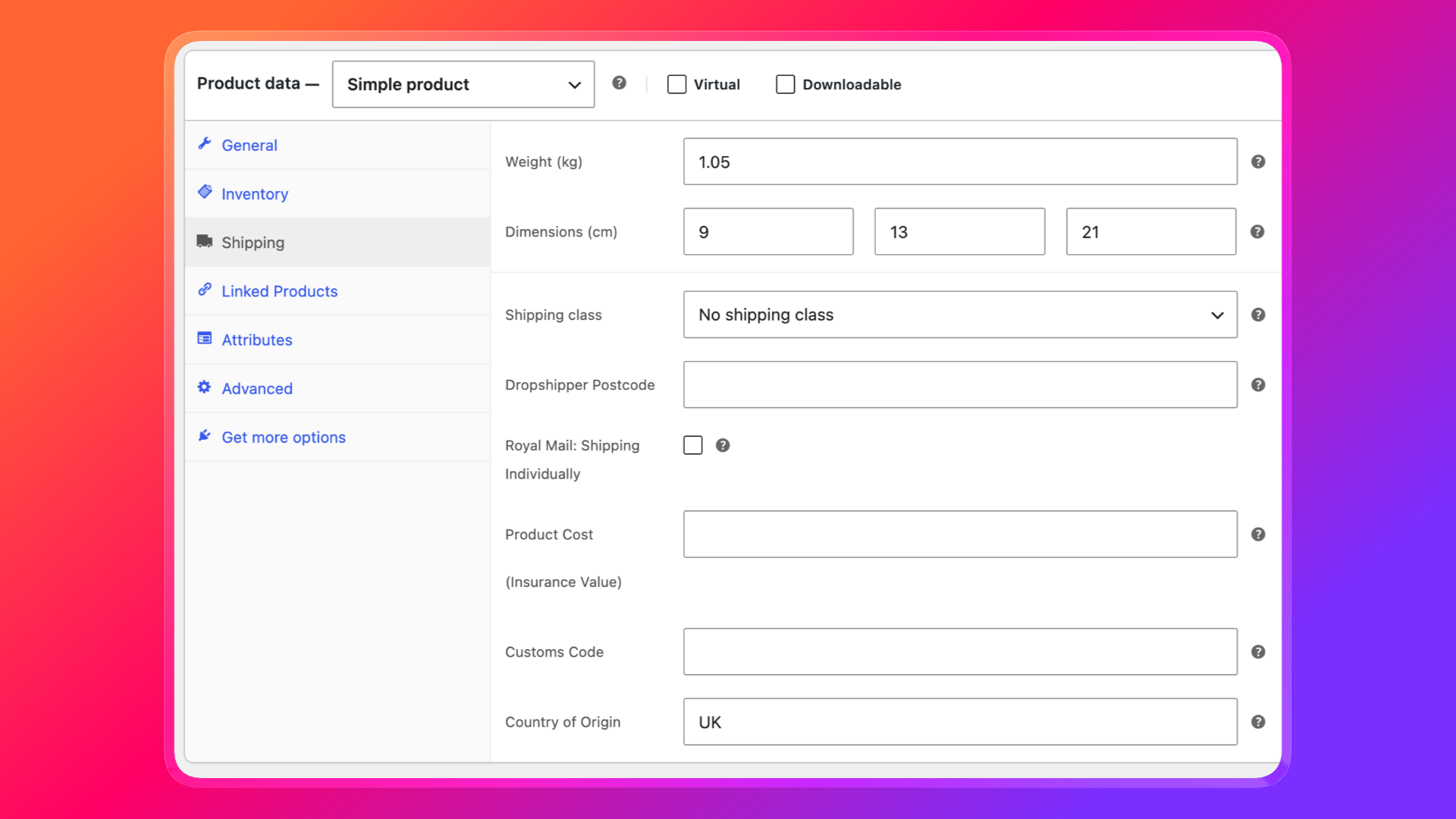
Every product (and variation) needs a weight. If a line item has no weight, the plugin will not send the order and will name the product in the error.
Check:
- Simple products in Product data > Shipping
- Variations, not only the parent product
- The store weight unit in WooCommerce > Settings > Products
After weights are saved, reopen the failed order and create the Click & Drop order again. New checkouts with those products should export automatically.
8. Check whether the order was already sent
If the Click & Drop identifier is already stored, the plugin will refuse to create another order. That protects you from duplicates.
If you cannot see the order in Click & Drop:
- Copy the identifier from the WooCommerce order panel.
- Search for it in Click & Drop.
- Click Refresh Status on the WooCommerce order to pull the latest Royal Mail data, including tracking if it exists.
If staff already created the shipment inside Click & Drop by CSV or by hand, WooCommerce may still show Not sent. In that case the two systems are not linked. Send from WooCommerce only if you are sure no duplicate label will be created.
9. See if the export is stuck as queued or processing
Automatic exports are delayed by a few seconds and run through WooCommerce Action Scheduler when it is available, or through WP-Cron as a fallback.
If the order stays on Queued or Processing:
- Open WooCommerce > Status > Scheduled Actions and look for
wpruby_rm_clickdrop_process_order_export. - Confirm Action Scheduler is not failing or pending for a long time.
- Confirm WP-Cron is running. Some hosts disable it and require a real server cron.
- Disable aggressive object caching or a “disable cron” snippet on staging.
An export lock is held while a send is in progress. If a previous attempt timed out (after about an hour), the order can be marked failed with a timeout message. You can then retry from the order screen.
If the background job never runs, use Create Click & Drop Order to send that order immediately, then fix cron so new checkouts export on their own.
10. Review international orders and customs fields
UK deliveries need a valid address and weights. International orders also need customs data.
For non-GB destinations, add on each product:
- Customs Code (HS tariff code)
- Country of Origin
These fields are on the product shipping settings. Without them, Royal Mail may reject the order even when the WooCommerce address looks complete.
Also confirm:
- The customer country is a real ISO country code.
- Product names are present (they are used as the customs description).
- Declared values match the line totals.
11. Turn on debug logging
If the order error is vague, enable logging.
- Go to WooCommerce > Settings > Shipping > Click & Drop.
- Enable Enable debug logging.
- Retry the export.
- Open WooCommerce > Status > Logs.
- Open the log sourced as
wpruby-royal-mail-click-drop.
Look for the WooCommerce order ID, POST /orders, and the returned status code. Authentication failures, validation errors, and unexpected Royal Mail responses all show up here.
Turn logging off again once you have the answer, so logs do not grow without need.
12. Send the order manually, then confirm it in Click & Drop
After you fix the cause:
- Open the WooCommerce order.
- Click Create Click & Drop Order.
- Confirm the status changes to Sent.
- Copy the Click & Drop order identifier.
- Find the same order in Royal Mail Click & Drop.
If it is already sent and you only need tracking, click Refresh Status instead.
Place a new test order at checkout if you also need to confirm automatic sync. Manual success on an old order does not always prove that WP-Cron is creating new exports.
Quick checklist
Use this list when a store reports that Click & Drop is not syncing:
- Click & Drop is enabled and the API key is saved
- Test connection succeeds
- Automatic order creation is on (if you expect checkout to export by itself)
- The order is physical and has a shipping address
- The order panel status is not already Sent
- Last Error has been read and fixed
- Every product has a weight
- UK postcodes are valid
- International products have HS codes and origin country
- Scheduled actions / WP-Cron are running
- Debug log confirms what Royal Mail returned
FAQ
Why did some orders sync and others did not?
Usually the failed orders are missing a weight, have an incomplete shipping address, or are virtual. Compare a working order with a failed one in the Click & Drop panel.
The order says Sent, but I cannot see it in Click & Drop.
Search by the stored identifier, not only by the WooCommerce order number. Then click Refresh Status. If Royal Mail still cannot find it, test the API connection and confirm you are logged into the same Click & Drop account that issued the API key.
Can I force a second export?
Not while an identifier is already stored. That is intentional, so you do not buy two labels for one order. Create a new WooCommerce order for a genuine reshipment.
Does enabling debug logging send extra data to Royal Mail?
No. It writes sanitized API activity to the WooCommerce logger so you can see why an export failed.
Still stuck?
Work from the order panel first: status, last error, then a manual create. Most Royal Mail Click & Drop WooCommerce not syncing cases are an API key problem, automatic export turned off, a product without weight, or a background job that never ran.
Once one order exports cleanly and a new checkout order appears in Click & Drop without a manual click, the integration is working again.