Customers do not ask for a tracking number at Add to cart. They ask a simpler question: when will this arrive?
Amazon answers with a date. Most WooCommerce stores answer with “usually 3–5 business days,” a shipping-tab paragraph, or nothing. That is why shoppers bounce, email support before they buy, or pick a competitor that already printed July 3 – July 5 next to the price.
WooCommerce has stock, shipping zones, and rates. It does not have an estimated delivery date. You have to add that yourself, and the date has to be a calculation, not a slogan.
Why estimated delivery dates convert
An estimated delivery date on the product page does three jobs at once:
- It answers “when does this get to me?” before checkout.
- It makes shipping feel concrete, so the rate is not a surprise later.
- It sets an expectation you can actually fulfil, which cuts “where is my order?” tickets.
The date only works if it moves. A Monday order before cutoff should not show the same window as a Friday order at 6pm, a Sunday order, or a handmade item with a 10-day lead time. Static copy fails all four of those.
Shoppers already scan for this. They have been trained by Amazon, not by your theme’s additional information tab.
Why WooCommerce cannot do this on its own
There is no native estimated delivery date in WooCommerce. The core plugin will not:
- Count working days and skip weekends
- Skip public holidays and warehouse closures
- Start processing after a same-day cutoff
- Change the date when the customer switches from Standard to Express
- Use a longer lead time for made-to-order or backorder products
- Print the same promise on the product page, cart, checkout, thank-you page, and emails
So stores improvise. The usual options all print a promise the warehouse cannot keep.
Option 1: Hardcoded product-page text
You add “Estimated delivery: 3–5 business days” in the product description, a page builder block, or a snippet.
It never checks Sunday. It never checks Christmas. It never changes after 2pm. On a backorder SKU it is a lie. Time cost is low. Trust cost is high.
Option 2: A shipping-tab paragraph
WooCommerce lets you describe each method. “Standard Shipping: 2–4 days” is better than nothing, but it is still calendar days, not dates, and it is buried where most shoppers never look. The product page still has no date. Cart still has no date. The order email still has no date.
Option 3: A delivery-date picker
Many plugins let the customer choose a delivery date. That is a scheduling tool for local delivery, not an estimate. If you do not offer a chosen slot, do not install a picker. You need the store to calculate the date and display it.
Option 4: A generic “estimated delivery” plugin that ignores your calendar
If the plugin cannot skip a holiday, honour a cutoff, or hide the date on a product you cannot promise, it is decoration. Customers screenshot decoration and then open tickets.
The clean way: a date the warehouse owns
An estimated delivery date should be a display of a rule you already run, not marketing overlay.
For most parcel stores that rule is:
- Processing time before dispatch (picking, packing, made-to-order lead time)
- Delivery time after dispatch (transit for the chosen shipping method)
- Working days and holidays
- A cutoff, if you pack the same day
- Stock status
From those you get a range, not a single fake day:
Estimated delivery: July 3 – July 5
A range is honest. A single date you cannot hit is a refund.
That is what Delivery Promise for WooCommerce does. It calculates dispatch and delivery from your store rules, then shows the estimate on the product page, cart, checkout, thank-you page, and emails. Customers do not pick a date. The plugin displays one.
When the order is placed, that estimate is saved with the order. The thank-you page, customer emails, and WooCommerce order admin keep the same window even if you change the rules later.
Step-by-step setup
1. Turn on estimated delivery dates
Go to WooCommerce → Delivery Promise → Settings.
- Enable Delivery Promise
- Choose display locations: Product page, Cart, Checkout, Order received page, and Customer emails
The product page is where the date earns the sale. Cart and checkout confirm it against the selected shipping method. Emails and the thank-you page keep the promise after purchase.
Leave a location off if you do not want the estimate there. Do not leave the product page off and then wonder why conversion did not move.
2. Set working days, cutoff, and default timing
Go to WooCommerce → Delivery Promise → Working Days.
A practical starting setup for in-stock parcel products:
Working days: Monday–Friday
Cutoff time: 14:00
Processing time before dispatch: 0–1 working days
Delivery time after dispatch: 2–3 working days
That means:
- Orders before cutoff may dispatch today
- Orders after cutoff start from the next working day
- Weekends are skipped
- The customer sees a date range, not “3–5 business days”
Two details matter more than the rest:
- Cutoff uses your WordPress timezone. Confirm it under Settings → General. If the site timezone is wrong, every date is wrong.
- Use working days, not calendar days. If you only pack Monday–Friday, Saturday and Sunday must stay off.
Leave the cutoff empty if you never pack the same day. Same-day dispatch stays off, and processing starts from the next working day. That is the correct default for many stores.
If your warehouse is slower, raise processing instead of hiding the date. 2–3 processing days plus 3–5 transit is still a usable estimate. A date that is a day late on purpose is better than a date you miss.
3. Add holidays and closure dates
Go to WooCommerce → Delivery Promise → Holidays.
Add public holidays, warehouse closures, inventory days, and company shutdowns. Those dates are skipped when the estimate is calculated.
Showing “arrives Friday” when Friday is a public holiday is how you train customers to ignore the widget.
4. Write the message customers actually read
Go to WooCommerce → Delivery Promise → Messages.
Keep the product-page line short. Default:
Estimated delivery: {delivery_range}
That becomes Estimated delivery: July 3 – July 5.
Cart and checkout can name the method:
Estimated delivery with {shipping_method}: {delivery_range}
Useful placeholders:
{dispatch_date}
{dispatch_range}
{delivery_date}
{delivery_range}
{min_delivery_date}
{max_delivery_date}
{cutoff_time}
{shipping_method}
Use {delivery_range} on the product page. A range survives cutoff, weekends, and a slow SKU in the cart. A single {delivery_date} looks precise and then fails.
If you pack same-day, you can add an Amazon-style “Order within…” countdown on the product page. That is a separate setting, and it should only appear when same-day dispatch is genuinely possible. See Setting the Cutoff Countdown.
5. Choose how the date looks
Go to WooCommerce → Delivery Promise → Display.
Global styles:
- Minimal — a clean, theme-native line
- Amazon-style — bold delivery emphasis, the way shoppers already scan
- Trust box — a boxed panel with a delivery icon
- Compact badge — a small pill
Use Amazon-style or a trust box on the product page. Keep cart and checkout quieter. The date should confirm the order, not shout twice.
You can override the style per location. Emails use an email-safe layout regardless of the storefront style.
6. Add rules for the cases defaults cannot cover
Go to WooCommerce → Delivery Promise → Rules.
Store-wide defaults are for the normal parcel. Rules are for everything else:
Express shipping
Condition: Shipping method = Express
Processing: 0–1 working days
Delivery time after dispatch: 1–2 working days
When the customer selects Express at checkout, the estimate should tighten. If it does not, the rule is not matching.
International
Condition: Shipping country is not your store country
Processing: 1–3 working days
Delivery time after dispatch: 7–14 working days
Backorder
Condition: Stock status = On backorder
Processing: 7–14 working days
Delivery time after dispatch: 2–5 working days
In a mixed cart, the estimate should follow the slowest applicable product. A made-to-order item next to an in-stock SKU must not inherit the fast date.
For the full condition list, see Creating Delivery Rules.
7. Override lead time on products that are not typical
Open a product, then the Delivery Dates tab.
- Use global rules and defaults for normal in-stock items
- Custom product lead time for handmade, bulky, preorder, or extra-prep SKUs
- Hide delivery dates for this product when you cannot promise a window (digital, drop-ship chaos, or truly unknown lead time)
Custom lead time changes processing before dispatch. Transit still comes from the shipping method or a matching rule.
The same controls exist on variations. A 5–10 day made-to-order variation should not inherit a same-day promise from the parent.
8. Preview it before customers do
Go to WooCommerce → Delivery Promise → Tester.
Pick the product, a date and time, and (if needed) a shipping method and destination. Run the preview.
The tester shows the dispatch range, delivery range, matched rule, cutoff status, and skipped holidays. Fix the rule, not the template.
Test at least:
- Monday morning, before cutoff
- Monday afternoon, after cutoff
- A Sunday, if weekends are not working days
- A holiday you added
- Express vs standard at checkout
- A handmade or backorder SKU
- A cart that mixes a fast product with a slow one
What customers actually see
Monday 10:00, in-stock product, cutoff 14:00, processing 0–1, transit 2–3
Estimated delivery: July 3 – July 5
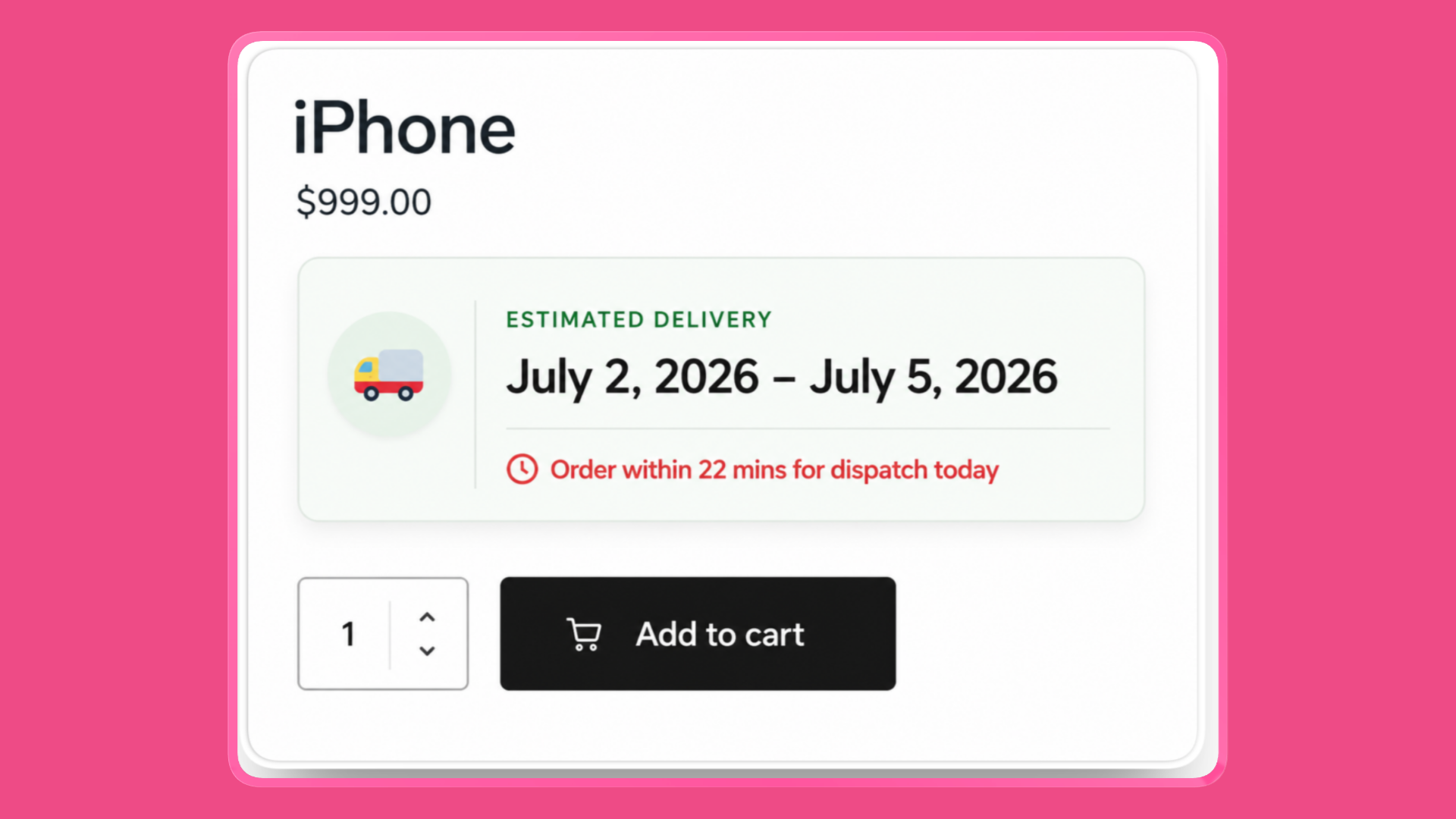
Dispatch can still be today. Arrival is a working-day range, not “3–5 business days.”
Monday 16:00, same product
Estimated delivery: July 4 – July 6
Same-day packing is over. The window shifts to the next working day.
Sunday, weekends not working days
The estimate starts from Monday. There is no “arrives tomorrow” on a day nobody is packing.
Checkout, customer switches to Express
Estimated delivery with Express Shipping: July 2 – July 3
The date updates with the method. If it stays frozen, the Express rule is missing or not matching.
Handmade product with a 5–10 day lead time
Handmade item. Estimated delivery: July 12 – July 22
No same-day language. The range is wide because the work is wide.
After purchase
The thank-you page and order email show the window that was calculated at checkout. Changing your rules next week does not rewrite that order.
Do not show a date you cannot fulfil
The estimated delivery date is a promise. Treat it like one.
Use a range. Count working days. Skip holidays. Honour cutoff. Hide or widen the date on products you cannot pack on a normal schedule. If a mixed cart would miss the fast date, show the slow one.
Also watch page caching. The estimate is calculated on the server. If a full-page cache serves yesterday’s HTML, test the product page logged-out. If the date does not move after cutoff, exclude that page from cache or bypass cached estimate output.
Do not confuse this with a delivery-date picker. If customers must choose a slot, that is a different problem. Estimated delivery dates are the store telling the truth. Pickers are the customer requesting a day.
Summary
WooCommerce will not show estimated delivery dates until you give it a fulfillment calendar and a place to print the result.
To add them:
- Enable estimates on the product page, cart, checkout, and emails
- Set working days, timezone, cutoff, processing, and transit
- Add holidays
- Keep the product-page message to one line with
{delivery_range} - Pick a display style shoppers will actually notice
- Add rules for Express, international, and backorder
- Override lead time on products that cannot use the default
- Test Monday morning, after cutoff, a Sunday, and a slow SKU
If the date only appears when the warehouse can keep it, it will convert. If it appears anyway, it will cost you.
Delivery Promise for WooCommerce calculates that window from your cutoff, calendar, stock, lead times, shipping methods, and delivery rules — then shows “Estimated delivery: July 3 – July 5” in the places customers already look.
For the full setting reference, start with Getting Started and Configuring Default Delivery Estimates. For exceptions, see Creating Delivery Rules and Product-Level Lead Times.